
Drop Cap CSS: Style the First Letter with ::first-letter
Contents
A drop cap is a typography technique that makes the first letter of a paragraph stand out by enlarging it, and you can build one with a single CSS standard pseudo-element: ::first-letter.
The same properties can produce very different results depending on how you combine float, line-height, and margin values. Once you know why each property is there, you can tweak the values and shape the look yourself.
This post covers how ::first-letter actually works and which line of the generated CSS each slider in the tool maps to.
Summary ① A drop cap is a standard CSS technique built by setting
float,line-height: 1, andfont-sizetogether on.drop-cap::first-letter. ② The first-letter size, color, and margin sliders map directly to the font-size, color, margin-right, and margin-top values. ③ Missing quotes around font names with spaces, sign differences in margin-top, and per-element support are the spots you should always check in the code yourself.
Why the Drop Cap Code You Pasted Doesn't Work
If you want to emphasize the first paragraph of a blog post or a Medium-style article, it's tempting to grab a CSS snippet from a search result and paste it in as-is.
But once you apply it, the font often doesn't change at all, the first letter overlaps the body text, or nothing happens whatsoever.
Most of the time it comes down to one of three causes: missing quotes around the font name, a flipped sign on margin-top, or using ::first-letter on an element it doesn't work with.
Let's go through them in order.
How to Build a Drop Cap with CSS Alone
You don't need a tool. These two blocks are all it takes to get a working drop cap.
.drop-cap::first-letter {
  float: left;
  font-size: 4rem;
  line-height: 1;
  font-weight: bold;
  color: #1a1a1a;
  margin-right: 8px;
  margin-top: 4px;
  font-family: Georgia, serif;
}

.drop-cap {
  font-size: 18px;
  line-height: 1.6;
}
<p class="drop-cap">
Your paragraph text goes here.
</p>Here's what each property does.
Selecting the first letter with ::first-letter
::first-letter is a pseudo-element that styles only the "first letter of the first line" of a block container element that contains text (p, div, li, td, blockquote, and so on).
The spec also says that if a paragraph starts with a quotation mark or parenthesis, that character is included as part of the first letter.
Taking the letter out of the flow with float: left
float: left is the visual core of a drop cap. If you only enlarge the letter with ::first-letter, it still sits inside the inline flow, so it doesn't look like a letter that has "dropped out" of the paragraph.
With float: left, the letter leaves the normal text flow and locks to the left, and the lines that follow wrap around its right side and bottom.
Setting the vertical space with line-height: 1
line-height: 1 always pairs with float for a reason. A large letter still has its own line box.
If it inherits the body line-height (say 1.6), a 4rem or 5rem font size gets multiplied by 1.6 and takes up far more vertical space than the actual glyph height, which pushes the following text down awkwardly.
Locking line-height to 1 brings the letter box's height close to the real height of the font, and from there you can fine-tune its position with margin-top.
font-size and margin values
Why font-size is set in rem: rem is a relative unit calculated from the font size of the document root (<html>).
If the user changes the browser font size, or the root font-size changes on a responsive layout, the size ratio between the drop cap and the body text stays the same. Hard-coding it in px can throw that ratio off from screen to screen.
margin-right and margin-top fine-tune the right-side gap and the vertical position so the large letter doesn't sit cramped right against the text that follows.
Comparing quickly with sliders
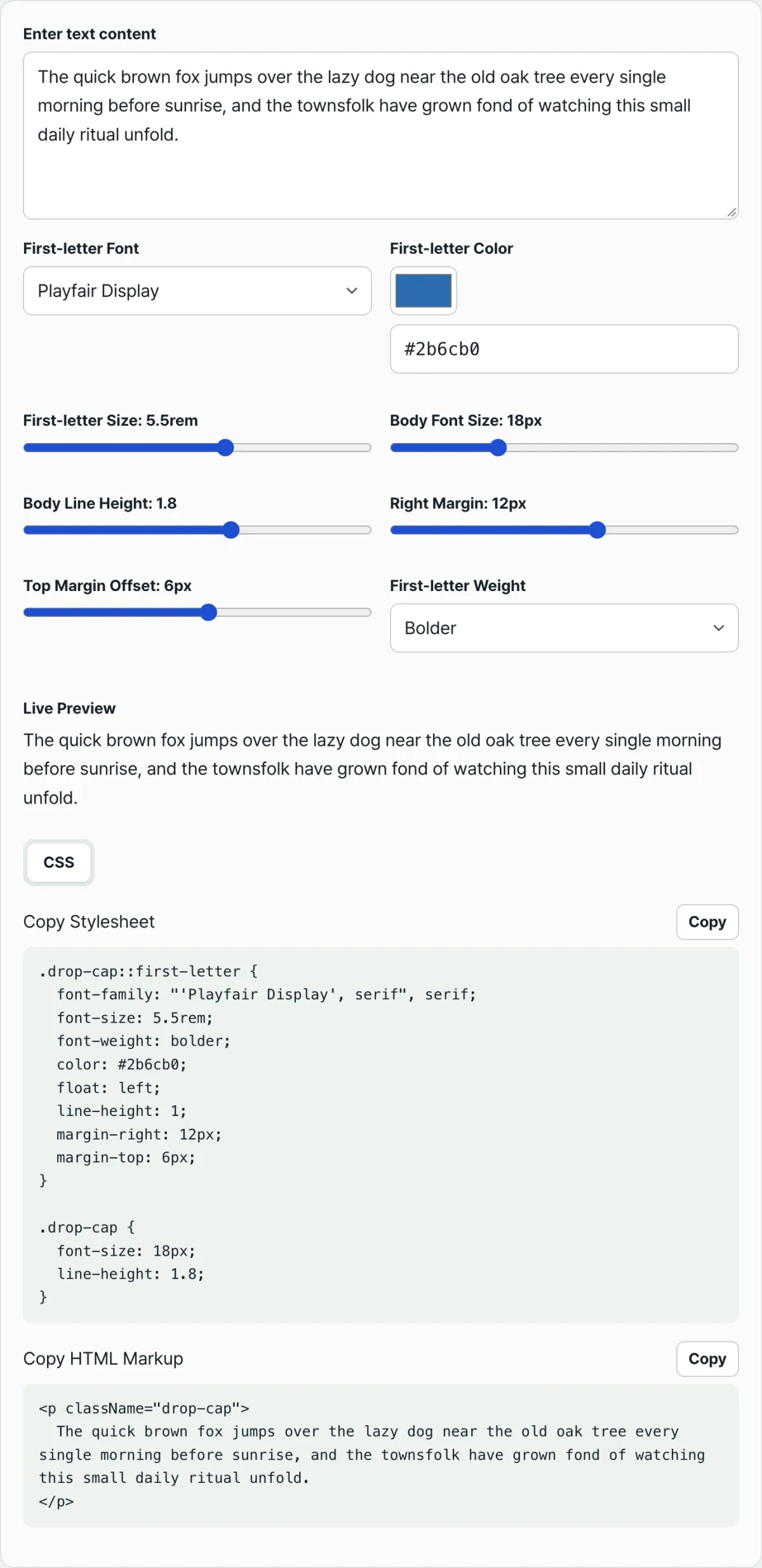
You can change values one at a time, save, refresh, and check the result — but moving sliders and watching a live preview makes it much faster to see how each property affects the outcome.
Try it in our free tool.
The CSS and HTML code is generated as you type, and it's free to use with no install or login.
Where Each Slider Value Lands in the CSS
Each control in the tool maps directly to one specific property in the generated CSS, as shown below.
| Control | CSS property it maps to | Value range |
|---|---|---|
| First-letter font (select) | font-family on .drop-cap::first-letter | Pick from the preset list |
| First-letter color (color picker) | color | Hex code (#RRGGBB) |
| First-letter size | font-size | 2rem ~ 8rem |
| First-letter weight (select) | font-weight | normal / bold / bolder |
| Right margin | margin-right | 0px ~ 20px |
| Top alignment margin | margin-top | -10px ~ 20px |
| Body text size | font-size on .drop-cap (the whole paragraph, not the first letter) | 12px ~ 32px |
| Body line height | line-height on .drop-cap (the first letter's line-height is always locked to 1) | 1.2 ~ 2.2 |
The float direction is always locked to left, so there's no control for it. That's why it isn't in the table above.
The body text size and line height sliders don't affect the first letter. They set the style of the entire .drop-cap element — that is, the paragraph itself.
If you first match these two values to the body font size and line height of the page you'll actually publish on, the preview will show proportions close to the real page, which makes it much easier to judge the first-letter size.
Common Mistakes
The most common one is leaving out quotes around a font name that contains a space. CSS reads words separated by spaces as separate values.
If you write font-family: Playfair Display, serif;, CSS reads "Playfair" and "Display" as two different values, fails to find your font, and falls back to the next font in the list.
You need to wrap it in quotes — font-family: "Playfair Display", serif; — for it to be recognized correctly.
| Mistake | What you see | Cause |
|---|---|---|
| Missing quotes around a font name with spaces | Your font never loads; only the fallback shows | Words split by a space are read as separate values |
| Confusing the sign on margin-top | Changing the value doesn't move the letter the way you expect | Negative values pull the letter up, positive values push it down |
| Applying it to an inline element | The selector looks correct, but the first letter never changes | ::first-letter only applies to block container elements |
Understanding the direction of margin-top
The sign on margin-top doesn't set a magnitude — it sets a direction. A first letter that has been floated out of the flow sits at an independent position, so a negative value pulls it up and a positive value pushes it down.
Which direction looks natural depends on the combination of font, size, and body line-height, so the most accurate approach is to change the value and compare in the preview.
Which elements ::first-letter applies to
The scope of ::first-letter is defined too. Per the spec, it applies to the text of block container elements — paragraphs (p), div, list items (li), table cells (td), blockquotes, and so on.
It does not apply to elements whose default display is inline, such as span or a (unless you explicitly change their display to a block-level value).
The surest way to confirm it's actually applied is to open the Elements/Computed tabs in your browser's developer tools and check whether styles are being computed for the first letter.
Summary
- A drop cap is a standard CSS technique built with a single pseudo-selector:
::first-letter. float: leftpulls the letter out of the flow, andline-height: 1matches the height of the letter's box to the actual font size.- Using
remunits forfont-sizekeeps the ratio between the drop cap and the body text even if the root font size changes. - Slider values map directly to font-size, color, margin-right, margin-top, font-weight, and font-family, while the body size and line-height sliders apply to the whole
.drop-capelement, not just the first letter. - Font names with spaces need quotes, and the sign of margin-top plus whether the style applies to each element are best confirmed right in the browser.
The CSS and HTML code is generated as you type, and it's free to use with no install or login.
Frequently Asked Questions
Does ::first-letter apply to every element?
Per the spec, it applies to the first letter of text in elements classified as block containers — paragraphs (p), divs, list items (li), table cells (td), blockquotes, and so on.
It does not apply to elements whose default display is inline, such as span or a. Markup structure can make it behave differently than you expect, so the surest way is to check in your browser's developer tools whether the style is actually being computed on the first letter.
Do I always need quotes around a font name with a space in it?
It's safer to. In CSS syntax, a font name that contains spaces must be wrapped in quotes so it's read as a single string and recognized correctly.
Without quotes, the space makes it read as separate values, so the browser won't find the font you want and falls back to the next one in the list.
What's the difference between a negative and a positive margin-top?
Both move the vertical position of the first letter that float has pulled out of the flow, but in opposite directions. A negative value lifts the letter above its original position, and a positive value pushes it down.
Which one looks natural depends on the combination of font, size, and body line-height, so comparing them with the slider is the fastest way to find out.
Can I use the code from the tool as-is on WordPress or Tistory?
What it generates is standard CSS and HTML (a p tag), so if your editor supports inserting custom CSS, you can paste it in and use it as-is.
That said, some editors automatically wrap paragraphs in other tags or assign class names of their own.
It's safer to confirm on the published page that the class name matches your actual markup and that the style really is applied to the first letter.
This article was adapted from our Korean original. Read the Korean original