
File Checksum Comparison: Verify Integrity with Hashes
Contents
When you want to know whether a file you downloaded is identical to the original, you don't have to open the whole file and compare it piece by piece. The same file always produces the same hash value (checksum) no matter when or where you compute it, and changing even a single byte turns the whole hash into a completely different string.
Once you understand that principle, a single "match" or "no match" result is enough to judge for yourself whether a file was damaged or altered.
Summary ① The same file or the same text always produces the same hash value, no matter when you compute it (determinism). ② Change one character or one space and the entire MD5, SHA-1, and SHA-256 value changes completely (avalanche effect). ③ If the public checksum on the download page "matches" the hash of your file, your copy is byte-for-byte identical to the original.
Why this problem comes up
Sometimes you download an installer, archive, or ISO image from a mirror server or an old link instead of the official site. A similar file size and a program that runs or extracts normally doesn't guarantee the file is exactly the same as the original.
Some of the data may have been corrupted during download, or the file may have been swapped somewhere along the distribution path. Opening the file won't help you catch subtle differences like that.
At that point, you can't re-compare the entire file from start to finish. Instead, you compare just the hash value (checksum), which compresses the whole contents of the file into a single string of a fixed length.
What a hash value actually calculates
MD5, SHA-1, and SHA-256 are all hash functions. Whether the input is a short piece of text or a multi-gigabyte file, the function converts the entire contents into a single hexadecimal string of a fixed length. MD5 is 32 characters, SHA-1 is 40 characters, and SHA-256 is 64 characters.
This calculation has one key property. If the input is exactly the same, the output hash is always identical, no matter when, where, or on which device you compute it. This is called determinism.
That's why it's meaningful to compare the value a distributor calculated in advance and published alongside the original file with the value you compute from your copy right now. If the two values are the same, the two files are identical down to the byte.
Why one space changes everything
Change a single character — even the case of one letter, or one invisible space — and the hash value becomes a completely different string from start to finish. This is called the avalanche effect.
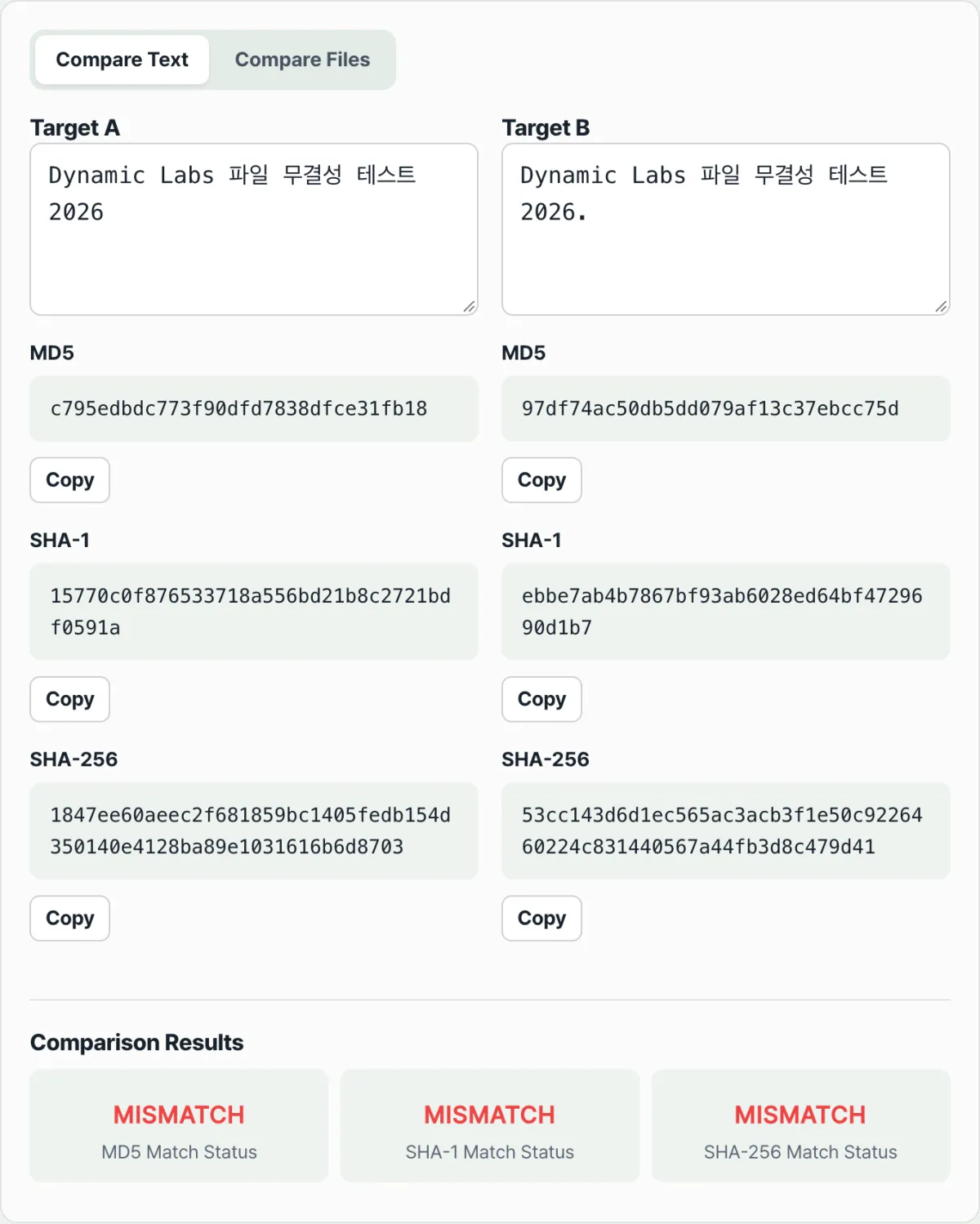
You can see it for yourself. In text mode, enter dynamiclabs in Target A, then enter Dynamiclabs with only the first letter capitalized in Target B. The SHA-256 values come out like this.
dynamiclabs  → 2988d93522c60dccbc8b68541d7eb1db5fb335f3b2f6db6ae4fe17e02001b52a
Dynamiclabs  → b07b3d4cd5e310c6585e33fccf2cd1ee78c16fafdf4be9b2494c9f8ee9cf32b4
Only one character (the case) changed, yet almost nothing out of those 64 characters overlaps. Add a single invisible trailing space and the result is just as different.
Because of this property, hash comparison never gives you a "roughly similar" answer. It's either exactly the same (match) or completely different (no match).
How to compare checksums yourself without a tool
Find the checksum and compute your own
Step 1 — Find the official checksum. Software download pages and Linux distribution ISO pages often publish a hexadecimal string next to the file name, or in a separate checksum file (such as SHA256SUMS), with a label like "MD5," "SHA-1," or "SHA-256." Check the label first so you know which algorithm produced the value.
Step 2 — Compute your file's hash with the same algorithm. You can do this with a command that's built into your operating system.
- Windows:
certutil -hashfile filepath SHA256 - macOS:
shasum -a 256 filepath - Linux:
sha256sum filepath
To use MD5 instead, swap SHA256 for MD5 in the command, or sha256sum for md5sum.
Compare the two values to see if they match
Step 3 — Compare the two values character by character. A difference in uppercase versus lowercase doesn't matter, since the value itself is the same. But the characters and their order have to match exactly, from beginning to end, for it to count as a match.
Checking a 64-character string by eye, one character at a time, takes a while, and it's easy to miss a single character somewhere in the middle. If you just skim the first and last few characters and move on, you'll make mistakes.
Check it with our tool.
It calculates MD5, SHA-1, and SHA-256 instantly in your browser, and the text and files you enter are never sent to a server.
Common mistakes when reading a match or mismatch
When you copy a checksum string, a stray space or line break often comes along with it. If you compare the text as-is, that counts as a "different character," so you can get a mismatch even though the actual hash values are the same. It's safer to check that no whitespace got mixed into the beginning or end of the value you pasted.
A hexadecimal hash means the same thing whether it's written in uppercase or lowercase. For example, a1b2 and A1B2 are the same value written two different ways. However, if you're comparing the strings as raw text, different cases may be read as different text, so it's safer to normalize the case before comparing.
The most common mistake is comparing values from two different algorithms. If the site published a SHA-256 value but you computed an MD5, the two can never match, even for the same file. Each algorithm produces a different length, so a quick look at the character count tells you right away whether you've mixed algorithms.
| Algorithm | Hexadecimal length |
|---|---|
| MD5 | 32 characters |
| SHA-1 | 40 characters |
| SHA-256 | 64 characters |
A hash mismatch tells you one thing only: the two inputs differ at the byte level. It doesn't tell you whether the cause was corruption during download, a modified file, or simply downloading a different version in the first place. Downloading the file again and comparing once more is one way to check.
Recap
- The same file or the same text always produces the same hash value, no matter when you compute it (determinism).
- Change one character or one space and the entire hash value changes completely (avalanche effect).
- Always compare values produced by the same algorithm (for example, SHA-256 with SHA-256).
- Before comparing, check that the copied checksum has no stray spaces or line breaks and that the case is consistent.
- A hash mismatch only tells you the files are different. Whether that's corruption, tampering, or a different version needs to be checked separately.
It calculates MD5, SHA-1, and SHA-256 instantly in your browser, and the text and files you enter are never sent to a server.
Frequently asked questions
Which one should I check: MD5, SHA-1, or SHA-256?
Check whichever algorithm is published on the download page. If several values are provided, any of them gives you the same answer (for the same file, all three will match the original), but it's common to check SHA-256 first because it has the lowest collision risk.
Does a matching hash mean the file is completely safe?
A match means your file is byte-for-byte identical to the original file that the checksum was computed from. Whether that checksum itself came from a trustworthy official channel is a separate question, and it's outside what a hash comparison can confirm.
Can I compare text too, or only files?
You can compare both. Text mode converts the two texts you enter into hashes and compares them, and file mode does the same with two files. You can use the same approach to check whether a document's content has changed even slightly.
Where does the calculation happen? Is my file uploaded to a server?
No. The text and files you enter are processed only inside your browser and are never sent to a server. The MD5, SHA-1, and SHA-256 calculations also happen instantly in your browser.
This article was adapted from our Korean original. Read the Korean original