
How to Read a Hex Dump: Offsets, Hex Bytes, and ASCII
Contents
Those long rows of hexadecimal numbers in a hex dump, and the strings of dots (.) on the right, are actually easy to read once you understand the three fixed columns: offset, hex, and ASCII.
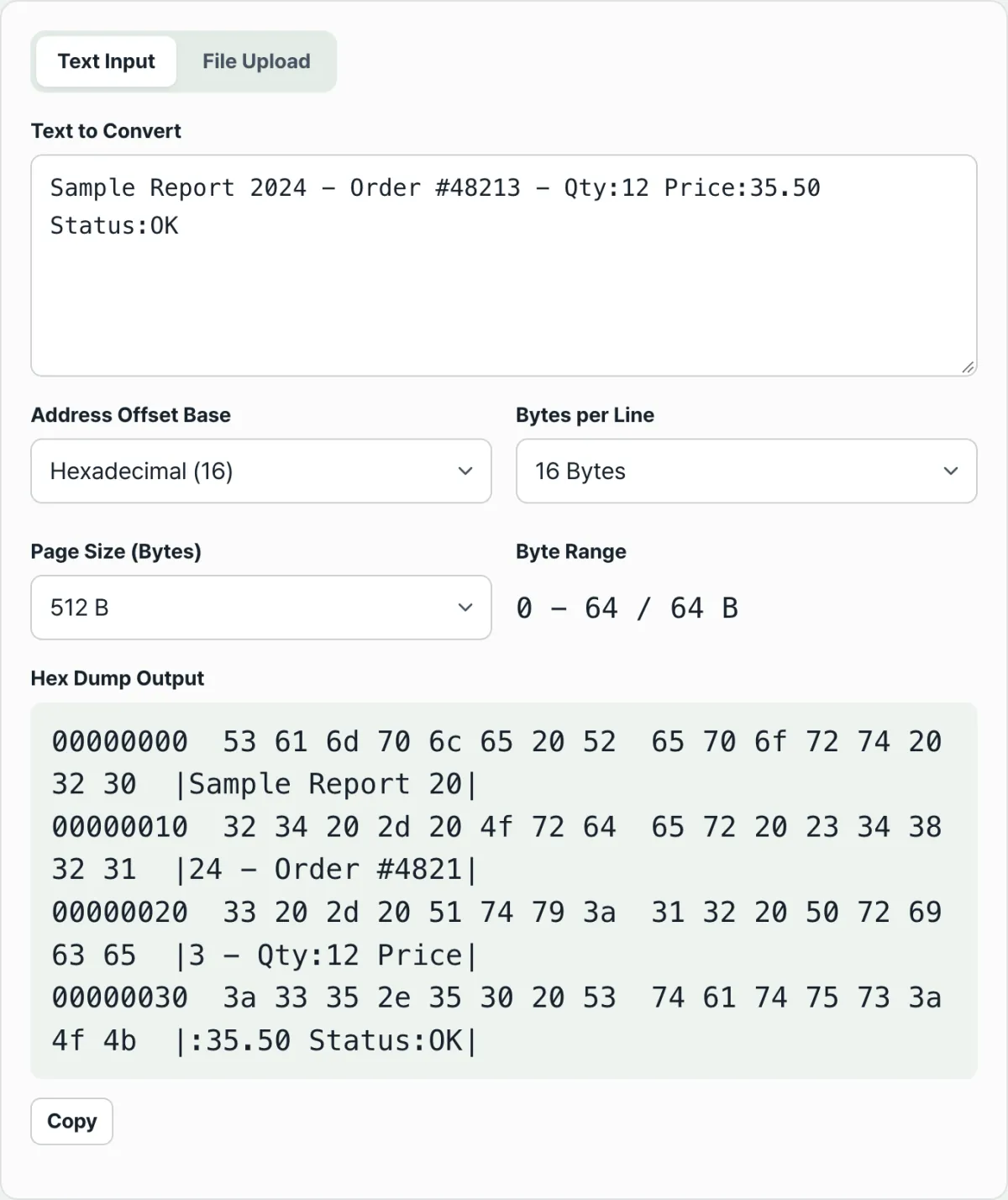
The same rules apply when you run xxd or hexdump -C in a terminal, or when some other program prints raw bytes in this format. This article walks through how that structure gets built, then how to read each column.
Summary ① The offset on the left is the byte position where that line starts. Switching between hex and decimal just shows the same position as a different number. ② The middle section writes each byte value as a two-digit hex number (00–FF), listed 8 or 16 per line. ③ The dots (.) in the |...| area on the right are safe placeholders for bytes that can't be shown as characters on screen.
When you run into a hex dump
If a file opens in a text editor and the characters look garbled, you may open a hex viewer and peek at the first few bytes to figure out whether the problem is the file's encoding.
Other times you have a file whose actual contents you can't determine from the extension alone, so you have to look at the leading byte values yourself and decide.
The hex dump you see in those moments usually dumps numbers on you with no explanation. An 8-digit number on the left, hex values split into two groups in the middle, and a dot-covered string on the right, all stuck together side by side.
The catch is that this notation comes up over and over in programming, network analysis, and file format checks. Learn the structure once and you can read a hex dump from any program the same way. Skip it, and you'll get stuck at the same screen every time.
How to make and read a hex dump without any special tool
You don't need a special program to see a hex dump.
macOS and Linux terminals ship with xxd filename or hexdump -C filename, and Windows PowerShell has Format-Hex filename. The screens these commands produce are built on the same basic structure.
Here's the order in which that structure is built.
- Split the source data into bytes. For text, each character becomes 1–4 bytes according to UTF-8 encoding rules. For a file, use the bytes exactly as stored.
- Decide how many bytes to show per line. Usually 8 or 16.
- Calculate the starting position (offset) of each line. The offset is "line number × bytes per line."
- Write each byte value as a two-digit hex number (00–FF) and lay them out across the line.
- For the same bytes, if the value is in the 32–126 range (printable ASCII), write the matching character on the right; otherwise write a dot (.).
Offset and byte values in an example
For example, hex dumping the 20-letter string ABCDEFGHIJKLMNOPQRST at 16 bytes per line gives you this.
00000000  41 42 43 44 45 46 47 48  49 4A 4B 4C 4D 4E 4F 50  |ABCDEFGHIJKLMNOP|
00000010  51 52 53 54                                       |QRST|
The first line holds 16 bytes, from byte 0 (A) through byte 15 (P). The second line starts at byte 16 (Q).
That position, 16, written in hex is 00000010, and written in decimal is 00000016. They point to exactly the same place. Only the numerals look different, depending on which base you write them in.
When dots (.) show up
Dots appear in the right-hand area when control characters or characters encoded across multiple bytes are mixed in. For example, if a line break (0x0A) is inside the text, it can't be carried over as a screen character, so it's replaced with a dot.
A single Korean character is usually encoded as 3 bytes in UTF-8, and all three of those byte values are above 127, outside the printable ASCII range (32–126).
So the byte values show up exactly in the middle hex area, but the ASCII area on the right shows three dots in a row instead of the character.
If you'd rather not work this out by hand and want to see exactly what hex dump the text or file you paste in turns into, check it with our free tool, Hex Dump Viewer (Binary & Text).
Paste text or load a file into Hex Dump Viewer (Binary & Text) and see the hex dump right away. No install and no sign-up.
Things people often get confused about
| Confusing point | What it actually means |
|---|---|
| The offset looks different when you switch between hex and decimal | It's the same position written in a different base. The data it points to is identical. |
| There are lots of dots (.) in the ASCII area | It's just an easy-to-read placeholder for 0x00–0x1F control characters and non-printable bytes of 127 and above. The data isn't damaged. |
| There are more bytes than characters you typed | Korean characters and the like are encoded as multiple bytes each in UTF-8. |
| Changing bytes per line (8/16) changes the number of lines | Only the number of bytes packed into each line changes. The total data is the same. |
| A big file only shows part of itself | That's just paging, which splits the view into chunks of the page size (256B–4KB). The rest of the data still exists. |
That last item, paging, is especially easy to misread. Rendering a large file all at once in a browser is slow, so the tool renders only the page size you pick and lets you move to the next page for the rest.
What you see on screen isn't the whole thing. It's the one chunk you're looking at right now.
Recap
- A hex dump is a notation that turns text (UTF-8 encoded) or a file (raw bytes) into a byte array, then lays it out 8 or 16 bytes per line.
- The offset on the left is the byte position where that line starts. Hex and decimal notation show the same position as different numbers.
- The middle section writes byte values as two-digit hex. The |...| area on the right shows bytes in the 32–126 range as characters and everything else as a dot (.).
- A lot of dots (.) doesn't mean the data is damaged. It's just a safe way to show values that can't be carried over as screen characters.
- Large data is split into pages, so what's on screen isn't necessarily all of it.
Paste text or load a file into Hex Dump Viewer (Binary & Text) and see the hex dump right away. No install and no sign-up.
Frequently asked questions
I typed text, so why are there more bytes than characters?
ASCII characters like English letters and digits take 1 byte in UTF-8, but characters with a wider Unicode range, like Korean letters or emoji, usually take 3–4 bytes.
So even one Korean character shows up as several byte values in the hex dump, and the ASCII area lists that many dots instead of the character.
Why is the offset a different number in hex and in decimal?
The offset is the absolute byte position where that line starts, written as an 8-digit number. The same position looks like 00000010 in hex and 00000016 in decimal.
The position itself is identical. Only the base you write the number in is different.
If there are a lot of dots (.) in the ASCII area, is the file damaged?
No. A dot is a safe placeholder for a byte that can't be copied over as a screen character — a control character in the 0x00–0x1F range, or a non-printable byte of 127 and above.
The actual value of that byte appears exactly as-is in the middle hex area, so counting dots tells you nothing about whether the file is damaged.
Is 8 bytes per line or 16 bytes per line the standard?
Both are widely used in practice, and there's no single standard. The hexdump -C command on macOS and Linux shows 16 bytes per line by default, while some debuggers and tools use 8-byte groups.
Changing bytes per line doesn't change the data itself. It only changes where the lines break.
This article was adapted from our Korean original. Read the Korean original