
HTML Email Preview: Check Mobile and Desktop Rendering
Contents
The surest way to check HTML email code before you send it is to let a browser render that code for you and look at it at different screen sizes.
This post is for the people who write HTML for newsletters and marketing email — writers and developers — and it walks through how to see what that email will look like on mobile, tablet, and desktop without actually sending it.
First, though, let's cover why email HTML has to follow different rules than regular web page code.
Summary ① HTML email should be built with
<table>layouts and inlinestyleattributes rather than<div>+ external CSS — that way it breaks less across mail clients. ② This tool drops your code straight into an iframe's srcDoc so the browser renders it directly, and tapping a tab changes only the iframe width — to 375px, 768px, or 100% — to show you the responsive result. ③ A browser preview is not exactly the same as real Gmail or Outlook rendering. Every mail client supports a different range of CSS and uses a different rendering engine.
Why newsletter HTML looks different in every inbox
There's a common sequence marketing folks follow when building a newsletter. They split the layout into <div> blocks the way they would for a web page, then set background colors, alignment, and spacing with a <style> tag or a separate CSS file. Open the preview file in a browser and it looks exactly the way you intended.
The trouble starts when you actually send that code. The same code behaves differently from one recipient to the next: the background color disappears, sections you placed side by side stack vertically, or spacing opens up where you didn't want it. Code that looked fine in the browser renders differently in the inbox.
The difference isn't because the code is wrong. It's because the program that opens the email (the mail client) doesn't parse HTML and CSS the same way a browser does. And once you hit send, there's no undo — so you need a step that shows you how the code actually renders before you send it.
How to check it yourself without a tool
You can do this check without any tool at all. A browser is itself a rendering engine that parses HTML and draws it on screen.
Three steps to check with nothing but a browser
Step 1 — Save it as an HTML file and open it directly. Paste your code into a text editor, save it with a .html extension, then double-click the file to open it in your browser. The browser parses the code and draws it on screen.
Step 2 — Change the screen width with your browser's dev tools. In Chrome or Safari, open the dev tools and click the responsive view (device toolbar) icon. You can then set the window width to values like 375px or 768px and watch how the same code reflows.
Step 3 — Open it in real mail clients. Everything up to here is still browser rendering. To check the sending environment too, email yourself a test and open it in Gmail on the web, the Gmail mobile app, Outlook, and other clients.
Why repeating the check gets tedious
All three steps are free, but every time you edit the code you have to save the file again and reopen it, and you have to type the width into the dev tools by hand each time. Seeing the result isn't hard — repeating it is.
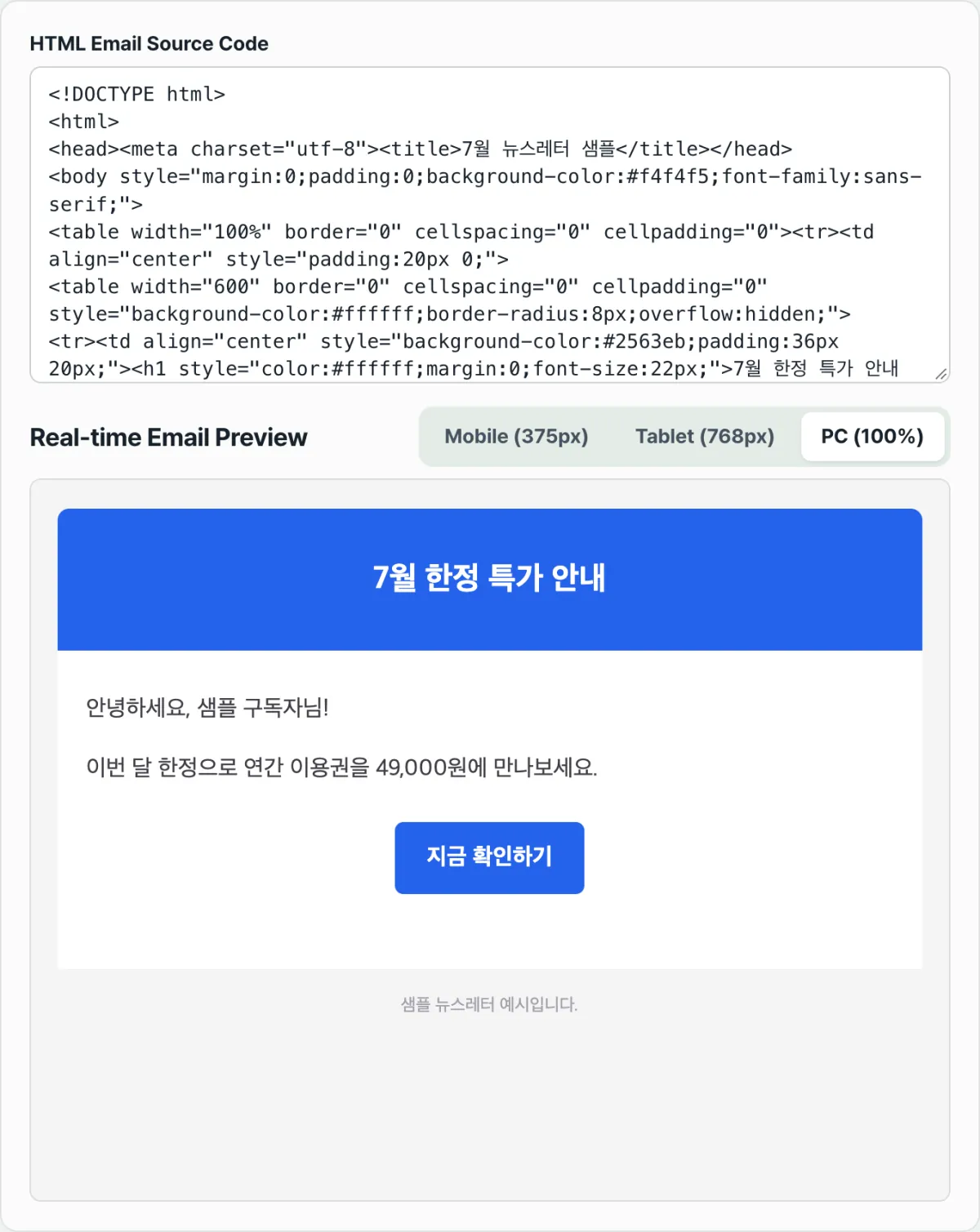
Check it with our tool.
Everything renders inside your browser, and your code is never sent to a server. Free to use, no sign-in required.
Easy places to trip up: why table instead of div, and the limits of preview
There are two spots people stumble on most when they first write HTML email code: laying out the page with <div>, and expecting a browser preview to match the real send exactly.
| Category | Web page (for browsers) | HTML email |
|---|---|---|
| Layout | <div> + CSS Grid·Flexbox | <table> <tr> <td> |
| Styling | <style> tag or external CSS file + class | inline style="" attribute on each tag |
| External resources | Load CSS files freely | Many clients block external CSS requests |
| Rendering engine | One browser (Chrome, Safari, etc.) | A different engine per client (Outlook desktop, each webmail, Apple Mail, etc.) |
Why use table instead of div
Start with the layout row. Some mail clients don't support layout properties like CSS Grid, Flexbox, or position. Outlook desktop, in particular, draws the message body with a rendering engine from the word-processor family rather than a normal browser, so the layout techniques you use on web pages often don't carry over.
<table> has been widely supported for far longer, so the variation between clients is relatively small. Here's the same section built both ways.
<!-- Web page approach: layout may collapse in some mail clients -->
<div style="display:flex; max-width:600px;">
  <div style="background:#f5f5f5; padding:20px;">Title area</div>
</div>
<!-- Email approach: table + inline style -->
<table width="600" cellpadding="0" cellspacing="0" border="0">
<tr>
<td style="background:#f5f5f5; padding:20px;">Title area</td>
</tr>
</table>The two may look similar in a browser, but the table version is more likely to produce the same result in more clients.
The styling row comes from the same logic. External CSS files (<link rel="stylesheet">) often fail to apply because many clients block external requests when the email opens, and a <style> tag in the <head> sometimes gets stripped depending on the client.
That's why email HTML widely uses the inline approach — writing the styles directly into each tag's style="" attribute.
Why the preview differs from the real send
The last row, rendering engine, is why this tool's preview and the real send don't match exactly. The preview here is an iframe inside the web browser you're using right now, rendering your code.
Outlook desktop, by contrast, renders with a separate document rendering engine, and some webmail services run their code through their own CSS filtering before drawing the screen. Those engines apply different CSS rules to the same code, so code that looked fine in a browser preview can look different in a particular client.
Summary
- Building HTML email with
<table>layouts and inlinestyleattributes is how you reduce variation between clients.<div>+ external CSS may look fine in a browser but render differently in the inbox. - This tool puts your code directly into an iframe's srcDoc and lets the browser render it. Edit the code and it redraws immediately, and the code is never sent to a server.
- The mobile (375px), tablet (768px), and desktop (100%) tabs change only the iframe's CSS width, showing you how the same code responds at each screen size.
- A browser preview is not exactly the same as real Gmail or Outlook rendering. Each client supports a different range of CSS and uses a different rendering engine, so the accurate final check is a real send test.
- The table-based sample code that appears when you first open the tool can be edited in place and turned into your own template.
Everything renders inside your browser, and your code is never sent to a server. Free to use, no sign-in required.
FAQ
Is the HTML code I write sent to a server?
No. The code you enter renders only inside an iframe in your browser. It is never sent to or stored on an external server.
Why does code built with <div> break in email inboxes?
Because each email client supports a different range of CSS. Some clients, Outlook on desktop in particular, draw the message body with their own rendering engine instead of a normal browser engine, and may not support layout properties like Flexbox or position.
<table> layouts have been supported for much longer, so results stay more consistent.
Does the preview here match what I actually see in Gmail or Outlook, 100%?
No. This preview renders the way a standard web browser does — the one you're using. Real clients like Gmail and Outlook apply their own rendering engines and CSS filtering rules, so the result can differ. For an accurate final check before sending, send yourself a test email in the actual client.
Can I just use the sample code that's already there when I open the tool?
Yes. When you first open the tool, a table-based newsletter sample is already filled in. You can edit that code as-is and use it.
This article was adapted from our Korean original. Read the Korean original