
How HTML Minification Works: Whitespace, Comments, and Savings
Contents
When you copy an HTML source with indentation and line breaks all over it, you probably want to shrink the file size — but you often leave it alone because you're afraid of breaking the scripts or styles inside.
HTML minify is a process that removes only the whitespace, line breaks, and comments between tags, while preserving the code inside script, style, pre, and textarea exactly as it was. This post explains what minification actually removes and what it keeps, and how the savings percentage (%) is calculated, with a focus on how it works.
Summary ① HTML minification removes only whitespace and line breaks between tags and inside tags, and deletes text that consists purely of whitespace in its entirety. ② The code inside script, style, pre, and textarea is classified as a separate token and passes through unchanged in every case. ③ The savings rate is calculated by measuring the original and the result in bytes and computing (1 - result bytes / original bytes) × 100.
Why is HTML copied from DevTools so heavy?
When you grab an element from the browser DevTools with "Copy outerHTML," the indentation and line breaks that were applied to the original page come along with every tag.
HTML spit out by editors and template engines is much the same — whitespace characters often take up more room than the actual content.
If you paste that kind of source straight into an email template, an API response, or a static page, the file size grows noticeably from invisible whitespace alone. The problem starts when you try to clean it up by hand.
If you carelessly strip the line breaks inside <script>, a commented-out JS statement gets glued to the next line and breaks. If you remove the whitespace inside <pre>, the formatting that was displayed collapses entirely.
How to remove whitespace yourself without a tool
Once you understand how HTML minification works, you can do the same job by hand. There's one rule that separates whitespace you can remove from whitespace you can't.
Whitespace between tags and between tag attributes can be removed without changing the document structure, but whitespace inside script, style, pre, and textarea is the code or formatting itself, so it must stay.
If you apply that rule to your text editor's find-and-replace (regex), you can clean things up manually.
- First mark the
<script>,<style>,<pre>, and<textarea>sections visually and exclude them from the rest of the work. - In the remaining sections, replace the pattern where a
>is followed by one or more whitespace characters and then a<(>\s+<) with><to remove the whitespace between tags. - If there are multiple spaces or line breaks between tag attributes, reduce them to one space.
- Removing comments (
<!-- ... -->) is optional. Unless you left them in for debugging, it's fine to delete them.
Check how much you saved with the file size. If you have a terminal, run wc -c filename.html before and after cleanup and compare the byte counts (in UTF-8, wc -c counts bytes, not characters).
Compute (1 - bytes after / bytes before) × 100 and you get the savings rate.
As a side note, browsers already collapse or ignore whitespace and line breaks between tags into a single space when rendering (the inside of <pre> and <textarea> is the exception). So removing whitespace between tags doesn't change the on-screen layout of block-level elements.
Check it with our tool.
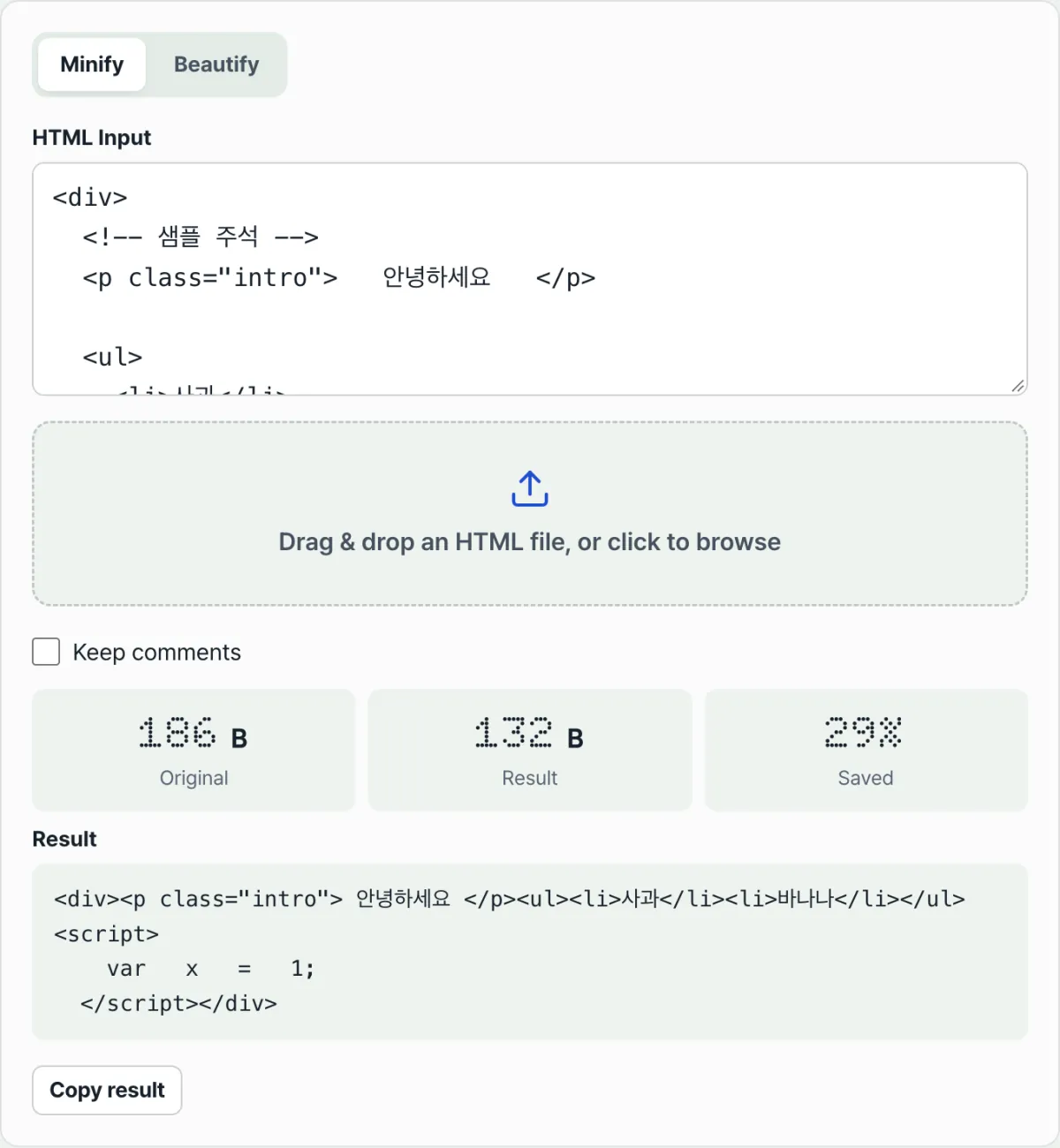
Paste your HTML and the tool shows the minified (or beautified) result and the savings percentage right away. It runs in your browser—no install or sign-up.
Common confusions about minification
The most common misunderstanding is "does minifying also shrink the script and CSS code?" No, it doesn't.
For safety, this tool classifies the contents of script, style, pre, and textarea at the token stage and passes them through untouched. If you need variable-name mangling or syntax compression for JS and CSS themselves, you'll need a dedicated tool.
| Target | What happens when you minify |
|---|---|
| Whitespace and line breaks between tags and inside tags | Collapsed to a single space or removed entirely |
| Text nodes made up only of whitespace | Deleted entirely |
| Comments | Removed by default, kept only when "Keep comments" is checked |
| Inside script, style, pre, textarea | Left exactly as it was, untouched |
The second misunderstanding is "how many percent does minifying always save?" There's no fixed number. It depends on how much indentation and line breaks the original had. Template output with lots of indentation usually shrinks by about 10–40%, while source that's already minified may come out with a savings rate close to 0%.
The third is "the page looks slightly different after minifying." The cause is whitespace between inline elements.
If there's even a single space between elements that flow inline, like <span> or <a>, the browser renders that space as one visible space. If minification removes that space entirely, the one space that was actually being rendered disappears too, and words or icons that used to be separated can end up looking stuck together.
Wrapping up
- HTML minification only targets whitespace and line breaks between tags and inside tags, plus whitespace-only text nodes.
- The contents of script, style, pre, and textarea are preserved exactly so the code doesn't break.
- The savings rate (%) is the difference in byte size between the original and the result, computed as (1 - result bytes / original bytes) × 100.
- The savings rate depends on how much whitespace the original had, so you can't judge "normal" or "abnormal" against a specific number.
- If whitespace between inline elements disappears, rendering can show slight spacing differences.
Paste your HTML and the tool shows the minified (or beautified) result and the savings percentage right away. It runs in your browser—no install or sign-up.
Frequently asked questions
How much does minifying actually save?
Because it removes whitespace, line breaks, and comments between tags, an original with lots of indentation usually shrinks by about 10–40%. The exact savings rate is shown in the stats above the result, along with the original and result byte sizes.
Does it minify script and CSS code too?
No. The contents of <script>, <style>, <pre>, and <textarea> are classified as separate tokens and pass through unchanged in every case. If you want to shrink the code inside them (variable-name mangling, for example), you'll need a dedicated JS/CSS minifier.
Can the result look different from the original after minifying?
By standard HTML processing, the tag structure and text content stay the same. However, whitespace that was between inline elements is removed entirely, which can cause slight visual differences, so it's safer to give the result a quick look before you apply it.
What indentation size should I choose in Beautify?
Whether you pick 2 spaces, 4 spaces, or tabs makes no difference to the tag structure or behavior. It only changes how wide the indentation looks on screen — a display choice — so just match whatever code style rules your team uses.
This article was adapted from our Korean original. Read the Korean original