
Base64 Image Conversion: How It Works and How to Read the Output
Contents
Sometimes you want to put an image directly into HTML or CSS as a string, not as a file. Or maybe you got a Base64 string from somewhere and want to turn it back into an image file.
Either way, most people get stuck at the same three points: why the string is longer than the original, what the data:image/png;base64, prefix actually is, and why the image you pasted in shows up broken.
Base64 is not a compression method. It's a notation for copying binary data over into text.
This post walks through how that notation works, why the output is bigger than the original, and when to use each of the two output formats.
Summary ① Base64 splits 8-bit binary data into 6-bit chunks and represents them with 64 characters, so the result is about 33% larger than the original. ② A "Data URL" carries the
data:MIME-type;base64,prefix and can go straight into HTML/CSS, while "Plain Base64" is the raw encoded value with no prefix. ③ If you paste Plain Base64 into animgtag without the prefix, or decode a string that still has spaces and line breaks in it, the image breaks or throws an error.
Why the result is confusing: one common situation
Sometimes you want to drop a small icon entirely into HTML with no separate image file. That happens in environments like email templates, where external image loading is often blocked, or when you're building a widget that has to ship as a single file.
In that case you convert the image to Base64 and paste the whole string inside <img src="...">.
The problem is when you copy the converted output, paste it in, and the image won't show. Or the reverse: you save a Base64 string from a server to a file and have no idea what extension to give it.
The format information for the original file often isn't in the string itself, and even when it is, it's useless if you don't know where to look. Both situations clear up as soon as you understand the encoding.
Doing the math yourself, no tool needed
Splitting into 6-bit chunks and mapping them to characters
The core of Base64 encoding is re-cutting binary data that's stored in 8-bit units into 6-bit units. Each 6-bit value (0–63) maps to a fixed table of 64 characters (A–Z, a–z, 0–9, +, /).
The least common multiple of 8 bits and 6 bits is 24 bits. So every 3 bytes (24 bits) of the original becomes four 6-bit groups — that is, 4 characters.
For example, the characters "Man" have byte values M=77, a=97, n=110. Concatenated in binary, that's 24 bits (010011010110000101101110).
Split into four 6-bit groups, you get 19, 22, 5, and 46, which map to T, W, F, and u in the character table — so "Man" encodes to "TWFu".
Why the size grows, and "=" padding
This is where the size increase comes from. 3 bytes of original become 4 characters, and storing those 4 characters as text takes 4 bytes again.
3 bytes growing to 4 bytes is a ratio of 4/3, about 1.333×. That's the basis for saying "encoding makes the output about 33% bigger."
When the original size doesn't divide evenly by 3, the last slot is filled with the "=" character. If 1 byte is left over, you get "==" at the end; if 2 bytes are left over, you get a single "=". Either way the output length always comes out to a multiple of 4.
Converting right in the terminal
If you'd rather not work through the math by hand, use a command built into your OS. On macOS or a Linux terminal, type this:
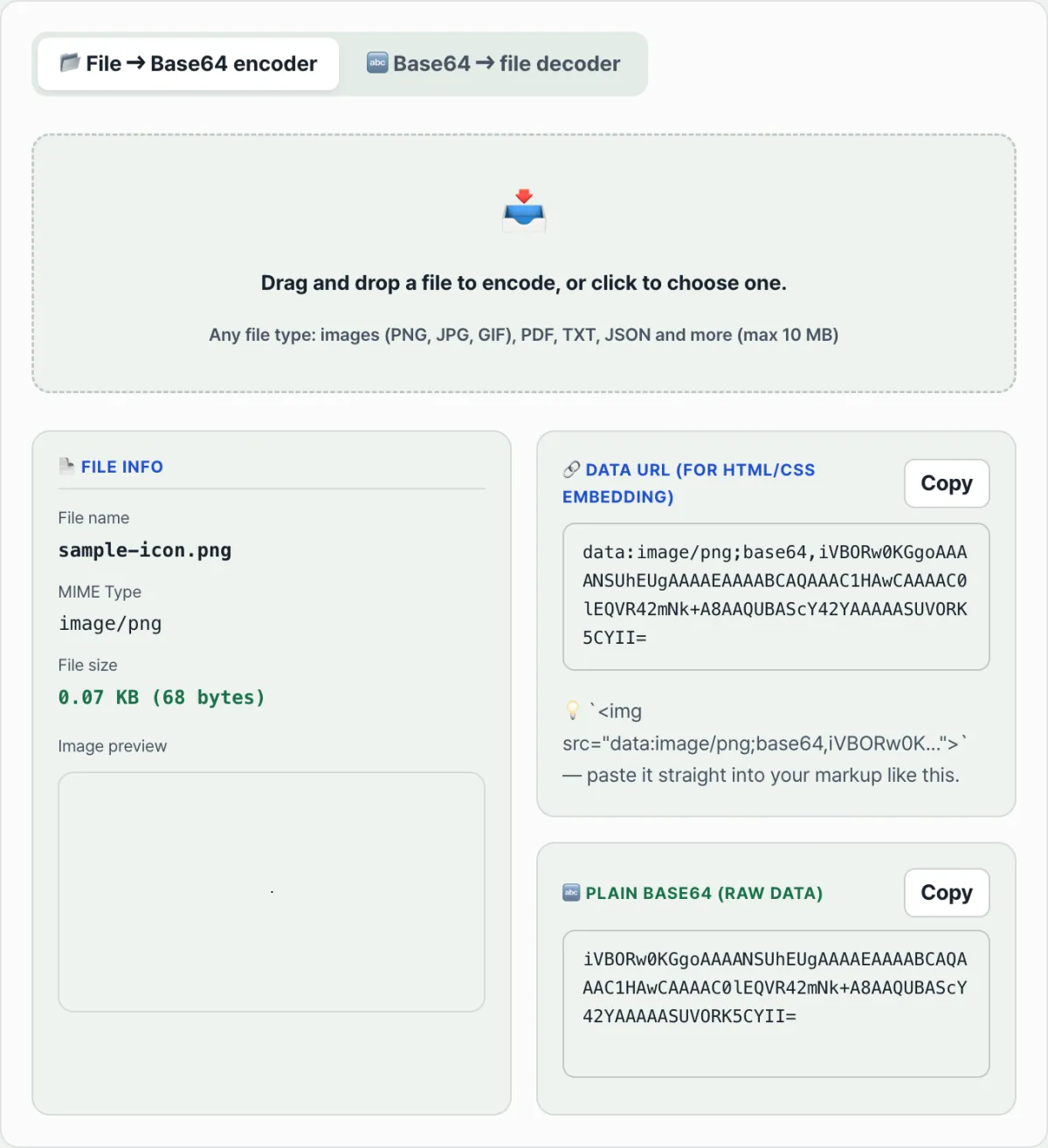
base64 -i image.pngThe string that comes back is Plain Base64. If you know the file's MIME type, put a prefix like "data:image/png;base64," in front of it and you have a Data URL.
To go the other way and turn a string back into a file, add the -d option to the same command.
Check it with our free tool.
Pick a file and it converts to Base64 right in your browser. Nothing is sent to a server, and files up to 10 MB are supported.
The spots people trip over when reading the result
Data URL and Plain Base64 carry the same encoded value, but the prefix decides where each one goes.
| Data URL | Plain Base64 | |
|---|---|---|
| Form | data:image/png;base64,iVBORw0K... | iVBORw0K... (no prefix) |
| Used for | Places the browser has to interpret directly, like <img src=""> or CSS background-image | Places that need only the raw encoded value, like an API request body or saving to a file |
| MIME type info | Included in the prefix, so you don't have to pass it separately | Not in the string itself, so you have to supply it separately |
The three most common mistakes:
Mistake 1: Putting it in an img tag without the prefix
If you copy only the Plain Base64 string and drop it into <img src="...">, the browser can't interpret it, and all you get is a broken image icon.
The src attribute needs the full Data URL, prefix included: "data:image-mime-type;base64,".
Mistake 2: Not knowing the original extension when decoding
Given only a Base64 string, it can look like there's no way to tell what format the original file was.
But most file formats have a unique signature (magic number) in their first few bytes. Check the leading bytes of the decoded output and you can work backward to formats like PNG, JPEG, GIF, and PDF.
The limitation is that formats with no signature, or signatures that overlap, can't be pinned down to an exact extension.
Mistake 3: Decoding a string that still has spaces and line breaks
The Base64 character table doesn't include spaces or line breaks.
Some systems, email in particular, follow a convention of wrapping long Base64 values at 76 characters per line. If you hand a string with those line breaks to a decode function as-is, it'll treat them as invalid characters and either error out or produce garbage.
Strip spaces and line breaks before decoding and you avoid the whole problem.
Recap
- Base64 is a notation that splits 8-bit data into 6-bit chunks and represents them with 64 characters, and because of that structure the output is about 33% (4/3×) larger than the original.
- If the original size isn't a multiple of 3 bytes, "=" characters fill the remaining slots so the output length lands on a multiple of 4.
- With the "data:MIME-type;base64," prefix, it's a Data URL. Without the prefix, it's Plain Base64 — just the raw encoded value. They have different uses.
- For img tags and CSS, put in the whole Data URL, prefix included. For data you're storing or sending, use Plain Base64.
- When reading decoded output, estimate the format from the leading byte signature, and clean up any spaces or line breaks in the string first so it decodes without errors.
Pick a file and it converts to Base64 right in your browser. Nothing is sent to a server, and files up to 10 MB are supported.
FAQ
Does Base64 always make the file exactly 33% bigger?
The underlying ratio is always 4/3, but the actual increase varies a little depending on the original size and whether padding is involved.
Every 3 bytes produces 4 characters, so ideally the increase is about 33.3%. If 1 or 2 bytes are left over and "=" padding is added, the ratio can come out slightly higher — the more so with very small files.
Should I copy the Data URL or the Plain Base64?
For places where the browser has to render the image immediately — an HTML img src or CSS background-image — copy the Data URL with the prefix.
When you need only the raw encoded value, such as an API request body or separate storage, use Plain Base64 without the prefix.
The decoded file won't open as an image. Why?
The most common causes are that the original string got cut off partway when it was copied, or that it was decoded with spaces and line breaks still in it.
If the MIME type you assumed doesn't match the actual format, the extension will be wrong and an image viewer may refuse to open the file. Start by checking that the original string is intact and that the format you guessed from the signature is right — that narrows down the cause.
What's the "=" at the end of a Base64 string?
It's a padding character. Base64 follows a rule that the output length must always be a multiple of 4.
When the original data doesn't divide evenly by 3 bytes, the leftover slots are filled with "=" to match the length. It's not actual data — it's a marker for keeping the format aligned.
This article was adapted from our Korean original. Read the Korean original