
JSON Array to HTML List: How Items Become li Text
Contents
When you need to move JSON array data into <ul> or <ol> list tags, the slow part isn't the syntax — it's that the way you handle each array item depends on whether that item is a string or an object. As the item count grows, it's easy to leave a tag unclosed or copy a value wrong while hand-writing <li> tags one by one. This post covers exactly what rule turns each JSON array item into <li> text, and how to reproduce that rule in code yourself — using only verifiable facts.
Summary ① String items are converted to strings as-is. Object items pull the value of the "Object Key Name" you specify, and if that key is missing, the whole object is replaced with a JSON string. ② The tag wrapping the results is decided by your ul/ol choice, and the li class name and ul/ol class name you enter are attached as-is to the
classattribute of every<li>and of the outer tag, respectively. ③ JSON containing single quotes or trailing commas throws a parsing error, and pasting a whole object instead of an array triggers the error "The input must be in JSON array form."
When Do You Need This Conversion?
Data returned by an API or exported from a spreadsheet is usually a JSON array. To paste a list of notice titles or product names into a static HTML page or a CMS body, you need to wrap each item in <li>...</li> and wrap the whole thing in <ul> or <ol>.
With three or four items, hand-writing the tags is quick. With dozens or more, it isn't. And if you miss a tag or close one in the wrong place, the browser renders it anyway without complaint — so the problem doesn't show up right away and surfaces later as broken styling.
Object items add another layer. In an array of objects like { "name": "apple", "price": 1200 }, pulling out just the product names into <li> tags means deciding which key's value to grab each time, then copying only that value.
Converting by Hand Without a Tool
You can reproduce this conversion in a few lines in your browser's developer tools console. Here's the order.
Step 1 — Check the JSON syntax. Type JSON.parse(yourText) into the console and run it. If it returns a value with no error, the syntax is valid. If it throws, that means single quotes, a trailing comma, or something else outside the JSON standard is in there.
Step 2 — Check that it's an array. See whether Array.isArray(parsedResult) is true. If it's false, you pasted a whole object wrapped in curly braces, and you need to pick out just the array part you want.
Building the li Text and Wrapping It in the Final Tag
Step 3 — Build the li text for each item. The code below follows the same rule as our tool.
const toLiText = (item, key) => {
  if (typeof item === "object" && item !== null) {
    return item[key] !== undefined ? String(item[key]) : JSON.stringify(item);
  }
  return String(item);
};

const items = parsed.map((item) => `<li>${toLiText(item, "name")}</li>`);
Step 4 — Wrap it in the outer tag. Decide whether you want ul or ol, and add a class name if you need one.
const html = `<ul class="my-list">\n ${items.join("\n ")}\n</ul>`;Follow those four steps and you can produce the same result by hand without a tool. The catch is that the more items you have, the more of a hassle it is to write the code and run it in the console.
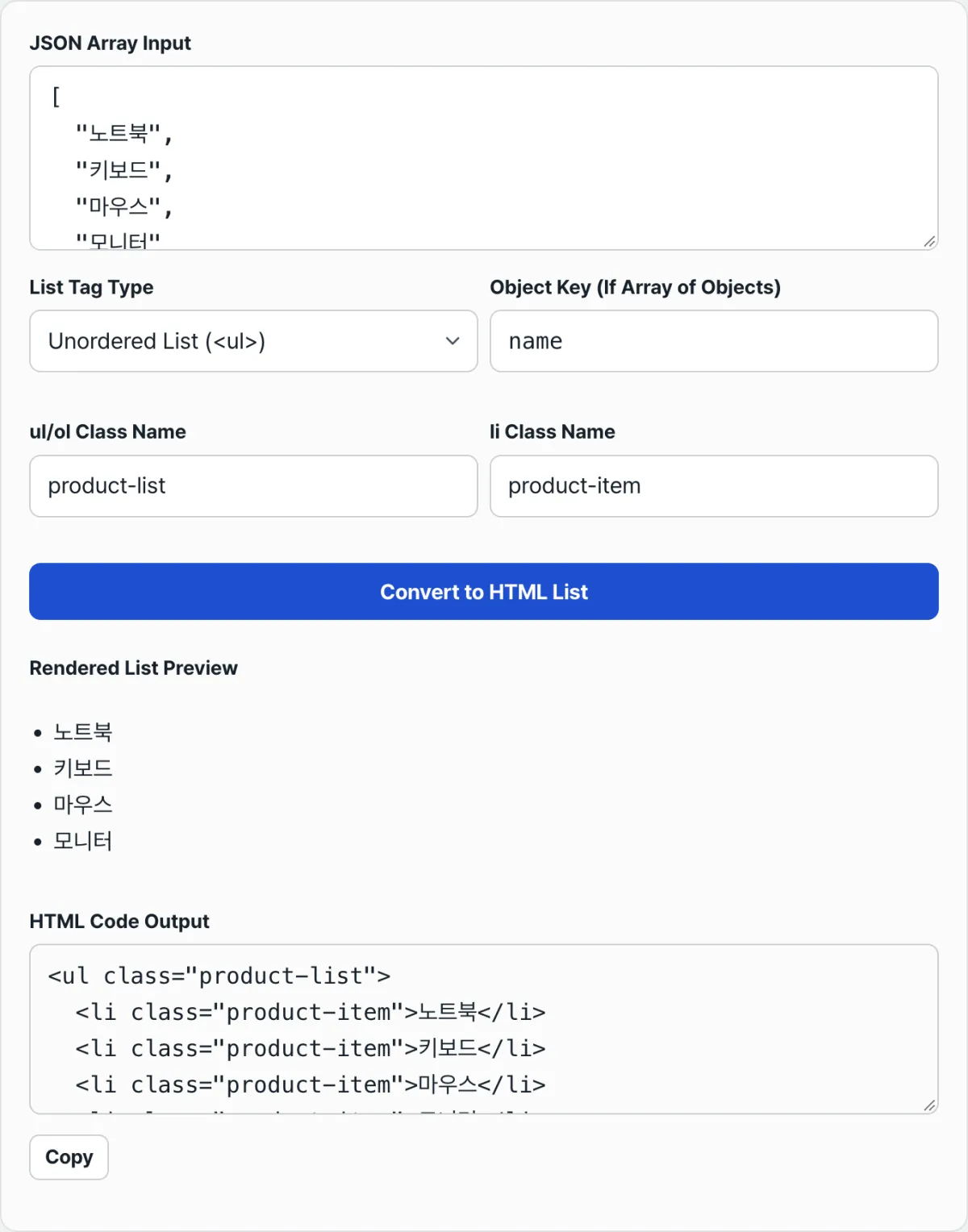
Try it with our tool.
Convert a JSON array into ul/li or ol/li HTML markup right in your browser, with no install and no sign-up.
Common Input Mistakes
There are a few situations you'll run into repeatedly with this tool. All of them are verifiable behavior explained by JSON syntax or the conversion rules described above.
| Case | Example input | Result |
|---|---|---|
| Single quotes | ['apple','banana'] | Conversion fails with a JSON.parse syntax error |
| Trailing comma | ["apple","banana",] | Conversion fails with a JSON.parse syntax error |
| Pasting a whole object instead of an array | {"name":"apple"} | Error: "The input must be in JSON array form." |
| Typo in the Object Key Name | Field is actually name but you type title | The whole object is output as a JSON string in the li instead of the specified value |
The first two cases are about the JSON standard. JSON allows only double quotes for strings, and it doesn't allow a comma after the last item in an array or object. If you paste JavaScript-style single quotes or a trailing comma straight in, it breaks those rules and parsing itself fails.
The third case happens when you confuse an array with an object. If the API response is an object wrapping an array, like { "items": [...] }, don't paste the outer curly braces — enter only the array part that starts with the square bracket.
The fourth case is easy to misread. You'd expect a mistyped key name to print the word "undefined" in the output, but when the key is missing, this tool swaps in the whole object as a JSON string inside the li. So if you see the original object shape sitting inside the li, that's your signal that the key name is wrong.
Recap
- If an array item is a string, its value becomes the li text as-is; if it's an object, the value of the "Object Key Name" you specify becomes the li text.
- If the object doesn't have that key, the whole object goes into the li as a JSON string instead of a value. Seeing the original object shape rather than "undefined" is your cue to recheck the key name.
- Your ul/ol choice and class name entries carry over as-is to the outer tag and
classattribute of the resulting markup. - Single quotes and trailing commas violate the JSON standard and cause parsing errors, and pasting a whole object instead of an array triggers a separate error message.
- Editing the input doesn't refresh the result automatically — you have to press the "Convert to HTML List" button for changes to take effect.
Convert a JSON array into ul/li or ol/li HTML markup right in your browser, with no install and no sign-up.
Frequently Asked Questions
Do I need to enter an Object Key Name if the array only contains strings?
No. If the items are primitives like strings or numbers, the value itself is converted to a string and becomes the li text, whether or not you enter an Object Key Name. The Object Key Name only applies when the item is an object.
Can I generate ul and ol at the same time?
No. Each conversion produces exactly one outer tag — either ul or ol, whichever you select under "List Type." If you need both, switch the type and convert again.
Are the li class name and the ul/ol class name set separately?
Yes, and they apply in different places. Whatever you enter in "li class name" is added to the class attribute of every <li> tag, while whatever you enter in "ul/ol class name" is added only to the single outer <ul> or <ol> tag.
Does the output update as soon as I edit the input?
No. Parsing, conversion, and rendering all run only when you press the "Convert to HTML List" button. After you change the input, press the button again for the result to update.
This article was adapted from our Korean original. Read the Korean original