
Instagram Grid Preview: Plan Your 3-Column Feed Order and Tone
Contents
If you run an Instagram brand account or an aesthetic feed, you often want to check in advance whether a new photo will fit the 3-column grid and color palette of your existing feed. Every time you post, your existing feed shifts one slot, which changes the color contrast and mood between neighboring photos. That's why it helps to plan the order before you actually post. This guide covers how to calculate photo order in a 3-column grid and practical standards for keeping your tone and mood consistent.
Summary ① When you post a new photo, your existing feed shifts one slot in the 3-column layout, so row and column positions change. ② You can keep a consistent tone and mood with a few layout patterns, such as checkerboard, row-by-row grouping, and a fixed center column. ③ You don't have to do the math yourself. Upload multiple photos and use the ◀ ▶ buttons to change the order and see the result right away.
Why you should check before posting
In the 3-column feed on an Instagram profile, recent posts fill in from the top left. Each time a new post goes up, the rest shift one slot to the right and down. So two photos that look great side by side right now can end up in a completely different pairing when a new post pushes in between them. If you notice something looks off after posting and keep deleting and reuploading, your followers see that history, and it doesn't reflect well on your account's credibility.
How to calculate grid order
If you add K new posts, each existing image (index i) shifts back by the number of added posts, so its new index becomes "i + K". To turn that new index into a row and cell position in the 3-column grid, calculate it like this:
- Row number = new index ÷ 3, rounded down to the nearest whole number
- Column (cell) number = new index ÷ 3, remainder
For example, if you have 6 existing photos (indexes 0–5) and add 2 new photos (K=2), the new index of existing photo 0 is 0+2=2, so it moves to the third cell of the first row (row 0, column 2).
You don't have to do this math by hand. To match the actual tone and mood, choose photos based on these three layout patterns:
- Checkerboard pattern: Alternate light-background and dark-background photos to give the feed a sense of rhythm.
- Row-by-row grouping: Treat each set of 3 photos as a unit, using the same mood and color filter to tell a story one row at a time.
- Fixed center column: Keep text quotes or portrait shots in the center column (the second cell from the left) for visual stability.
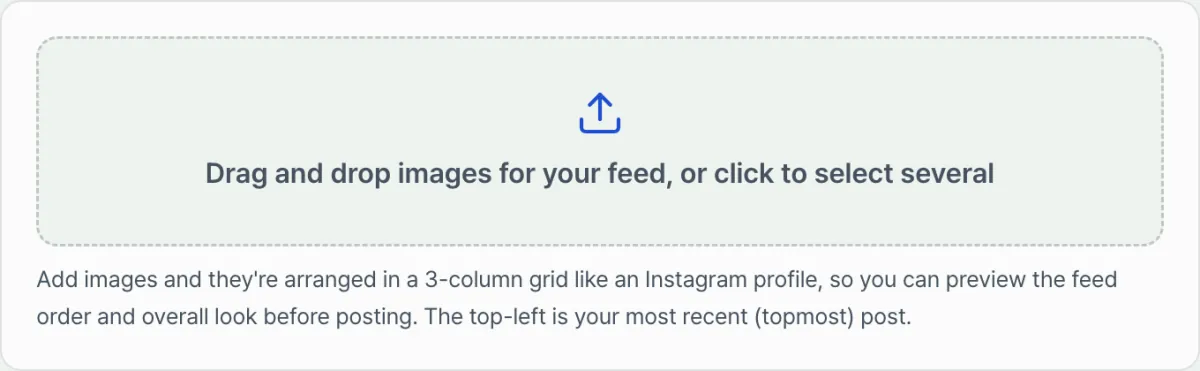
To lay out several photos and test whether a pattern works by changing the order, you don't need to do the math yourself. Comparing directly on the grid with the ◀ ▶ buttons is faster. Try it in our Instagram Grid Planner. Upload photos and move them with the arrow buttons, and the 3-column grid preview updates instantly.
Upload several photos into a virtual 3-column feed, then use the ◀ ▶ buttons to rearrange the posting order and check your feed's look and tone before you post.
Reordering logic for reference
Below is a JavaScript example that implements the row and column calculation and reordering described above. Use it as a reference if you want to build the grid on your own page.
class GridPlanner {
  constructor(containerEl) {
    this.images = []; // Array of feed image URLs
    this.container = containerEl;
  }

  addImages(fileList) {
    Array.from(fileList).forEach(file => {
      const url = URL.createObjectURL(file);
      this.images.push(url); // Newly added images go at the end of the array
    });
    this.render();
  }

  reorder(fromIndex, toIndex) {
    const [moved] = this.images.splice(fromIndex, 1);
    this.images.splice(toIndex, 0, moved);
    this.render();
  }

  render() {
    this.container.innerHTML = '';
    this.images.forEach((imgUrl, idx) => {
      const col = idx % 3;
      const row = Math.floor(idx / 3);

      const itemDiv = document.createElement('div');
      itemDiv.className = 'grid-item';
      itemDiv.style.gridColumn = col + 1;
      itemDiv.style.gridRow = row + 1;
      itemDiv.innerHTML = '<img src="' + imgUrl + '" alt="피드 ' + (idx + 1) + '" />';

      this.container.appendChild(itemDiv);
    });
  }
}
Note Photo uploads and reordering are all handled in your browser. No photos are sent to or stored on a server, so you can arrange photos before publishing without worrying about leaks.
Practical standards for feed tone and mood
| Item | Standard |
|---|---|
| Color palette | Keep a high share of your main brand colors, such as white, beige, and deep blue, to unify the overall impression of your feed |
| Video covers | If Reels and short-form videos also appear in your regular feed, set a square cover image instead of using the autoplay first frame |
| Layout order | The grid fills in 3 columns, with the newest post at the top left and older posts toward the right and down |
Wrap-up
In an Instagram 3-column grid, each new post shifts your existing photos one slot and changes which ones sit next to each other. Choosing photos based on patterns like checkerboard, row-by-row grouping, and a fixed center column makes it easier to keep a consistent tone and mood. Instead of doing the math yourself, upload multiple photos and use the ◀ ▶ buttons to change the order and see the result before you actually post.
Upload several photos into a virtual 3-column feed, then use the ◀ ▶ buttons to rearrange the posting order and check your feed's look and tone before you post.
Frequently asked questions
Does the layout match the real Instagram feed?
The layout fills in 3 columns, with the newest post at the top left and older posts toward the right and down. Note that specific spacing may vary slightly with Instagram UI updates.
Are my photos uploaded to a server?
No. Everything is processed only in your browser, and no photos are sent to or stored on a server.
How many photos can I add?
There's no limit on the number, but very large sets can use a lot of browser memory, so we recommend using it with dozens of photos at a time.
This article was adapted from our Korean original. Read the Korean original