
Instagram Rainbow Text: Hex Color Formula + Free Generator
Contents
If you want rainbow text that changes color letter by letter in Instagram Stories, a blog post, an email signature, or anywhere else that supports HTML formatting, you need HTML code that assigns a different color value to each character. You can make a few letters by hand, but keeping the color smooth across a whole sentence means following a set formula. This post covers both the math for setting each letter's color and how to get the finished code without doing that math yourself.
Summary ① Each letter's color is set by interpolating between the color stops (hex color values) defined in a preset, segment by segment, according to the ratio of the letter's position (i) to the total number of letters (N). ② The computed color values have to be turned into HTML code by wrapping each letter in <span style="color: ..."> and joining them before the color actually applies. ③ The finished code does not work in areas that allow plain text only, such as an Instagram feed or profile. It applies only where HTML is rendered, such as blog posts and email signatures.
Why is it hard to color each letter differently?
When you paint text colors by dragging through the palette by hand in Instagram Stories, the colors get harder to keep smooth as the text gets longer, and they tend to break up or look patchy. HTML code for a blog post or email signature is the same: writing a tag with a different color value for every letter by hand means calculating each letter's position and ratio one at a time.
How to make code that changes color letter by letter
The color interpolation formula
This tool does not use the HSL color wheel. It linearly interpolates the R, G, and B channels of hex color values segment by segment. Each preset has a fixed array of color stops (control colors), and the number of stops varies from preset to preset. For example, Instagram uses 3 stops, Rainbow uses 7, and Sunset and Ocean each use 2.
For a string of length N, the color of the i-th character (0-indexed) is determined as follows.
- Calculate the overall progress ratio: t(i) = i ÷ (N - 1).
- Let S be the number of stops and M = S - 1 be the number of segments. Calculate the index k = min(M - 1, floor(t(i) × M)) of the segment this character falls into.
- Calculate the local ratio within that segment: f = t(i) × M − k.
- If the segment's start color is (R1, G1, B1) and its end color is (R2, G2, B2), then R(i) = round(R1 + f × (R2 − R1)). Calculate G(i) and B(i) the same way.
- Convert R(i), G(i), and B(i) back to two-digit hexadecimal, join them, and make a hex color value in the form Color(i) = #RRGGBB.
In other words, each letter's color is not an hsl() function. It always goes into the CSS color property as a hex code (#rrggbb).
Source code for converting text into per-letter span tags
The following source code splits the input string into per-letter <span> tags based on the color stop array and attaches an inline hex color style:
function interpolateHex(hex1, hex2, factor) {
const c1 = hex1.replace('#', '');
const c2 = hex2.replace('#', '');
const r1 = parseInt(c1.substring(0, 2), 16);
const g1 = parseInt(c1.substring(2, 4), 16);
const b1 = parseInt(c1.substring(4, 6), 16);
const r2 = parseInt(c2.substring(0, 2), 16);
const g2 = parseInt(c2.substring(2, 4), 16);
const b2 = parseInt(c2.substring(4, 6), 16);
const r = Math.round(r1 + factor * (r2 - r1));
const g = Math.round(g1 + factor * (g2 - g1));
const b = Math.round(b1 + factor * (b2 - b1));
const toHex = (n) => n.toString(16).padStart(2, '0');
return '#' + toHex(r) + toHex(g) + toHex(b);
}
function generateGradientHtml(text, stops) {
if (!text) return '';
const len = text.length;
const segments = stops.length - 1;
let htmlResult = '';
for (let i = 0; i < len; i++) {
const char = text[i];
// Calculate which segment this character falls into from the 0–1 ratio
const globalFactor = len > 1 ? i / (len - 1) : 0;
const segmentIndex = Math.min(segments - 1, Math.floor(globalFactor * segments));
const localFactor = globalFactor * segments - segmentIndex;
const color = interpolateHex(stops[segmentIndex], stops[segmentIndex + 1], localFactor);
const displayChar = char === ' ' ? ' ' : char;
htmlResult += '<span style="color: ' + color + '">' + displayChar + '</span>';
}
return htmlResult;
}
// Example: Sunset preset (2 stops)
// generateGradientHtml('Instagram', ['#fd1d1d', '#fcb045']);Note Instead of selecting all the text and dragging the color palette sliders one by one, enter your text and choose the preset you want. You can then copy the gradient HTML code or the rich text right away.
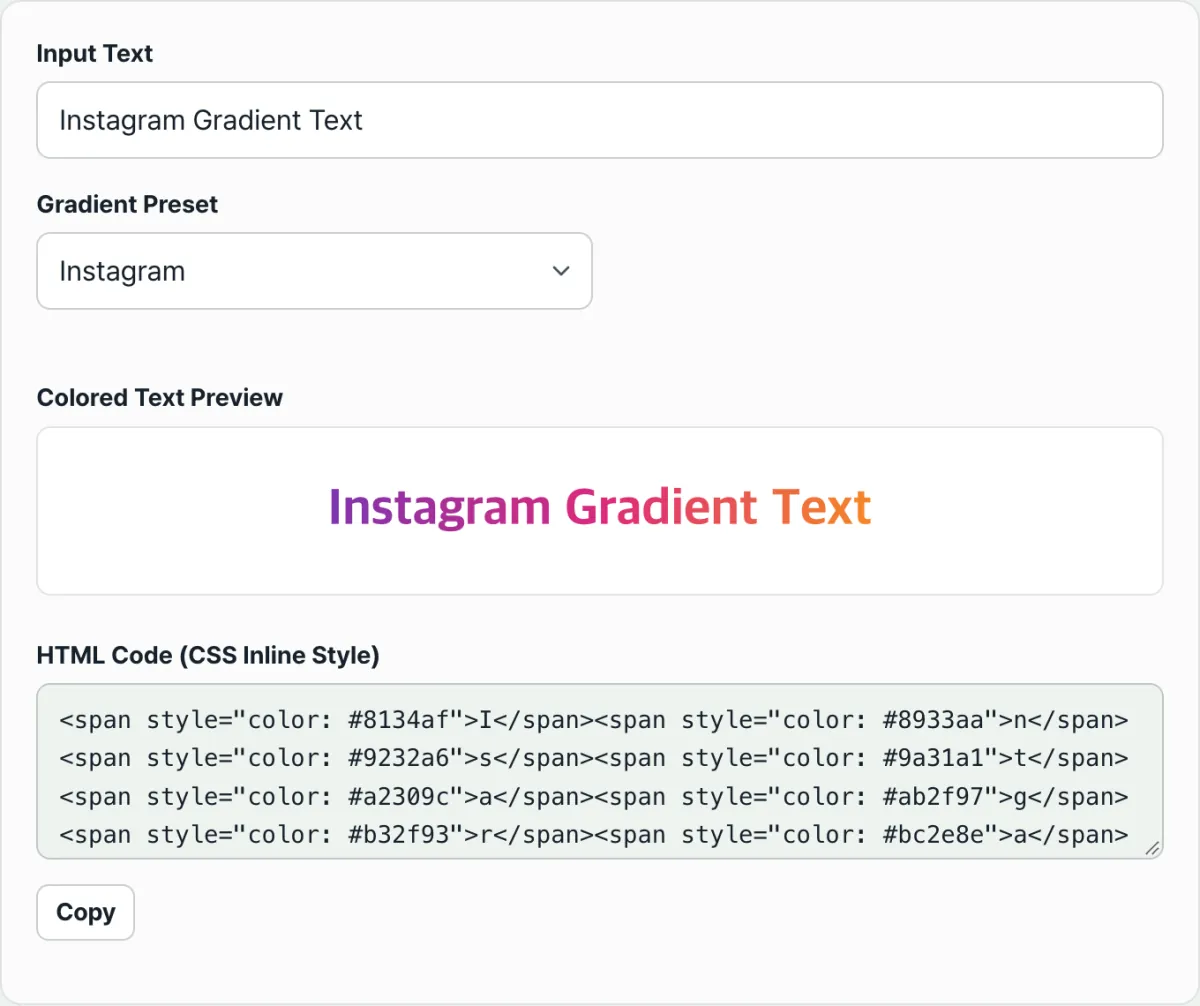
Instead of working out the formula and writing the code yourself, you can enter your text below and choose a preset to see the same result right away. Try it with our free tool, the Instagram Rainbow Text Generator.
Enter your text, pick a color preset like Instagram, Rainbow, Sunset, or Ocean, then copy the per-letter gradient HTML style code right away.
Presets and what to check when using them
| Preset | Color stops | Feel |
|---|---|---|
| Instagram (default) | #8134AF → #DD2A7B → #F58529 (3 stops) | Instagram logo colors (purple-pink-orange) |
| Rainbow | #ff0000 → #ff7f00 → #ffff00 → #00ff00 → #0000ff → #4b0082 → #8b00ff (7 stops) | Full 7-color spectrum |
| Sunset | #fd1d1d → #fcb045 (2 stops) | Warm tones (red-orange) |
| Ocean | #00c6ff → #0072ff (2 stops) | Cool tones (sky blue-blue) |
For a blog or HTML email signature, copy the raw HTML source and paste it in as is. In a web editor such as Tistory or WordPress, copy the rich text and paste it with Control+V. Bright colors, such as high-lightness yellow or yellow-green, may be hard to read on a white background, so check the contrast against the background too.
The bottom line
Gradient text that changes color letter by letter is HTML calculated by interpolating between the color stops in a preset, segment by segment, according to the ratio of each letter's position. You can apply the formula and write the code yourself, but you can also get the same result right away just by choosing a preset and entering your text. However, HTML code made this way does not work in plain-text-only areas such as an Instagram feed or profile. It only applies where HTML is rendered, such as a blog's HTML editor or an email signature. When you use bright colors, check the contrast against the background too.
Enter your text, pick a color preset like Instagram, Rainbow, Sunset, or Ocean, then copy the per-letter gradient HTML style code right away.
Frequently Asked Questions
Can I paste this into an Instagram feed caption or profile bio?
Instagram's standard feed posts and profile bios are plain text areas that don't support HTML tags, so code you put there just shows up as-is and doesn't work. This tool is meant for places where HTML tags actually render, like the HTML editing window in Naver or Tistory blogs, webpage markup, or email signatures.
What color combinations can I choose from?
You can pick one of 4 presets — Instagram, Rainbow, Sunset, or Ocean — or use the custom option to set your own start color and end color.
How do I use the finished code?
Enter your text and pick a preset, and the preview shows up right away. Once you've checked the preview, click the copy button at the bottom to copy the HTML source code, then paste it wherever you want.
This article was adapted from our Korean original. Read the Korean original