
QR Code Not Scanning? 6 Causes and How to Check Each
When a QR code won't scan, switching to a different camera app often fails the same way. In that case, the problem probably isn't the camera — it's the printed QR code itself. Checking just three things (missing margin, low contrast, damaged corners) usually uncovers most of the cause.
Summary ① A QR code needs the standard minimum margin (quiet zone) around it to be readable ② If the contrast between dark modules and the light background is low, scanners can't tell where the edges are ③ If the three finder patterns in the corners are covered or cut off, the scanner can't even figure out the orientation, so it won't read
The Problem
You point your phone at a QR code printed on a poster, business card, or receipt, and nothing happens — so you try another app, wondering if something's wrong with your phone. If several apps all fail the same way, the camera probably isn't the issue. The QR code itself likely is.
It's common in print and design work to drop a big logo in the middle, lay a QR code straight onto a background image, or trim the margin to make the layout fit. These edits may look clean, but they break the structural conditions a QR code has to meet and hurt readability.
Printing small, like on a business card, or printing on glossy coated paper causes problems too. When the code is small, the individual modules blur together, and coated paper reflects light so the camera can't read the contrast boundaries.
The Fix
A QR code's structure is defined by the ISO/IEC 18004 standard, so checking the items below in order will narrow down the cause.
1. Check the quiet zone. Around a QR code you need a white margin at least 4 times the width of one module so the scanner can tell where the code starts and ends. If text or background art sits right up against the code, widen the margin and reprint.
2. Check the contrast. The contrast between dark modules and the light background has to be clear for the code to be read, and pale color combinations or glare off coated paper reduce that contrast. Printing a dark solid color on matte paper is the safest bet.
3. Check the finder patterns in three corners. The scanner looks first for the large square patterns at the top left, top right, and bottom left, and uses them to calculate the code's orientation and size. If a logo or decoration covers even one of these three corners, or if it gets cut off in printing, the code can't be read at all.
4. Check resolution and focus. If the source image is too small or the photo is blurry, the boundaries between modules smear together and the scanner can't tell the cells apart.
5. Check your angle and distance. If the camera is tilted too far from the surface of the code, or too close or too far away, the scan will fail. Try again straight on, at a distance where the whole code fits in the frame.
6. Check the tool you're using to scan. If you're trying to scan in a web browser rather than a camera app, the failure may simply be that your browser doesn't have QR scanning built in yet.
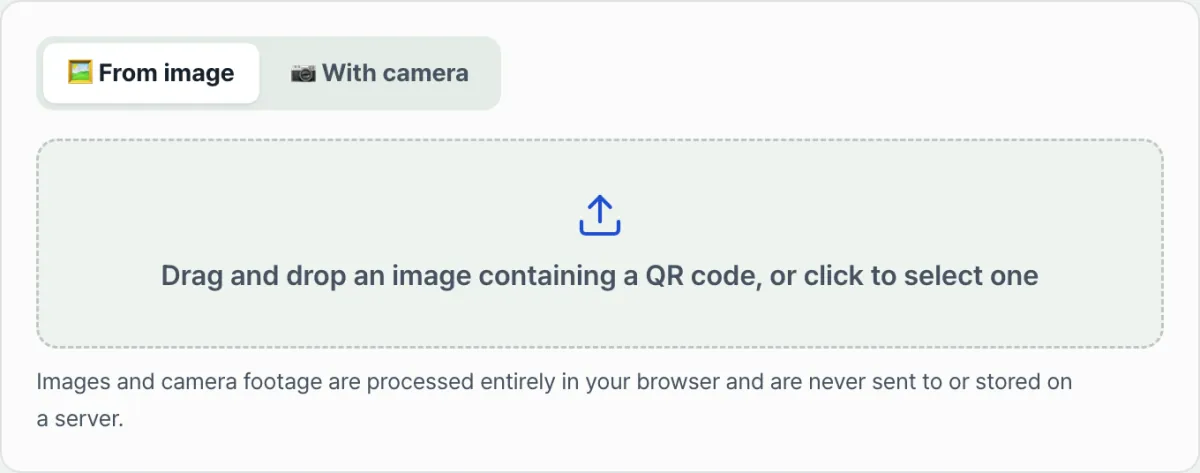
If you've gone through the whole checklist and the cause still isn't clear, the surest way is to put the photo of the QR code that won't scan into a different scanning engine and compare results. Give our tool a try.
Just upload an image. It shows the result right away, with no buttons to press.
Common Sticking Points
| Symptom | Possible cause | How to check |
|---|---|---|
| Scans up close but not from farther away | Insufficient margin or low resolution | Leave plenty of margin around the code and reshoot at the original size |
| Only scans occasionally, from certain angles | Glare off coated paper lowers contrast | Reshoot at an angle and under lighting with no glare |
| Only QR codes with logos fail to scan | Finder patterns in the corners are covered | Check that the top left, top right, and bottom left corners aren't covered |
| Works in a camera app but not on the web | Browser doesn't support QR scanning | Try again in a supported browser such as the latest Chrome or Edge |
| Uploading the image keeps failing | The photo itself is blurry or too small | Retry with an original photo that's in focus and high enough resolution |
Bottom Line
When a QR code won't scan, check the margin, the contrast, and the corners before you switch cameras. Those three are the minimum conditions the QR code standard requires, and most scan failures start there.
If it's hard to check the cause on the printed piece itself, take a photo and run it through a different scanning engine — that will tell you whether the problem is the code or the camera.
Just upload an image. It shows the result right away, with no buttons to press.
Frequently Asked Questions
Why does my camera app scan it but this tool doesn't?
Scanning engines differ in how they're built and how well they perform, so a code that fails in one app won't necessarily fail in another. On the flip side, if this tool can't read it either, the problem is more likely the shooting conditions or the QR code itself.
Is it safe to tap the link that comes up?
You often can't tell who made a QR code, so it's safer to first check whether the decoded address is a domain you trust. For a QR code from an unknown source, look over the address once more before you open it.
Are uploaded images stored on a server?
No. Images and camera footage are processed only inside your browser and are never sent to or stored on a server.
This article was adapted from our Korean original. Read the Korean original