
Blog reading time calculation: why sites show different minutes
Contents
You've probably pasted the same post into Naver Blog and some other site and seen "estimated reading time" come up as 3 minutes on one and 5 minutes on the other. That number isn't measured with a stopwatch. It's an estimate produced by a formula, so it can come out differently from site to site.
This post lays out exactly what goes into that formula, and how to check the result by hand before you even reach for a calculator.
Summary ① "Estimated reading time" isn't measured. It's an estimate: character count (or word count) divided by an assumed reading speed. ② That assumption (the denominator) differs from site to site, so the same post can show a different number of minutes. ③ Once you know the denominator, one division tells you the result in advance.
Why reading time comes out differently from site to site
Estimated reading time is not a measurement of how long a person actually spent reading the post. It's just a calculation: the amount of text divided by an assumed speed of "this much per minute."
The problem is that this assumed speed — the denominator in the division — isn't standardized anywhere. Some services count characters per minute. Others count words per minute. Different denominators give different minutes for the same character count.
So arguing over whether a given calculator is "right" or "wrong" misses the point. It's far more reliable to find out which denominator a service uses and do the division yourself on that basis.
The formula you can check by doing the math yourself
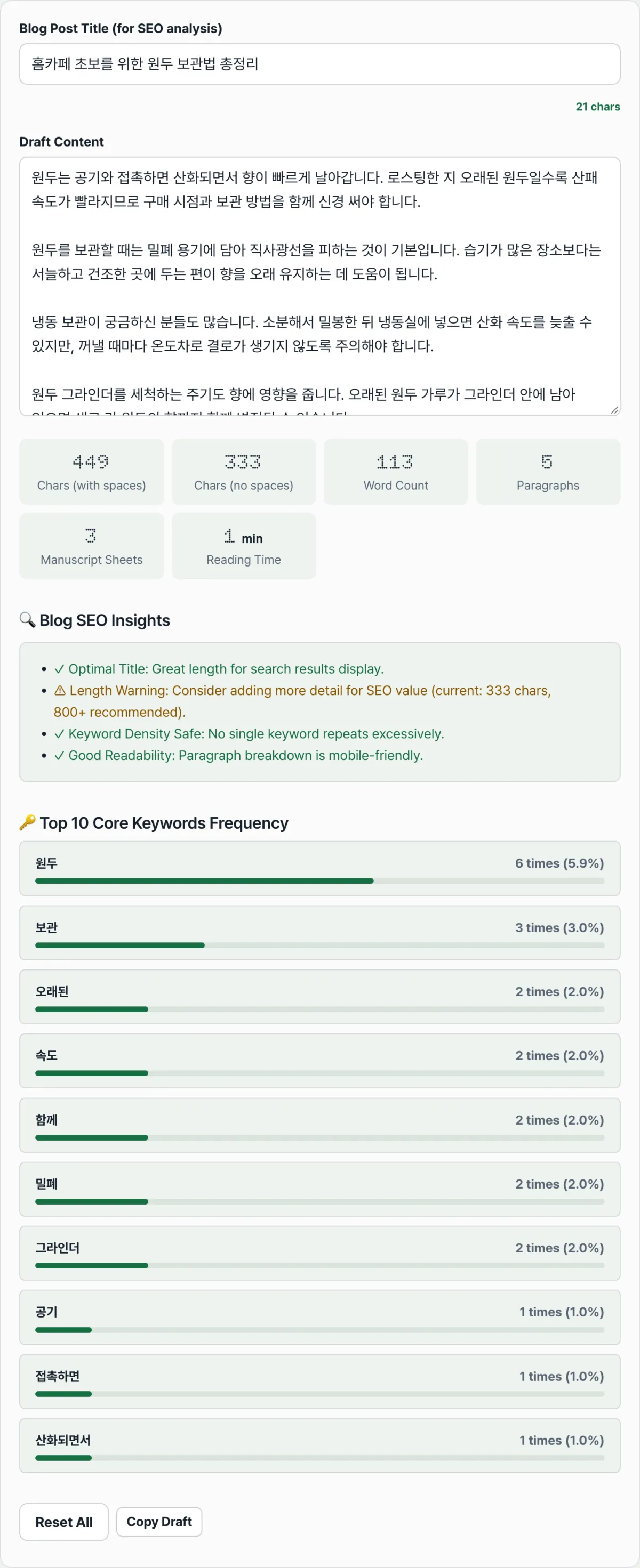
We'll publish the formula our tool uses as-is. For any post containing at least one Hangul character, it divides the character count excluding spaces by 500 and rounds the result to the nearest minute. For English text with no Hangul at all, it divides the word count by 220 and rounds.
Either way, the result never comes out as 0 minutes. No matter how short the post, it's pinned to a minimum of 1 minute.
For example, a Korean manuscript with 2,450 characters excluding spaces gives 2450 ÷ 500 = 4.9, which rounds to 5 minutes. If the manuscript is only 250 characters, that's 0.5 minutes, but the 1-minute minimum means the screen shows 1 minute.
Start by counting characters
To check by hand, you first need the character count excluding spaces (Korean manuscript) or the word count (English manuscript). Open your word processor's "Word Count" feature, or run the line below in your browser console.
Array.from(text.replace(/\s/g, "")).lengthThe catch is that even after you have that number, you still have to do the division by hand every time — and decide for yourself whether the text is Korean or English so you can switch denominators.
Check it with our tool. Paste your draft and it handles the Korean/English detection, the division, and the rounding in one pass, showing the result in minutes on screen.
Free · no sign-up · see character count, keyword density, and estimated reading time update live on one screen
Common sticking points
| Situation | Cause |
|---|---|
| The same post shows different minutes on different sites | Each site uses a different assumed speed (denominator) in characters or words per minute |
| Even a very short post always shows 1 minute or more | The value is pinned to a minimum of 1 minute so it never comes out as 0 |
| A Korean post feels like it was calculated with the English formula | A post with no Hangul characters at all automatically switches to the word-count basis |
| The number changes when you count characters including spaces | This tool calculates from the character count excluding spaces |
The bottom line
- "Estimated reading time" is an estimate, not a measurement: character count (or word count) divided by an assumed speed.
- That assumed speed (the denominator) differs from site to site, so the same post can show different minutes.
- Our tool divides the character count excluding spaces by 500 for Korean text, or the word count by 220 for English text, rounds the result, and pins it to a minimum of 1 minute.
- Know the denominator and the character count, and one division gives you the result without a calculator.
Free · no sign-up · see character count, keyword density, and estimated reading time update live on one screen
Frequently asked questions
Why does it show a different time than it actually takes to read?
Because the value assumes an average reading speed. Real reading speed varies from person to person and depends on how difficult or engaging the text is, so the displayed minutes and the actual time can differ as much as they like.
Do Korean and English text use different formulas?
Yes. If the text contains even one Hangul character, the tool divides the character count excluding spaces by 500. If there's no Hangul at all, it divides the word count by 220. Korean is counted in eojeol (word-phrase) units while English is counted in space-separated words, so the denominators themselves are set differently.
Does splitting a post into more paragraphs increase the reading time?
No. The reading time calculation only uses the character count (or word count). The number of paragraphs isn't factored in. Paragraph count is a separate statistic shown on screen, independent of the formula.
Why does the time always come out as a whole number, like 1 minute or 2 minutes?
Because the result of the division is rounded to a whole minute. A calculated 4.9 minutes shows as 5, and a calculated 4.3 minutes shows as 4.
This article was adapted from our Korean original. Read the Korean original