
Furniture Layout Simulator: How Scale and Rotation Work
Contents
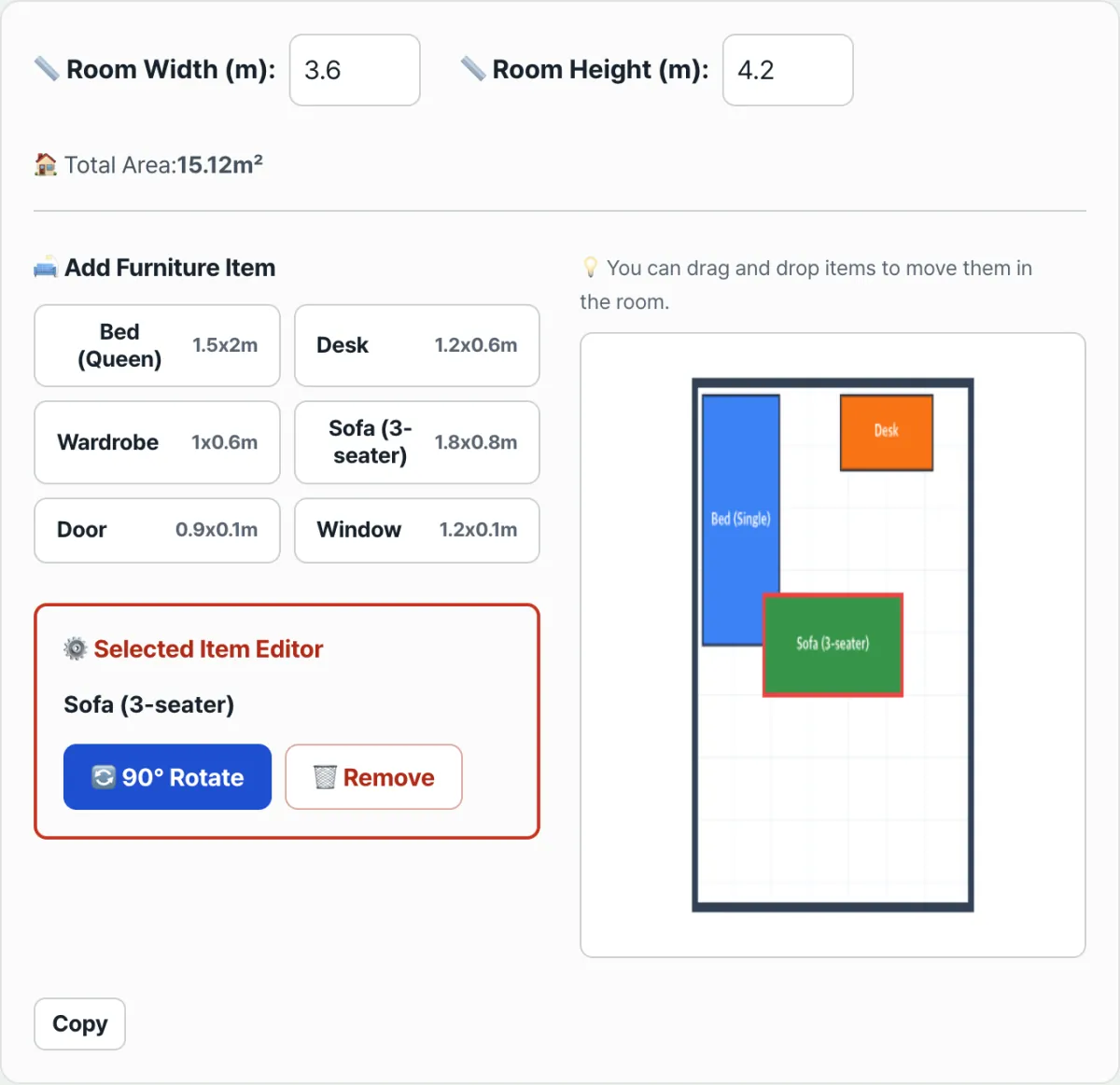
A furniture layout simulator takes your room's width and length in meters, draws a scaled floor plan on screen at that exact ratio, and lets you place, move, and rotate beds, desks, and sofas on top of it so you can check ahead of time whether they actually fit.
It's for anyone who wants to confirm that the room dimensions they measured with a tape and the specs on a furniture listing line up — with numbers, not a gut feeling. This post covers the facts: how your room dimensions (m) go through a series of calculations and become canvas coordinates, and what formulas handle rotation and dragging.
Summary ① Room width and length (m) are converted into a scale value that fits the 440×320px area left after the canvas margins, which is used to draw the 0.5m grid and the wall outline ② One grid square always means 0.5m (50cm) no matter the room size, and rotating furniture to 90° or 270° swaps the width and height values used for click detection ③ While dragging, the furniture's center coordinate is forced to stay at least half the furniture's size away from every wall, so it can't go outside the room
You can't tell whether it fits just from the furniture specs
When you pick a desk on an online store, the product info usually gives you numbers only — say, 120cm wide and 60cm deep. Laying those numbers over your room in your head is less accurate than you'd think.
With two or more pieces of furniture, it gets worse. A plan to push the bed against one wall, put the desk by the window, and set the wardrobe beside the door can end up with pieces overlapping, or with a gap between the bed and the wardrobe too narrow for a person to walk through.
Add the position of doors and windows and guessing by hand gets even harder. Whether furniture blocks a door as it swings open, or covers the space in front of a window, is a question you can only answer by putting the real dimensions down at the same ratio.
How to draw a layout by hand without a tool
You can do the same job on paper, with no calculator or tool. The principle is the same as the on-screen simulator — bring every real length under one scale so you're comparing everything on the same basis.
- Pick a scale. If one square on graph paper is 10cm, a room 4m wide and 3m long becomes 40 squares by 30 squares.
- Draw the wall outline. Draw a rectangle with that many squares for the room's width and length, and you have your walls.
- Measure your furniture and draw it at the same scale. Take the width and depth from the spec sheet, draw them at the same scale, and cut them out.
- Set the cutouts on the room and move them around. When you rotate a piece 90°, the paper physically turns, so the side that was the width now sits where the depth was, and the depth sits where the width was.
- Check the gap left to the walls. If the distance from a piece's center to a wall is less than half its width, that piece is effectively sticking out past the wall.
Our tool does the same math on screen. The canvas is 500×380px with 30px margins, so the area you can fit the room into is fixed at 440×320px. The scale that fits the room into that area is scale = min(440 ÷ room width, 320 ÷ room length).
For example, enter a room 4m wide and 3m long, and scale = min(440÷4, 320÷3) = min(110, 106.7) ≈ 106.7px/m. That means 1 real meter is drawn at about 106.7px on screen, and because the smaller of the two values wins, the whole room always fits inside the canvas no matter which way it's longer.
Check it with our tool.
Free 2D furniture layout tool. Enter your room's width and length, no login needed, and the scale is calculated for you.
The screen calculations people trip over
Once you know the calculation structure, a few on-screen behaviors suddenly make sense.
| Confusing point | How it's actually calculated |
|---|---|
| Real size of one grid square | It's always 0.5m (50cm), regardless of room size or canvas size. A bigger room only makes each grid square fewer pixels on screen; the real meaning stays the same |
| Canvas size vs. scale | The canvas is always 500×380px with fixed 30px margins. Changing the room size only changes the scale value; the canvas itself doesn't change |
| Clicks don't register after rotating furniture | At 90° and 270°, the width and height of the click target swap. After rotating a piece that's taller than it is wide by 90°, the click area is checked using what used to be its width |
| Why furniture doesn't sit flush against the wall | The drag coordinate is clamped to halfW ≤ x ≤ room width − halfW and halfH ≤ y ≤ room length − halfH. Because it's based on the center coordinate, the furniture only moves as far as the point where its edge touches the wall |
| Reference point of the copied coordinates | x and y are the coordinates (m) of the furniture's center, not its top-left corner. To get the distance to a wall, add or subtract half the furniture's width or length |
Recap
- Room width and length (m) are converted to a scale that fits the 440×320px area left after the canvas margins (scale = min(440 ÷ width, 320 ÷ length))
- One grid square always means 0.5m (50cm), and that real meaning doesn't change as the room size changes
- Rotating furniture to 90° or 270° swaps the width and height values used for click detection
- While dragging, the furniture's center coordinate is limited to stay halfW and halfH inside the walls, so it can't leave the room
- In the copied coordinate report, x and y are measured from the furniture's center (m), so to get the distance to a wall you add or subtract half the value
Free 2D furniture layout tool. Enter your room's width and length, no login needed, and the scale is calculated for you.
Frequently asked questions
How many centimeters is one grid square, really?
Always 0.5m, which is 50cm. Whether you enter a 4m room or a 10m room, the real length one grid square represents doesn't change — only the pixel size of each square on screen varies with the room size.
Do the coordinates change when I rotate a piece of furniture?
The furniture's center x and y coordinates stay the same through rotation. What changes is that at 90° and 270°, the width and height values used to check whether a click lands on the piece are swapped. Each press of the rotate button cycles 0° → 90° → 180° → 270° → 0°.
How do I read the copied coordinate report?
The report lists the room size, the area, the number of pieces, and for each piece its name, size (m), center coordinates (x, y in m), and rotation angle — all as text. x and y are the distances in meters from the room's top-left corner to the furniture's center, so with a tape measure, the spot x meters from the left wall and y meters from the top wall is where that piece's center goes.
Is there a set range for room dimensions?
Both width and length can be entered from 2.0m to 12.0m, in steps of 0.1m.
This article was adapted from our Korean original. Read the Korean original