
Unix Timestamp to Date Conversion: Seconds, Milliseconds, UTC
Contents
This post is for anyone who needs to turn a time stored as a number like 1700000000 in an API response or database into a human-readable date. A Unix timestamp is simply the number of seconds or milliseconds since 00:00 on January 1, 1970 (UTC). Once you know the rules, you can read exactly what time any number represents. Mix up the unit, though, and that same number can look like 1970 or thousands of years in the future.
Summary ① A timestamp is the number of seconds or milliseconds since 1970-01-01 00:00:00 UTC (the epoch). ② If the number has 11 digits or fewer, it's seconds; 12 digits or more means milliseconds. Mix up the unit and the resulting date is off by a factor of about 1,000. ③ Even for the same timestamp, the local, UTC, and ISO formats differ only by the time zone offset.
Logs show just the number, with no unit
In server logs and API responses, a time often appears as a single number, like created_at: 1700000000. That's because these systems store the elapsed time since the epoch rather than a human-readable "November 2023."
The problem is that the number doesn't say whether it's in seconds or milliseconds. Some systems log seconds, others log milliseconds, so fields with the same name can hold values with different digit counts.
So when you see 1700000000 and 1700000000000 side by side in a log, it's hard to tell at a glance whether they're the same moment or completely different times. This post lays out the rules for reading those numbers as accurate dates.
How to convert it yourself without a tool
Step 1: Start with the epoch definition
The reference point (epoch) for a Unix timestamp is 1970-01-01 00:00:00 UTC. A timestamp is a single number representing how many seconds (or milliseconds) have passed since that moment.
What matters is that the reference is UTC. The timestamp itself has no time zone information, and it points to the same absolute moment no matter where you read it.
Step 2: Identify the unit by digit count
Count the digits in the integer part. 11 digits or fewer means seconds; 12 digits or more means milliseconds. As of today, a seconds value has 10 digits and a milliseconds value has 13, so in practice the two are usually easy to tell apart.
To turn a seconds value into a date, you need to convert it to milliseconds. JavaScript's Date always works in milliseconds, so you have to multiply a seconds value by 1000.
Step 3: Do the math
The most reliable way is the browser developer console. If the value is in seconds, multiply it by 1000 before passing it in.
new Date(1700000000 * 1000).toString()       // local time
new Date(1700000000 * 1000).toUTCString()    // UTC
new Date(1700000000 * 1000).toISOString()    // ISO 8601
If you prefer the command line, you can see UTC time with date -r 1700000000 -u on Mac and date -d @1700000000 -u on Linux.
In a spreadsheet, the formula =A1/86400 + DATE(1970,1,1) converts a seconds value to a UTC date. To see it in Korea time, add 9/24 (UTC+9).
Step 4: Convert UTC to local time
Once you have the UTC value, add your local offset. Korea Standard Time (KST) is UTC+9, so UTC plus 9 hours is local time.
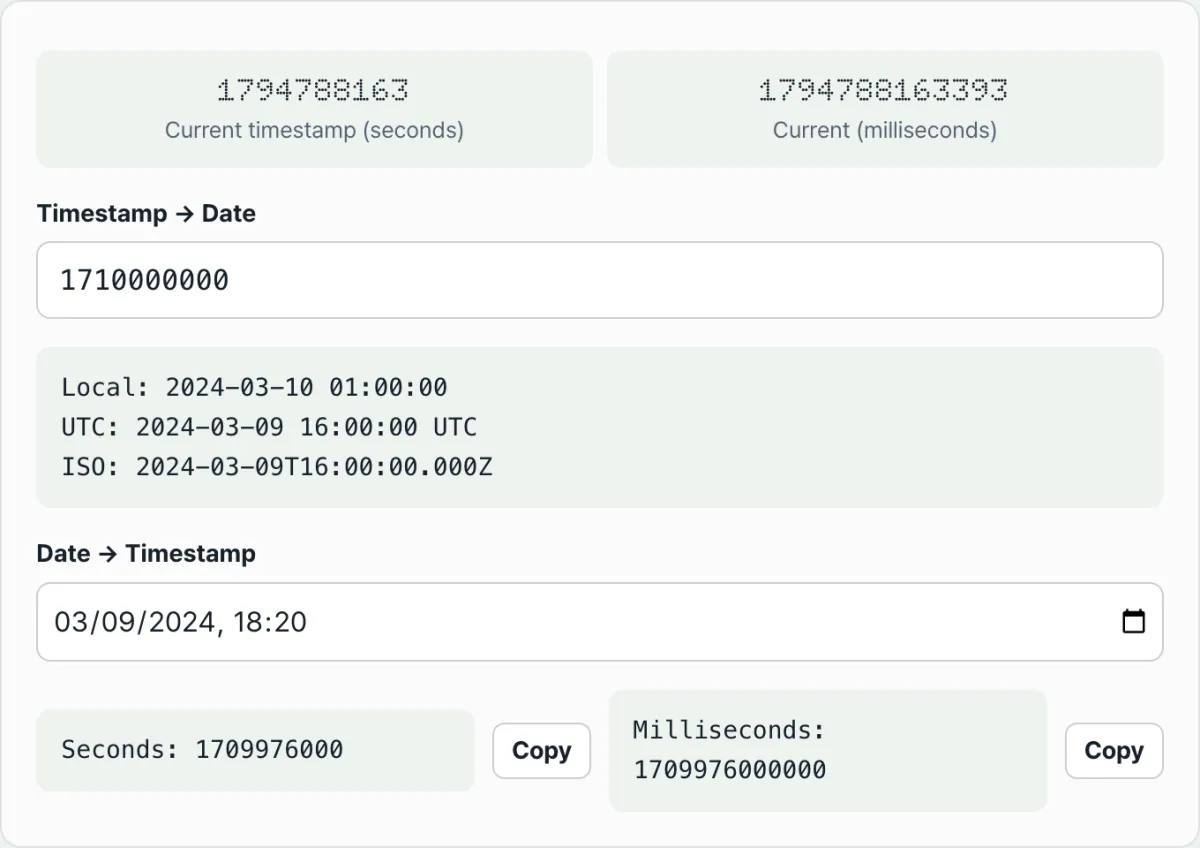
Check it with our free tool, Current Unix Timestamp & Quick Date Converter.
Type a number and it detects seconds or milliseconds automatically and shows it as local, UTC, and ISO time. Pick a date and it turns it back into seconds or milliseconds. Everything runs in your browser, no install.
Why the same timestamp looks different in local time, UTC, and ISO
When you enter 1700000000 in the tool, you get three lines. It's one number, but the times look different, which can be confusing.
| Format | Display | Meaning |
|---|---|---|
| Local | 2023-11-15 07:13:20 | Based on the browser's time zone (KST = UTC+9) |
| UTC | 2023-11-14 22:13:20 UTC | Based on a time zone offset of 0 |
| ISO 8601 | 2023-11-14T22:13:20.000Z | UTC written as an international standard string |
All three values point to the same moment. A timestamp is an absolute value with no time zone, so the format you read it in changes only how it's displayed.
Local time is 9 hours ahead of UTC because KST is UTC+9. In this example, adding 9 hours also moved the date from November 14 to November 15.
The Z at the end of an ISO 8601 string marks the time as UTC. So the ISO and UTC lines differ only in format and point to the same moment.
Common mistake: mix up the unit and the result is off by a factor of 1,000
The most common mistake is choosing the wrong unit. If you mistake a seconds value for milliseconds, or a milliseconds value for seconds, the result is off by a factor of about 1,000.
| Input number | Treated as | Computed time (UTC) |
|---|---|---|
| 1700000000 (10 digits) | Seconds (correct) | 2023-11-14 22:13:20 |
| 1700000000000 (13 digits) | Milliseconds (correct) | 2023-11-14 22:13:20 |
| 1700000000 | Milliseconds (mistaken) | 1970-01-20 16:13:20 |
1700000000 is a seconds value, so you need to multiply by 1000 to get 2023. Pass it in as milliseconds as-is, and it's only about 1.7 billion milliseconds, or about 20 days, so it lands in January 1970.
On the other hand, if you accidentally multiply a 13-digit milliseconds value by 1000 again, you get an impossible date tens of thousands of years in the future. The tool identifies the unit by digit count first, which helps you avoid that multiplication mistake.
Keep in mind that digit-count detection is a convention. Since 12 digits or more is treated as milliseconds, a seconds value far in the future can break the rule.
Key takeaways
- A Unix timestamp is the number of seconds or milliseconds since 1970-01-01 00:00:00 UTC (the epoch).
- If the number has 11 digits or fewer, it's seconds; 12 digits or more means milliseconds. Current seconds values have 10 digits, and millisecond values have 13.
- Mix up the unit and the result is off by about a factor of 1,000, landing near 1970 or in an absurd future.
- For the same timestamp, local time, UTC, and ISO differ only by the time zone offset; they all represent the same moment.
- The
Zat the end of ISO 8601 marks that time as UTC.
Type a number and it detects seconds or milliseconds automatically and shows it as local, UTC, and ISO time. Pick a date and it turns it back into seconds or milliseconds. Everything runs in your browser, no install.
Frequently asked questions
How do I tell a 10-digit number from a 13-digit one?
By counting digits. The tool treats 11 digits or fewer as seconds and 12 digits or more as milliseconds. As of now, seconds values have 10 digits and milliseconds values have 13, so they're usually easy to tell apart. A seconds value is multiplied by 1000 internally to convert it to a date.
Why is local time different from UTC?
Because a timestamp is an absolute value with no time zone, and local time is that value plus the browser's time zone offset. Korea Standard Time is UTC+9, so local time appears 9 hours ahead of UTC, and the date can move forward by a day. The two lines show different values but point to the same moment.
Can I convert a date back to a timestamp?
Yes. In the second box of the tool, choose a date and time, and it shows both the seconds and milliseconds values for that moment. You can copy each one. The seconds value is the milliseconds value divided by 1000, with the decimal part dropped.
Is the number I enter sent to a server?
No. Unit detection and date calculations all happen instantly in your browser. Nothing is sent to a server, and there's nothing to install — the result updates as soon as you type.
This article was adapted from our Korean original. Read the Korean original