
URL Encoding Explained: Why Spaces Become %20
Contents
This post is for anyone who typed a Korean word or a space into a search box and then saw the address fill up with strange symbols like %ED%95%9C%EA%B8%80%20. The short answer: a URL can't hold Korean characters, spaces, or some special characters as they are, so the browser swaps them using a fixed set of rules.
There are only two rules. The first is to split each character into UTF-8 bytes and write every byte as %XX. The second is a mode that decides how much to convert (the whole URL or just a parameter value). Once you know these two, you can read why %20 is a space and why %EA%B0%80 is "가".
Summary ① A space is
%20, and the Korean character "가" is%EA%B0%80. The character is turned into UTF-8 bytes, and each byte gets a%plus two hexadecimal digits. ② Component mode (encodeURIComponent) also converts structural characters such as/ ? & =. Full URL mode (encodeURI) leaves those characters alone. ③ Two common mistakes: encoding a complete address in component mode, which breaks its structure, and encoding an already encoded string again (double encoding).
Why does the address turn into these symbols?
A typical case: you copy a search result or a map link and paste it into a messaging app. The address looks like .../search?q=%ED%95%9C%EA%B8%80%20%EA%B0%92, and you can't tell what was searched.
It also works the other way. You build a link with Korean text placed directly in a query parameter. It opens fine in some places, but in others the link gets cut off. The URL standard limits which characters you can use, so Korean characters and spaces need percent-encoding to travel safely.
So the problem isn't that the text is "broken." It's that the text was converted by rule, and a person can't read the result. Once you know the rules, you can convert it back and read it right away.
How to check it yourself without a tool
Percent-encoding follows a two-step rule. You can check it by hand, or with a feature already built into your browser.
Step 1: Which characters get converted. English letters, digits, and a few symbols such as - _ . ~ can be used in a URL as they are, so they stay unchanged. Everything else, including spaces, Korean characters, ?, and &, has to be converted (based on RFC 3986, which defines the percent-encoding rules).
Step 2: How they get converted. Turn each character that needs converting into UTF-8 bytes, then write every byte as % plus two hexadecimal digits.
- The ASCII code for a space is
20in hexadecimal, so it becomes%20. - The Korean character "가" is three bytes in UTF-8:
EA B0 80. The three pieces join up as%EA%B0%80. That's why one Korean character usually shows up as three%XXgroups.
Your browser already has this built in. Open the console in developer tools (usually F12) and enter the lines below exactly as written. You'll get the same results.
encodeURIComponent("한글 값")   // → "%ED%95%9C%EA%B8%80%20%EA%B0%92"
decodeURIComponent("%EA%B0%80") // → "가"
This is where the modes split. To convert just one parameter value, use encodeURIComponent (component). To convert a whole address at once, use encodeURI (full URL). The table below covers the difference.
The catch is that you have to open the console, type the function name exactly, and retype it every time you switch between encoding and decoding or between the two modes.
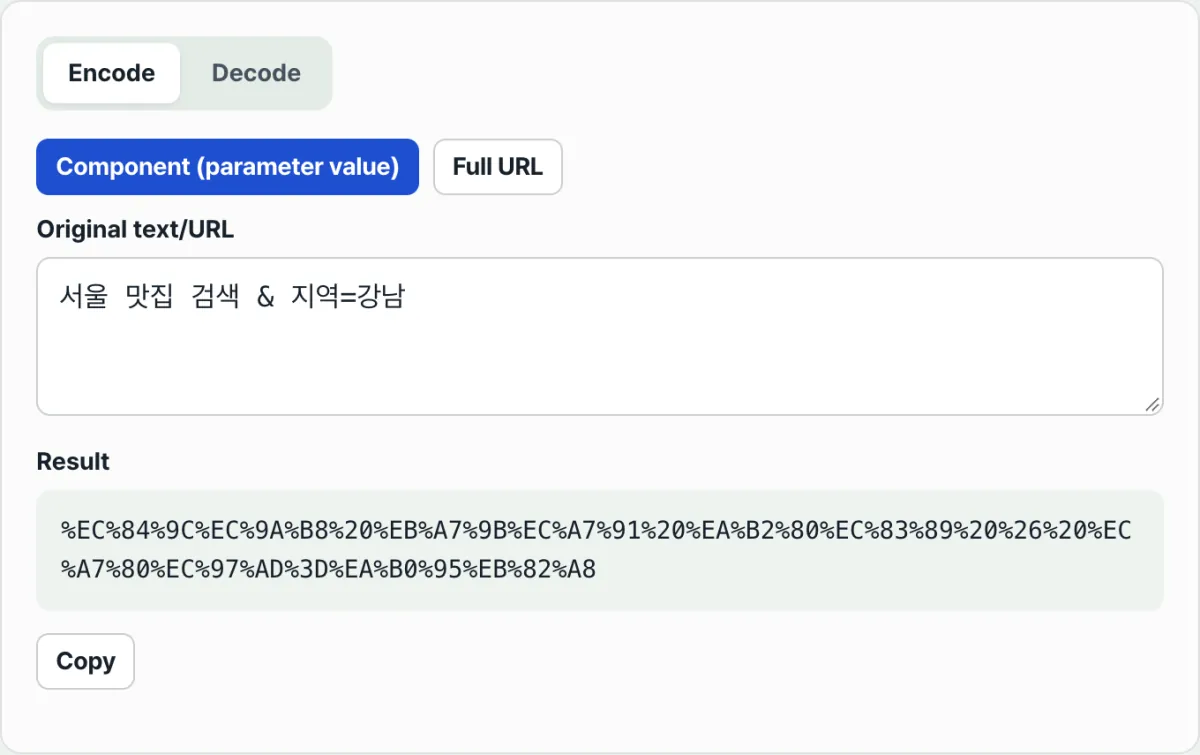
Try it with our tool.
Encode and decode right in your browser. No installation or sign-up needed, and your input is never sent to a server.
Three things that are easy to mix up
The most common slip is choosing the wrong mode. Even with the same string, structural characters like / ? & = come out differently depending on the mode.
Here is what the address https://site.com/search?q=한글 값&p=2 looks like in each mode.
| Character | Full URL (encodeURI) | Component (encodeURIComponent) |
|---|---|---|
/ ? & = | Left as is | Encoded as %2F %3F %26 %3D |
| Space | %20 | %20 |
| Korean characters | Encoded as UTF-8 bytes | Encoded as UTF-8 bytes |
- Full URL mode:
https://site.com/search?q=%ED%95%9C%EA%B8%80%20%EA%B0%92&p=2. The structure stays intact, and only the Korean characters and the space change. - Component mode:
https%3A%2F%2Fsite.com...%3Fq%3D...%26p%3D2. Everything changes, including:/?=&, so the structure breaks if you use it as an address again.
That's why encoding a complete address in component mode is the first common mistake. Component mode is right when you're filling in a single parameter value. Full URL mode is right for a complete address.
The second is double encoding. If you encode the already encoded %EA%B0%80 again, the % itself becomes %25, giving you %25EA%25B0%2580. If you decode once and get the string %EA%B0%80 instead of the original character, suspect double encoding.
The third is decoding failure. A % must be followed by two hexadecimal digits. If digits are missing, as in %EA%B0%8, or aren't hexadecimal, as in %GG, the string can't be decoded. In that case, the tool shows a red warning ("This string can't be decoded") and leaves the result empty.
Summary
- Spaces and Korean characters, which a URL can't hold directly, are converted into
%plus two hexadecimal digits for each UTF-8 byte. A space is%20, and "가" is%EA%B0%80. - Component mode (encodeURIComponent) also converts
/ ? & =, while full URL mode (encodeURI) leaves those structural characters alone. - Converting a complete address in component mode breaks its structure. Use one value = component, whole address = full URL.
- Encoding an already encoded string again turns
%into%25(double encoding). - To decode,
%must be followed by two valid hexadecimal digits. If not, the tool shows a warning and leaves the result empty.
Encode and decode right in your browser. No installation or sign-up needed, and your input is never sent to a server.
Frequently asked questions
Why does a space become %20? Sometimes I see a + instead.
The ASCII code for a space is 20 in hexadecimal, so it becomes %20 in percent-encoding. You see + when the application/x-www-form-urlencoded format, used for HTML form submissions, writes a space as +. encodeURIComponent and encodeURI, which this tool uses, always convert a space to %20.
Why does a Korean character show up as three chunks, like %EA%B0%80?
In UTF-8, a Korean character usually takes up 3 bytes. "가" is the three bytes EA B0 80, and each one is written as %EA, %B0, and %80, which gives %EA%B0%80. The character isn't broken. It's represented exactly, byte by byte, and pasting it into decode mode turns it back into "가".
What's the difference between encodeURI and encodeURIComponent?
They convert different ranges. Full URL mode (encodeURI) leaves address structure characters such as / ? & = : alone and converts only Korean characters and spaces. Component mode (encodeURIComponent) converts those structural characters too. So use full URL mode for a complete address, and component mode for a single parameter value.
Why does a red warning appear when I decode?
It appears when the two characters after a % aren't valid hexadecimal digits. If one digit is missing, as in %EA%B0%8, or a non-hexadecimal character appears, as in %GG, the browser's decoding function can't handle it, so the tool shows a warning and leaves the result empty. Check whether you copied only part of the encoded string.
This article was adapted from our Korean original. Read the Korean original