
User-Agent Header Explained: Parsing, Devices, and Bot Crawlers
Contents
When a web browser sends a request to a server, it includes a User-Agent header that announces its operating system, browser engine, and device type. The server reads that value to serve a mobile-only page or to branch to a script tailored for a specific browser. During development, you often need to check and test a range of User-Agent values even without the actual device on hand. This post covers how User-Agent strings are structured, how to check them yourself, and the examples you'll run into most often in practice.
Summary ① The User-Agent is an identifying string sent to the server that carries browser, OS, and engine information. ② You can check and detect it yourself in the browser developer console or with regex code, but gathering values for every device by hand gets tedious. ③ A generator lets you pull up User-Agent strings and request code for major devices, browsers, and crawlers right away.
1. Why the User-Agent Header Matters
A web server parses the visitor's User-Agent string to serve a mobile-only page or to dynamically deliver a polyfill script that works around a specific browser's bug. Search engine crawlers identify themselves with their own User-Agent too, so you also need those values when verifying robots.txt rules or crawler-blocking logic. The trouble is that checking each combination — iPhone Safari, Android Chrome, Googlebot, and so on — one by one on real devices in a development environment is a hassle.
2. How to Check a User-Agent String Yourself
The most basic approach is to type navigator.userAgent into the browser developer tools console to see the current value. For backward compatibility with older browsers, the User-Agent string is a combination of several tokens, roughly in this shape: Mozilla/5.0 (platform info) AppleWebKit/537.36 (KHTML, like Gecko) Chrome/version Safari/537.36.
Here are the specific header patterns for major devices.
- Desktop Chrome (Windows):
Mozilla/5.0 (Windows NT 10.0; Win64; x64) AppleWebKit/537.36 (KHTML, like Gecko) Chrome/126.0.0.0 Safari/537.36 - iPhone Safari (iOS):
Mozilla/5.0 (iPhone; CPU iPhone OS 17_5 like Mac OS X) AppleWebKit/605.1.15 (KHTML, like Gecko) Version/17.5 Mobile/15E148 Safari/604.1 - Google Search crawler (Googlebot):
Mozilla/5.0 (compatible; Googlebot/2.1; +http://www.google.com/bot.html)
To detect the type of device visiting your site in JavaScript, you test the User-Agent string with a regular expression. Below is basic detection code that separates mobile devices from crawler bots.
function detectDeviceType() {
  const ua = navigator.userAgent;
  const isMobile = /Android|webOS|iPhone|iPad|iPod|BlackBerry|IEMobile|Opera Mini/i.test(ua);
  const isBot = /bot|googlebot|crawler|spider|robot|crawling/i.test(ua);

  if (isBot) return "SEO-Crawler";
  if (isMobile) return "Mobile-Device";
  return "Desktop-PC";
}
Note You don't have to write that code yourself. In the User-Agent String Generator, pick a preset for Chrome, Safari, iPhone, Android, or a search engine crawler such as Googlebot, Bingbot, or Applebot, and you'll see the matching value plus JavaScript and Python header request code right away.
Instead of assembling console commands or regex code by hand, check it instantly with our free tool below.
Look up current User-Agent strings for operating systems, browsers, and search engine bots, and copy the header source for your code right away.

3. Examples by Device and What's Changing
Here are the device header patterns from above, collected in a table.
| Device/Browser | User-Agent example |
|---|---|
| Desktop Chrome (Windows) | Mozilla/5.0 (Windows NT 10.0; Win64; x64) AppleWebKit/537.36 (KHTML, like Gecko) Chrome/126.0.0.0 Safari/537.36 |
| iPhone Safari (iOS) | Mozilla/5.0 (iPhone; CPU iPhone OS 17_5 like Mac OS X) AppleWebKit/605.1.15 (KHTML, like Gecko) Version/17.5 Mobile/15E148 Safari/604.1 |
| Google Search crawler (Googlebot) | Mozilla/5.0 (compatible; Googlebot/2.1; +http://www.google.com/bot.html) |
Client Hints and SSR
To protect privacy, browsers are gradually moving away from the long, detailed navigator.userAgent string toward Client Hints headers such as Sec-CH-UA-Mobile and Sec-CH-UA-Platform, which carry only the information you need. On servers like Next.js or Express, you can inspect the request's User-Agent header and use it to serve a lightweight template to mobile visitors and high-resolution resources to desktop visitors.
4. Takeaways
- The User-Agent is an identifying string exchanged with the server that carries browser, OS, and engine information.
- You can detect device type yourself by typing
navigator.userAgentin the console or writing regex-based code. - Rather than preparing values for every device and crawler by hand, a generator gets you the values and code snippets faster.
- These days things are also shifting toward the Client Hints standard, so it's worth referencing both approaches.
Look up current User-Agent strings for operating systems, browsers, and search engine bots, and copy the header source for your code right away.
Frequently Asked Questions
Can I see my own current User-Agent?
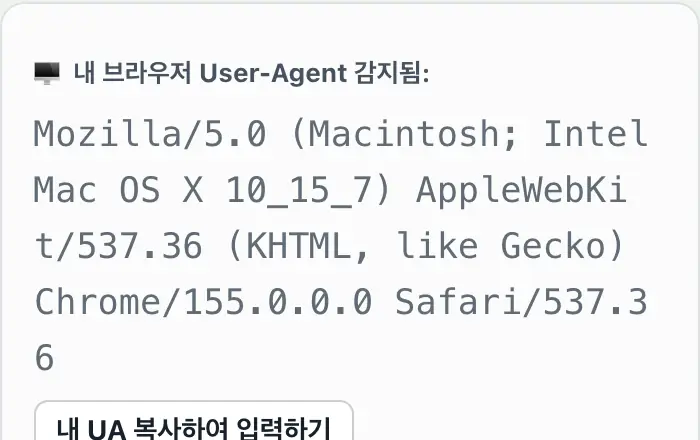
Yes. When you open the tool, it automatically reads and analyzes the real User-Agent you're using through the browser's built-in navigator API, and you can paste it straight into the input field to test it.
When do I need a web crawler bot's User-Agent?
Use it to check how a search engine robot (Googlebot, for example) behaves when it visits your page, or to test your robots.txt crawl restrictions locally before deploying them.
Can I test a custom User-Agent?
Yes. Beyond the built-in presets, you can type any User-Agent string you want into the input field and test it.
Can I use the generated value directly in my code?
Yes. Pick the cURL, Fetch, or Requests tab in the tool and it generates header request code in that format immediately, which you can copy and paste into your development scripts.
This article was adapted from our Korean original. Read the Korean original