
JSON-LD structured data: where to put it and required properties
Contents
You've heard you should "add JSON-LD" to your blog or product page, but you're not sure what it is or where it goes. This post is for you.
Here's the short answer: JSON-LD is data that describes a page's content in a format search engines can read, written separately from the page content itself. It goes inside a <script type="application/ld+json"> tag in the HTML.
One thing to be clear about up front: adding markup does not mean star ratings, images, or other rich results will show up. Google's documentation says directly that "even if you mark up your content correctly, we don't guarantee it will appear in search results."
Summary ① JSON-LD is JSON data placed inside
<script type="application/ld+json">. According to Google's documentation, it can go in either<head>or<body>. ② Eligibility for rich results depends on type-specific required properties. Article has no required properties; LocalBusiness requires name and address. ③ Even if you fill in every required property, display isn't guaranteed. Some features disappear entirely, like FAQ rich results.
Structured data affects "display," not ranking
A search result with extra elements like star ratings, prices, images, or a site name is called a rich result. These elements don't come from a search engine guessing based on the page body. They come from data the page reports about itself.
That report is structured data, and JSON-LD is one syntax for writing it. The vocabulary comes from schema.org, and the format is JSON-LD 1.1, a W3C Recommendation from July 2020.
This is where misunderstandings often happen. Structured data affects how search results look, but it isn't a ranking tool. Google's documentation on structured data manual actions explains that a manual action "makes a page lose eligibility to appear as a rich result, but does not affect its ranking in web search."
What JSON-LD looks like
A JSON-LD block has three parts: the wrapping tag, @context to point to the vocabulary, and @type to state what the data is about.
<script type="application/ld+json">
{
  "@context": "https://schema.org",
  "@type": "Article",
  "headline": "구조화 데이터 입문 가이드",
  "author": { "@type": "Person", "name": "홍길동" },
  "datePublished": "2026-07-20",
  "image": "https://example.com/cover.jpg"
}
</script>
The type attribute value must be application/ld+json. If you write text/javascript, the browser tries to run the JSON as code and throws an error. If you write application/json, it won't run, but search engines won't find it as structured data.
@context is the declaration that names like headline and author that follow should be read as schema.org vocabulary. @type determines whether this data is about an article, a product, or a store. If either is missing, the rest won't be interpreted, no matter how well you write it.
When a value is another entity, write it as a nested object. The author in the example above is one. That's why even a single person's name is wrapped as { "@type": "Person", "name": "…" }.
Where to put it
Google's documentation describes JSON-LD as a notation that goes inside a <script> tag in the <head> or <body> element of an HTML page. So either location works.
The same documentation says it can also read JSON-LD inserted later by JavaScript or widgets. That's helpful if you're in an environment where adding it directly to static HTML is difficult.
You can add more than one block per page. For example, an article page can have one Article block and one BreadcrumbList block for its breadcrumb trail.
How to create and validate it without a tool
Here are four steps. You can do all of them by hand.
Step 1: Choose a type and check required properties
First, decide what the page is: an article, product, store, and so on. Then open the documentation for that feature in Google Search Central and check the required properties table. The list is different for each type, and the docs are updated from time to time.
Step 2: Write the JSON
Using the format above, write @context and @type first, then fill in the properties you confirmed. If you don't know a property's value, leave it out rather than leaving an empty string. An empty value can be read as invalid data.
Step 3: Validate the syntax
One misplaced comma can make the whole JSON invalid. Paste the following into your browser's developer console (usually F12) to see whether every JSON-LD block on the page parses correctly.
[...document.querySelectorAll('script[type="application/ld+json"]')]
  .map(s => { try { return JSON.parse(s.textContent); } catch (e) { return "파싱 실패: " + e.message; } })
Step 4: Check eligibility
Google's Rich Results Test (search.google.com/test/rich-results) tells you which rich result features a page is eligible for. If you just want to check the syntax itself, use schema.org's Markup Validator (validator.schema.org). The two tools look at different things.
The hard part is steps 1 and 2. You have to find property names and nested structures in the docs each time, copy them over, and match commas and braces by hand.
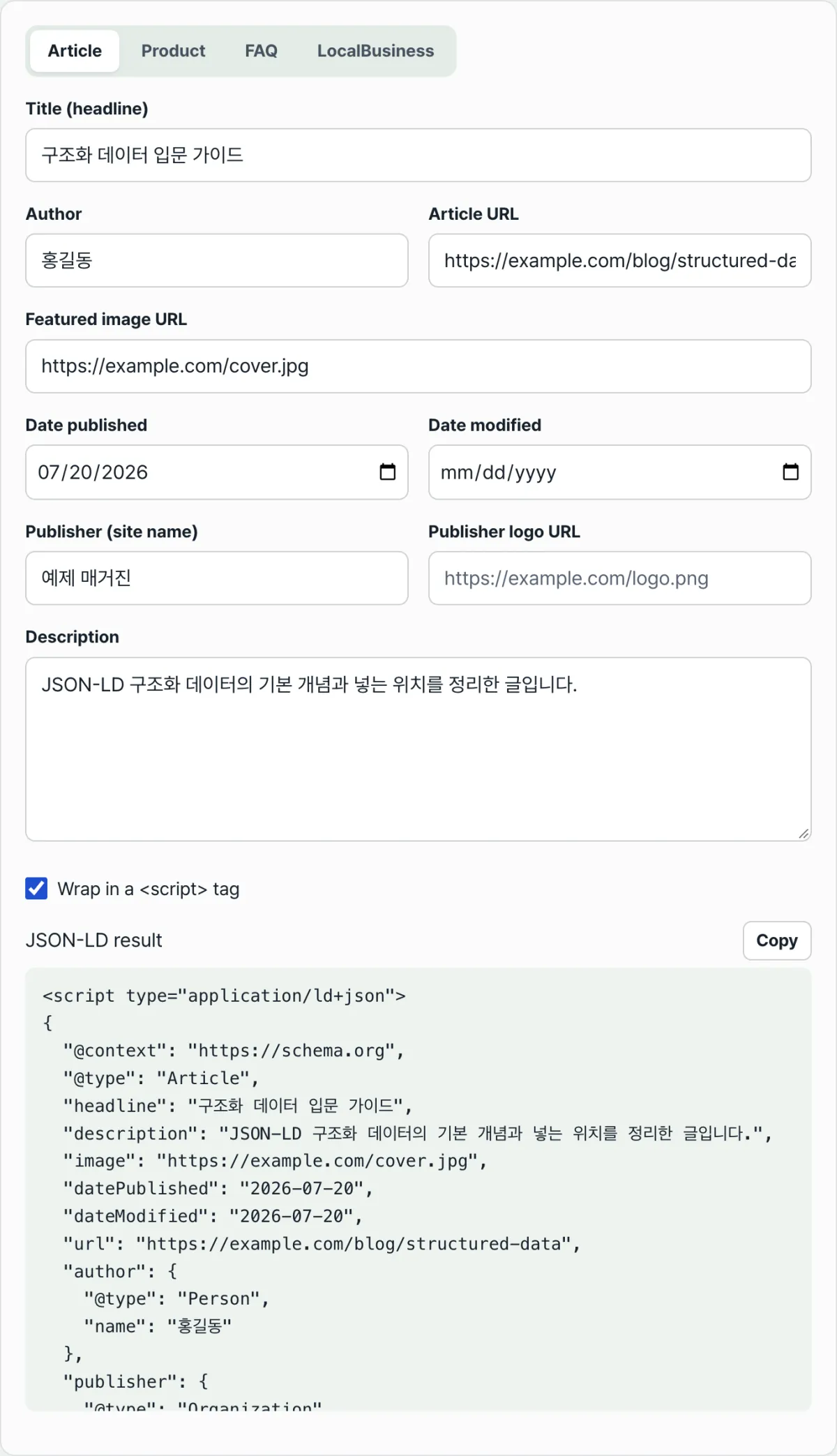
Try our JSON-LD Schema Generator. Choose Article, Product, FAQ, or LocalBusiness from the tabs at the top and fill out the form. Your JSON-LD is generated in real time. Fields you leave blank are automatically omitted. If you turn on the option to wrap it in a <script> tag, you get markup you can paste as is.
Everything is generated right in your browser—no install, no sign-up—and what you type is never sent to a server.
Required properties and recommended properties are different
This is a common point of confusion. The schema.org vocabulary itself has no "required" label. Required properties are lists that search engines separately require for a specific rich result feature.
Here's how it breaks down according to Google's documentation.
| Type | Required properties (Google) |
|---|---|
| Article | None — only recommended properties |
| Product (product snippet) | name, plus one of review, aggregateRating, or offers |
| LocalBusiness | name, address |
Article having no required properties may come as a surprise. Google's documentation notes that there are no required properties and says to include properties that match your content. It does recommend headline, image, datePublished, dateModified, and author.
By contrast, a product snippet needs more than a name. It needs at least one of review, aggregate rating, or offer information to be eligible.
Adding more recommended properties may sound like a good idea, but Google's documentation is explicit: it's better to have fewer properties that are accurate than to fill in every recommended property poorly.
Why Your Rich Results Don't Show Up After You Add the Markup
Sometimes you fill in every required property and your search results still look the same. There are usually four reasons.
| Situation | What happens |
|---|---|
| The feature no longer exists | Your markup may be valid, but there's no place to display it |
| You mark up content that isn't on the page | This violates policy and you can lose eligibility |
| A required property is missing | You never become eligible for that feature |
| You're eligible but not shown | The search engine decides whether and how to display it |
FAQ is a real example of the first row. In August 2023, FAQ rich results were narrowed to well-known government and health sites, and starting May 7, 2026, they no longer appear in Google Search.
FAQPage markup itself is still valid schema.org data. It just won't show up as an FAQ accordion in Google Search anymore.
The second row matters too. Google's guidelines state plainly that you shouldn't mark up content that isn't visible to the person reading the page. Putting ratings or prices in JSON-LD that don't appear on screen is a typical violation.
The fourth row is where this article started. Eligibility is pass or fail; display is the search engine's call. You can confirm eligibility in the Rich Results Test and still see your page appear as plain text in actual search results.
Summary
- JSON-LD is JSON data placed inside
<script type="application/ld+json">, and it must include@contextand@type. - You can put it in either the
<head>or the<body>, and you can have multiple blocks on one page. - Required properties are not defined by schema.org. They're the list each search engine requires per feature. Article has no required properties, and a local business requires name and address.
- For recommended properties, accuracy beats quantity.
- Even correct markup doesn't guarantee rich results, and features like FAQ can disappear entirely.
- Structured data affects how your search result is displayed. It isn't a ranking device.
Everything is generated right in your browser—no install, no sign-up—and what you type is never sent to a server.
Frequently Asked Questions
Should I put JSON-LD in the head or the body?
Google's documentation describes JSON-LD as markup placed in a <script> tag inside the <head> or <body> element. Either one works. It also notes that JSON-LD inserted later with JavaScript into the same document can still be read, so there's a path forward even when you can't easily edit your templates.
Does adding markup improve my search ranking?
Structured data affects how your search results are displayed, not your ranking. On structured data manual actions, Google's documentation says you only lose eligibility for rich result display and that it has no effect on your page's ranking in web search. It also states clearly that correct markup doesn't guarantee rich results.
Do I still need FAQ markup?
FAQ rich results no longer appear in Google Search as of May 7, 2026. That said, FAQPage is still a valid schema.org type, and leaving the markup in place won't cause problems. If you're adding it in hopes of getting an FAQ accordion in Google Search, you won't see that effect now.
Is what I type into the form sent to a server?
No. All JSON-LD generation in this tool happens in your browser. Values like the title, address, and phone number you enter are never sent to or stored on a server. Empty fields are automatically left out of the resulting JSON, so only the fields you fill in remain in the code.
This article was adapted from our Korean original. Read the Korean original