
Regex Special Characters and Flags: Check Matches Without Code
Contents
When you're building data-parsing logic or doing a bulk find-and-replace in a text editor, regular expressions (regex) are a tool that can cut your code down significantly.
But regex is hard to read and verify by eye because of its symbol-heavy syntax, and tweaking a pattern by firing off console.log over and over in the console is a chore. This article covers the core syntax elements of regex, what the flags mean, and how to validate a pattern without writing any code.
Why regex is so confusing
Symbols like ^, $, ., and * can completely change the match result with a one-character difference. For example, if you use . without escaping it, it matches any single character, not just a literal period. And if you mistake * for +, even empty strings end up in your matches. Every time you change a pattern in code you have to run it again and check the console, so finishing a single pattern takes a long round of trial and error.
Special characters and flags: how to check them
You can also test regex right in your browser's developer tools console using a RegExp object.
// Regex literal (email format pattern)
const emailRegex = /^[a-zA-Z0-9._%+-]+@[a-zA-Z0-9.-]+\.[a-zA-Z]{2,}$/;

// 1. Check whether it matches at all (true / false)
const isValid = emailRegex.test("user@example.com"); // true

// 2. Extract every match (returns an array, needs the g flag)
const text = "Contact: test1@aa.com or test2@bb.com";
const extractedEmails = text.match(/[a-zA-Z0-9._%+-]+@[a-zA-Z0-9.-]+\.[a-zA-Z]{2,}/g);
// ["test1@aa.com", "test2@bb.com"]
Here are the special characters you'll use most often and what they mean.
| Symbol | Meaning |
|---|---|
^ | Start of the string |
$ | End of the string |
. | Any single character except a newline |
* | The preceding character repeated zero or more times |
+ | The preceding character repeated one or more times |
? | The preceding character appears zero or one time |
JavaScript regex changes its behavior based on the flags you put after the pattern. Here are the three you'll use most.
| Flag | Name | Behavior |
|---|---|---|
g | global | Keeps going instead of stopping at the first match, so it finds every match in the whole string |
i | ignoreCase | Ignores letter case |
m | multiline | Makes ^ and $ recognize the start and end of each line rather than the whole string |
There are others too: s lets the dot (.) match newlines, u processes by Unicode code point, and y only checks starting from the position of the previous match.
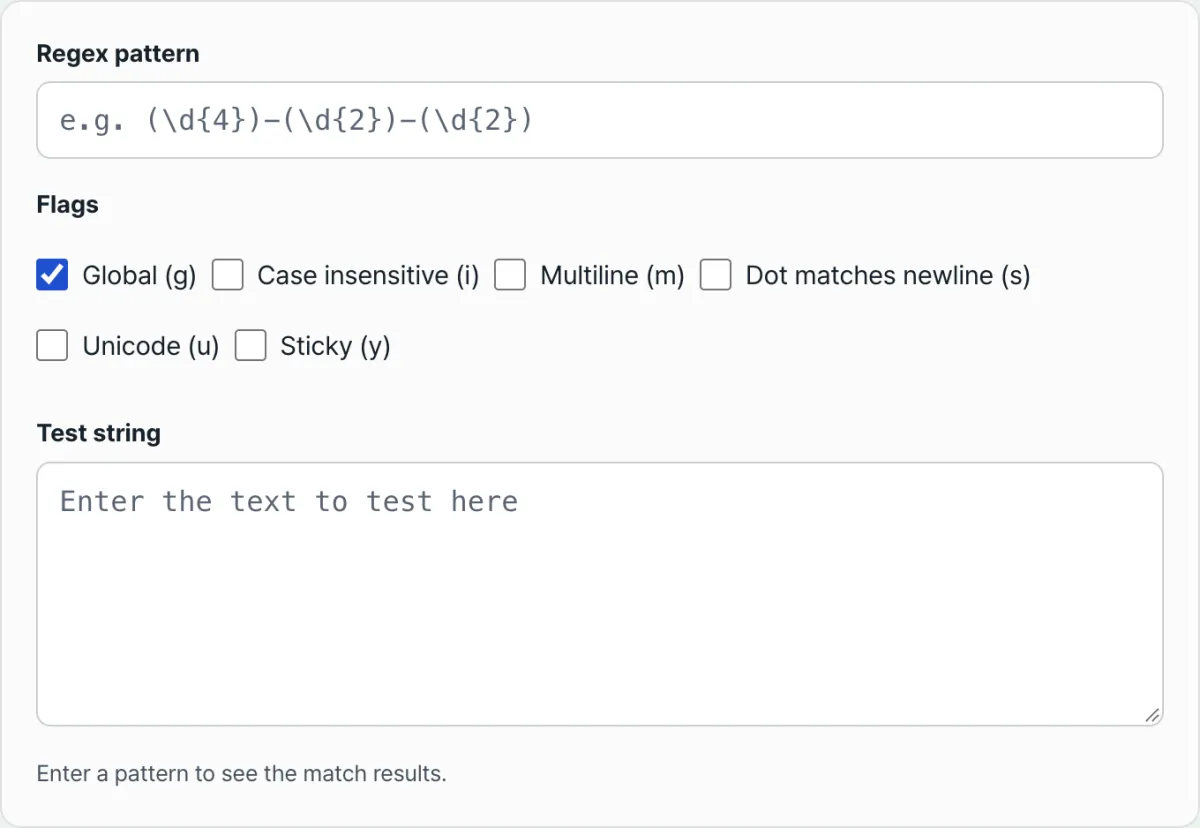
Instead of logging to the console every time, if you want to type a pattern, flags, and test string and immediately see the match count plus each match's position and capture groups, you can validate it right away with the Regex Tester.
Enter the regex pattern and string you want to test to instantly see the match count, the position of each match, and capture groups.
Once you enter a pattern, the match count shows first, and below it the match list shows each match's position (index), the matched string, and capture group values (including named groups) in order. Without the g flag you only see the first match; with it you can check every match in the string.
Where people commonly get stuck
| Situation | Cause |
|---|---|
| Only one match shows up | The g flag isn't on, so it stopped at the first match |
| A capture group value is empty | That group didn't actually match this time (it's an optional group) |
. matches characters you didn't want | To find an actual period, escape it as \. |
| The browser seems to freeze | Patterns with nested repetition like (a+)+ can be ReDoS (regular expression denial of service) patterns where backtracking explodes. It's safer not to nest repetition and to split it into simpler ranges |
Greedy quantifiers like .* try to match as much as possible. If you only want to match up to the first place it can, use the non-greedy form with a question mark, like .*?.
Summary
- A one-symbol difference changes the match result in regex, so you need to validate the pattern on its own before putting it in your code.
- The
g,i,m,s,u, andyflags each turn on a different behavior: global search, case-insensitive search, line-by-line handling, including newlines, Unicode handling, and sticky matching. - Patterns with nested repetition can freeze the browser as the text gets longer, so it's safer to break the structure into simpler parts at the design stage.
Enter the regex pattern and string you want to test to instantly see the match count, the position of each match, and capture groups.
Frequently asked questions
How are capture group numbers assigned?
They're numbered starting from 1 in the order the opening parentheses ( appear. A group with a question mark and colon like (?:...) is a non-capturing group and doesn't get a number.
Why do I only get one match when I don't turn on the g flag?
Without the g flag, the regex engine finds the first place in the string that matches and stops searching. To find every match in the string, you need to turn on g.
What happens if I enter an invalid pattern?
If the regex syntax itself is wrong, an error message is shown and no matching runs. Once you fix the pattern, you can run the check again.
This article was adapted from our Korean original. Read the Korean original