
Remove Forced Line Breaks from PDF Text and Merge Paragraphs
Contents
When you copy text from PDF papers, emails, or foreign-language websites for translation, you often end up with sentences chopped into pieces by line breaks (hard returns) that were inserted to fit a page layout.
If you paste that kind of unnaturally broken text straight into a translator or a document template, the translation algorithm treats each broken line as a separate sentence, tangles the context, and spits out awkward machine translation. This post covers how to rearrange forced line breaks into flowing single-line paragraphs, plus tips for cleaning up spaces.
The Basics of Removing Line Breaks and Merging Paragraphs
Turning several broken lines into one paragraph that reads as a unit usually takes two steps.
① Replace line breaks with a separator
Most English text needs the line break replaced with a single space (one space character: ) so words don't jam together when the break is removed.
original.replace(/\r?\n/g, " ")② Clean up duplicate spaces
Once line breaks become spaces, they can stack with spaces that were already at the end of each line and create multiple spaces, so collapse consecutive spaces into one.
merged.replace(/[ \t]{2,}/g, " ")If you just delete every line break, the points where paragraphs actually end (blank lines) disappear too, and the whole text becomes one block. That's why you need separate handling that keeps paragraph boundaries and removes only the line breaks inside each paragraph.
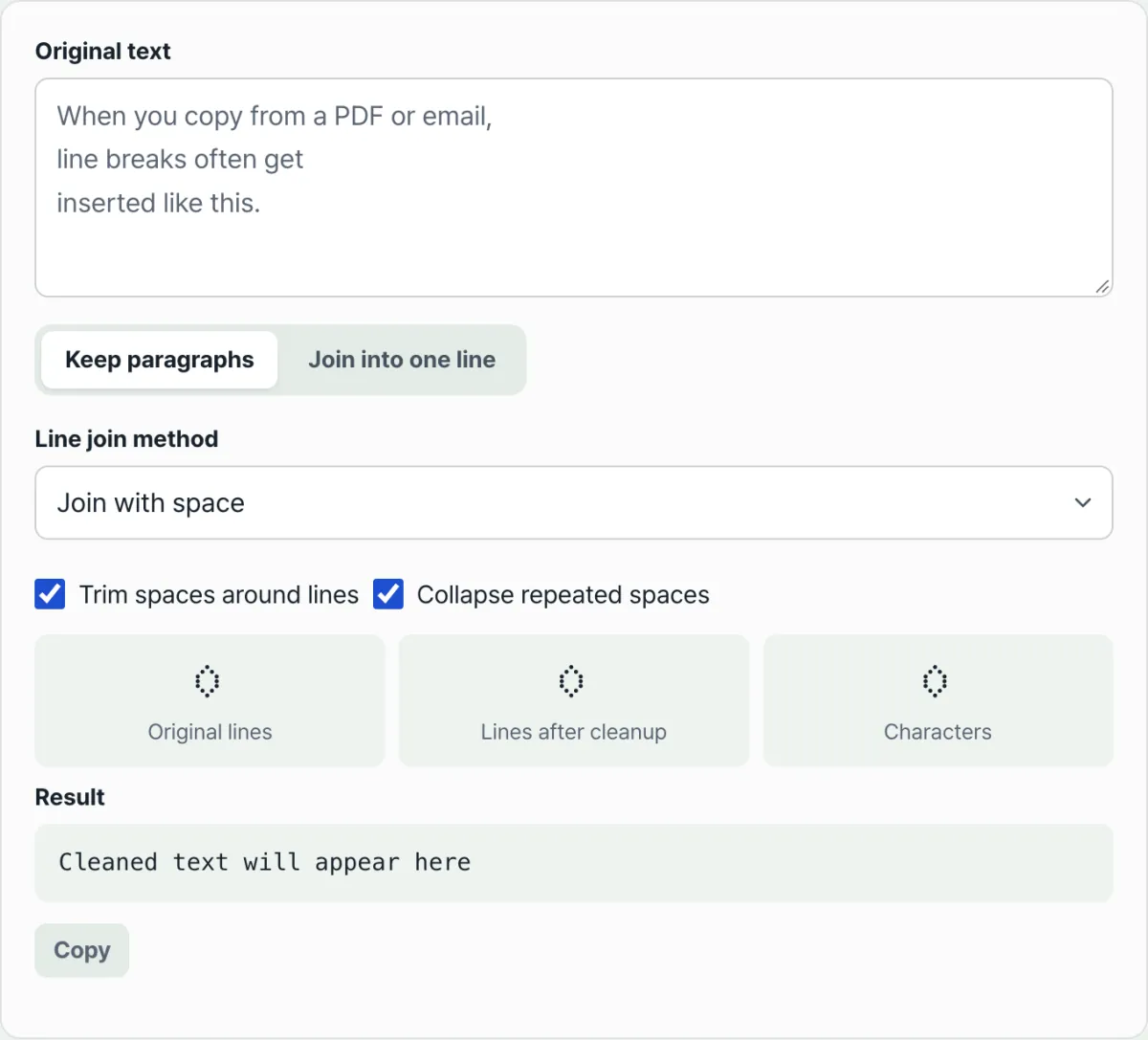
Check it with our tool. You don't have to paste text into Notepad and stitch lines together by hand, or hit Delete over and over in a translator's input box. With the Line Break Remover & Text Cleaner, pasting your text strips out the forced line breaks and cleans up duplicate spaces in one pass.
Paste text full of broken line breaks into the input box, pick the Korean or English setting, and tidy those breaks into single spaces or one smooth line.
How to Remove Line Breaks While Keeping Paragraphs
- Spotting paragraph boundaries: When people separate paragraphs, they usually press Enter at least twice to leave a blank line. Treat blank lines (double line breaks) as paragraph boundaries and join only the lines inside each block. That keeps your paragraph structure while removing the breaks.
- Choosing how to join lines: Whether to join lines with a space, with no separator at all, or with a comma depends on the document. A comma works well for collapsing a list into one line; a space reads naturally for sentences.
Korean is an agglutinative language where particles attach directly to words, so if a line break falls at a particle boundary, joining without a space can read more naturally. It's worth switching the separator per language and comparing the results.
Where English and Korean Differ When Merging Sentences
- Spacing between English words: English separates words with spaces, so you must add a space when removing a line break. Otherwise words merge together (for example,
LineandBreakturning intoLineBreak). - Particles attached in Korean: Korean is agglutinative, with particles written directly onto the word. If a line break falls at a particle boundary, leaving out the space can read more naturally, so try different separators per language and compare the output.
Summary
- When removing line breaks, add a separator (usually a space) so words don't stick together, and clean up duplicate spaces separately.
- To keep paragraphs, treat blank lines (double line breaks) as boundaries and join only the lines inside each one.
- For languages like Korean that attach particles, try a no-space separator instead of a space separator and compare.
Paste text full of broken line breaks into the input box, pick the Korean or English setting, and tidy those breaks into single spaces or one smooth line.
Frequently Asked Questions
I removed the line breaks and now my words are stuck together
Switch the line joining method to "Join with space" and a space goes between each line, which prevents words from merging. If you need the opposite—attached text like Korean particles—use the "Join directly (no separator)" option.
I want to keep my paragraph breaks
Choose "Keep paragraphs" mode. It preserves the paragraph boundaries marked by blank lines and joins only the line breaks inside each paragraph. If you want the whole document on a single line, use "Join into one line" mode.
This article was adapted from our Korean original. Read the Korean original