
CSS scrollbar color: why it works in Chrome but not Firefox
Contents
If you searched for scrollbar color CSS, pasted it in, and nothing on screen changed, it's usually because you added only the Chrome syntax or only the Firefox syntax. The two browsers handle scrollbars with different syntax. Without knowing that, you can swap the code in several times and still struggle to find the cause. This post lays out the verifiable facts behind why the two syntaxes exist separately, plus another common reason your code still doesn't apply.
Summary ① Chrome, Safari, and Edge use the
::-webkit-scrollbarfamily of pseudo-elements, while Firefox uses the standardscrollbar-colorandscrollbar-widthproperties. These are completely different syntaxes. ②scrollbar-widthcan't set an exact px value. You can only choose fromthin,auto, andnone. ③ CSS must be set on the class of the element that actually hasoverflowand scrolls, not onbody.
When your code works in one browser but not the other
This is common when you're trying to add a brand-colored scrollbar to an area with overflow-y: auto, like a side menu or card list. You paste CSS you found in a search, and the color changes in Chrome. Open the same page in Firefox, and you still see the default gray scrollbar.
The reverse happens too. Code from another post works in Firefox but does nothing in Chrome. The code isn't wrong. It just includes syntax for only one browser engine.
Why Chrome and Firefox use separate syntax
Styling scrollbars with CSS falls into two camps depending on the browser engine. One is the ::-webkit-scrollbar pseudo-element used by WebKit and Blink browsers such as Chrome, Safari, and Edge. The other is the CSS Scrollbars standard, implemented by Firefox as the scrollbar-color and scrollbar-width properties.
::-webkit-scrollbar, used by Chrome, Safari, and Edge
The ::-webkit-scrollbar family is not a W3C standard. It's a non-standard extension that WebKit introduced first. Each part of the scrollbar gets its own pseudo-element.
.custom-scrollbar::-webkit-scrollbar {
  width: 10px;
}
.custom-scrollbar::-webkit-scrollbar-track {
  background: #f1f5f9;
}
.custom-scrollbar::-webkit-scrollbar-thumb {
  background: #6366f1;
  border-radius: 5px;
}
.custom-scrollbar::-webkit-scrollbar-thumb:hover {
  background: #6366f1cc;
}
The color in -thumb:hover is the thumb color with two hexadecimal digits, cc, added to the end. cc is 204 in decimal, and 204 divided by 255 is about 0.8, or about 80% opacity. It's the original color with transparency added, not a new color.
scrollbar-color and scrollbar-width, used by Firefox
Firefox, by contrast, needs just two standard properties.
.custom-scrollbar {
  scrollbar-color: #6366f1 #f1f5f9;
  scrollbar-width: thin;
}
scrollbar-color takes two values: the first is the thumb color and the second is the track (background) color. If you swap the order, the colors flip.
The CSS Scrollbars standard defines only three values for scrollbar-width: auto, thin, and none. The standard itself has no value for setting thickness in pixels. So there's no way to reproduce an exact width like 10px in Firefox. You can only approximate it: use thin if it's thinner than the baseline, and auto for anything larger.
Recent versions of Chromium-based browsers have started to recognize scrollbar-color as well, but for a long time this property was Firefox-only. That's why, even now, including both syntaxes is the way to cover all browsers.
Still no change after combining both? It's probably your selector
If the scrollbar still doesn't change after you add both blocks, the cause is usually the selector. The code above is written to apply only to an element with the class .custom-scrollbar. You need to put that class on the element that actually scrolls, the one with overflow: auto or overflow: scroll.
If you want to change the page-wide scrollbar, put the class on body or html. If scrolling happens only inside a specific area, such as a card list, put it on the element that wraps that area. If you set it on body but the actual scrolling happens in an inner div, the body scrollbar may change while the scrollbar you actually see on screen stays the same.
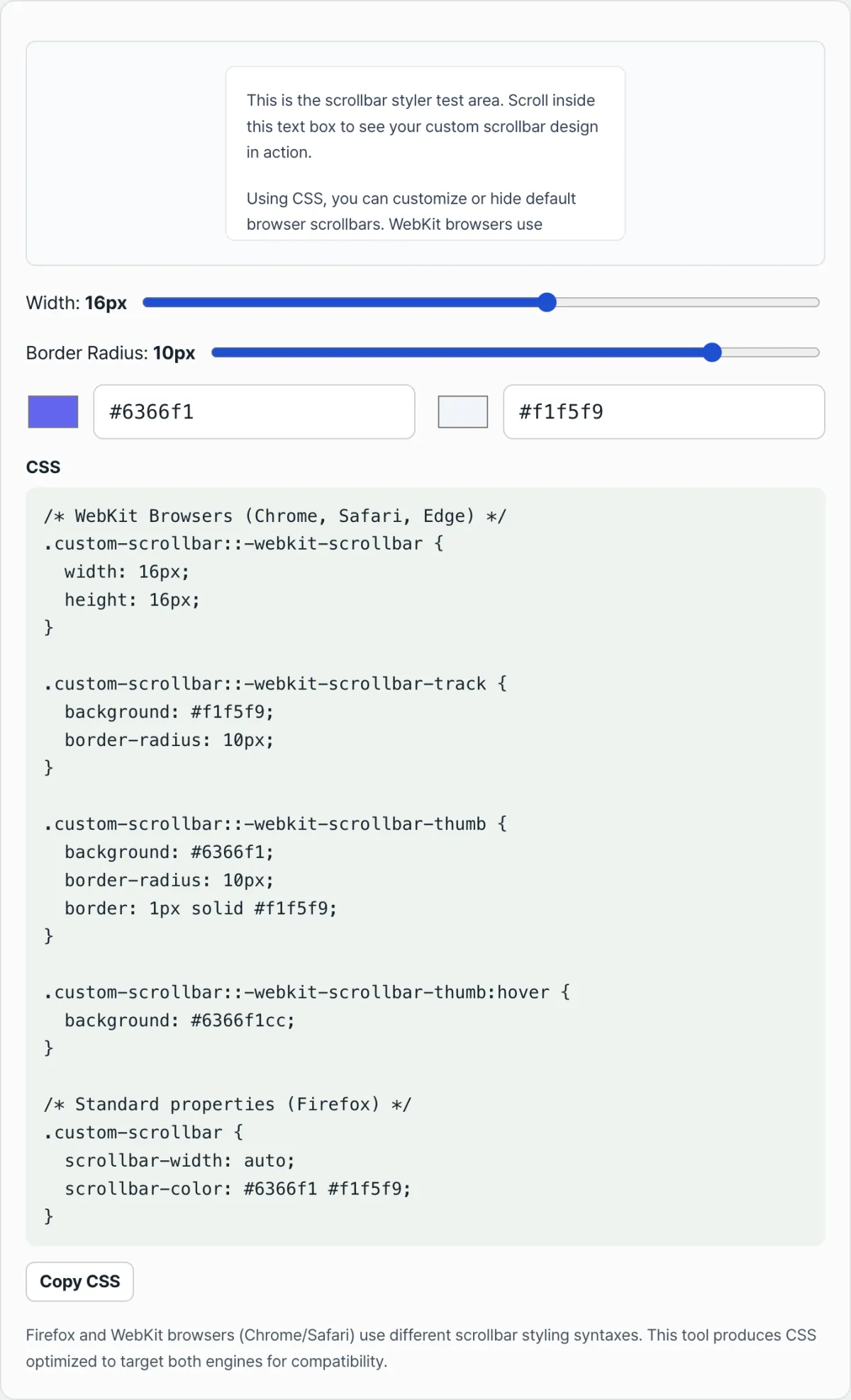
Check it with our free tool.
Adjust color, width, and roundness to generate both the Chrome and Firefox CSS at once. Everything is calculated in your browser and never sent to a server.
Common mistakes
| Item | Chrome, Safari, and Edge (WebKit syntax) | Firefox (standard properties) |
|---|---|---|
| Styling method | ::-webkit-scrollbar pseudo-elements | scrollbar-color, scrollbar-width |
| Width control | Set an exact px value | Choose only thin, auto, or none |
| Hover color | Set separately with the :hover pseudo-class | No separate syntax; the browser handles it |
| Standard? | Non-standard (vendor extension) | CSS Scrollbars standard |
The most common mistake is adding only one syntax and ignoring the other browsers. If you add only ::-webkit-scrollbar, nothing happens in Firefox. If you add only scrollbar-color, browsers that don't recognize it keep the default scrollbar.
The second is misunderstanding width. You set 10px in Chrome and expect 10px in Firefox, but it won't match. Firefox responds only at two levels, thin or auto, so the scrollbar widths in the two browsers won't match down to the pixel.
The third is hover color. In Chrome, you can set a separate thumb color with the :hover pseudo-class. Firefox's scrollbar-color has no standard syntax for the hover state. If the color shifts slightly on hover, that's the browser handling it on its own, not a value you set in CSS.
The takeaway
- Chrome, Safari, and Edge use the
::-webkit-scrollbarfamily of pseudo-elements. Firefox uses the standardscrollbar-colorandscrollbar-widthproperties. Add only one, and the other browsers keep the default scrollbar. scrollbar-widthcan't take a pixel value. You can only choosethin,auto, ornone.- Set the CSS on the class of the element where scrolling actually happens (the element with
overflow). If you put it onbodybut another element is the one that scrolls, it won't apply. - In Chrome, you can set the mouse hover color directly with
:hover. Firefox has no such syntax.
Adjust color, width, and roundness to generate both the Chrome and Firefox CSS at once. Everything is calculated in your browser and never sent to a server.
Frequently Asked Questions
Can I set the scrollbar thickness to an exact value like 15px?
In Chrome, Safari, and Edge, you can set the exact pixel value you want using the width value of ::-webkit-scrollbar. But Firefox's scrollbar-width only allows three standard values: auto, thin, and none. So you can't set an exact value like 15px — you can only approximate it with whichever is closer, thin or auto.
I added the code and it only works in Chrome. In Firefox nothing changes. Why?
Most likely you added only the ::-webkit-scrollbar syntax without including scrollbar-color and scrollbar-width. The two syntaxes don't replace each other, so to apply to both browsers you need to include both blocks together.
Where do I paste the generated CSS?
Change the class name in the code (like .custom-scrollbar) to the class name of the element that actually scrolls — that is, the element with overflow: auto or overflow: scroll — and apply it to that element. If you want the whole page scrollbar, apply it to body or html. If the scrolling happens inside a specific area, apply it to that area's element for it to take effect.
Does this CSS work in Safari too?
Safari uses the WebKit engine, so ::-webkit-scrollbar pseudo-elements apply the same way as in Chrome. Firefox's standard properties, scrollbar-color and scrollbar-width, may or may not be recognized depending on the browser version, so it's safer to include both syntaxes.
This article was adapted from our Korean original. Read the Korean original