
Browser Mic Dictation: Why It Works in Chrome but Not Firefox
Contents
When you allow the microphone from the lock icon next to the browser's address bar, text fills the screen as you speak, with nothing to install. The feature runs on SpeechRecognition (Web Speech API), a web standard that each browser implements—or doesn't—in its own way. Support and behavior vary by browser. Here's which browsers work and which don't, and why text cuts out and picks back up while you're speaking.
Summary ① Speech recognition only works in browsers that implement
SpeechRecognition(orwebkitSpeechRecognition), such as Chrome and Edge. Firefox does not support it. ② When the browser detects silence, it ends the session on its own. To keep dictating, you need to detect that end and restart automatically. ③ Audio isn't processed only on your device—it's sent to a server—so it won't work if your internet connection drops.
Why microphone dictation works differently in each browser
If you press the speech recognition button and nothing happens, the cause is usually that your browser doesn't support it. In code, you check window.SpeechRecognition and window.webkitSpeechRecognition in that order. If both are missing, you treat the browser as not supporting the feature at all. Chromium-based browsers such as Chrome and Edge implement webkitSpeechRecognition, but Firefox doesn't implement this interface at all. So no matter how you change Firefox settings, it won't work.
In supported browsers, you may have seen text pause for a moment and then continue. That's not an error—it's how the browser itself works. If microphone input is quiet for a certain amount of time, the browser ends the recognition session on its own. To keep dictating, you have to detect when the session ends and immediately start a new one. This restart repeats until you press the stop button yourself. On screen it looks like one smooth stream, but internally it's a series of short sessions stitched together.
Recognition accuracy varies by situation for a structural reason, too. Audio isn't all processed inside the browser; it's sent to a server for analysis. If your internet connection drops, recognition stops with a "network error." The same reason explains why unclear pronunciation or loud background noise makes the server split syllables incorrectly, which leads to more typos.
How to test it yourself in your browser
Paste the code below into your browser's developer tools console and run it, and you can see right away whether microphone dictation works without our tool.
const SpeechRecognition = window.SpeechRecognition || window.webkitSpeechRecognition;

if (!SpeechRecognition) {
  console.log("이 브라우저는 음성 인식을 지원하지 않습니다.");
} else {
  const recognition = new SpeechRecognition();
  recognition.lang = "ko-KR";       // language to recognize
  recognition.continuous = true;    // keep listening after a silence break
  recognition.interimResults = true; // show interim results before they're final

  recognition.onresult = (event) => {
    let finalText = "";
    for (let i = event.resultIndex; i < event.results.length; i++) {
      if (event.results[i].isFinal) finalText += event.results[i][0].transcript;
    }
    if (finalText) console.log("확정 텍스트:", finalText);
  };

  recognition.onend = () => console.log("세션 종료 — 다시 recognition.start() 해야 이어집니다");

  recognition.start(); // request microphone permission, then start recognition
}
When you run this code, a microphone permission prompt appears, and what you say is printed to the console as final text. However, in this state you have to call recognition.start() again yourself every time onend fires. To move the results into a text file or document, you'd also need to write separate copy code.
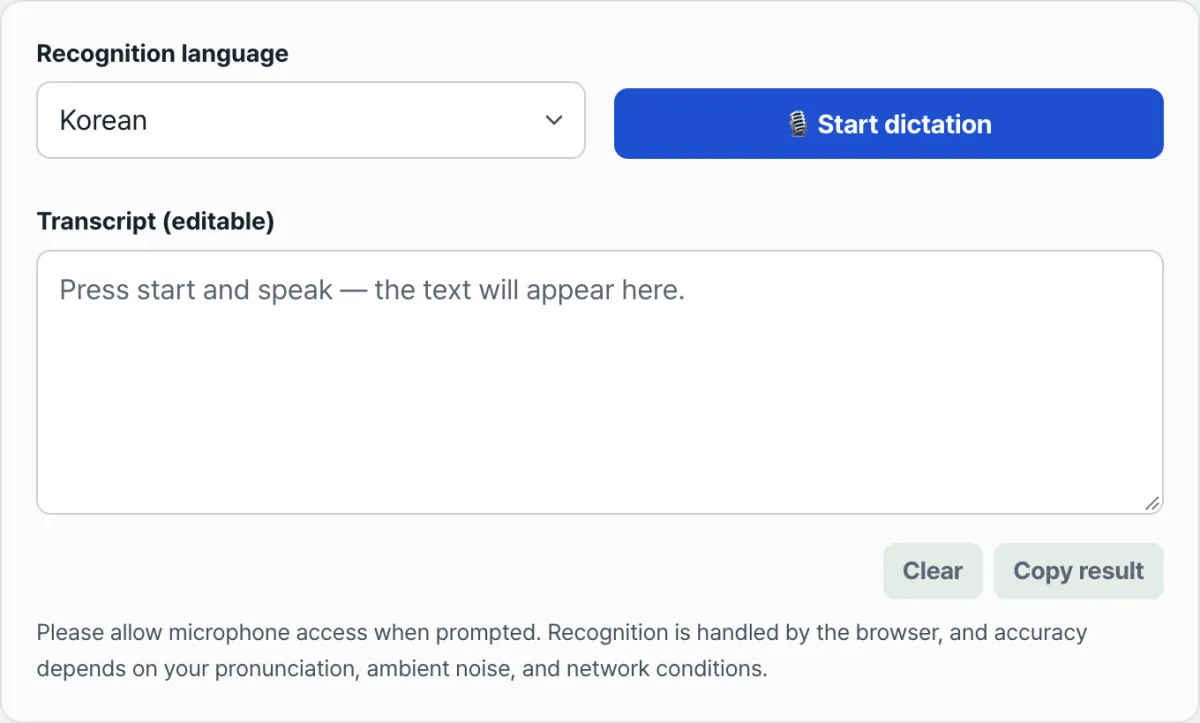
If you want to handle the restarts and edit and copy the results all on one screen, you can use the tool below right away.
Free · Dictate microphone speech into text in real time right in your browser, with no install, and copy the result.
Common sticking points
| Situation | Cause | How to check |
|---|---|---|
| No response when you press the button | The browser doesn't implement SpeechRecognition (Firefox, for example) | Open the site in desktop Chrome or Edge |
| "Microphone permission denied" message | Microphone permission is blocked in the address bar | Change the microphone to Allow from the lock icon in the address bar |
| "No microphone found" message | No microphone device is connected to the system | Check that an input device is connected in your OS sound settings |
| "A network error occurred" message | The internet connection dropped during recognition | Check your connection and start again |
| Text seems to cut out while you speak | Silence detection ended the session, and it restarted automatically | Just keep speaking and it will continue transcribing |
| Lots of typos | Background noise, unclear pronunciation, poor network quality | Try again in a quiet place, close to the microphone |
The bottom line
Microphone dictation working differently across browsers isn't a settings issue—it's a difference in whether the browser implements the feature. It only works in browsers that implement SpeechRecognition, such as Chrome and Edge. Firefox doesn't support it at all. Even in supported browsers, when silence is detected, the session ends and restarts automatically, so it's normal for the text to pause for a moment when you pause. Just keep in mind that it needs an internet connection and that noise and pronunciation affect typos, and it's easier to interpret the results.
Free · Dictate microphone speech into text in real time right in your browser, with no install, and copy the result.
Frequently asked questions
Why doesn't it work in Firefox?
Firefox hasn't implemented the SpeechRecognition and webkitSpeechRecognition interfaces. It's not a browser settings issue—it's about whether the feature is implemented, so changing settings won't fix it. Just open the site in desktop Chrome or Edge.
Does it work offline?
No. Audio is sent to a server for analysis, so if your internet connection drops, recognition stops with a "network error."
Why does it seem to cut out for a moment while I speak?
Because the browser ends the recognition session on its own when it detects silence. This isn't an error—it's normal behavior. If you keep speaking, a new session starts automatically and transcription continues.
What languages can it recognize?
You can choose from Korean, English, Japanese, Chinese (Simplified), Spanish, and French. Set the recognition language to match the language you're actually speaking to improve accuracy.
This article was adapted from our Korean original. Read the Korean original