
HTML Tag Remover: Extract Plain Text From Copied HTML
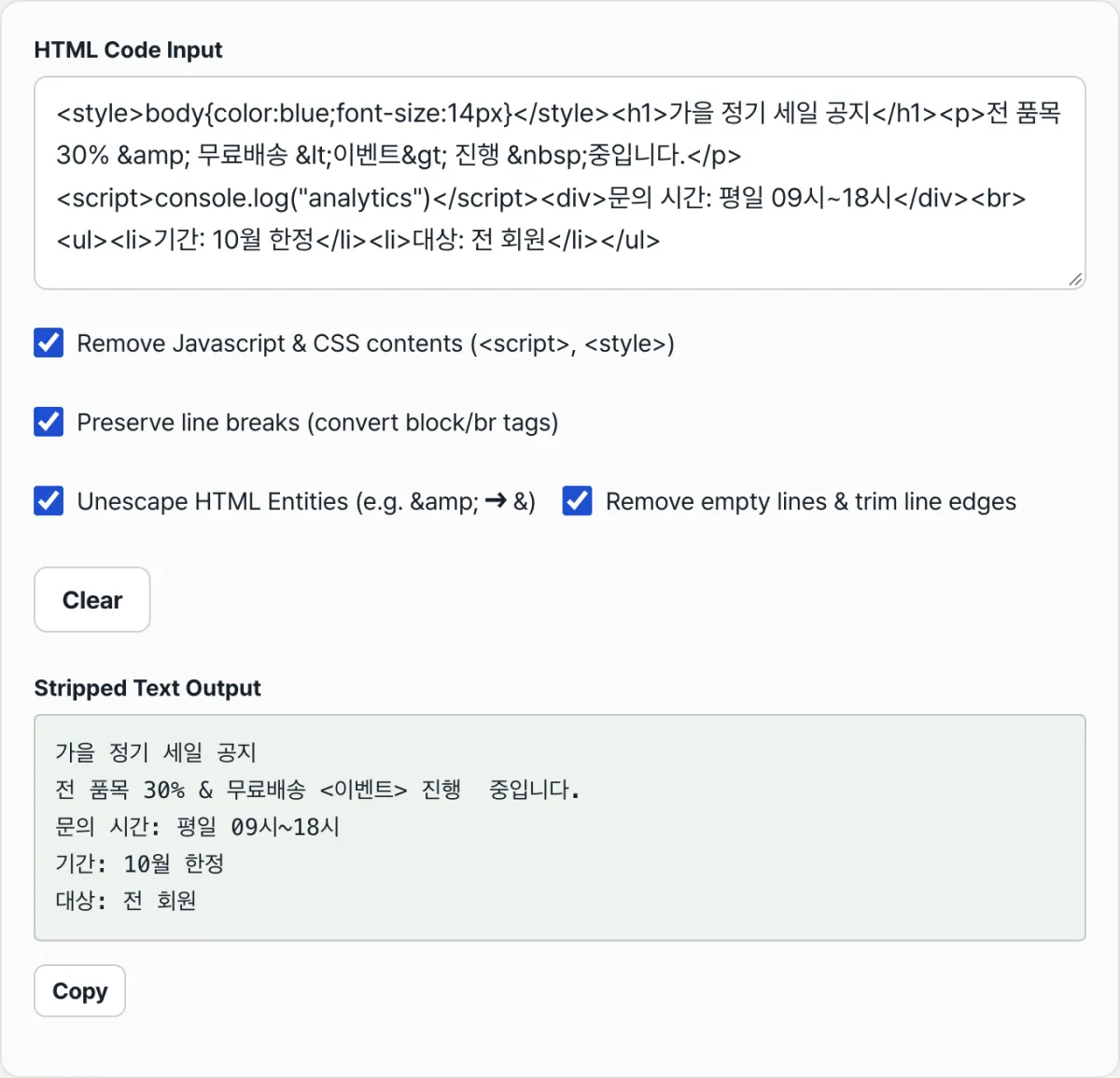
Contents
When you paste HTML copied from a webpage source or an email, tags and symbols like <div>, <p>, and & end up mixed in with the body text. There are two ways to strip them out and leave only the plain text: delete them yourself with regular expressions in a text editor, or paste the HTML into the HTML Tag Stripper. This post explains what each method does and how the HTML Tag Stripper's four options change the result when you turn them on or off, using examples only.
Summary ① "Remove JavaScript/CSS" deletes not only the wrapper tags but also the code text inside
<script>and<style>. Turn it off and the code stays in the body. ② "Preserve line breaks" turns closing block tags like</p>and</div>into line breaks, keeping paragraphs intact. Turn it off and sentences run together on one line. ③ Turn off "Convert HTML entities" and&,<, and stay as they are. Turn off "Remove blank lines/whitespace" and blank lines and indentation remain.
Why copied HTML comes covered in tags and symbols
Here's a common situation. You open an email newsletter or notice with "View HTML source" so you can move its content into a document, then copy it—and find <td>, <span>, and crammed between every sentence.
The reason is simple. Browsers and email apps normally render HTML, hiding the tags and showing only the body text. But when you copy the raw source, you get the pre-rendered state: text with the tags included as literal characters.
Special symbols work the same way. In HTML source, & is written as &, < as <, and a nonbreaking space as . They become human-readable characters only when rendered, so copying the source as-is leaves those entity notations behind.
<script> and <style> blocks are different again. They contain JavaScript code and CSS rules, not body text. If you remove only the wrapper tags, that code text shows up in the middle of your body text.
How to remove tags yourself without a tool
Here are two ways to solve it without a tool. Depending on your situation, either one may be all you need.
Method 1: Render the page, then paste without formatting
If you have a page or email already drawn on screen rather than the source, select the visible body text, copy it, and paste it with "Paste without formatting" (Windows Ctrl+Shift+V, macOS Cmd+Shift+V). You'll get plain text with no tags.
This works only for HTML that can be rendered. It doesn't apply when you want to clean up the raw source string itself.
Method 2: Use regex replace in a text editor
To clean up the raw source directly, run "Replace All" in sequence in an editor that supports regular expressions (VS Code, Notepad++, Sublime Text, and so on).
- Delete scripts, styles, and comments wholesale: replace
<script[\s\S]*?</script>,<style[\s\S]*?</style>, and<!--[\s\S]*?-->with an empty string, one at a time. - To keep paragraphs, turn closing block tags into line breaks: replace
</(p|div|h[1-6]|li|tr|section)>with\n, and also replace<br\s*/?>and<hr\s*/?>with\n. - Remove the remaining tags: replace
<[^>]*>with an empty string. - Restore entities: replace
&with&,<with<,>with>,"with",'with', and with a space, one at a time. - Clean up blank lines: replace
^\s*$\n(or^\s*\n) with an empty string to remove blank lines.
This five-step sequence is essentially the same order the HTML Tag Stripper uses internally. The tool just runs the process automatically every time you type.
Try it with our tool.
It runs right in your browser with no install and no sign-up, and the HTML you paste is never sent to a server. It's processed only on your screen.
Four options that often cause confusion
The HTML Tag Stripper has four checkboxes, and all of them are on by default. Turning each one off changes the result as follows.
| Option | On | Off |
|---|---|---|
| Remove JavaScript/CSS | Deletes the code text inside <script> and <style> too | Removes only the wrapper tags, leaving the code in the body |
| Preserve line breaks | Converts closing block tags, <br>, and <hr> into line breaks | Paragraphs run together on one line |
| Convert HTML entities | Restores &, <, and to &, <, and a space | Symbols stay as they are |
| Remove blank lines/whitespace | Deletes blank lines and trims spaces at the start and end of each line | Trims only trailing spaces, keeping blank lines and indentation |
Removing only the tags vs. removing the code too
Input:
<style>.box{color:red}</style>
<p>환영합니다</p>
<script>track('view')</script>
When "Remove JavaScript/CSS" is on, the result is a single line, 환영합니다. Turn it off and only the wrapper <style> and <script> tags disappear, while the code inside remains as text.
.box{color:red}
환영합니다
track('view')
Why paragraphs run together
When the input is <p>첫 문단</p><p>둘째 문단</p>, "Preserve line breaks" on splits it into two lines.
첫 문단
둘째 문단
Turn it off and it runs together on one line as 첫 문단둘째 문단. That's because the step that turns closing block tags into line breaks is skipped.
Leave entities alone and the symbols stay
When the input is <p>A & B, 값 < 10, 무료 배송</p>, the options split the result like this.
- "Convert HTML entities" on →
A & B, 값 < 10, 무료 배송 - "Convert HTML entities" off →
A & B, 값 < 10, 무료 배송
With it off, & is read as literal characters rather than as &, which makes it easy to carry the result over incorrectly.
Whether to keep blank lines
Input:
<ul>
  <li>사과</li>
  <li>배</li>
</ul>
With "Remove blank lines/whitespace" on (and "Preserve line breaks" also on), the result is trimmed to two lines.
사과
배
With it off, only trailing spaces on each line are trimmed. The indentation before each item and the blank lines between tags stay as they are.
The bottom line
- Copied HTML is messy because it's the source before rendering. Tags and entities like
&are included as literal characters. - "Remove JavaScript/CSS" deletes not only the wrapper tags but the code inside
<script>and<style>. Turn it off and the code stays in the body. - "Preserve line breaks" turns closing block tags into line breaks, keeping paragraphs intact. Turn it off and everything runs together on one line.
- Turn off "Convert HTML entities" and
&,<, and stay as they are. Turn off "Remove blank lines/whitespace" and blank lines and indentation remain. - Even without the tool, five regex steps produce the same result, and the tool runs those steps automatically every time you type.
It runs right in your browser with no install and no sign-up, and the HTML you paste is never sent to a server. It's processed only on your screen.
Frequently asked questions
Is the HTML I enter sent to a server?
No. This tool runs entirely on the client (in your browser), so your input never goes to a server—it's processed on the page. The result updates instantly whenever the value in the input box changes.
Does it delete code inside script or style tags?
With "Remove JavaScript/CSS" on, it deletes not only the wrapper tags but the entire text of the JavaScript functions and CSS rules inside them. With the option off, only the tags disappear and the code stays in the body as text.
The entity symbols are still in my result.
That's because "Convert HTML entities" is off. Turn it on and & becomes &, < and > become < and >, and becomes a space. Numeric character references like ' also turn into the characters people read.
My paragraphs aren't separated and everything comes out on one line.
"Preserve line breaks" only turns closing block tags (</p>, </div>, </h1~6>, </li>, </tr>, </section>, and so on) plus <br> and <hr> into line breaks. If the source uses only inline tags like <span> and <a>, or separates paragraphs only with spaces, no new lines are created.
This article was adapted from our Korean original. Read the Korean original