
Superscript Converter: Copy and Paste x² and H₂O
Contents
A superscript converter doesn't shrink your text or apply font formatting. It swaps each number or letter you type for a superscript or subscript character that already exists in Unicode.
That's why x² or H₂O pastes cleanly into a messenger chat, a social profile, or a plain-text note — places where you can't apply formatting at all. This post covers how the conversion actually works and why some characters don't change, sticking to the facts.
Summary ① The converter maps each character 1:1 to a preassigned Unicode superscript or subscript character. ② The result is a real Unicode character, not font formatting, so it survives copying into messengers, social media, and documents. ③ Characters with no Unicode equivalent (most uppercase letters, subscripts like c, d, f, g) stay as they are.
Why x² made in Word flattens to x2 in a messenger
Make "x²" in Word or Hangul with the superscript button (for example, Ctrl+Shift+=), then copy it into a KakaoTalk chat or an Instagram profile. The raised 2 drops back down to a plain x2.
This isn't a bug — it's how it's supposed to work. The superscript button only takes an ordinary "2" and adds a "raised" formatting attribute. The character itself is still the digit 2.
Messenger and social media input fields are mostly plain-text fields that don't accept formatting, so the moment you paste, the "raised" attribute is stripped and only the 2 remains. If you want small raised or lowered characters — a chemical formula like H₂O, an exponent, a footnote number — and they keep collapsing in those places, that's the core of the problem.
Doing it yourself without a tool: typing the Unicode characters directly
The key is to stop raising the character with formatting and use a character that's already raised. Unicode already assigns standalone characters like ², ³, and ₂.
These characters are scattered across several blocks. Subscript digits and most superscript digits live in the "Superscripts and Subscripts" block (U+2070–U+209F). The characters ², ³, and ¹ are exceptions in Latin-1 Supplement (U+00B2, U+00B3, U+00B9 respectively). Superscript letters are spread across other blocks such as "Spacing Modifier Letters" and "Phonetic Extensions."
Every environment has a way to type them directly.
- Word on Windows: Type the code point (for example, 00B2) and press Alt+X to turn it into ² on the spot. You can also find and copy it from Character Map (charmap.exe).
- Mac: Search for it in Character Viewer (Ctrl+Cmd+Space), or use the "Unicode Hex Input" keyboard and hold Option while typing the four-digit code.
- Web/HTML: The numeric character reference
²gives you ². Note that<sup>2</sup>only displays the 2 raised on screen — like font formatting, it isn't the character itself.
This works without a tool. The catch is that you have to look up a code point for every character, and the characters are scattered across multiple blocks, so doing it by hand gets tedious.
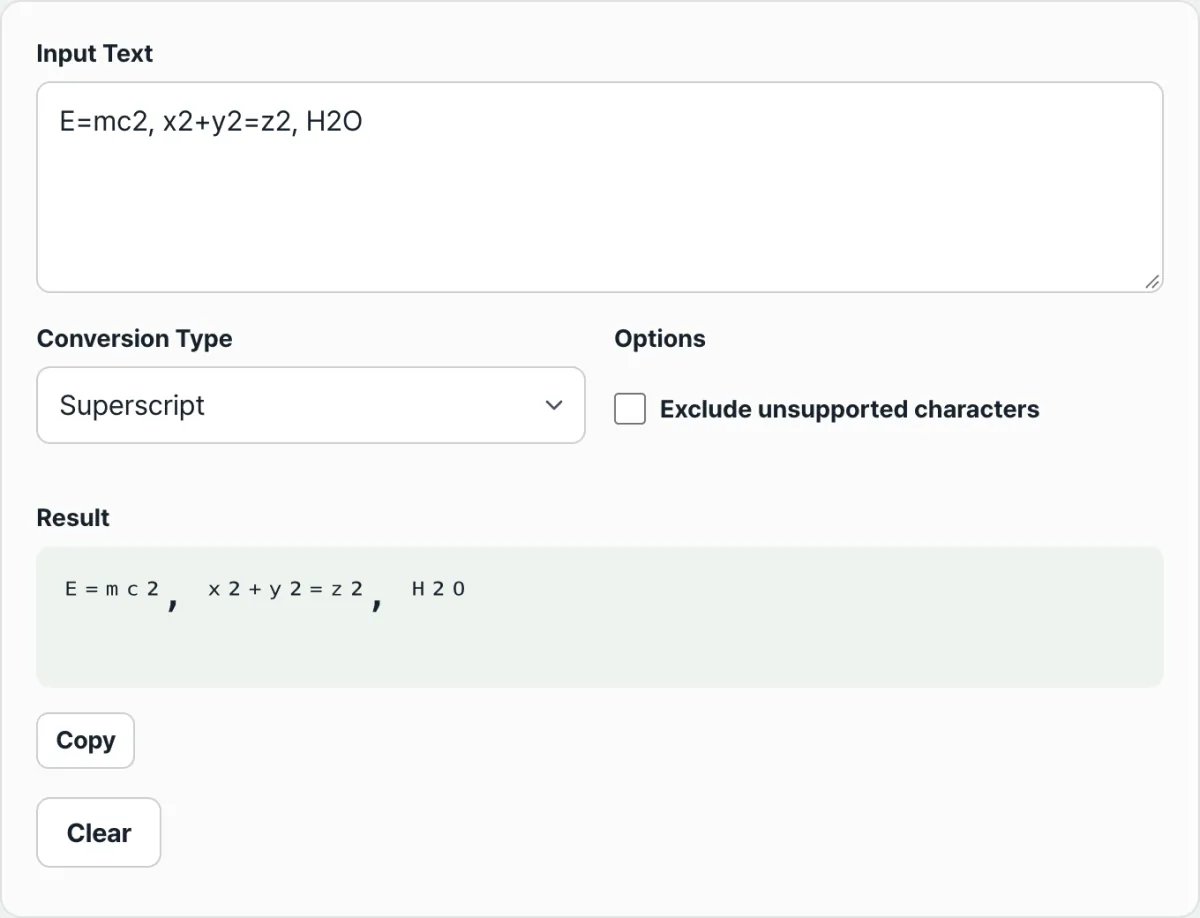
Try it with our free tool.
Convert to Unicode superscript or subscript characters and copy them right in your browser — no install, no sign-up. The text you type is never sent to a server.
Common cases where "it doesn't convert"
The converter walks through your input in order. If a character is in its prebuilt mapping table (superscript table, subscript table), it replaces it with the matching Unicode character. If it isn't in the table, it leaves it as is. So when something "doesn't change," it's usually one of these two situations.
First, you typed a character that isn't in the table. If Unicode never defined a superscript or subscript version of that character, the converter can't create one. Subscripts support no uppercase letters at all, and even among lowercase letters, c, d, f, g, b, and q are missing. Superscripts cover lowercase letters and digits broadly, but some uppercase letters such as C, F, Q, S, X, Y, and Z, plus the lowercase q, aren't in the table.
Second, the conversion worked but the font where you pasted doesn't support the character. Then you see a box (□) or a question mark instead of the letter. The character did change; this is a display problem caused by the font on the viewing side, not a failed conversion.
One more thing: if you paste in a whole expression, everything gets raised. For example, converting "x2+y2" to superscript all at once gives you ˣ²⁺ʸ², with the x and y raised too. To get x²+y², convert only the part that should be raised (the 2) and combine them.
| Category | Font-formatted superscript (button) | Unicode superscript character |
|---|---|---|
| What it is | An ordinary "2" with a "raised" attribute | A separate character, "²" |
| Pasting into a plain-text field | Attribute stripped, reverts to "2" | Kept as the character itself |
| Coverage | Practically any character | Only characters that exist in Unicode |
The options work on the same principle. Turn on "Exclude unsupported characters" and any character that would have been left as-is gets dropped from the result. Turn it off and the unconverted characters stay mixed in as they were. Whitespace, though, is always preserved either way.
As a side note, uppercase letters not converting to subscript works in your favor when you build H₂O. Convert "H2O" to subscript and H and O stay put while the 2 drops down as ₂, giving you H₂O.
The short version
- A superscript converter doesn't change fonts. It's a tool that swaps characters 1:1 for superscript and subscript characters that already exist in Unicode.
- Because the result is a real Unicode character, it stays intact when you paste it into messengers, social media, or plain text that can't hold formatting.
- Characters with no Unicode equivalent (all uppercase subscripts, subscripts like c, d, f, g, some uppercase superscripts, and q) stay as they were.
- "Exclude unsupported characters" removes the unconverted characters from the result, and whitespace is always preserved.
- If a converted character shows up as a box, it's usually the font at the paste destination not supporting it — not a failed conversion.
Convert to Unicode superscript or subscript characters and copy them right in your browser — no install, no sign-up. The text you type is never sent to a server.
Frequently asked questions
What's the difference between the superscript button and a superscript converter?
Word's superscript button only adds a "raised" formatting attribute to an ordinary character. Paste it into a plain-text field that doesn't accept formatting and the attribute is stripped, so it reverts to the original character. A converter produces separate Unicode characters like ² and ₂, so the character itself survives copying.
I converted my text but it shows up as boxes (□) or question marks. Why?
The conversion worked, but the font where you pasted can't render that Unicode character. That's a display issue. Paste the same character into another app or an environment with a font that supports it and it often looks fine. It's not a failed conversion — it's a display problem.
Why don't uppercase or some lowercase letters convert?
Because the Unicode standard has no superscript or subscript version of those characters. Subscripts in particular support no uppercase letters and are missing some lowercase letters like c, d, f, g, and superscripts are missing some characters like C, F, Q, S, X, Y, and Z. Characters that don't exist can't be created, so they stay as they were.
Is what I type saved on a server?
No. Every conversion happens in your browser the moment you type, and your text is never sent to or stored on a server. You can grab the result right away with the copy button.
This article was adapted from our Korean original. Read the Korean original