
Remove Line Breaks: Merge Multiple Lines Into One
Contents
When you copy text from a PDF or the web and paste it, line breaks get stuck in the middle of sentences and make a mess. This post is for anyone who wants to merge those fragmented lines back into one clean line.
Here's the key point: the right way to merge isn't to just delete the line breaks. It's to replace each one with a single space. That one difference decides whether words get glued together or stay apart.
Summary ① The default "Remove all line breaks" doesn't delete line breaks — it swaps each one for a single space, so multiple lines become one without words sticking together. ② If you set the replacement to "None (join directly)," the words at the end of each line clump together. If you use "Comma + space," a comma gets inserted at every line break. ③ You can also insert line breaks every N characters or N words, and turning on word-wrap in N-character mode keeps words from being cut in half.
Why copied text picks up line breaks
To lay text out the way it looks on screen, PDFs and web pages often insert real line breaks (newline characters) at the end of every visible line when a sentence spans several lines. The "visible lines" that fit the screen width are baked into the data as actual lines.
So you copy a single sentence, but when you paste it, the middle of the sentence comes in as three or four fragments. For example, the sentence "In modern society, the amount of information is growing quickly" comes in like this.
In modern society, the
amount of information is
growing quickly
These aren't real paragraph breaks — they're line breaks created by screen width, embedded in the middle of sentences. Getting it back to one line is the goal here.
Merging without a tool
You can do all of this without any tool. The most reliable method is your document editor's Find and Replace, using it to turn every line break into a space at once.
In MS Word, open the Find and Replace window, type ^p (the paragraph mark) in Find what, put a single space in Replace with, and click Replace All. Every line break becomes a space and the lines merge into one.
In editors like VS Code or Notepad++, turn on regex search in the replace window, then find the newline character and replace it with a single space. Here too, if you leave Replace with empty (no space), the words at the end of each line stick together, so you must include one space.
If you don't have an editor, you can put your cursor at the end of each line and delete the line breaks one at a time with Delete (or Backspace), adding a space as you go. But with many lines this gets tedious, and if you miss a space, words run together.
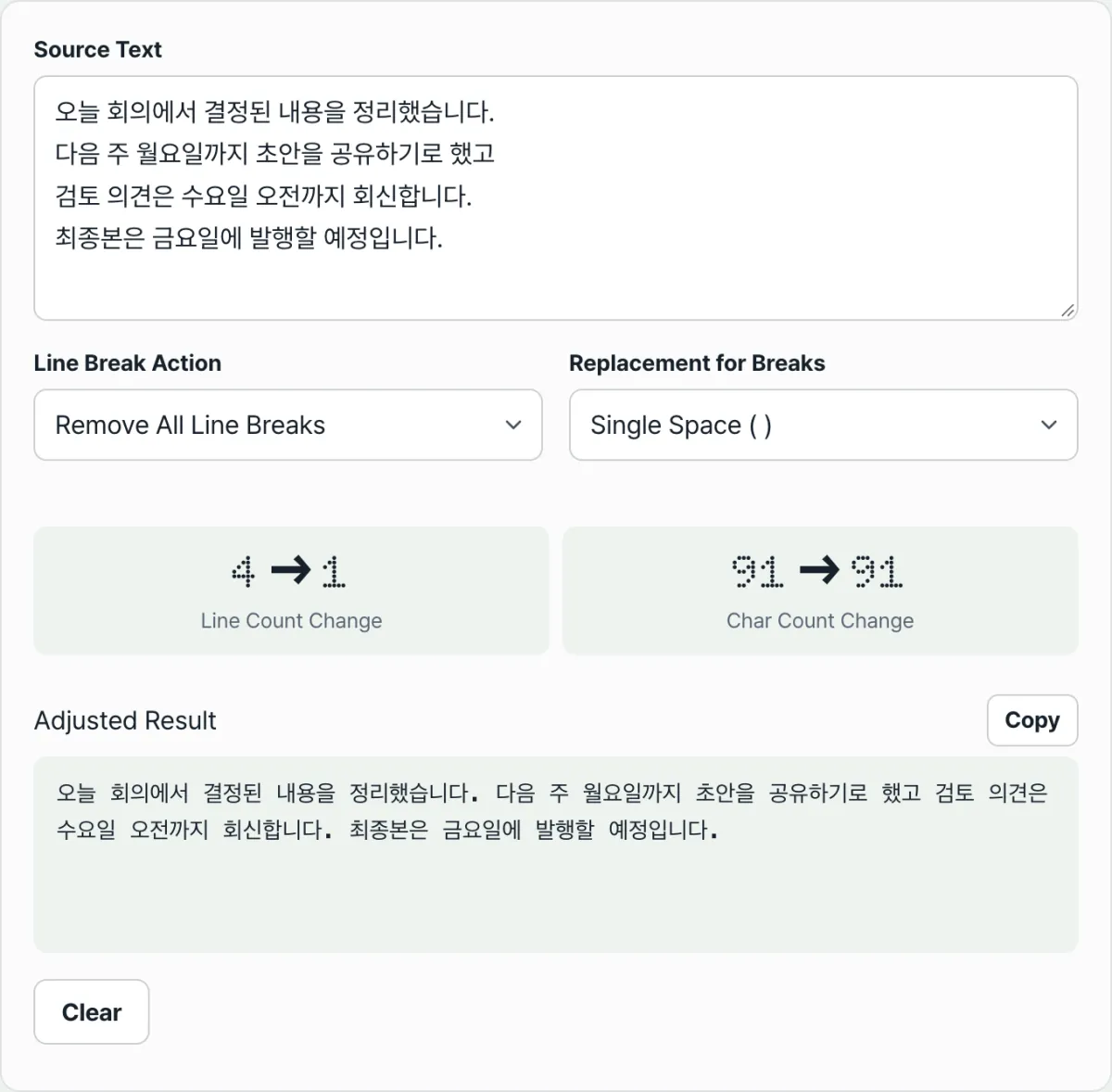
No install and no sign-up. Remove line breaks right in your browser, and see how the line and character counts change before and after.
What each of the four modes does
This tool reflows the text you paste in real time, with no button to press, based on the mode you pick. There are four modes.
Remove all line breaks is the default mode. It replaces each line break with a replacement character (one space by default) to merge multiple lines into one. The replacement can be a space, comma + space, none (join directly), or a custom string.
Double line breaks (insert blank lines) goes the other way. It adds a blank line between each pair of lines to open up the spacing. Paragraphs that are already separated by blank lines stay as they are; only adjacent lines get pushed apart.
Insert line break every N characters and Insert line break every N words first flatten existing line breaks into spaces to make one line, then insert new line breaks at the set character or word count. You adjust N from 5 to 500 with the slider or by typing a number; the default is 80.
On versus off: word-wrap
The "prevent word splitting (word-wrap)" option only appears when you insert line breaks every N characters. Break the same sentence at N=8 and the difference is clear. The original is "Hello, nice to meet you, have a good day."
With word-wrap off, it just counts characters and cuts at exactly 8. A word gets sliced in half.
Hello, ni
ce to meet yo
u, have a good day.
With word-wrap on, it doesn't exceed 8 characters and moves whole words to the next line so nothing gets cut.
Hello,
nice to meet
you, have a good
day.
In other words, with word-wrap on, lines may run a little under N, but words stay whole.
What happens when you pick the wrong replacement
The most common misunderstanding is thinking "Remove all line breaks" deletes the line breaks. The default behavior doesn't delete them — it replaces them with a single space. So if you switch the replacement to "None (join directly)," words at the end of lines actually clump together.
Take the same 3-line input ("line breaks mixed in" / "text" / "organize") and change only the replacement character, and the results differ like this.
| Replacement | Result merged into one line |
|---|---|
| One space (default) | Line breaks mixed in text organize |
| Comma + space | Line breaks mixed in, text, organize |
| None (join directly) | Line breaks mixed intextorganize |
| Custom (/) | Line breaks mixed in / text / organize |
"None" glues the end of one line to the first word of the next, like "intextorganize." "Comma + space" puts a comma where there was never a comma to begin with, so in a long document commas end up scattered all over the sentences. If your goal is to join a sentence naturally, the default single space fits that purpose.
How to read the before-and-after stats
The screen shows both the "line count change" and the "character count change." When you merge several lines into one with Remove all line breaks, the line count usually drops to "from multiple lines to 1."
The character count change depends on the replacement. One space turns one line break (one character) into one space, so the character count stays about the same. "None" reduces the character count by the number of line breaks, and "comma + space" adds two characters per spot, so the count goes up. These stats let you see exactly what the replacement character added or removed.
Wrapping up
- "Remove all line breaks" doesn't delete line breaks — it swaps them for the replacement character. The default is one space, so words don't stick together.
- Setting the replacement to "None" clumps words together, and "comma + space" puts a comma at every line break. Pick the one that fits your goal.
- There are also reverse modes that insert line breaks every N characters or N words, and turning on word-wrap in N-character mode keeps words from being cut in half.
- The "line count change" and "character count change" stats show you what the replacement character changed.
- You can do the same job with your editor's Find and Replace, and all processing happens inside your browser only.
No install and no sign-up. Remove line breaks right in your browser, and see how the line and character counts change before and after.
Frequently asked questions
Won't removing line breaks make the words stick together?
Not with the default setting. "Remove all line breaks" puts a single space where each line break was, so the last word of one line and the first word of the next stay apart as they join. Words stick together only when you switch the replacement to "None (join directly)."
Does breaking every N characters cut words in half?
With word-wrap off, it counts only characters and cuts, so words can be split. Turn on "prevent word splitting (word-wrap)" and it keeps lines within the set character count by moving whole words to the next line, so words stay intact.
Is the text I process sent to a server?
No. Adjusting line breaks and calculating line and character counts all happen inside your browser only, and results update as you type — no button press needed.
Can I go the other way and space lines out or split text into fixed widths?
Yes. "Double line breaks" mode adds blank lines between lines to open up the spacing, and "every N characters" or "every N words" mode takes your flattened text and splits it again at the set character or word count.
This article was adapted from our Korean original. Read the Korean original