
Free Text to Speech: Read Aloud With No Sign-Up
Contents
Chrome, Edge, and Safari already include speech synthesis that reads text aloud. So you can have the browser read your text right away — no sign-up, no install, no payment. Before you go looking for a paid TTS service, here's how "free text to speech" actually works.
Another thing about this approach: the conversion happens entirely inside your browser. The text you type is never sent to this site's servers, and it isn't stored there.
Summary ① Reading uses the web speech synthesis built into Chrome, Edge, and Safari, so it's free with no sign-up or install, and your text is never sent to a server ② Voice lists come from the voices installed on your OS and browser, so they differ from person to person ③ Below, we cover what the speed (0.5–2x), pitch, and volume sliders each change in the speech
The problem: "free TTS" that keeps asking you to sign up and pay
If you only read a presentation script with your eyes, it's easy to miss awkward sentences. Hearing it out loud exposes the parts that trip you up. That's why you go looking for a tool that reads text aloud.
But many services you find by searching "free text to speech" pile on sign-ups, daily character limits, watermarks, and payment prompts. All you actually needed was to hear a few paragraphs out loud.
Here's something easy to miss: most modern browsers already include text-to-speech for free. You don't need to sign up for a separate service.
Reading text with your browser and OS, no tool needed
This tool uses a built-in browser feature called the Web Speech API's SpeechSynthesis. You can also call the same feature yourself, without any tool.
The built-in read-aloud features in your operating system are the simplest route.
- Windows: Turn on Settings > Accessibility > Narrator, or use the "Read aloud" feature in the Edge browser to have web pages read to you.
- Mac: Turn on System Settings > Accessibility > Spoken Content, then select text and press the shortcut you've assigned to hear it.
You can also see the same principle for yourself in your browser's developer tools. In Chrome or Edge, press F12 (Cmd+Option+I on Mac) to open the console and enter the line below — it produces sound the exact same way this tool does.
speechSynthesis.speak(new SpeechSynthesisUtterance("안녕하세요"))In other words, this tool doesn't create a feature that didn't exist. It takes the speechSynthesis feature already in your browser and adds voice selection plus speed, pitch, and volume sliders so it's easy to use. No commands to type — just paste your text and press play.
Try it with our tool.
It reads your text aloud with your browser's built-in speech synthesis. Free, no sign-up, and your text is never sent to a server.
What each slider changes: and common myths
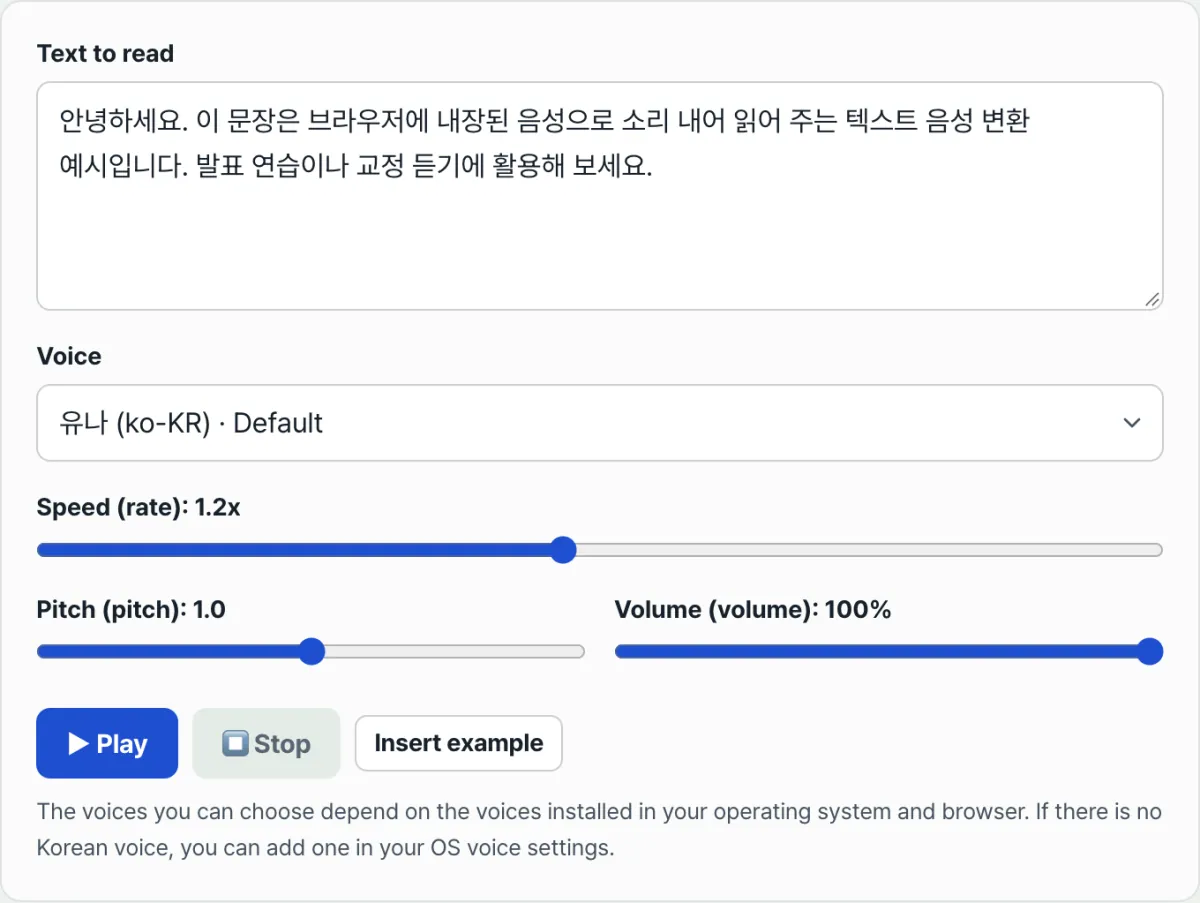
The player screen has a voice selector and three sliders. Each one adjusts a different part of the speech.
| Control | Range | What changes |
|---|---|---|
| Speed (rate) | 0.5–2x | How fast it reads. Lower is slower and clearer, higher is faster |
| Pitch | 0–2 | The highness or lowness (tone) of the voice. Lower is deeper, higher is higher |
| Volume | 0–100% | How loud the voice is |
You pick the voice itself from a list, not with a slider. That list looks different for everyone, and there's a reason why.
The available voices don't come from this site — they're loaded from the voices installed on the OS and browser you're using (window.speechSynthesis.getVoices()). So even on the same page, the list differs on Windows, Mac, and phones. If a Korean voice is installed, it's picked by default.
If there's no Korean voice in the list, add one in your Windows or Mac voice settings (Narrator / Spoken Content) and it will show up. This isn't a problem with the tool — you're adding a voice to your OS.
Here are other situations people run into often.
- No sound on mobile: Some mobile browsers only play audio after you touch the screen once (a user gesture). Tap the play button yourself.
- Nothing plays at all: This feature depends on the browser's SpeechSynthesis. We recommend the latest Chrome, Edge, or Safari; it won't play in older or some other browsers that don't support it.
- A voice shows as "loading": The browser fills in the voice list asynchronously. Wait a moment and it will populate, then pick a voice and press play.
The bottom line
- Chrome, Edge, and Safari already include speech synthesis that reads text aloud, so you can use it free with no sign-up, install, or payment.
- The conversion finishes inside your browser, so the text you enter is never sent to or stored on this site's servers.
- Voice lists come from the voices installed on your OS and browser, so they differ from person to person. If there's no Korean voice, add one in your OS voice settings.
- Speed changes the pace, pitch changes the tone, and volume changes the loudness.
- On mobile you may need to tap the screen once before sound plays, and older or unsupported browsers may not play at all.
It reads your text aloud with your browser's built-in speech synthesis. Free, no sign-up, and your text is never sent to a server.
Frequently asked questions
Is the text I enter sent to a server or stored?
No. The speech conversion is handled by the speech synthesis built into your browser. The text you enter is never sent to or stored on this site's servers — it turns into sound inside your browser.
I don't see a Korean voice in the list.
The available voices depend on the voices installed on your operating system and browser. Add a Korean voice in your Windows or Mac voice settings (Narrator / Spoken Content) and it will appear in the list.
I press play on mobile and hear nothing.
Some mobile browsers only allow audio to play after the user interacts with the screen once. Try tapping the play button yourself, and check your device's silent mode and volume as well.
Why doesn't it play in some browsers?
This feature uses the browser's SpeechSynthesis. We recommend the latest Chrome, Edge, or Safari; it won't play in older or some other browsers that don't support it.
This article was adapted from our Korean original. Read the Korean original