
Remove Duplicate Spaces: 6 Buttons, Before/After Examples
Contents
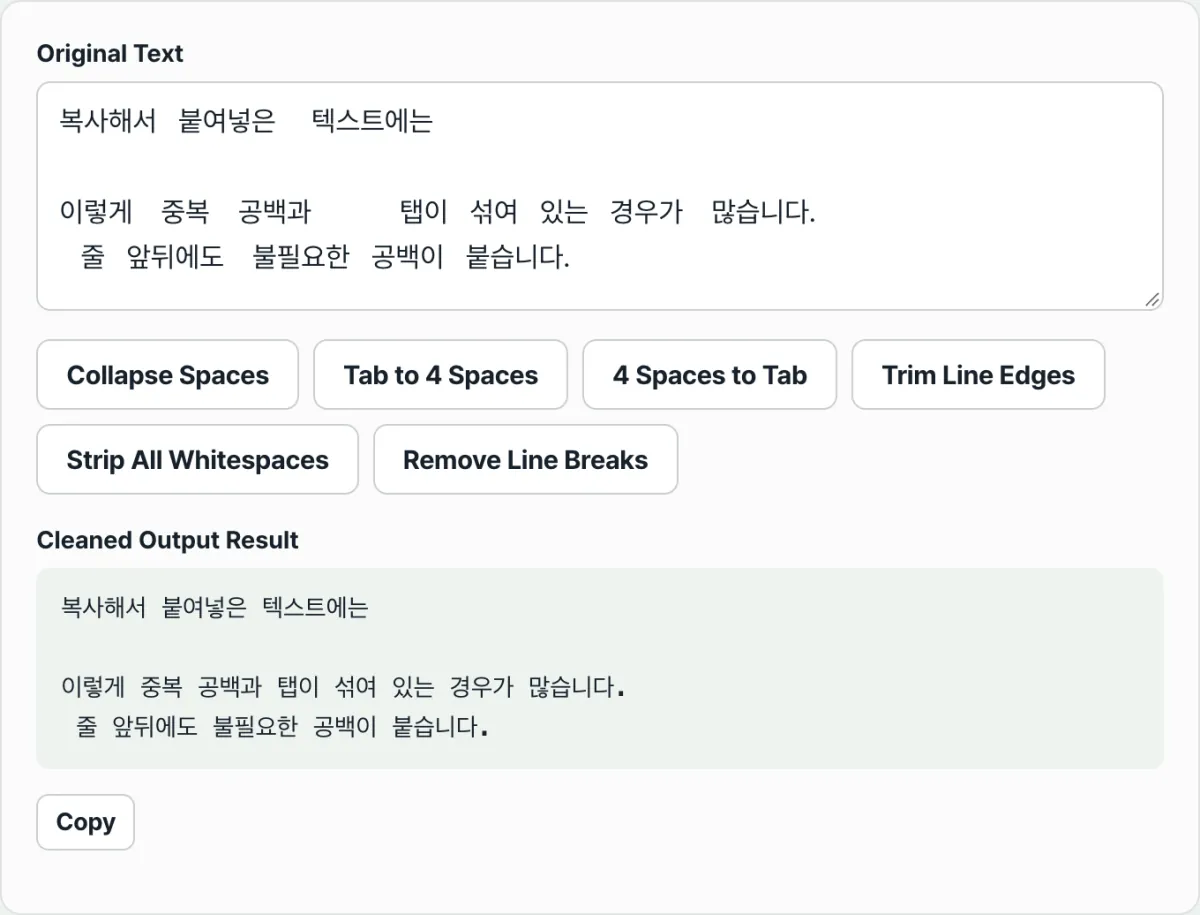
When the text you copy and paste has wide gaps between words, tabs and spaces mixed together, or line breaks in awkward places, you don't have to delete characters by hand. Here's how to clean it up with one button.
The text whitespace cleanup tool has six buttons, and this post walks through each one with before/after examples so you can see exactly what rule it applies.
Once you know the rules, you can tell right away which button to press, and in what order, to get the result you want.
Summary ① Each of the six buttons runs exactly one regex replacement — collapse repeated spaces, tabs ↔ 4 spaces, Trim each line, delete all whitespace, remove line breaks. ② "Trim" only cleans up the start and end of each line and keeps the line breaks, while "Delete all whitespace" removes line breaks too. ③ Only one conversion is applied at a time, so you can paste the result back into the input box and combine them in order to get the shape you want.
Why does pasted text get so messy with spaces?
When you copy a table from a web page or text from a PDF into a spreadsheet or notes app, the gaps between columns often come in as multiple spaces or tabs, and the alignment falls apart. Lines may carry leading indentation with them, and in PDFs the original line breaks come along too, so one sentence gets chopped into several lines.
Fixing this kind of text by hand means clicking and deleting every space, which is tedious, and when invisible tabs and spaces are mixed in, it's hard to tell what you actually removed. That's why it's more reliable to decide on a rule for "how to change it all at once" and then run the replacement.
How to clean it up yourself without a tool
If your editor supports regex find and replace, you can do the same cleanup without a tool. In VS Code, Notepad++, Sublime Text, and similar editors, turn on the "regex" option and replace using the patterns below. In fact, the six buttons in this tool just run the regex replacements below one at a time, so once you know the rules you can verify the results with your own eyes.
In the examples, spaces are shown as · and tabs as →. On screen they look like ordinary blank space.
1. Collapse repeated spaces to one — find [ \t]{2,} / replace with 1 space
Input:  Product name·····Price·····Qty
Output: Product name·Price·Qty
Any run of two or more spaces or tabs is merged into one space. Single spaces are left alone.
2. Tabs ➔ 4 spaces — find \t / replace with 4 spaces
Input:  Name→Hong Gildong
Output: Name····Hong Gildong
Each tab character becomes four spaces. Use this when you want to standardize code indentation on spaces.
3. 4 spaces ➔ tab — find {4} / replace with \t
Input:  Name····Hong Gildong
Output: Name→Hong Gildong
Every occurrence of four spaces becomes one tab. This is the reverse of #2.
4. Trim — split into lines and remove leading and trailing spaces
Input:
··First·line·here··
····Second·line·here·
Output:
First·line·here
Second·line·here
It splits the text into lines and trims only the spaces at the start and end of each line. Spaces in the middle of a line and the line breaks stay as they are.
5. Delete all whitespace — find \s+ / replace with empty
Input:
A·B·C
D·E·F
Output:
ABCDEF
It deletes every space, tab, and line break, without exception. The result is one solid block with no line breaks.
6. Remove line breaks and join into one line — turn line breaks into spaces, then collapse repeated spaces
Input:
A·B·C
D·E·F
Output:
A·B·C·D·E·F
Only the line breaks become spaces, so words stay separated by a single space. The input is the same as #5, but the result is different.
If typing the patterns each time or turning on the regex option is a hassle, you can just press a button and check the result.
Check it with our tool.
Runs entirely in your browser, so your text never goes to a server. Free to use, with no install or sign-up.
The difference between the three buttons people mix up
What confuses people most is whether a button touches line breaks. Trim, Delete all whitespace, and Remove line breaks and join into one line sound similar, but they handle line breaks completely differently.
| Button | Line breaks (Enter) | Leading/trailing vs. middle spaces |
|---|---|---|
| Trim | Kept as is | Removed at the start and end, kept in the middle |
| Delete all whitespace | Removed too | All removed |
| Remove line breaks and join into one line | Turned into spaces | Collapsed to one space |
To sum up: Trim is the "leave the lines alone and neaten each one" button, Delete all whitespace is the "wipe out the line breaks and stick everything together" button, and Remove line breaks and join into one line is the "keep words separated but string several lines into one" button.
The tab ↔ space buttons have a catch too. "4 spaces ➔ tab" converts any run of four spaces into a tab, whether it's in the middle of a sentence or anywhere else, so it's safer for cleaning up code indentation than for ordinary documents.
One conversion at a time, combined in order
Each button applies only one conversion at a time. If you want two of them, paste the first result back into the input box and press the next button.
For example, if you want to "change tabs to spaces and also remove leading and trailing spaces on each line," the order goes like this. ① Press "Tabs ➔ 4 spaces" → ② Copy the result with the copy button → ③ Paste it back into the input box and press "Trim."
Changing the order can change the result, so it's best to decide on the final shape you want first, then figure out which conversion to apply first.
Recap
- Each of the six buttons runs exactly one regex replacement, and you can check the input against the output with your own eyes.
- "Collapse repeated spaces to one" merges only runs of two or more spaces or tabs into one and leaves single spaces alone.
- Trim keeps line breaks and only tidies the start and end of each line; "Delete all whitespace" removes everything including line breaks; "Remove line breaks and join into one line" turns line breaks into spaces to make one line.
- Tabs and 4 spaces go in opposite directions, and exchanges happen only in units of four spaces.
- Only one conversion is applied at a time, so you paste the result back into the input box and combine them in order.
Runs entirely in your browser, so your text never goes to a server. Free to use, with no install or sign-up.
Frequently asked questions
What's the difference between "Delete all whitespace" and "Remove line breaks and join into one line"?
Both turn multiple lines into something like a single line, but the results differ. "Delete all whitespace" removes spaces, tabs, and line breaks entirely, so all the words end up stuck together in one block. "Remove line breaks and join into one line" turns only the line breaks into spaces, so the words stay separated by a single space on one line.
Does Trim remove blank lines too?
Blank lines don't disappear. Trim only removes the spaces at the start and end of each line and keeps the line breaks, so a line that held only spaces stays as an empty line and the line itself is still there. Blank lines between paragraphs are kept as well.
If I convert tabs to spaces and then convert back, do I get the original?
If the indentation lines up exactly in units of four spaces, you'll generally get your original tabs back. But if the original had spaces that aren't a multiple of four (say, three-space indentation or a single blank in the middle of a sentence), those parts don't fit the four-space rule and may be left as they are.
Is the text I enter saved on a server?
No. All conversions run inside your browser, and the text you enter is never sent to or stored on a server.
This article was adapted from our Korean original. Read the Korean original