
Text Padding: How Each Line Gets Padded to the Same Length
Contents
This post is for anyone who wants a multi-line list to line up at the same character count and keeps ending up with ragged line endings no matter how many spaces they add. Here's the short answer: text padding (lining up character counts) is simple math — count the characters in each line, then fill the shortfall up to your target width with the character you choose. Once you know where the fill goes (left, right, or both) and what counts as one character, you can read exactly why a result comes out the way it does.
Summary ① Direction only decides where the missing cells get attached. Left means front, right means back, and both means half on each side. If the shortfall doesn't divide evenly, the left side gets the floor (Math.floor), so the leftover cell goes to the right. ② Characters are counted in code points (Array.from), so Hangul and most emoji count as 1 character. You're matching character count, not on-screen width (full-width or half-width). ③ Lines that are already longer than the target width are left alone by default. They're only cut from the front if you turn on "Trim lines that exceed the width."
When every line has a different length and nothing lines up
This problem comes up a lot when you build a list in a monospace document. If names vary in length, like "apple / banana / kiwi," then the prices or descriptions you append end up starting at a different spot on every line.
To get a clean, table-like alignment by eye, every line has to have the same character count, so you pad the short lines with spaces or symbols at the back (or the front) until they match. That's text padding.
The catch is that this "padding rule" isn't easy to see. Pad with spaces and the result looks unchanged, and when Hangul and English are mixed, the ends still look off even though the character counts match. That's why it's worth knowing how the calculation actually works.
How to do it by hand without a tool
The logic is the same whether you do it by hand. There are three steps.
- Count the characters in each line. The unit here is "number of characters." One Hangul character, one English letter, and most single emoji each count as 1. The important part is that this is not a byte count.
- Work out the shortfall. Subtract that line's character count from the target width. For example, if the target width is 5 and "apple" is 5 characters — say a word that's 2 characters, like the Korean for "apple" — the shortfall is 3. [Note: example below]
- Pad in the direction you chose. For right alignment, pad at the back; for left alignment, pad at the front by the shortfall. For both sides, split the shortfall in half, use the floor for the left side, and send the leftover cell to the right.
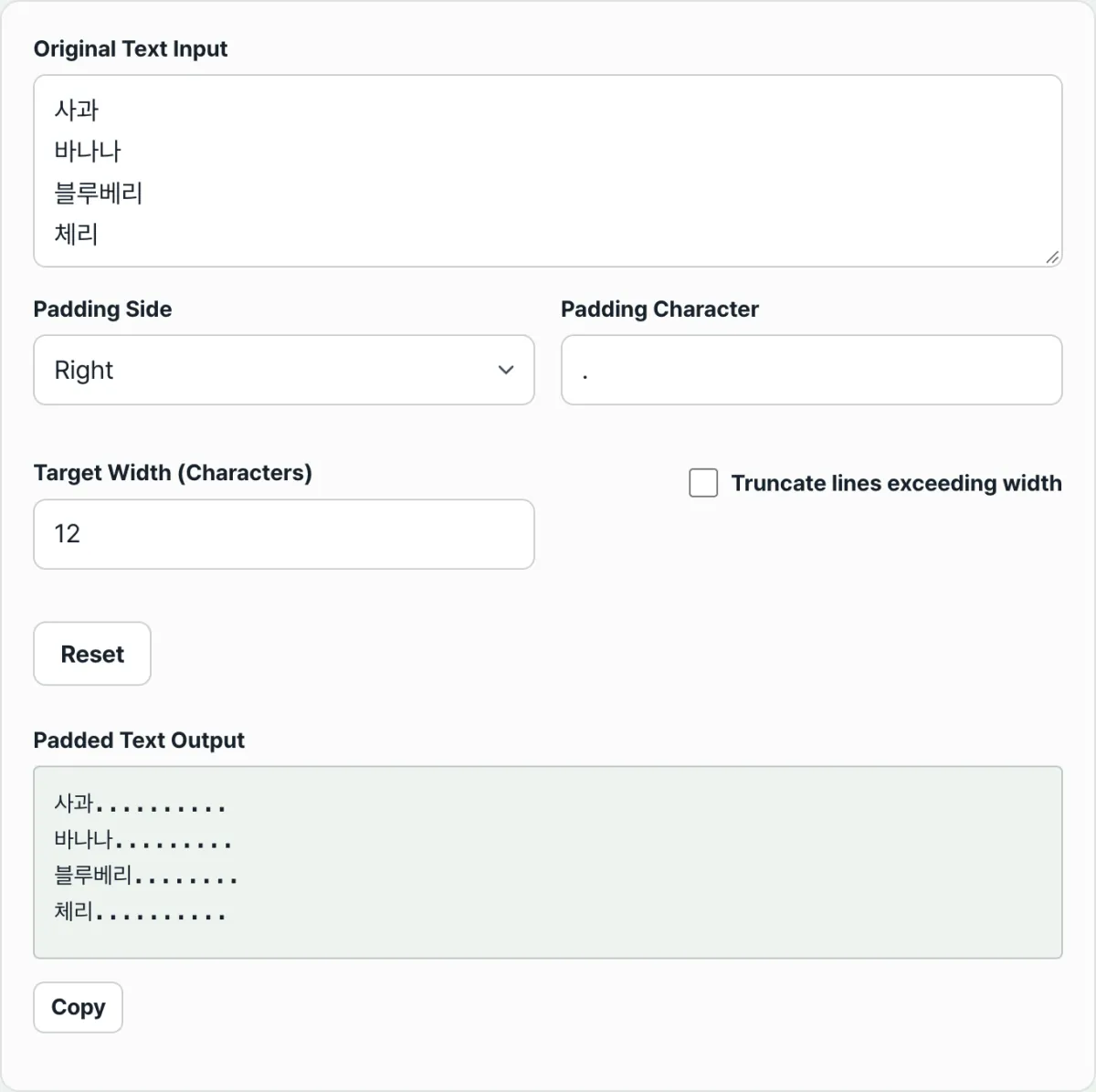
Take "apple / banana / kiwi," set the target width to 5, choose the right direction, and use a period (.) as the fill character. Done by hand, it comes out like this.
apple...
banana..
kiwi...
You can do the same calculation in a spreadsheet. Right padding is =A1 & REPT(".", 5-LEN(A1)). Here LEN counts characters and LENB counts bytes, so using LEN when you're matching character counts is the same basis the tool above uses.
The trouble is that once you have a lot of lines, counting and padding them one at a time gets tedious, and it's easy to slip up on calculations like both-side alignment where you split the shortfall in half. The tool below takes your input, splits it by line, and applies the same rules in real time.
Try it with our free tool.
Align multiple lines of text to a set character count in real time and copy the result, with no install and no sign-up.
The parts people get confused about
A single table makes it clear where the padding lands for each direction, and where the leftover cell goes when you pick both sides. Below, "a" (1 character) is padded to a target width of 4 using a dash (-) as the fill character.
| Direction | Where it pads | How the shortfall is handled | Result |
|---|---|---|---|
| Left | Front | 3 cells at the front | ---a |
| Right | Back | 3 cells at the back | a--- |
| Both | Half front, half back | 1 cell left (floor), 2 cells right | -a-- |
With both-side alignment, an odd shortfall like 3 doesn't split evenly. In that case the left gets 1 cell (floored) and the remaining 2 go to the right. So the sides aren't perfectly symmetrical and the right can look like it has one extra cell. That's not a bug — it's the defined rule.
There are two very common misunderstandings. First, if you leave the fill character as a space, the result looks unchanged on screen and it's easy to think it didn't work. The spaces really are there, so to check whether the calculation ran, switch to a visible character like a period (.) or a dash (-).
Second, people mix up character count and byte count. "The Korean word for apple" is 2 characters but 6 bytes in UTF-8. This tool matches character count, not bytes, so if you're expecting byte-based alignment the result will look off.
Recap
- Direction only decides where the missing cells get attached. Left is front, right is back, both is half on each side.
- If the shortfall is odd with both-side alignment, the left gets the floor (Math.floor) and the leftover cell goes to the right.
- Characters are counted in code points, so Hangul and most emoji count as 1 character, and you're matching character count rather than on-screen width.
- Lines already longer than the target width are left alone by default. You have to turn on "trimming" to keep only the first part up to the target width.
- If the result looks unchanged, switch the fill character to a period or dash to check, and don't confuse character count with byte count.
Align multiple lines of text to a set character count in real time and copy the result, with no install and no sign-up.
FAQ
I padded with spaces but the result looks the same
Spaces are invisible, so you don't see much change on screen even after they're added. Copy the result and paste it somewhere, and you can confirm that every line has been padded to the same character count. If you want to see the calculation happen, switch the fill character to a period (.) or a dash (-) and the padded cells show up plainly.
When Hangul and English are mixed, the ends still look off
The character count matches but the lines look misaligned because this tool matches character count, not on-screen width. Hangul counts as 1 character by code point, but in many fonts a single Hangul character is drawn wider than an English letter or a space. So even with the same character count, the right edge can look slightly off in a monospace font. That isn't a miscalculation — the counting basis (character count) is simply different from the visible width.
What happens to lines that are already longer than the target width?
By default, they stay as they are. If a line's character count is already greater than or equal to the target width, there's nothing to fill, so the original line is kept. If you turn on "Trim lines that exceed the width," the line is cut from the front and only the first part up to the target width remains.
Do emoji count as 1 character?
Most emoji are a single code point, so they count as 1 character. But emoji made of several code points combined (family emoji, flags, emoji with skin tone modifiers, and so on) can be calculated as multiple characters. In that case it looks like one glyph on screen, but the character count comes out as 2 or more, so the number of padded cells changes.
This article was adapted from our Korean original. Read the Korean original