
Text to Flashcards: Turn 'Word: Meaning' Text Into Cards
Contents
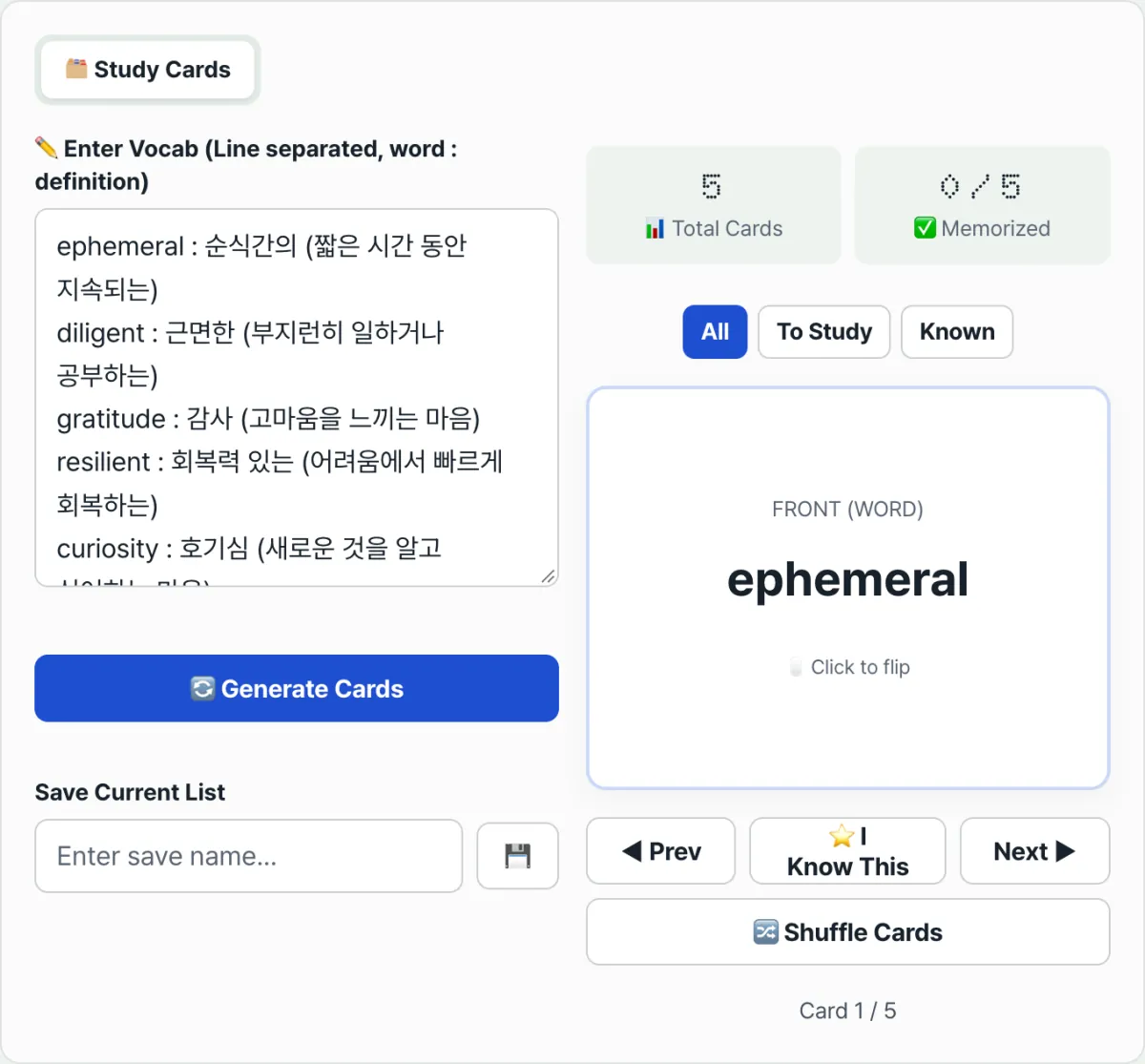
If all you have is text with words and meanings listed line by line, turning it into flip-to-study flashcards comes down to one rule. Each line becomes one card, and the first separator that appears in the line splits it: everything before it is the term (front), and everything after it is the meaning (back).
This is an informational article that walks through how one line of "term : meaning" text becomes one card, rule by rule, including the spots where it commonly goes off the rails. It doesn't get into which memorization method is better — it only covers behavior you can actually confirm on screen.
Summary ① Each line becomes one card. Everything before the first separator in the line is the front (term); everything after it is the back (meaning). ② There are four separators it recognizes: colon (:), hyphen (-), equals sign (=), and tab. Blank lines are skipped. ③ If you leave out the separator, the back shows "No definition", and a deck you save stays only in this browser, not on a server.
You already have the list: you just can't flip it
You may already keep words and meanings lined up line by line in lecture notes, a memo app, or a spreadsheet, like "apple : a fruit". The problem is that this list is a reading format.
To memorize, you need to hide the meaning and look at the term alone, or see the term and recall the meaning. But in a text list, the term and the meaning sit right next to each other, so the meaning is always visible.
So you end up copying everything onto paper cards, or re-entering it into whatever fixed format a memorization app demands. The list is already text — it just isn't in a form you can flip.
How to do it by hand, without a tool
The conversion rule itself is mechanical, so you can follow it manually. Take one line, read from the left until you hit the first separator (colon, hyphen, equals sign, or tab), and everything before it is the front while everything after it is the back.
For paper cards, write the term on the front and the meaning on the back. That reproduces exactly what you'd do by looking at the front, recalling the meaning, and flipping to check.
For a spreadsheet, put the term in column A and the meaning in column B. Hide column B and study from column A alone, or print it and fold the meaning side out of sight.
One thing to know here: when you copy several cells from Excel or Google Sheets, the cells are joined by a "tab character". That tab is one of the four separators the tool below recognizes, so pasting two cells in as-is still splits them into front and back. You can check it right away in the tool below.
No install and no sign-up: paste your text and it turns into 3D flip cards right away, and saved word lists stay only in your browser.
Where things commonly break, and how to read the screen
The rule is simple, but if you write the input a little differently, the result won't match what you expect. The table below shows how the front and back come out depending on how you write a single line.
| One input line | Front | Back |
|---|---|---|
apple : a fruit | apple | a fruit |
apple = a fruit | apple | a fruit |
apple (no separator) | apple | No definition |
apple : (no meaning) | apple | No definition |
| (blank line) | No card created | Skipped |
phone : 010-1234 | phone | 010:1234 |
: a fruit (no front) | The whole line disappears | — |
Why blank lines are ignored: each line is trimmed first, and if there's nothing left in it, it's skipped. So you can drop blank lines into the middle of a list to break it up for readability, and the card count won't grow.
If you leave out the separator, you get "No definition". With only a term, there's no part to split off as the back. On the other hand, if you put a separator at the very start of a line and the front comes out empty, that line isn't turned into a card at all — it just disappears. So if your card count doesn't match, this is the case to suspect.
A hyphen inside the meaning splits it apart. The tool cuts a line at every position where one of the four separators appears, keeps only the first piece as the front, and rejoins the rest with colons. So any hyphen, equals sign, tab, or colon that was in the meaning all show up on screen as colons. The back of phone : 010-1234 coming out as 010:1234 is that exact case.
The short version
- Each line becomes one card, and everything before the first separator in the line is the front while everything after it is the back.
- There are four separators it recognizes — colon (:), hyphen (-), equals sign (=), and tab — and blank lines are skipped.
- Leave out the separator and the back shows "No definition"; leave the front empty and the whole line disappears.
- Separator characters inside the meaning show up on screen as colons, so watch out for phone numbers or notations that contain hyphens.
- A deck you save with a name stays only in this browser (LocalStorage), not on a server. The All / Not memorized / Memorized filters and Shuffle show cards filtered by memorization status and in random order, respectively.
No install and no sign-up: paste your text and it turns into 3D flip cards right away, and saved word lists stay only in your browser.
Frequently asked questions
Does the separator have to be a colon?
No. Besides the colon (:), the tool also recognizes the hyphen (-), equals sign (=), and tab character as separators. Whichever of those four characters appears first in a line is what divides the front from the back. If you copy two cells from a spreadsheet and paste them in, the cells are joined by a tab, so it becomes a card with no extra cleanup.
What happens if I enter a term but no meaning?
That line still becomes a card, but the back shows "No definition". That's because with only a term and no separator, or with nothing after the separator, there's nothing to use as the back. On the other hand, if you put a separator at the very start of a line and the front comes out empty, that line isn't turned into a card at all — it's dropped entirely.
Can I see a saved deck on another device?
No. "Save current deck" writes the name and contents only to this browser's local storage (LocalStorage). Nothing is sent to a server, so it won't show up on another device, in another browser, or in a private window, and it disappears if you clear your browser's stored data.
Why does a meaning with a hyphen or a phone number split apart?
Because the tool cuts a line at every position where one of the four separators appears, keeps only the first piece as the front, and rejoins the rest with colons. So any hyphen, equals sign, tab, or colon that was in the meaning shows up on screen as a colon. For example, the back of phone : 010-1234 comes out as 010:1234. If you use a different character, such as a tilde (~), instead of the hyphen, that line won't split.
This article was adapted from our Korean original. Read the Korean original