
Text Compare: Read Green, Red, and Gray Diff Lines
Contents
Comparing two versions of a document or a piece of code side by side and spotting "which line changed" by eye is more error-prone than you'd think. The human eye tends to mistake a similar line for the same line.
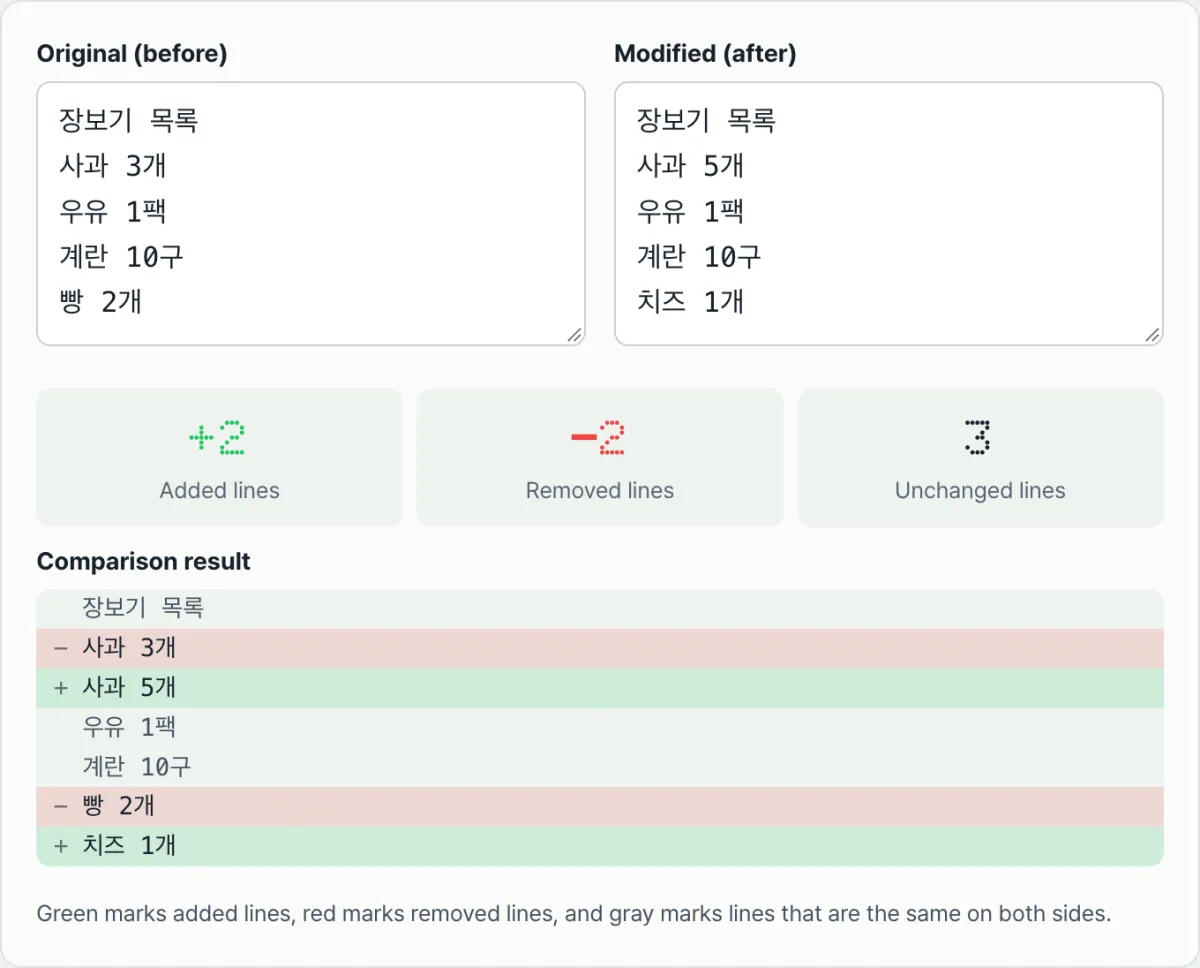
A line-by-line comparison (diff) does this mechanically, showing added lines in green, removed lines in red, and unchanged lines in gray. This post isn't about which version is right. It's about how to read the result correctly, starting from how the calculation works.
Summary ① A diff first finds the longest run of lines that appear in both texts in the same order (the LCS), then splits the leftover lines into additions and deletions. ② Green (+) means the line exists only in the revised version, red (−) means it exists only in the original, and gray means it's identical on both sides. ③ Because the unit of comparison is the line, even a minor edit inside a line gets recorded as the whole line being deleted and then added.
The moment you scan for "what changed" and miss it
A colleague sends you a revised notice or contract and says only, "I changed two or three things." You put the original and the new version side by side and read down from the top, looking for the differences.
The problem is that the human eye mistakes similar lines for the same line. If the first few characters match, you think "nothing changed here" and move on, when in fact a date or an amount further along that same line is the one thing that changed. The longer the document, the more of these you miss.
Code and config files are even less forgiving. A single space or a single semicolon can change how things work, and that kind of tiny difference almost never turns up when you skim.
That's why you need a line-by-line comparison that mechanically decides which lines were added, removed, or left alone, and shows it in color.
How to compare line by line without a tool
A diff isn't magic. It's a calculation that follows fixed rules. Once you know the principle, you can do the same thing by hand on short texts.
The core is two steps. First, find the longest set of lines that appear in both texts in the same order. This is called the longest common subsequence (LCS). Then take whatever didn't make it into that common set: lines only in the original are marked as deletions, and lines only in the revised version are marked as additions.
For example, suppose the original and the revised version look like this.
[Original]      [Revised]
apple           apple
banana          strawberry
grape           grape
The lines that appear in both, in the same order, are "apple" and "grape." Those two are the common lines (gray). "banana" is left over and exists only in the original, so it's a deletion (red −). "strawberry" exists only in the revised version, so it's an addition (green +).
Put the result in order and it looks like this.
  apple         (unchanged)
- banana        (removed)
+ strawberry    (added)
  grape         (unchanged)
To sum up: 1 line added, 1 line removed, 2 lines unchanged. That's exactly what the numbers and colors on the tool's screen represent.
If you're comfortable on the command line, you can do the same job with standard tools. On macOS or Linux, save the two files and run diff original.txt revised.txt, or git diff --no-index original.txt revised.txt even outside a Git repository. These diff tools work on the same principle: match as many common lines as possible, then mark the rest with + and −.
That said, creating files and typing commands is a hassle, and a web page is easier when you want color-coded results at a glance.
Check it with our tool.
Paste two texts and the comparison runs right in your browser, line by line. No install and no sign-up. Whatever you type is never sent to a server.
Common misreadings of the results
The most common mistake is reading the colors as right and wrong. Green and red only show which side a line is on. They don't mean one version is correct.
| Misconception | Reality |
|---|---|
| Only the changed word is colored | Comparison is line by line, so the entire changed line is shown as removed and added |
| Red means wrong content, green means right content | Red lines exist only in the original and green lines only in the revised version; neither says anything about right or wrong |
| Moving lines around just leaves them as "unchanged" | Matching preserves order, so a moved line is recorded as removed from its old spot and added in its new one |
| Indentation and whitespace differences are ignored | If the line content differs even slightly, it's treated as a different line |
| Any document, no matter how long, can be compared | If the product of the two line counts exceeds 4 million, a notice appears instead of a comparison |
The first row of the table is the one that trips people up most: small edits inside a single line. If you change "3 in stock" to "5 in stock," the diff records "3 in stock" as one removed line and "5 in stock" as one added line. Even though only one digit changed, that line can't join the list of common lines.
This isn't a bug. It's exactly what line-by-line comparison means. If you want to see which words or characters changed, be aware that that's a different kind of comparison, and read the results accordingly.
The short version
- A diff first finds the common lines that overlap in order (the LCS), then splits the rest into additions and deletions.
- Green (+) means the line is only in the revised version, red (−) means it's only in the original, and gray means it's identical on both sides. The colors aren't about right and wrong.
- Because the unit of comparison is the line, changing a single character shows the whole line as "1 line removed + 1 line added."
- A difference in indentation or whitespace alone counts as a different line, and reordering lines makes the moved lines appear as additions and deletions.
- If the product of the two line counts exceeds 4 million, a notice appears instead of a comparison, so split very long documents and compare them in parts.
Paste two texts and the comparison runs right in your browser, line by line. No install and no sign-up. Whatever you type is never sent to a server.
Frequently asked questions
I changed one character. Why is the whole line showing in red and green?
Because this comparison works line by line. A diff groups only the lines that are identical on both sides as common (gray), and a line that differs by even one character isn't an identical line, so it can't join the common set. The line in the original is marked as removed (red) and the line in the revised version is marked as added (green), one line each. This is different from highlighting just the words or characters that changed.
Which side is the "right" content, green or red?
You can't tell from the colors. Red just means the line was only on the left (original) and green just means it was only on the right (revised version). It's position information, with no judgment about which side is correct. You decide what's right by reading the content. The tool only shows you "what's different."
I only reordered the lines. Why are they showing as added and removed?
Because a diff preserves order when it looks for common lines. If you move a paragraph down, that line disappears from its original spot (so it's a deletion) and a line that wasn't there appears in the new spot (so it's an addition). The content is the same, but a change in position can show up this way.
I pasted a very long document and it won't compare.
If the number of lines on the two sides multiplies out to more than 4 million, the computation gets too heavy, so for performance reasons a notice appears instead of a comparison. For example, if each side has 2,500 lines, the product is 6.25 million, so the notice appears. In that case, split the document by chapter or section and compare it in parts.
This article was adapted from our Korean original. Read the Korean original