
Fix Korean Text Garbled in Excel CSV Files (CP949 to UTF-8)
Contents
If you open a CSV or text file in Excel or a text editor and the Korean text shows up as gibberish like "뷁뷁" or "���", the file isn't damaged. The rule used to turn characters into bytes (the encoding) when the file was saved is different from the rule used to read those bytes back into characters.
Read the file with the matching rule, and the original text comes right back. This article explains why the garbling happens, how encodings work, and how to figure out which encoding a file was saved in so you can repair it.
Summary ① Garbled Korean doesn't mean the file is broken. It shows up when the encoding used to save the file differs from the encoding used to open it. ② Files made by older Windows programs are usually CP949 (what Notepad calls "ANSI"). Modern editors, the web, and Excel's internals default to UTF-8. ③ Decode the same bytes with both encodings at once and pick the one with fewer broken characters (the replacement character U+FFFD, which looks like a black diamond with a question mark). That tells you which encoding the file uses.
Why this happens: downloading a bank CSV
Picture this. You download your transaction history as a CSV from a bank or credit card site, or you export data from an old accounting or payroll program. You double-click the file and Excel opens it. The dates and numbers look fine, but the Korean column is full of random Korean like "뷁", "꽭", and "븳".
Open the same file in VS Code or Notepad, and you may see rows of black diamond question marks instead. These look like two different problems, but they have one cause.
Files like this were usually made by an older Windows program, so the Korean text is stored in CP949. But modern programs assume a file is UTF-8 when they read it. The saving rule and the reading rule don't match, so the characters break.
What is an encoding? A byte rulebook for characters
Computers can't store characters as they are. Every character is converted to numbers (bytes) for storage, then converted back to a character when it's read. The rulebook for this character-to-byte conversion is the encoding.
The catch is that there's more than one rulebook. The same character "한" is stored as different bytes depending on the rulebook.
Saving the character '한'
 CP949 rulebook: c7 d1        (2 bytes)
 UTF-8 rulebook: ed 95 9c     (3 bytes)
So if you read a CP949 file with the UTF-8 rulebook, the computer tries to interpret c7 d1 as a valid UTF-8 character and fails. The character shown where a read fails is the replacement character U+FFFD, which appears on screen as a black diamond with a question mark. That's why you see rows of question marks.
In the other direction, if you read a UTF-8 file with the CP949 rulebook (which is what happens when Excel opens a CSV on Korean Windows), each 3-byte Korean character gets chopped into 2-byte pieces the wrong way. The result is a string of real Korean syllables that mean nothing, such as "뷁" and "븞".
In short, garbling shows up in two directions. The file itself stays the same. Change only the reading rule, and the original text comes back.
What CP949, EUC-KR, ANSI, UTF-8, and BOM each mean
These terms get mixed up easily. Here are the facts, one at a time.
- UTF-8: An international standard that stores Unicode, which covers the world's writing systems, as bytes. English letters and digits take 1 byte, and each Korean character takes 3 bytes. It's the default on the web, Mac, Linux, and current Windows.
- CP949: A Korean character set used by Microsoft. It stores all 11,172 modern Hangul syllables in 2 bytes each. It was the default way older Windows programs saved Korean text, and it's also called Unified Hangul Code (UHC).
- EUC-KR: The standard that came before CP949. It covered only 2,350 commonly used Hangul syllables in 2 bytes. It couldn't represent characters missing from that list, such as "뷁" and "똠". CP949 extended it to fill those gaps, so CP949 includes EUC-KR.
- ANSI: The encoding name in Windows Notepad's "Save As" dialog. It isn't actually an international standard called ANSI. It's a Microsoft nickname for "the computer's default code page," and on Korean Windows that default is CP949. So in Korea, "saving as ANSI in Notepad" effectively means saving as CP949.
- BOM (Byte Order Mark): A 3-byte marker (
ef bb bf) at the very start of a file. It works as a signature saying "this file is UTF-8." Without it, Excel reads a CSV as CP949 and garbles UTF-8 Korean text.
Once you have these five terms straight, it's easier to see why "which rulebook you read with" changes the result.
How to repair it yourself without a tool
You can repair these files without a dedicated tool. Use the built-in features below, depending on your situation.
- If a CSV looks garbled in Excel, don't double-click the file. Open it through the import feature instead. Go to the "Data" tab → "From Text/CSV" (or Import Text/CSV) → select the file → in the preview window, choose an encoding from the "File Origin" dropdown. The options include "949: Korean (Windows)" and "65001: Unicode (UTF-8)". Pick the one that shows the Korean text correctly, then load the file.
- If you opened it in VS Code, click the current encoding in the status bar at the bottom (for example, UTF-8) → "Reopen with Encoding" → choose "Korean (Windows 949)". Once the text looks right, click the same spot again and choose "Save with Encoding" → "UTF-8" to save it as a UTF-8 file.
- In Windows Notepad, recent versions show the current encoding at the bottom when you open a file. You can pick UTF-8 from the encoding dropdown at the bottom of the "Save As" window and save again. But Notepad is weak at forcing the encoding used to open a file, so you may only ever see the garbled version.
- If you're comfortable with the command line, one line of iconv, which comes with Mac and Linux, does the conversion.
iconv -f cp949 -t utf-8 original.csv > result.csvThe hard part is that you first have to know whether the file is CP949 or UTF-8. With the methods above, you switch encodings one at a time and check by eye. If you have several files, it's faster to let a tool detect it automatically.
Let's check with our tool.
Your file is processed only in your browser (no server upload, up to 20 MB). The tool shows CP949 and UTF-8 previews side by side, then saves as UTF-8 with a BOM for Excel. Free, with nothing to install.
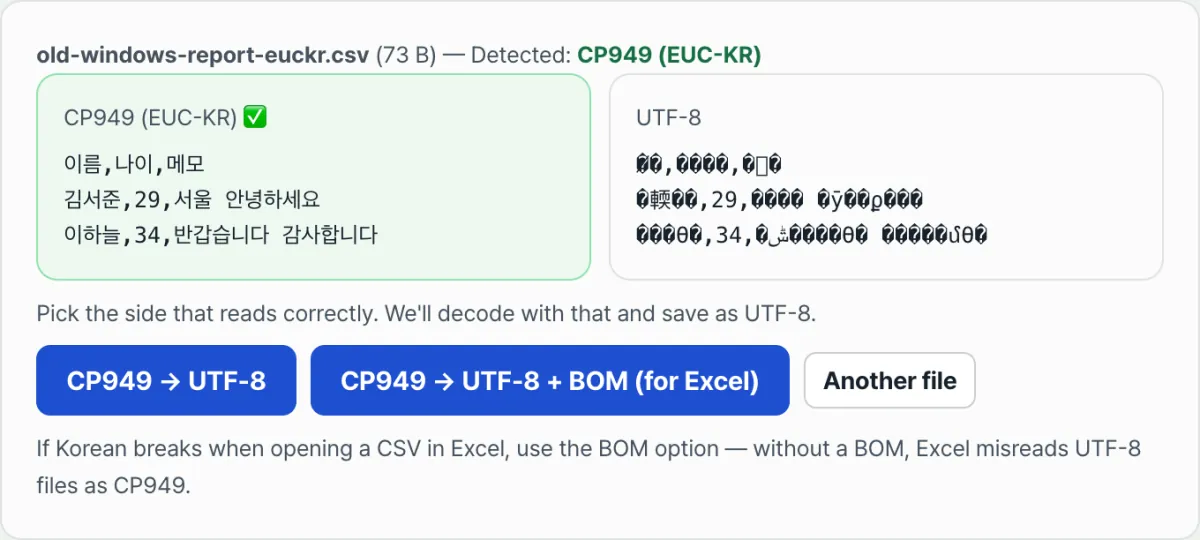
The Text Encoding Converter (CP949 ↔ UTF-8) reads the file you drop only inside your browser (nothing is uploaded to a server, up to 20 MB). It decodes the same bytes with both the UTF-8 and CP949 rulebooks at once. It counts the share of replacement characters in each result. If the file starts with a UTF-8 BOM, it picks UTF-8. If not, it picks the one with the lower share of broken characters as the "recommended encoding" and puts a green check (✅) next to it. Then it reads the file with that encoding and saves it again as UTF-8. The saved file name is the original name with "-utf8" added at the end.
Common misconceptions and mistakes
Garbling has set causes, so the symptoms depend on the file's actual encoding and how you open it, as the table below shows.
| Actual encoding of the file | If you open it with | What you see on screen |
|---|---|---|
| CP949 (old ANSI) | A UTF-8 editor | Black diamond question marks (replacement characters) |
| UTF-8 | Excel (default = CP949) | Random Korean syllables like "뷁" and "븞" |
| UTF-8 + BOM | Excel | Displays correctly |
Don't trust the green check blindly. That's the first tip. The recommendation counts replacement characters, so it's right most of the time. In rare cases, the garbled version can also produce few replacement characters. It's safer to check by eye which of the two previews shows readable words.
Whether you want a BOM depends on what the file is for. If the CSV is going into Excel, include the BOM so Excel recognizes it as UTF-8. That's why the tool has a separate "CP949 → UTF-8 + BOM" option. For programming files such as source code, JSON, and shell scripts, though, the 3-byte BOM at the start can be read as part of the content and break parsers or execution. Save those as UTF-8 without a BOM.
You don't need to work hard to tell EUC-KR and CP949 apart. CP949 is an extension that includes EUC-KR, and browsers handle both with the same decoder. So the tool doesn't ask you to choose between them. It just reads with one.
The output is always UTF-8. The tool only supports repairing text and saving it as UTF-8, because the browser's encoder for saving supports only UTF-8. It isn't meant for converting a UTF-8 file back to CP949.
Summary
Here are the key points.
- Garbled Korean text isn't file damage. It's a mismatch between the encoding the file was saved in and the encoding used to read it. Match the reading rule, and the text comes back.
- Older Windows files are usually CP949 (the "ANSI" option in Notepad). Most modern environments default to UTF-8, so the two clash when they meet.
- To find out which encoding a file uses, read the same bytes both ways and see which one produces fewer replacement characters. If the file has a BOM, it's confirmed as UTF-8.
- Add a BOM to CSV files meant for Excel. Leave it out of source code and other programming files.
- If the result is unclear, don't rely only on the green checkmark. Look at both previews and pick the one where the text is readable.
Your file is processed only in your browser (no server upload, up to 20 MB). The tool shows CP949 and UTF-8 previews side by side, then saves as UTF-8 with a BOM for Excel. Free, with nothing to install.
Frequently Asked Questions
My CSV shows garbled Korean in Excel. How do I fix it?
There are two cases. If the file is CP949 (the old ANSI), read it in that encoding and save it again as "UTF-8 + BOM." If the file is already UTF-8 and Excel is the one garbling it, adding a BOM at the start is enough for Excel to recognize it as UTF-8. If you'd rather not use a tool, go to Excel's "Data → From Text/CSV," import the file, and set the original file encoding yourself.
Are CP949 and EUC-KR different encodings?
They're in the same family. EUC-KR covers only the 2,350 most common Hangul syllables. CP949 extends it with the remaining modern Hangul syllables, such as "뷁" and "똠," to cover all 11,172. In other words, CP949 includes EUC-KR. Browsers handle both with the same decoder, so you don't need to tell them apart when converting.
Do I have to add a BOM?
It depends on what the file is for. For a CSV you'll open in Excel, adding one is the safer choice. Without a BOM, Excel misreads a UTF-8 file as CP949, and the Korean text comes out garbled. For programming files such as source code, JSON, and shell scripts, though, the 3-byte BOM at the very start can cause errors, so leave it out.
Does my file get uploaded to a server?
No. Everything is processed on your device using the decoder built into your browser, so your file never leaves it. The size limit is 20 MB per file.
This article was adapted from our Korean original. Read the Korean original