
Smart Quotes Cleaner: Convert Curly Quotes to ASCII
Contents
You've probably run into this at least once: you type a long document or source code in MS Word, a word processor such as Hangul, or a messenger editor such as KakaoTalk or Slack, then paste it as-is into a web editor or an online code compiler. The code won't build, and you get a syntax error.
The main cause is the editor's autoformat feature. It replaces basic ASCII quotes with curly smart quotes, which look nice but break code. This post explains why smart quotes appear and how to convert them back to standard ASCII quotes.
Summary
- ① The autoformat feature in Word and messenger editors turns standard ASCII quotes into curly smart quotes, causing syntax errors because the compiler doesn't recognize them.
- ② You can turn off the autoformat option or replace characters one by one by hand, but the longer the text, the more likely you are to miss something.
- ③ Paste your text into the Smart Quotes Cleaner to replace all four groups (double quotes, single quotes, dashes, and other characters) with standard ASCII at once, and see how many changes were made in each group.
Why smart quotes cause code errors
Compiler and interpreter engines recognize only one-byte straight quote characters in the standard ASCII range as valid syntax. Smart quotes, which Word and messenger editors insert automatically, may look similar, but they are completely different characters in Unicode. The compiler doesn't recognize them, so it throws a syntax error.
| Type | Glyph | Unicode point | Accepted by compiler? |
|---|---|---|---|
| Standard single quote (ASCII) | ' | \u0027 (Apostrophe) | O (recognized) |
| Standard double quote (ASCII) | " | \u0022 (Quotation Mark) | O (recognized) |
| Smart single quote (opening) | ‘ | \u2018 (Left Single Quote) | X (causes a syntax error) |
| Smart single quote (closing) | ’ | \u2019 (Right Single Quote) | X (causes a syntax error) |
| Smart double quote (opening) | “ | \u201C (Left Double Quote) | X (causes a syntax error) |
| Smart double quote (closing) | ” | \u201D (Right Double Quote) | X (causes a syntax error) |
How to convert back to standard ASCII quotes
Fix them by hand
- Turn off the editor's autoformat option: If you write a lot in Word or use the built-in text editor on macOS, open its settings and manually uncheck
Smart Quotesor the automatic quote conversion option. That prevents your coding text from getting damaged in the first place. - Check the text before you copy it: If smart quotes are already mixed in, replace quotes and dashes one by one with standard characters before you share developer guides or code snippets. With long text or quotes scattered in many places, it's easy to miss a few, and it's hard to tell by eye which characters changed or how many.
Replace them all at once with a tool
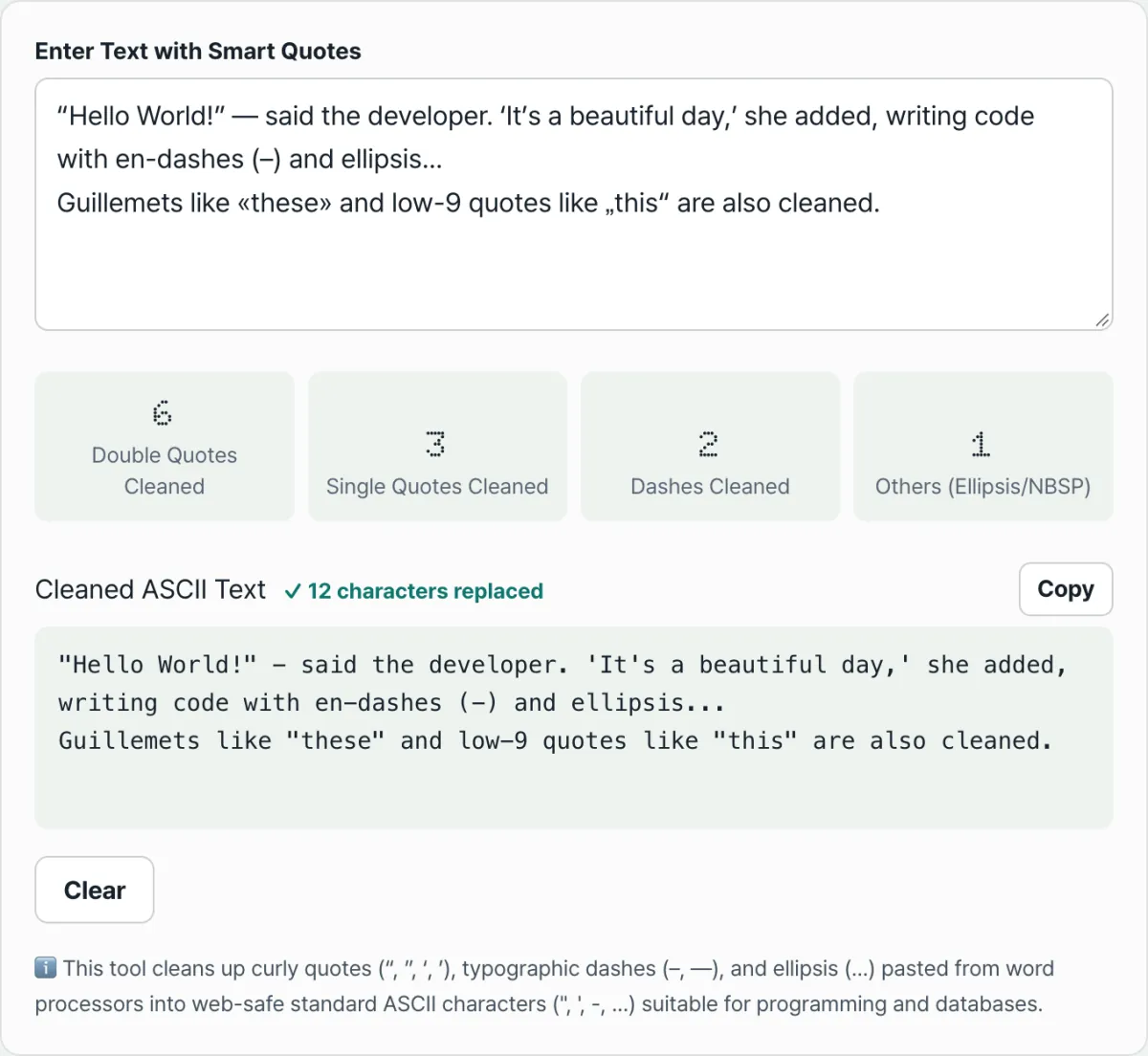
Instead of hunting through your text editor for each error, deleting the quote, and typing it again, paste your source code into the Smart Quotes Cleaner. It converts the characters above to standard ASCII text in one pass and shows the number of replacements in each group. Rather than counting how many special characters are left in your text, paste it into the tool below and check in one go.
Paste in text or code where quote formatting got tangled and caused errors, and restore it smoothly to standard ASCII characters your compiler accepts.
Character groups the tool detects and replaces
The Smart Quotes Cleaner uses regular expressions to count the four groups below and convert them to standard ASCII characters at the same time.
| Group | Detects | Replacement |
|---|---|---|
| Double quotes | Smart double quotes (opening/closing), low-9 double quote, guillemets | " |
| Single quotes | Smart single quotes (opening/closing), backtick, acute accent, low-9 single quote, single guillemet | ' |
| Dashes | En dash, em dash, horizontal bar, figure dash, minus sign | - |
| Other | Ellipsis (…), non-breaking space (NBSP) | ..., regular space |
The tool counts double quotes, single quotes, dashes, and other characters separately so the results screen can show right away how many of each type changed. Text that comes from Word documents usually has a mix of quotes and ellipses, so splitting the counts this way makes it easier to gauge where the damage is and how much there is.
Wrapping up
Smart quotes appear when the autoformat feature in Word or a messenger editor turns standard ASCII quotes into curly characters. You can turn off the editor's autoformat option or find and replace characters one by one, but the longer the text, the more places you're likely to miss.
Paste your text into the Smart Quotes Cleaner and it replaces all four groups (double quotes, single quotes, dashes, and other characters) with standard ASCII at once. You can also see how many characters changed in each group.
Paste in text or code where quote formatting got tangled and caused errors, and restore it smoothly to standard ASCII characters your compiler accepts.
Frequently asked questions
Why are smart quotes a problem during coding or data migration?
Unlike regular quotes ("), smart quotes (“ or ”) can cause errors in some text parsers or programming languages, and they can corrupt data.
How do I use the Smart Quotes Cleaner?
Paste the text you want to clean into the text editor box. You'll see the converted ASCII text and the number of changes in each group in real time, and you can use the Copy button to grab the finished text right away.
If I turn off the editor's autoformat option, will this problem go away completely?
If you turn off Smart Quotes (automatic quote conversion) in Word or the macOS text editor ahead of time, new text you type won't get smart quotes. But this doesn't apply to text you've already written or text you received from elsewhere, so it's safer to run that text through the cleaner once.
This article was adapted from our Korean original. Read the Korean original