
Video Download Sites: Why Some Links Work and Others Don't
Contents
- Why video download sites give different results
- How to check it yourself without a download site
- Supported and unsupported platforms: what actually separates them
- Quality and formats you can save, by platform
- Common sticking points
- Copyright and What Counts as Legitimate Use
- How It's Different from Similar Tools
- Recap
- Frequently Asked Questions
Some video download sites give you a result the moment you paste a link, while other sites that look identical just spin and end in an error. That difference isn't about how well the site was built. It comes down to where the request is coming from and how the platform handles outside access. This post is based on what actually gets saved, what gets blocked, and why that gap exists.
Summary ① X, Naver TV, Vimeo, Twitch clips, Pinterest, Bluesky and SoundCloud can be saved. For YouTube, only the thumbnail works. ② Instagram, TikTok, Facebook, Threads and Reddit are blocked for different reasons — login wall redirects, empty page responses, IP range blocks and so on, each in its own way. ③ With no sign-up, you paste a link and get a list of files you can save. Saving splits into two paths: a direct browser download and a signed proxy.
Why video download sites give different results
Say you want to save a Twitch highlight clip on your phone, so you type "video download site" into a search box. You get several pages that look about the same. On the first site, a save button appears as soon as you paste the link. A few days later you paste an Instagram Reels link the same way, and on that same site you get nothing but an error, or the loading icon spins for a while and then nothing happens.
When that happens, people usually assume one of two things. One is "this site is half-baked, I need a better one." The other is "did I paste the link wrong?" Both are only half right. The real cause isn't how polished the site is. It's that platforms handle connections from outside servers in different ways.
The problem is that this difference never shows up on screen. Sites rarely explain why a Twitch clip works and Instagram doesn't. So you end up bouncing between sites with no way to know why something failed. Some push you to sign up. Some throw up ad pages a few times and then finish with nothing at all. After a few rounds of that, all you're left with is the impression that video download sites are just half broken, and nobody ever tells you why.
It gets more confusing if you've seen some services on the same social network work while others don't. For example, an X (Twitter) video saves fine, but a different link that looks connected to the same account doesn't. Your first instinct is to wonder what you did wrong. Most of the time the cause isn't a typing mistake — it's the platform's access policy.
The name "media downloader" itself creates confusion. People tend to lump it all together as "saving videos," but video, images and audio are all different file types, and each platform handles those three differently. You go to Pinterest to save a few images for a mood board, then figure a Reddit link someone shared on the same screen will work too, and you hit an error right away. A site that works for images doesn't mean every image-based platform works, and a site that works for video doesn't mean every video platform works. If you don't know that each platform has its own rules, then "which site is the best" has no answer. The information you actually need isn't "which site is good" — it's "which platforms work in the first place, and which never did."
Once you also know that the reason for failure differs by platform, things get clearer. Instagram failing and Reddit failing both get lumped under the word "blocked," but the mechanics are different. Knowing that difference lets you size up other tools later and figure out for yourself why one site handles this but not that.
This isn't only an individual user problem. A community moderator who wants to keep a public post as an original file instead of a screenshot for an announcement, or someone gathering reference material scattered across platforms into one place, hits the same wall. If they had known up front that "this platform works and that one doesn't," they would have prepared a different approach from the start. The catch is there's no way to know until you try. That's why laying out the supported platforms and the reasons ahead of time saves you time before you even pick a site.
How to check it yourself without a download site
Even without an all-in-one download site, browser tools alone can sometimes find the original URL for a video or image. Here's the sequence.
- Open the post you want to save in your browser. On a PC, open developer tools (F12, or right-click → Inspect).
- In the top menu, select the "Network" tab and turn on the "Media" or "Img" filter.
- For video, press play so it actually plays once. Requests with extensions like mp4 or m3u8 will appear in the list.
- Right-click that request and choose "Open in new tab." If the URL points directly at the file, you can right-click in that tab → "Save as" to download it.
- For images, you often don't need any of this. Right-click the image → "Copy image address" or "Save image as" usually works.
This method is sound in principle, but in practice you keep hitting snags. Request URLs often carry a token with an expiration time, so by the time you copy and open it, it's already expired. Videos are sometimes split into many pieces (m3u8, segment files), so you need a separate step to merge them into one file. On pages that fire off dozens of requests, just picking out which one is the actual video file and which is a tracking script is hard work. Turning on developer tools, pressing play and digging through the list every single time gets old fast.
Audio-only services like SoundCloud are similar. You have to press play before the audio request shows up, and a single track sometimes arrives as several short pieces, so saving it as one file means stitching the pieces back together in order. On a PC you at least have developer tools. On a phone, the whole procedure is hard to use. Most mobile browsers don't offer a screen for viewing network requests, so this method is effectively open to PC users only.
And even this method only works if the platform doesn't block server-side connections in the first place. No matter how precisely you find the URL with developer tools, if the platform redirects outside access to a login screen or blocks the request outright, opening it in your browser gets you the same block. In other words, this manual approach solves the "how do I find it" problem, but not the more fundamental one: "does this platform allow outside access at all?"
Developer tools also look and read a little differently in each browser. Chrome and Edge have a "Network" tab by default. In Safari you first have to enable the "Develop" menu, and then the resources tab shows up in Web Inspector. Firefox uses the same "Network" tab name but arranges its filter options differently. Because the names and locations shift, you end up hunting for browser-specific instructions every time, which is one more reason this method feels like a chore.
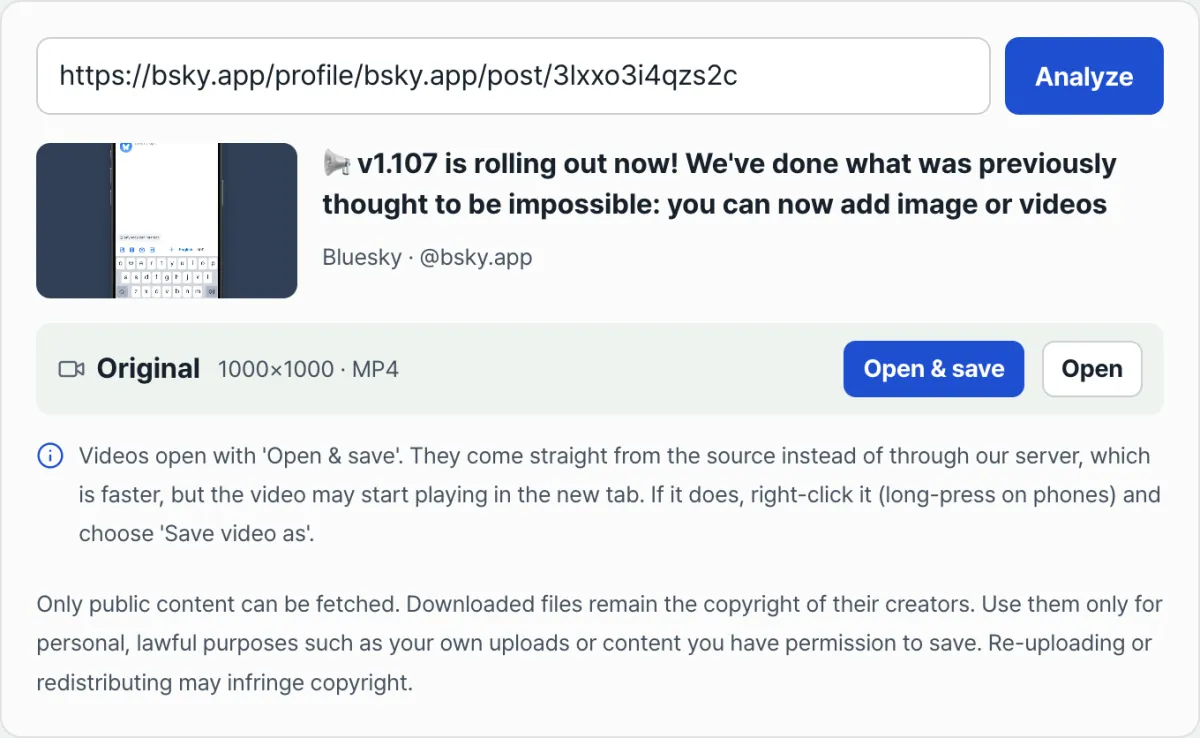
Our all-in-one downloader exists to cut down on that chore. Paste a link and press "Analyze URL," and it works out which files can be saved and shows them as a list.
Free · no sign-up or install · paste a link and it shows the list of files you can save right away
From the list, you just press "Save" on the quality or size you want. No sign-up and no software to install.
Supported and unsupported platforms: what actually separates them
There isn't just one thing that decides whether a platform works. It comes down to two stages. The first is: does the platform allow requests coming from a server at all? The second, if it does, is: can the browser fetch the file directly, or does something have to relay it in between?
Start with the first stage. Instagram, Facebook, and Threads are the same family of platform, and all three send connections from data centers back to a login screen. What's interesting is that this isn't a matter of how you build the request. I sent the exact same request over a home internet connection and confirmed the data came back normally. In other words, no matter how much you polish the request format or headers, you get pushed to a login screen for one reason only: the connection originates from a server (data center) block. This isn't something an account or a clever workaround fixes. It's a structural thing: the platform distinguishes where the connection comes from and responds differently.
TikTok blocks things a bit differently. Requests sent from a server get back an empty page with no content in it. It simply doesn't serve the data at all. There is one exception, though: the separate "Save TikTok Cover Image & Info" tool on our site can still pull the cover image. The reason that tool works also comes down to where the connection originates. It isn't our server making the request — the user's browser talks to TikTok directly, so it gets treated basically the same as a request from home internet. The all-in-one downloader that also grabs the main video, by contrast, has to have our server send the request, so it runs straight into TikTok's block on server-side requests.
Reddit is different again. Instead of a login screen or an empty page, it blocks server IP ranges outright with a 403 error. Even the public .json path that should be open to everyone (the official path for viewing Reddit post data in JSON format) is blocked when the request comes from a server. Whether you're logged in or whether the content is public doesn't matter — it filters based on the network the request came from.
Because these three platform groups (the Instagram/Facebook/Threads family, TikTok, and Reddit) each block server-side requests in their own way, we took all five of those services off our supported list. Pretending to support something and then failing with no result is worse than saying up front, clearly, that it doesn't work.
One thing worth pointing out here. Server (data center) connections and home internet connections are often treated as different classes of network on the internet. Data center IPs are mostly used for programs connecting automatically rather than people, so many platforms have policies that treat connections from those ranges differently from ordinary user connections. What I confirmed above fits that pattern — the request itself was identical, only the connection it came from was different, and that single difference turned the response into a login screen in one case and normal data in the other. So this isn't the kind of problem that gets solved by "crafting a more sophisticated request."
Even after seeing this, I had to recheck the conclusion several times. At first I assumed changing one value in the request would do it, and tried a bunch of combinations, but as long as the request came from a data center connection the result stayed the same. When I sent the identical request over a home connection, though, normal data came back immediately with no adjustments. That contrast led me to the conclusion that the cause is where the connection originates, not how the request is built. That's why this post describes the cause as it was actually confirmed, instead of offering the "just fine-tune the technique" kind of explanation.
The second stage is the difference within platforms that get past that gate. On hosts with CORS open (Cross-Origin Resource Sharing — the setting that lets a browser read resources from another domain directly), like X's (Twitter's) video CDN or YouTube thumbnails, your browser fetches the file straight from that platform's server without going through ours. The actual bytes flow directly from the platform's server to your device, and our server never gets in the middle. That path is good for us too, because even a large video uses none of our server's bandwidth.
CORS is a rule that exists for web security. Browsers block code on one web page from freely accessing resources on a completely different domain by default, and only allow access when that domain's server explicitly states in a response header that access from this origin is allowed. Without that signal, the browser blocks JavaScript from reading the contents even if the file exists and the address is correct. Whether a platform leaves that signal open is each service's design choice, not something we can change.
On hosts where CORS is not open — Naver TV, Vimeo, Pinterest, Twitch clips, Bluesky, SoundCloud — the browser can't fetch the file directly. The browser never got permission to read files from that domain, so it blocks the JavaScript from even attempting to read the file contents. In that case our server relays it once as a signed proxy. The server requests and receives the original file on your behalf, then adds a Content-Disposition header (the response header that tells the browser to download the file instead of just displaying it) and passes it to you.
Requests without a signature are rejected. A signature is a value proving that this download request was issued properly through our page. If we relayed any address without that check, our server would become an open proxy that lets anyone request any file on their behalf. An open proxy doesn't just let other people burn through your server costs — it can also be abused as a detour for malicious purposes. Signature verification is the safeguard that limits this tool to relaying only requests for platforms we support, issued through our page.
Walking through what happens when you press "Save" makes this structure clearer. When CORS is open, as with an X tweet video, the moment you press the button your browser sends the download request straight to X's video server address. Our page only tells it which address to go to; it isn't standing in the path of the file. When CORS is closed, as with a Naver TV video, pressing the button sends the request to our server first. Our server then requests the file from Naver TV's origin server, streams what it receives back to you, and adds only the Content-Disposition header. From your side, both cases look identical — press one button, a download dialog appears — but the path the file actually travels is different.
To sum up: support is decided first by how a platform handles server-side requests, and within supported platforms it's decided by CORS — whether the browser fetches the file directly or the server relays it. On the surface it all looks the same, "paste a link and hit save," but behind that, every platform and every file takes a different route. Once you know this structure, you can answer "why does this site work for some things and not others?" with a principle instead of a list of platform names.
Quality and formats you can save, by platform
Each platform differs in what file types and quality options it offers. Here's the breakdown.
| Platform | Files you can save | Quality and format notes |
|---|---|---|
| X (Twitter) | MP4 video, GIF (saved as video) | Several resolutions appear in a list, and you can pick the highest one to save |
| Naver TV | MP4 video | The original file is passed through as-is via a signed proxy |
| Vimeo | MP4 video | Saved within the range of qualities the uploader made public |
| Twitch clips | MP4 clip video | Mostly the short highlight clips a streamer saved |
| Images (JPG, PNG, etc.) | The original image attached to the pin | |
| Bluesky | Images, MP4 video | The media files attached to the post |
| SoundCloud | Audio files | Only tracks the uploader has allowed downloads for |
| YouTube | Thumbnail images only | Full videos aren't supported |
| General web pages | Images | Saved from the image URL on the page |
On something like X, where several quality options show up, compare file size against quality and pick whichever you need. On Naver TV or Vimeo, where only one option shows up, that just means the single quality level the uploader made public is the only one available. The tool isn't downgrading anything for you.
There's one easy misunderstanding here. People tend to read "only one quality option shows up" as "that's the limit of this tool," but it actually depends on how many quality versions the original platform encoded and published. X pre-converts uploaded video into multiple resolutions, so the list shows several lines. On Naver TV or Vimeo, the quality you can pull depends on how the channel or uploader set the visibility of that video. Our tool only shows the list the platform actually publishes. It never arbitrarily reduces quality or recompresses anything.
File size varies with quality for the same reason. Higher resolution and longer runtime mean a bigger file, and that rule holds whether you go through an all-in-one downloader or download straight from the original platform. Look at the quality label in the list before saving (for example, 1080p or 720p) and pick what fits your purpose. That way you can save a reasonable size from the start instead of downloading a big file and compressing it separately later.
The same goes for format. Video is almost always saved as MP4, because it's the universal format that plays right away in browsers and on most playback devices without conversion. Images keep whatever format the original was in (JPG, PNG, WEBP, and so on). Audio is saved as an audio file, but only for SoundCloud tracks that allow downloads. Tracks the uploader has blocked from downloading will play, but they won't even show up in the save list.
Twitch clips and Bluesky are in the table too, but they work a little differently. A Twitch clip is a short video a streamer or viewer cut out and saved from a specific moment during a broadcast, so you get only the length of that clip, not the whole stream. On Bluesky, a single post can have images and video attached together, so pasting one URL may bring up several save items at once. In that case, just pick the ones you need from the list.
Common sticking points
When you paste a URL and don't get what you expected, it's usually one of the reasons in the table below.
| Symptom | Cause | Fix |
|---|---|---|
| Pasting an Instagram, Facebook, or Threads URL throws an error | Platform policy that redirects server (data center) connections to a login screen | It's an unsupported platform. You'll need to find another way to save it |
| Nothing shows up when I paste a TikTok URL | Server requests get an empty page back | If you only need the cover image and info, use the "Save TikTok Cover Image & Info" tool |
| A Reddit link fails with a 403 error | Reddit blocks entire server IP ranges (including the public .json paths) | It's an unsupported platform |
| I paste a YouTube video URL and only get a thumbnail | Only thumbnails are in YouTube's supported scope | That's expected. Saving the full video is out of scope |
| The list is empty even after I click "Analyze URL" | The post is private or deleted, or the URL format isn't supported | Check that the post is public and that you're using the original URL, not a shortened one |
| Nothing downloads when I click Save | Browser pop-up blocking or a temporary network error | Turn off pop-up blocking and try again |
The thing worth noticing in that table is that more than half the failure causes have nothing to do with how well the tool is built. When you paste a service that isn't on the supported list, you'd hit the same error with any all-in-one downloader. On the other hand, if a platform is on the supported list and you still get nothing, it's usually a URL format issue or a temporary network problem.
The simplest way to tell the two apart is to try again with a different public post URL from the same platform. If other posts load fine and only one specific post doesn't, the problem is most likely with that post itself (made private, deleted, or using an unusual URL format). If nothing from that platform works, it's more likely the platform isn't on the supported list.
URL format problems happen more often than you'd think. A URL copied with the Share button in a mobile app may be loaded with tracking parameters, or routed through a URL shortener so the original address is hard to recognize. Most of these are still recognized fine, but if the shortening service is set up to push you through a login page along the way, the analysis can fail. In that case, it's safer to open the post page directly and copy the original URL from the address bar.
Another common assumption is "if saving doesn't work, I'll just move to another site." Platforms that aren't supported (Instagram, TikTok, Facebook, Threads, Reddit) have a structure that filters out where the connection is coming from, so even if you switch to a site that looks different, it'll likely hit the same wall as long as the request is still sent from a server. Conversely, if saving failed on a platform that is supported, checking the URL format and whether the post is public will find the cause faster than switching sites.
It also helps to know that the supported list itself can change over time. When a platform changes how it handles connections, a site that worked yesterday might not work today, and the reverse can happen too. So when you use a tool like this, rather than concluding "if it doesn't work once, it'll never work," it's worth trying again later. That said, if a platform is listed as unsupported, the reason is the structural problem described above, so it's unlikely to suddenly clear up in a few days.
Copyright and What Counts as Legitimate Use
The only things this tool can pull are posts that are already public. Private accounts, deleted posts, and material you don't have permission to access won't even show up in the list. But being public doesn't mean the copyright goes away. Just because something appears on your screen doesn't mean anyone can use it however they want. That distinction matters.
The copyright on a saved file still belongs to the original creator. Backing up a video or photo you posted yourself is fine, and so is keeping a personal copy of material the creator clearly gave you permission to use. On the other hand, re-uploading a saved file to another channel, redistributing it without credit, or using it commercially can land you in copyright trouble.
Editing or reworking someone else's content — a Twitch clip or a video from X, for example — and posting it again can easily look like unauthorized use from the creator's side. The fact that a save feature exists is one question. How far you can use the resulting file is a separate one. This tool only handles the technical step of saving. What you do with the file afterward is on you.
In practice, most situations where you need to save something have a legitimate purpose. Maybe you posted a video on X years ago and want a backup before it disappears. Maybe a friend sent you a Bluesky photo with their permission and you want it in your personal album. Maybe your team agreed to use a Vimeo video as reference material and you want a local copy. In cases like these, saving isn't a problem. Copying someone else's content as-is to chase views or revenue is a different story: even though saving it is technically possible, it can create problems with the original creator.
This line also connects to each platform's terms of service. Most platforms treat "making a post publicly viewable" and "duplicating that file and reusing it elsewhere" as two different things. It's worth remembering that seeing a file on a public page doesn't transfer ownership or usage rights to you.
You don't need to hesitate about saving. Just think once more about how you'll use the file afterward. If it's for your personal collection or rewatching, or for a purpose you already agreed on with the creator, there's nothing to worry about. If you're passing off someone else's post as your own without credit, or redistributing it when the creator has clearly said no, the problem isn't the moment you saved it — it's the way you used it later.
When you're unsure, the test is simple: "Would the creator be okay with this if they saw it right now?" If you're saving your own material, or a friend or acquaintance shared something and told you to use it, the answer comes easily. If the creator would be uncomfortable, it's worth a second thought — even though saving it is technically possible. This tool just makes it easy to get the file from a public post. It doesn't decide how you should use it.
How It's Different from Similar Tools
Search for "video download site" and you'll find plenty of services that look alike. The general idea is similar, but how they actually save files varies quite a bit.
Some sites take any URL, try to process it regardless of whether they support it, and only show an error once it fails. You wait a few seconds just to find out it won't work. Some sites ask you to install a program or a browser extension. Those tend to break every time a platform changes its page layout, and the install step itself is a barrier. Others ask you to enter your login credentials, which means handing your account details to a third-party server — a different level of risk.
Our tool was built so you just paste a URL, with no sign-up and no install. Platforms we don't support are left out of the list from the start, with the reason spelled out in the instructions. When possible, saving works by having your browser fetch the file directly from the platform's server, so your request skips our servers whenever it doesn't need to pass through them. We figured it's better to show plainly what works and what doesn't than to pretend and stall halfway through.
One more difference is how we relate to single-platform tools. There are plenty of sites that only save X videos, or only save Pinterest images. Those tools can be strong for that one platform, but when you need to save content from several platforms, you end up hopping between sites. Ours detects the platform automatically the moment you paste a URL, so you spend less time hunting for a different site for each platform. In exchange, we didn't stretch our support list wide. We only list platforms where we've confirmed saving works reliably.
How we handle unsupported platforms is another difference. Some sites will accept an Instagram or TikTok URL, spin for a while, and then show a vague error message. You can't tell whether it's a temporary glitch or a hard no, so you retry again and again. We chose to leave these five platforms off the support list from the start and explain why, with the reasoning, both on screen and in this post. Instead of making you keep retrying something that will never work, we'd rather tell you up front that it won't work and why. It saves you time.
Recap
Here's the short version.
- X, Naver TV, Vimeo, Twitch clips, Pinterest, Bluesky, and SoundCloud can be saved. YouTube only gives you thumbnails.
- Instagram, Facebook, and Threads redirect server requests to a login page. TikTok returns an empty page to server requests. Reddit blocks server IP ranges outright. Each platform blocks in its own way.
- Saving works two ways: your browser downloads the file directly, or a signed proxy relays it.
- No sign-up, no install. Paste a URL and the list of files you can save appears first.
- The copyright on a saved file belongs to the original creator, so use it only for personal, lawful purposes.
Free · no sign-up or install · paste a link and it shows the list of files you can save right away
Frequently Asked Questions
Is there really no way to download Instagram videos?
Not right now — Instagram isn't supported. Instagram redirects requests coming from servers and data centers to a login screen. That's not about how the request is made; it distinguishes where the connection comes from and responds differently. We confirmed the same request works normally from a home internet connection, but as long as the service runs through servers, that wall is hard to get past.
Can I save TikTok videos?
Not the main video. TikTok returns an empty page with no content when a request comes from a server. You can still get the cover image and post info with our separate "Save TikTok Cover Image and Info" tool, because that tool sends requests directly from your browser instead of a server, so it doesn't hit the same block.
Why doesn't it work for the main YouTube video?
This tool is built to support only thumbnail images from YouTube. Saving the main video isn't in its scope. If you paste a YouTube address and only the thumbnail shows up, that's normal behavior, not a bug — you don't need to worry if there's no other message or error. Only paste a YouTube address when you need a channel or video thumbnail image rather than a video link.
Do I need to sign up or install anything?
No. Copy the address of the post you want to save, paste it into the input box, and press "Analyze Address" — a list of downloadable files appears right away. Just press "Save" on the item you want. No account, no program, no browser extension. All you need is a browser, and it works the same way on desktop and mobile.
What format are the saved files in?
Videos are mostly MP4. Images keep their original format, such as JPG or PNG. Audio is saved as an audio file only for tracks the uploader has allowed downloads on, like on SoundCloud. When there are multiple quality or resolution options, you can pick one from the list and save it, as with X. On platforms where the list has just one item, that means the uploader has only made one quality available.
What's the difference between going through a server and not going through one?
For hosts with CORS enabled, like X or YouTube thumbnails, your browser fetches the file directly from the platform's server and never touches ours. For hosts without CORS, like Naver TV, Vimeo, and Pinterest, a signed proxy relays it once. Either way, what you do is the same: press "Save".
Can I re-upload a saved video somewhere else?
Not without the original creator's permission. Being able to save something and being allowed to reuse it are two different things. Copyright belongs to the creator, so use saved files only for personal, lawful purposes — for example, content you posted yourself or content you have clear permission to use. Re-uploading or redistributing can amount to copyright infringement.
This article was adapted from our Korean original. Read the Korean original