
1GB = 1000MB or 1024MB? Decimal vs Binary Units Explained
Contents
- Comparing the Decimal (SI) and Binary (IEC) Byte Conversion Formulas
- The Math Behind Why a 1TB Hard Drive Shrinks to 931GB
- Predicting Real Capacity with the Byte Unit Converter
- The Core Technical Mechanism: Why This Problem Happens
- Detailed Unit Comparison and Real-World Capacity Cheat Sheet
- 5 Common Byte Unit Mistakes You Don't Realize You're Making
- A 5-Step Storage Planning Workflow for Getting Capacity Exactly Right
- 7 Practical Storage Tips
- Final Decision Tree: Which Unit System Should You Work With?
- Key Terms Glossary and One-Line Cheat Sheet (Terminology)
- Frequently Asked Questions
You've probably been there: you plug a new 1TB external hard drive or SSD into your computer, open the properties window in Windows Explorer, and see the capacity has dropped to around 931 GB. Cue the confusion — and the "did they send me a defective drive?" frustration.
This long-standing mismatch comes from a collision between the basic convention computers use to handle data (binary) and the measurement standard used for commerce in human society (decimal). Here's a clear breakdown of how decimal bytes (SI prefixes) and binary bytes (IEC standard) convert.
Summary ① Decimal units (SI): Storage manufacturers calculate drive capacity assuming
1 KB = 1000 Byte. ② Binary units (IEC): A computer's operating system (OS) calculates with1 KiB = 1024 Byte, so the label gap grows as the units get larger. ③ Calculating actual recognized capacity: A 1TB hard drive's real-world capacity goes through1,000,000,000,000 Byte ÷ 1024³and is recognized as about 931.3 GiB (GB). ④ With the Byte Unit Converter, you can precisely convert B, KB, MB, GB, and TB — plus the exact binary units KiB, MiB, GiB, and TiB — back and forth in one click.
Comparing the Decimal (SI) and Binary (IEC) Byte Conversion Formulas
Humans built the decimal system (SI prefixes) around ten fingers, where the name changes every 1,000 units. Computer architecture, by contrast, runs on binary switches that hold only two states, on and off. That makes powers of two the natural unit for memory addressing, and 2¹⁰ = 1024 happened to be the closest value to 1000 — so the existing SI prefixes (kilo, mega, giga) got borrowed as-is.
To end the confusion between the two conventions, the International Electrotechnical Commission (IEC) formally established the binary prefix standard in 1998.
1. Decimal Capacity Standard (SI Prefixes: the Storage Industry Standard)
1 Kilobyte (KB) = 1,000 Byte (10^3)1 Megabyte (MB) = 1,000,000 Byte (10^6)1 Gigabyte (GB) = 1,000,000,000 Byte (10^9)1 Terabyte (TB) = 1,000,000,000,000 Byte (10^12)
2. Binary Capacity Standard (IEC Prefixes: the Standard for OS Internal Calculations)
1 Kibibyte (KiB) = 1,024 Byte (2^10)1 Mebibyte (MiB) = 1,048,576 Byte (2^20)1 Gibibyte (GiB) = 1,073,741,824 Byte (2^30)1 Tebibyte (TiB) = 1,099,511,627,776 Byte (2^40)
Windows calculates internally in binary units like KiB and GiB, but it labels them on screen with the familiar decimal abbreviations KB and GB. That's why most everyday users think capacity has gone missing.
The Math Behind Why a 1TB Hard Drive Shrinks to 931GB
Here's the conversion that happens the moment you plug an SSD — built and shipped from the factory as 1TB (1,000,000,000,000 Byte) — into a Windows computer.
To get the GiB figure the computer reports, divide the raw decimal byte count by 1024 cubed (1024³ = 1,073,741,824).
Computer-recognized capacity = 1,000,000,000,000 Byte ÷ 1,073,741,824 Byte ≈ 931.32 GiB (GB)
So the physical capacity — the raw byte count stored in electrons — is exactly the same. The number just looks smaller because binary grouping uses bigger bundles, so the figure shows a loss of about 7%. The gap gets worse as you move from terabytes (TB) up to petabytes (PB) in big data infrastructure.
Predicting Real Capacity with the Byte Unit Converter
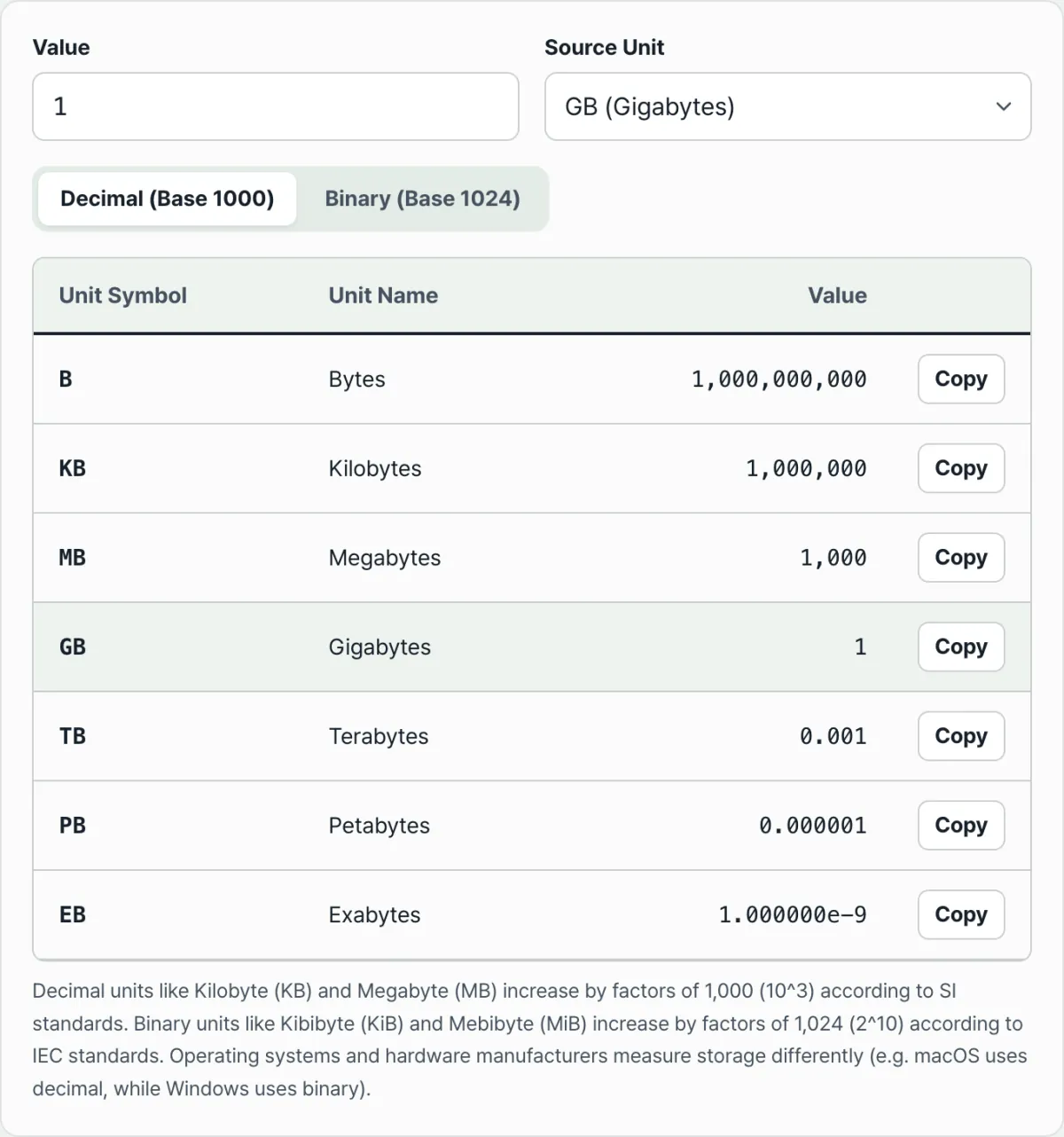
If dividing decimal capacity into binary and converting between units by hand in Notepad sounds tedious, try the Byte Unit Converter.
Free · no signup · converts SI and IEC capacity standards in one click
The Core Technical Mechanism: Why This Problem Happens
This confusion hasn't gone away in more than 30 years of IT. It keeps coming back because the underlying technical architecture and the way people count don't match. To understand the gap clearly, you need the historical background and know how each operating system handles it.
210 = 1024 Binary vs. 103 = 1000 Decimal Architecture
People are used to counting on ten fingers, so under the SI (International System of Units) we use prefixes that go up by 1000: kilo (103), mega (106), giga (109). Manufacturers who build hard drives, SSDs, and USB sticks adopt this decimal system as their standard when they design and market products. But the CPU and memory — the computer's brain — are built from binary transistors that only recognize two states: electricity flowing (1) and not flowing (0). Assigning data addresses by powers of 2 is far more efficient for the system architecture. Two to the tenth power (210) is 1024, the closest number to 1000 in the decimal system. Early computer scientists, for convenience, simply reused the existing SI prefixes for these 1024-based units. That's how 1KB started being called 1024 Byte.
The Arrival of the IEC 60027-2 Standard (KiB, MiB, GiB, TiB)
As time passed and drive capacities exploded from a few megabytes to gigabytes and terabytes, the small difference between 1000 and 1024 piled up into a huge error you can't ignore. So in 1998 the International Electrotechnical Commission (IEC) established IEC 60027-2, a new standard of binary-only prefixes, to end the confusion between the two systems. Instead of kilo and mega, they added "bi" for binary and made kibi (KiB), mebi (MiB), gibi (GiB), and tebi (TiB) official units. (Example: 1 GiB = 1024 MiB = 10243 Byte) NIST (National Institute of Standards and Technology) and IEEE (Institute of Electrical and Electronics Engineers) strongly recommend the IEC standard too.
How Operating Systems Diverge: and Label Things Differently
The problem is that each operating system accepted the standard in its own way.
- Windows (Microsoft): It still calculates internally in 1024 units (binary), but when it shows numbers on screen it doesn't use the correct IEC units (KiB, GiB). It displays the old SI labels (KB, GB) instead. This is where consumer confusion gets worst.
- macOS (Apple): It used to match Windows, but starting with Mac OS X Snow Leopard (10.6), Apple overhauled its labeling policy. It now calculates and displays in 1000 units (decimal), just like drive manufacturers. So when you plug a 1TB external drive into a Mac, it shows 1.00TB (or 1000GB), with no jarring surprise.
- Linux / Unix: Linux fortunately supports both systems clearly. In the terminal,
df -hshows human-readable binary GiB (labeled G and so on in the output), whiledf -Hconverts to decimal GB. For file listings,ls -lh(binary) andls -l --si(decimal) keep the two separate.
The Capacity Loss Formula
The bigger the unit, the more the gap between the decimal label (manufacturer) and the binary reading (Windows OS) grows — exponentially. The math for that loss looks like this: Loss % = ( 1 - ( 1000n / 1024n ) ) × 100 (n is the level: KB=1, MB=2, GB=3, TB=4...)
By this formula, the real amount of capacity that evaporates at each unit comes out as follows.
- KB (kilobyte): about 2.40% loss
- MB (megabyte): about 4.86% loss
- GB (gigabyte): about 7.37% loss
- TB (terabyte): about 9.31% loss
- PB (petabyte): about 11.18% loss
In the end, a 1TB hard drive gets shaved by about 9.31% and shows up as 931.3GB (really GiB), and the 1PB (petabyte) storage that will hit the market later shows up as 888TB (TiB) — more than 11% gone.
Detailed Unit Comparison and Real-World Capacity Cheat Sheet
Here's a full comparison table of the decimal and binary byte counts for each storage unit, the error rate between them, and how that error plays out in the file sizes we actually deal with.
| Unit (SI / IEC) | Manufacturer's count (decimal, 10n) | What the OS reports (binary, 2n) | Error rate (gap) | Real-world example |
|---|---|---|---|---|
| Byte (B) | 1 Byte | 1 Byte | 0% | One English letter (1 Byte), one Korean character (2–3 Byte) |
| KB / KiB | 1,000 Byte | 1,024 Byte | 2.40% | A simple text document, a small icon image (tens to hundreds of KB) |
| MB / MiB | 1,000,000 Byte | 1,048,576 Byte | 4.86% | One high-quality MP3 track (about 10MB), one smartphone photo (about 5MB) |
| GB / GiB | 1,000,000,000 Byte | 1,073,741,824 Byte | 7.37% | One 4K movie (about 15–20GB), a Windows OS install (about 30GB) |
| TB / TiB | 10004 Byte | 10244 Byte | 9.31% | Installing today's AAA 3D titles (several at 100–150GB each gets you to a TB) |
| PB / PiB | 10005 Byte | 10245 Byte | 11.18% | A cloud storage rack in an enterprise data center, large backup servers |
| EB / EiB | 10006 Byte | 10246 Byte | 13.00% | Total worldwide data traffic, country-scale archive infrastructure |
As the table shows, once you go past gigabytes (GB) the error tops 7%, and at terabyte (TB) scale the calculated difference approaches 10%. The more you work with large data, the more you should get in the habit of converting precisely to the IEC units GiB and TiB.
5 Common Byte Unit Mistakes You Don't Realize You're Making
Here are the five most common critical misunderstandings and mistakes IT professionals and everyday consumers make when handling data capacity and speed.
- Demanding a refund from an HDD/SSD manufacturer because you think you were cheated This is the most common mistake: mistaking a simple difference in labeling for a defective product, picking unnecessary fights with the seller, and wasting precious time and return shipping on an exchange or refund. It's only a Windows display issue. The physical memory chips still hold the full normal capacity (on a decimal basis).
- Confusing network speed in bits (Bit, Gbps) with storage capacity in bytes (Byte, GB/s) Internet providers often advertise "1 gig (Gbps) internet" to win subscribers. The lowercase "b" means "bit." But the unit you see when downloading a file is the uppercase "B," which means "byte." Since 1 Byte = 8 Bits, the real maximum download speed on a 1Gbps connection is not 1000MB/s but about 125MB/s. Mixing these up creates huge bottlenecks when you design network bandwidth.
- Mixing decimal and binary units when provisioning cloud servers When you buy storage on cloud platforms such as AWS, Azure, or GCP, it's easy to ignore the unit the CSP requires (GiB), budget on a decimal (GB) basis as if you were buying on-premises hardware, then discover during partition setup that you're short on space. You end up urgently expanding volumes and restarting the server — a full-blown disaster.
- Calculating without accounting for filesystem formatting overhead When the operating system formats a hard drive so you can use it (NTFS, exFAT, ext4, and so on), it needs a large index table to record file names, locations, permissions, and more. With Windows NTFS, the MFT (Master File Table) takes up space; with exFAT, the FAT table can consume tens to hundreds of MB or more of total capacity. If you try to fill every last gap without allowing for this essential management area, you'll hit errors.
- Overlooking slack space wasted by cluster allocation unit size When a disk stores data, it puts it into minimum-size "rooms" called clusters. Say you format with a 64KB cluster size but save a tiny 1KB text file. The other 63KB becomes "slack space" that no other file can use. That's why a programming project folder with tens of thousands of small files shows such a big difference between its "Size" and "Size on disk."
A 5-Step Storage Planning Workflow for Getting Capacity Exactly Right
Here's a practical five-step workflow for experts to use when designing storage and partitioning servers. It heads off the mistakes above and lets you predict capacity down to the byte.
- Check the manufacturer's hardware spec sheet (get the decimal figure) First, check the decimal capacity on the box or official spec sheet. For a 4TB HDD, that's 4,000,000,000,000 bytes. Write down this raw byte count.
- Apply the IEC binary formula and convert (calculate GiB/TiB)
Work out the actual recognized capacity you'll see in Windows or Linux fdisk. Use the Byte Unit Converter on this blog to enter 4TB and check the binary tab, or run
÷ (1024^3)or÷ (1024^4)yourself to get the TiB/GiB value. (4TB = about 3.63 TiB = 3725.29 GiB) - Set aside a 1–2% safety margin for filesystem overhead Reserve at least 1% and up to 2% of the calculated GiB value for the metadata space that file tables (MFT, journaling, etc.) will occupy after formatting. Linux ext4 systems in particular reserve block space for the root user by default (5%), so you also need to tune that value (with tune2fs) or account for it.
- Lock in the actual usable capacity The final number after subtracting overhead is the real limit on what users can use. Build your budget for application installs, media file storage, and so on from that capacity.
- Partition the drive and allocate free space for provisioning Using the usable capacity you've settled on, split the drive into partitions such as the C: drive (for the OS) and the D: drive (for data). Then apply an over-provisioning rule that always leaves at least 10–15% of total capacity free to extend SSD life and prevent performance drops, and you're done.
7 Practical Storage Tips
Seven practical tips to take your understanding of disk capacity and data transfer up another level.
- The "divide by 8" rule for turning network speed into your download speed (MB/s) If you sign up for a 500Mbps fiber plan, always divide by 8. 500 ÷ 8 = 62.5. So the top speed you'll see when downloading a torrent or a Steam game on your computer is 62.5MB/s.
- Expect capacity labels to differ when you move files between operating systems If you copy a 100GB folder edited on Windows to a MacBook (macOS) external drive, the Mac will show something around 107GB. The data didn't grow; macOS displays capacity in decimal. When you exchange large project files with partners, verify integrity by comparing the total byte count itself.
- Use the right command-line switches in the Linux terminal (
--si) When monitoring capacity on a Linux server, usedf -h(binary) to match cloud billing units (GiB), anddf -H(decimal) when matching disk manufacturer figures or writing reports for a general audience. For file listings, clearly separatels -lhandls -l --si, and you'll look more professional. - Match cluster (allocation unit) size to the type of data you'll store If it's an archive drive that holds only huge multi-gigabyte high-definition video files, set the allocation unit to the largest option — 64KB or 2MB or more — instead of 4KB when you format. File indexing gets faster and fragmentation drops, maximizing I/O performance. Conversely, for locations with lots of source code files, always keep 4KB to avoid wasting space.
- Stick to the 15% backup storage buffer rule No matter how well you set up automatic backups, filling storage to 100% causes severe file fragmentation and a sharp drop in performance. Treat 15% of the total disk as "virtual space you never touch" and set a warning alert so you can prevent system failures.
- Set over-provisioning to protect SSD life and speed On modern TLC and QLC SSDs, the fuller the drive gets, the more speed collapses to hard-drive levels (the dirty state). If you use dedicated management software such as Samsung Magician to force 10% of total capacity into an inaccessible area (the OP area), you can maintain comfortable, like-new speed even years later.
- Bookmark a unit converter to handle all this math at once Calculating 1024 cubed in your head is close to impossible. When you need to build a storage budget or verify capacity on the job, make it a habit to keep the Byte Unit Converter at the top of this post open and cross-check.
Final Decision Tree: Which Unit System Should You Work With?
If you're not sure which unit system to trust and use as your baseline in a given situation, follow this decision tree.
- Question 1: Are you writing a purchase request or comparing hardware marketing specs?
- Yes ➔ Use the decimal SI standard (KB, MB, GB, TB). Take the manufacturer's brochure and the capacity listed on shopping sites such as Danawa at face value, then compare capacity per won down to the single won to judge the price-to-capacity ratio.
- Question 2: Are you partitioning a drive and allocating space for your C: drive in Windows?
- Yes ➔ Use the binary IEC standard (KiB, MiB, GiB, TiB). Don't be fooled just because Windows labels it "GB." Every number in Windows Disk Management is effectively GiB, based on 1024. Work through the binary conversion formula carefully so you can partition cleanly without leaving even 1 MB of unused space.
- Question 3: Are you provisioning storage on cloud infrastructure such as AWS or GCP?
- Yes ➔ Use the binary IEC standard (GiB, TiB) as your top priority. Cloud vendors state clearly that their invoices and volume creation are based on GiB. So you don't plan a budget in decimal and then run out of space later, convert everything to 1024-based units from the start and design your architecture around that.
- Question 4: Are you calculating video streaming or internet network bandwidth?
- Yes ➔ Use decimal-based bit and byte math. Networking has no exceptions — it always uses the decimal 1000 scale. Just never forget to divide by 8 when converting Mbps (megabits) to MB/s (megabytes).
Key Terms Glossary and One-Line Cheat Sheet (Terminology)
These are the core terms anyone working in the field needs to distinguish and use correctly.
- Byte: The most basic unit of data a computer processes. 1 Byte consists of 8 Bits.
- Bit: The smallest unit of data in a computer, meaning either 0 or 1. Mostly used for connection speeds (bps).
- SI prefixes (decimal): kilo (K), mega (M), giga (G), tera (T). Human-friendly notation that steps up in multiples of 10 to the third power (1000).
- IEC prefixes (binary): kibi (Ki), mebi (Mi), gibi (Gi), tebi (Ti). Precise capacity notation used inside computers, stepping up in multiples of 2 to the tenth power (1024).
- Gibibyte (GiB): The standard unit meaning exactly 1,073,741,824 bytes. A 1TB hard drive is about 931.32 GiB.
- Cluster Size: The smallest block unit in which a file is stored (usually 4KB). Slack space is wasted even when a file doesn't exceed that size.
- Over-provisioning: Reserve space an SSD controller keeps inaccessible to extend lifespan (wear leveling) and prevent slowdowns.
Frequently Asked Questions
Q1. I switch back and forth between a MacBook (macOS) and Windows, and the file sizes look wildly different. Is my data corrupted?
A1. Nothing is corrupted. Windows reports sizes in binary (1024-based) units, while macOS has used decimal (1000-based) units since version 10.6 Snow Leopard. For example, if you move a 100GB folder from a Mac to Windows, Windows shows it as about 93.1GB. Open "Properties" on Windows and "Get Info" on macOS for that folder and compare the absolute number at the very bottom, Bytes — you'll see they match with not even 1 byte of difference.
Q2. I have 1Gbps gigabit internet, but downloads only hit 125MB/s. Is my line faulty?
A2. That's completely normal — and it's the maximum. ISPs market speed in gigabits (Gb), while file downloads are shown in megabytes (MB). 1 Byte is 8 Bits, so you always divide by 8 when converting speed. (1000 Mbps ÷ 8 = 125 MB/s.) In other words, 125MB/s means you're getting the full speed of that line.
Q3. Aren't manufacturers inflating capacity to sell more? Why don't they just sell using Windows' numbers?
A3. There was a class-action lawsuit over this in the United States in the past, and manufacturers ended up paying damages. Since then, every hard drive and SSD box has a disclaimer printed in small text on the back to avoid legal liability: "1GB = 1 billion bytes. Actual usable capacity may be lower depending on your operating system." From the manufacturer's side, the bigger-looking decimal number is better for marketing, so there's no incentive at all to voluntarily switch to binary notation that makes the number smaller. In the end, the best move for you as a buyer is to know how to convert.
This article was adapted from our Korean original. Read the Korean original