
CSV Stuck in One Excel Column? Fix the Delimiter
Contents
You convert a JSON array to CSV and send it to someone, and when they open it in Excel every value sits in a single column A cell — commas and all. The file isn't broken. It's about how Excel opens CSV files. Once you know the cause, you can avoid the problem by changing only the delimiter at the conversion step.
Summary ① When you double-click a CSV, Excel ignores the delimiter inside the file and follows your operating system's "list separator" setting. ② In regions that use a comma as the decimal mark (German, French, Spanish, and others), that setting defaults to a semicolon. ③ If you don't know the recipient's setup, build the CSV with a semicolon delimiter and the columns split right away on a double-click.
The problem: why this matters
Turning an array of JSON objects from an API response or a database into CSV and sending it to a teammate is routine. The recipient usually double-clicks the file icon and opens it straight in Excel.
But when they open it, a header line like name,email,age sits entirely in cell A1, commas included, and columns B and C are empty. Open the file in Notepad and the commas are clearly there.
The problem isn't the file. It's the Excel settings on the machine that opened it.
The fix: how to check
When you double-click a CSV file, Excel launches based on the file extension alone. It does not analyze the file's contents to figure out the actual delimiter. Instead, it uses the "list separator" configured in the operating system.
On Windows you can check this value in Control Panel → Region → Formats → Additional settings. The default varies by region.
Regions that use a period as the decimal mark, such as Korean and English (United States), default the list separator to a comma (,). Regions that use a comma as the decimal mark itself, such as German, French, and Spanish, default it to a semicolon (;) because a number like "3,14" and a column separator would both use the comma and collide.
In that kind of environment, double-clicking a comma-delimited CSV makes Excel treat the whole line as a single value instead of recognizing commas as separators. Other operating systems can behave the same way depending on their system locale settings.
There are two ways to handle it.
- Instead of double-clicking the CSV, open a new workbook in Excel and choose Data → From Text/CSV. On the import screen you can set the delimiter to comma yourself.
- Before you send the file, build the CSV with the delimiter that matches the recipient's environment. Then a double-click alone splits the columns.
The second option is simpler than opening the import screen every time. If picking the delimiter by hand each time is exactly the hassle you're tired of, check it with our tool.
Free · No sign-up · Converts JSON to CSV in your browser only
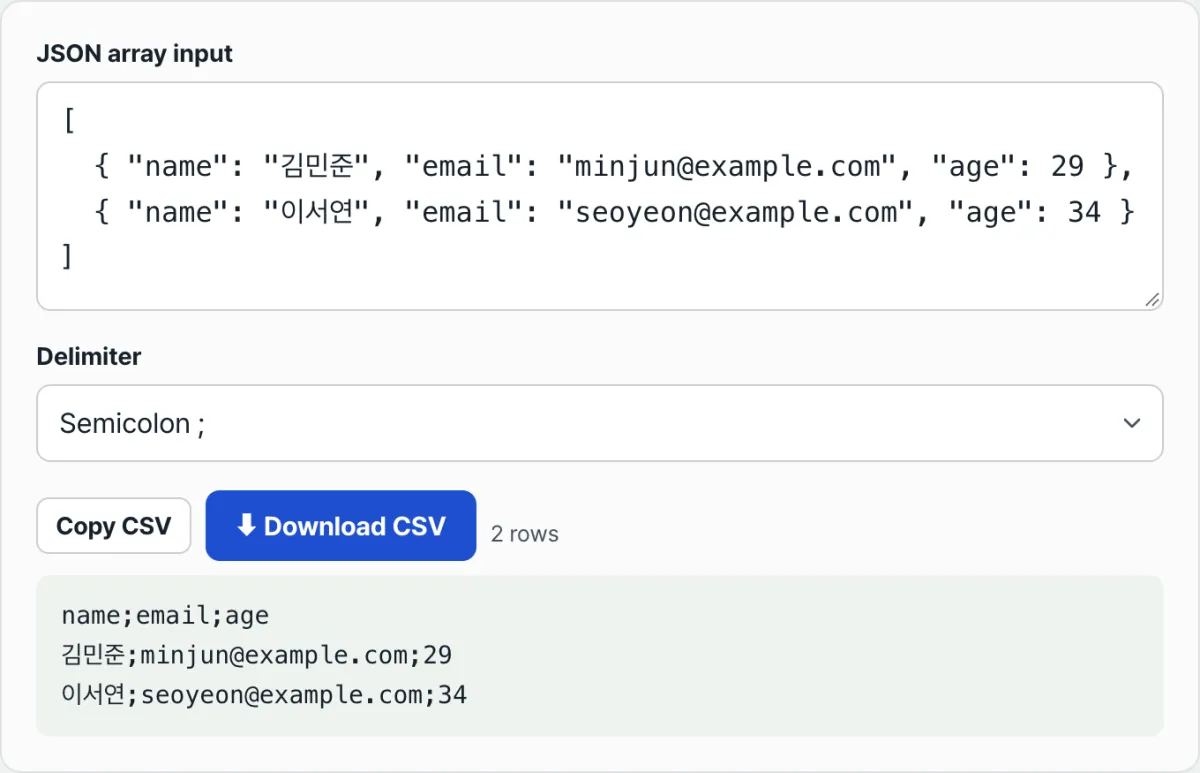
Paste an array of JSON objects into this tool and it immediately converts it to CSV, using each object's keys as headers. You can choose comma, tab, semicolon, or pipe as the delimiter, so if the recipient's region uses semicolons, just select semicolon at conversion time and export.
If a value contains the chosen delimiter, a double quote, or a line break, the tool automatically wraps that entire value in double quotes so the columns don't shift. The downloaded file already includes a UTF-8 BOM, so the delimiter issue covered in this post and the encoding issue that garbles non-Latin text are two separate causes.
Where people get stuck
| Symptom | Cause | What to check |
|---|---|---|
| Every value stuck in a single column A cell | List separator and CSV delimiter don't match | Switch the delimiter to semicolon and export again |
| Columns split at commas inside values | Commas inside values collide with the delimiter | Values containing the delimiter are automatically wrapped in double quotes |
| Exported with tabs but nothing splits | Tabs turned into spaces during copy and paste | Deliver a downloaded CSV file instead of copied text |
| Non-Latin text looks garbled | An encoding problem unrelated to the list separator | Confirm you're using the file from the download button (BOM included) |
Wrapping up
Values landing in a single column A cell isn't a corrupted file. When you double-click, Excel follows the operating system's list separator setting instead of the delimiter inside the file.
If you don't know the recipient's regional settings, either set the delimiter manually on the import screen, or choose a safer delimiter like a semicolon when you build the CSV, and you'll avoid the problem.
Free · No sign-up · Converts JSON to CSV in your browser only
Frequently asked questions
If I switch the delimiter to a semicolon, will it still open fine in other programs?
Most spreadsheets and database import tools let you specify the delimiter yourself, so a semicolon-delimited file reads fine. But if a simple script expects a fixed delimiter (comma), it's safer to check how the receiving side reads the file first.
What happens if a value contains a semicolon?
With semicolon selected as the delimiter, any value that itself contains a semicolon gets wrapped in double quotes as a whole. If you keep the delimiter as comma instead, semicolons are treated as plain text and only commas inside values get wrapped.
What if the JSON is an array of strings or numbers rather than an array of objects?
If you paste an array of non-object values like ["a", "b", "c"], the tool creates a single column named "value" with no header row logic beyond that, and each value goes on its own line in that column.
This article was adapted from our Korean original. Read the Korean original