
Instagram Hashtag Library: Folders, Duplicates, 30-Tag Limit
Contents
If you post on Instagram, a blog, or TikTok, retyping the same 10–20 hashtags by hand every time is a chore. This post shows how to save hashtags in folders by topic, pull them out and combine them when you need them, and merge folders while removing duplicates and staying under Instagram's 30-tag limit.
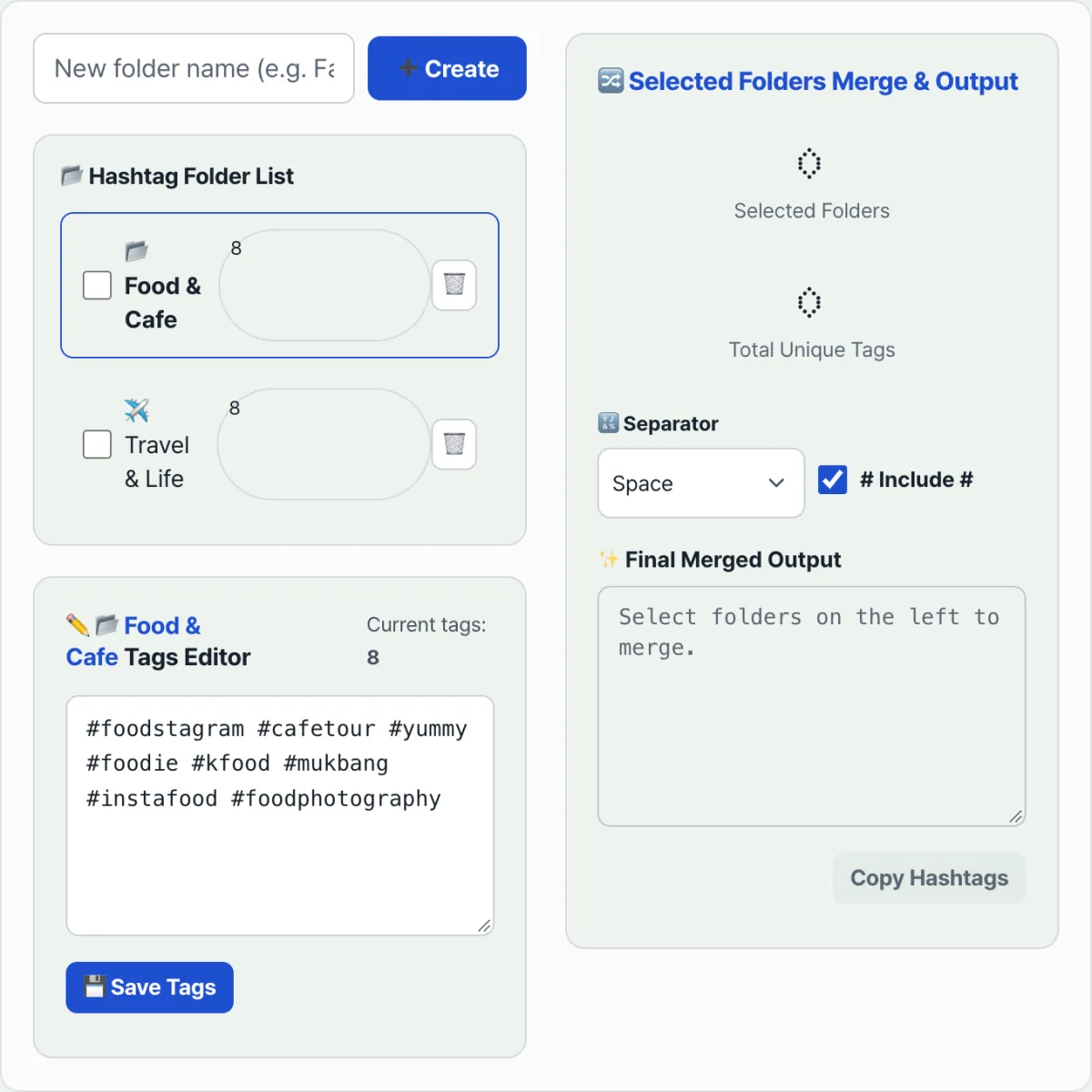
Summary ① Split your go-to hashtags into folders by topic and save them in your browser. ② Select several folders at once and duplicate tags get filtered out automatically. ③ If the combined set goes over Instagram's limit of 30, a warning tells you, so you can adjust which folders you've selected.
Retyping hashtags every single time
Marketers and individual creators posting to Instagram, a blog, or TikTok retype the same topic-based tag sets over and over — #daily, #dailyoutfit, #foodspotting, #webdesign. Many people keep a list in a notes app or in a chat room with themselves on a messenger app such as KakaoTalk or WhatsApp, then copy and paste as needed. The problem: you have to hand-assemble text scattered across folders every time, eyeball the duplicates when you merge sets, and count the tags yourself to make sure you haven't gone over Instagram's 30-tag limit.
How to organize hashtags into folders and combine them
If you do it manually, first split your hashtag sets by topic into a notes app or text files. When you post, pick the sets that fit the post, paste them into one document, scan for overlapping tags and delete them, then count what's left and trim the tail if it's over 30.
Note Instead of scrolling up and down in a notes app or a chat with yourself to copy and paste hashtags, you can register tags into folders ahead of time and get the same result much faster with a few checkbox clicks.
If you map that combine–deduplicate–check-limit process into code close to how an actual tool works, it looks like this.
The folder merge logic for hashtags
function cleanTags(text) {
  return Array.from(
    new Set(
      text
        .split(/[\s,\n;]+/)
        .map((tag) => tag.replace(/^#+/, '').trim())
        .filter((tag) => tag.length > 0)
    )
  );
}

function getMergedTags(folders, selectedFolderIds) {
  const allTags = [];
  folders.forEach((f) => {
    if (selectedFolderIds.includes(f.id)) {
      allTags.push(...f.tags);
    }
  });
  return Array.from(new Set(allTags)); // deduplicates across folders, does not trim the count
}

function getOutputText(mergedTags, includeHashSymbol) {
  return mergedTags
    .map((tag) => (includeHashSymbol ? '#' + tag : tag))
    .join(' ');
}

const mergedTags = getMergedTags(folders, selectedFolderIds);
const isOverLimit = mergedTags.length > 30; // shows a warning above 30, does not auto-trim
When you combine hashtags stored in several folders, a set data structure reduces duplicate tags to one. For example, if three folders hold 15, 12, and 10 tags and 7 of them overlap, the tags left after deduplication are 15+12+10-7=30. If fewer tags overlap and the total goes over 30, the extra tags at the end are not cut off — instead, a red warning appears on screen and you decide which folder to uncheck.
Instead of repeating that math and handwork every time, check it with our free tool: Hashtag Manager: Save Sets in Folders.
Save the hashtags you use most into folders by topic, then copy the right mix for each post with one click.
Key features at a glance
| Feature | Description |
|---|---|
| Automatic duplicate removal | Select any number of different folders and overlapping hashtags won't be printed twice, because everything is merged into a unique set (Set). |
| 30-tag limit counter | Shows the live count so you don't exceed the maximum of 30 hashtags allowed on an Instagram post. |
| Local storage | Keeps your tag folder data inside your browser, with no sign-up required. |
Tips for running your hashtag folders
- Mix big tags with niche tags. If you only use huge keywords like #followforfollow or #daily, your post gets buried in the feed fast. Combining them with more specific niche tags — a local area or an industry, for example — can improve your odds of reaching users with that interest.
- Check regularly for banned tags. Make it a habit to confirm that hashtags classified as spammy and restricted in reach — so-called shadowban hashtags — haven't crept into your folders, and keep the folder contents up to date.
Wrapping up
Save your hashtags in folders by topic and you won't have to type them from scratch every time you post. Select several folders together and duplicate tags are filtered out automatically, and you can watch the count in real time so you stay within Instagram's 30-tag limit. Your data lives in your browser, so you can start using it right away with no sign-up.
Save the hashtags you use most into folders by topic, then copy the right mix for each post with one click.
Frequently asked questions
How many hashtags can you add to an Instagram post?
An Instagram feed post allows up to 30 hashtags. Going over 30 can cause the caption to be cleared during upload, so watch the count warning as you combine folders and adjust from there.
Do I have to include the # symbol when I add tags to a folder?
No. When you add tags to a folder, you can enter them line by line with or without the # symbol.
Can I select and combine several folders at once?
Yes. Check the boxes for as many folders as you plan to post with, and the output panel builds a merged list with duplicates filtered out in real time, showing whether you're over the 30-tag limit.
This article was adapted from our Korean original. Read the Korean original