
Why Photos Look Rotated in Some Apps: EXIF Orientation
Contents
A photo you shot vertically on your phone looked upright in the gallery, but when you upload that same file somewhere else or open it in another program, it shows up sideways or upside down. The pixels didn't change. The program just isn't honoring the "Orientation" value stored inside the file. Here's what that value actually is and how to check it yourself.
Summary ① When a camera takes a photo, it stores pixels exactly as the sensor sees them, and records separately in the EXIF Orientation tag, as a number, how many degrees to rotate the image for display. ② Programs that read and apply that tag always show the photo upright. Programs that ignore the tag and draw the raw pixels show the same file sideways or upside down. ③ You can't tell the actual number stored in the tag (1–8) just by looking at the photo. You have to read the metadata directly.
Why a vertical photo looks different in each program
Even when you hold your phone vertically to take a photo, the camera sensor itself is usually fixed in a horizontal orientation. So the pixel array actually saved to the file is often lying on its side, and the reason it looks upright and vertical on screen is a separately stored orientation value.
At capture time, the device uses the gyroscope and accelerometer to detect which way the phone was tilted, and records that in the EXIF Orientation tag as a number from 1 to 8. Any program that displays the image reads that number and works out how far to rotate or flip the pixels.
The problem is that not every program applies that tag the same way. Smartphone gallery apps and modern web browsers read the tag and rotate the image automatically for display. But some programs and scripts that resize or process images directly ignore the tag and show the stored pixels as they are. So the same file can look upright, rotated 90 degrees, or flipped top to bottom depending on where you open it.
How to check the orientation tag value yourself
To narrow down which program is the problem, open the same photo file in two different places and compare. If it looks upright in your phone's gallery but rotated only after you move it to a computer and open it in another program, the photo isn't broken — that program just doesn't apply the orientation tag.
If you want to lock in the rotated state for good, rotate the photo to the direction you want in a photo editor and save (export) it again. In most cases the program actually rotates the pixels and rewrites the orientation tag as "normal (1)". A file cleaned up this way looks the same in any program you open it in later.
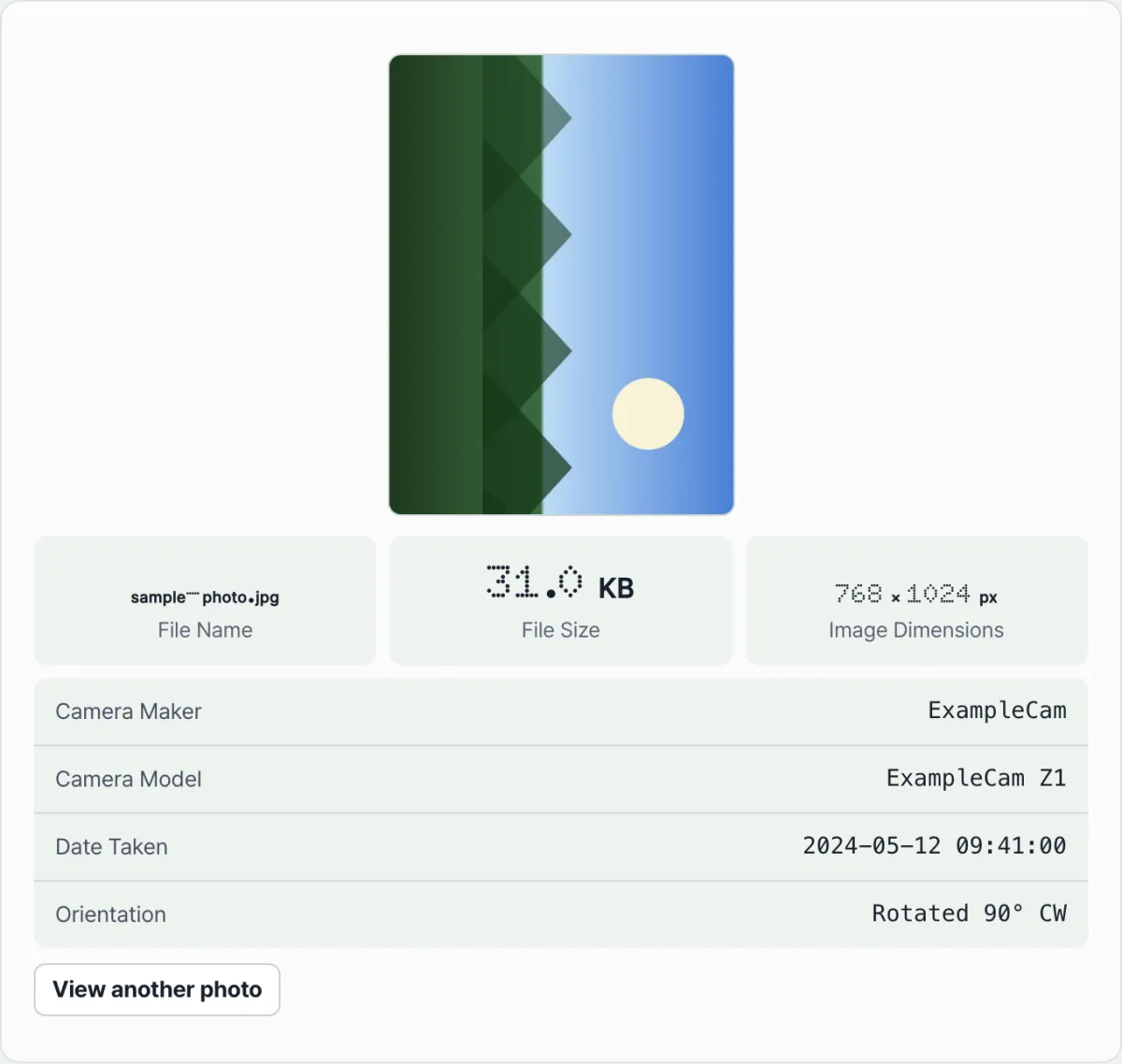
Check it with our tool. If you want to see the exact number your photo is actually tagged with, skip the trial and error of opening it in program after program. A tool that reads and displays the metadata for you gets you the answer in one step.
Free · No sign-up · Your photos are analyzed in the browser only, with no upload to a server
Common sticking points
The EXIF spec defines orientation values 1 through 8, but the values smartphones actually record cluster around a few of them.
| Orientation value | Meaning |
|---|---|
| 1 | Normal (0°) |
| 3 | Rotated 180° |
| 6 | Rotated 90° clockwise |
| 8 | Rotated 90° counterclockwise |
Values 2, 4, 5, and 7 combine rotation with a horizontal or vertical flip, and they show up on some equipment such as scanners. They're uncommon in smartphone photos.
Recap
- A camera stores pixels exactly as the sensor sees them, and records separately in the EXIF Orientation tag, as a number, how many degrees to rotate the image for display.
- Programs that apply the tag always show the photo upright, but programs that don't show the same file sideways or upside down.
- Opening the same file in two different places tells you which program is ignoring the tag.
- If you rotate the photo in an editor and save it again, the pixels and the tag get cleaned up together, so from then on it usually looks the same wherever you open it.
- You can't tell the exact number stored in the tag just by looking at the photo. You have to read the metadata directly.
Free · No sign-up · Your photos are analyzed in the browser only, with no upload to a server
Frequently asked questions
Why does the same photo look upright in my gallery but rotated when I upload it somewhere else?
The pixels themselves are stored in whatever orientation the camera sensor had, and the direction to display them in is recorded as a separate number in the file's Orientation tag. Programs that read and apply the tag always show it upright, but programs that ignore the tag and draw only the pixels show the orientation as stored.
Does rotating the photo and saving it again completely fix the orientation problem?
Usually, yes. Most editors actually rotate the pixels when you save and rewrite the orientation tag as "normal" at the same time. Some programs, though, only change the tag value and leave the pixels alone, so it's safer to open the result in another program to confirm.
Why is the photo's "capture date/time" different from the date I downloaded the file?
The "date modified" or "date created" your file browser shows is file system information based on when the file was saved or copied to the device it's on now. The "capture date/time" inside the photo is a value the camera wrote directly to EXIF the moment the shutter was pressed, so it stays the same even when you move or download the file.
Does checking the orientation value also show GPS location?
If location services were on at capture time, the GPS coordinates are stored in the same metadata area and may show up alongside it. But orientation and location are separate fields, so it's common for a photo to have an orientation value with no location data at all.
This article was adapted from our Korean original. Read the Korean original