
Add Line Numbers to Text: 5 Formats and Zero Padding
Contents
- You Need Line Numbers More Often Than You Think
- How to Number Lines by Hand, Without a Tool
- How It Works Under the Hood: Text Parsing and Dynamic Zero-Padding
- The 5 Line Number Styles Compared
- 5 Common Line Numbering Mistakes
- A 5-Step Workflow for Perfect Line Numbers
- 7 Tips for Working With Line Numbers
- Final Decision Tree: Which Format Should You Use?
- Text Formatting & Line Numbering Terms Cheat Sheet
- Frequently Asked Questions
When you need to put 1. 2. 3. in front of a block of text or code, the result follows a fixed set of rules once you know them.
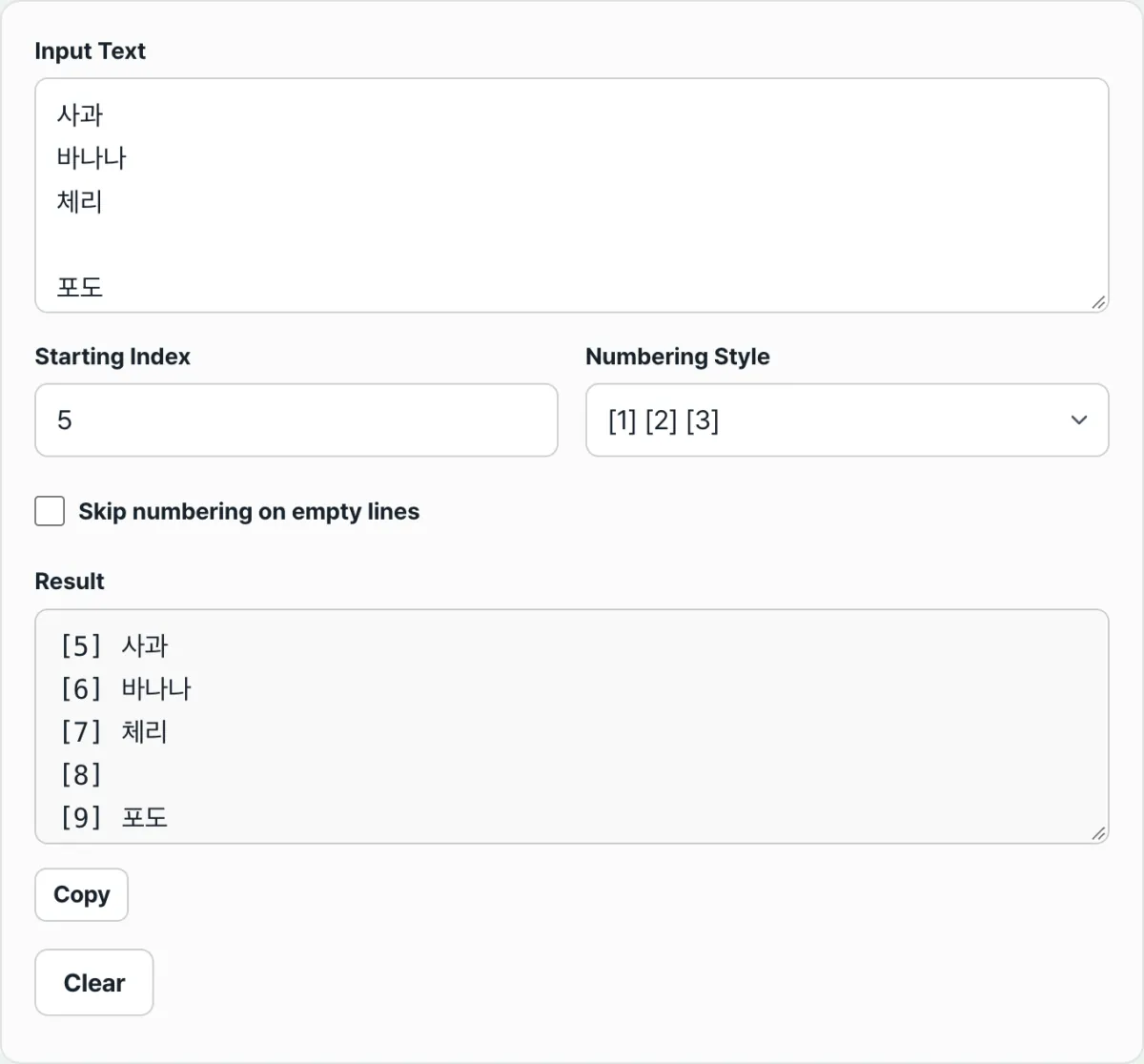
The whole idea is simple: split the text on line breaks, then add one number per line, counting up from your starting number.
This post explains that logic, along with exactly how a zero-padded format like 01. is calculated.
Key takeaways ① Text is split on line breaks (newlines), and each line gets a sequence number that goes up by 1 from the starting number. ② There are five number formats: 1. / 1: / [1] / (1) / 01. The 01. format works out its digit count automatically from the total number of lines plus the starting number. ③ With "Skip blank lines" turned on, blank lines are passed over without a number, but the counter keeps running and picks up where it left off on the next line.
You Need Line Numbers More Often Than You Think
Once you paste a multi-line list or a code snippet into a document, there's often a moment when you have to point at one specific line and say "the fifth one." Think of an ordered list for a slide deck, a snippet you reference in a code review, a list of quiz questions, or the special clauses in a contract.
The trouble starts when the list gets long or when items get added or removed in the middle. Insert one new item after line 10 and you have to renumber every line below it by hand. At 40 or 100 lines, it's easy to skip one or repeat one.
That's not carelessness. The numbering rule itself is simple, but applying it by hand over and over is where the errors come from. Once you know the rule exactly, the job is mechanical.
How to Number Lines by Hand, Without a Tool
The rule is genuinely simple. Doing it by hand gives you the same result.
Three Rules
Rule 1 — A line break is a line. Every time a newline character appears in the text (the break you get when you press Enter), the text on either side becomes a separate line. A period in the middle of a sentence doesn't split anything if there's no line break — it's still one line.
Rule 2 — Start at your starting number and add 1 per line. Set the starting number to 1 and the first line is 1, the next is 2, and so on. Change the starting number to 100 and the first line is 100, the next is 101.
Rule 3 — Only the symbol around the number changes. The only difference between formats is what goes after the digit. The counting works the same way in all of them.
Free · no install · paste your text and get line numbers in the format you choose in one second
How It Works Under the Hood: Text Parsing and Dynamic Zero-Padding
Here's the algorithm that lets an automatic line number generator format tens of thousands of lines in 0.01 seconds.
1. Normalizing Line Separators
Operating systems mark line breaks differently:
- Windows: CR+LF (\r\n)
- macOS / Linux: LF (\n)
- Older Mac: CR (\r) The engine first normalizes every line break to a standard LF, then splits the string into an array and starts processing line by line.
2. Dynamic Digit Calculation
For padded formats (01., 001.), the number of digits is calculated from the last line number using a log function:
- Highest number: Max = StartNumber + TotalLines − 1
- Digits needed: Digits = ⌊log10(Max)⌋ + 1
- When converting to a string: String(currentNumber).padStart(Digits, '0')
3. Detecting Whitespace-Only Lines
The regex ^s*$ catches lines that hold nothing but invisible spaces or tabs and treats them as blank. When the option is on, those lines get no number, but the counter keeps its place.
The 5 Line Number Styles Compared
| Number style | Example output (lines 1–10) | Typical use |
|---|---|---|
| Period (dot) | 1. 2. ... 10. | General document lists, exam questions |
| Colon (colon) | 1: 2: ... 10: | Log analysis, terminal output |
| Bracket (bracket) | [1] [2] ... [10] | Programming array indexes, paper footnotes |
| Paren (paren) | (1) (2) ... (10) | Legal clauses, sub-items |
| Zero-padded (paddedDot) | 01. 02. ... 10. | File sorting, large code snippets |
5 Common Line Numbering Mistakes
- Aligning with spaces: padding 1–9 with one space and 10–99 with none by hand, until proportional fonts make the whole column crooked.
- Mixing tabs and spaces when copy-pasting: tab width differs by editor (2 vs 4 vs 8 columns), so the formatting breaks.
- Numbering blank lines and skewing the whole index: empty lines that mean nothing in context get numbers, which inflates your total item count.
- Confusing a starting number of 0 with 1: mixing up 0-indexed programming with 1-indexed documents, so every index is off by one.
- Mistaking soft wrap for a hard break: a long sentence that only looks wrapped on a narrow screen gets numbers inserted into the middle of it.
A 5-Step Workflow for Perfect Line Numbers
- Step 1 (paste the source text): paste the code, list, or legal clause you want to number into the input box.
- Step 2 (pick a number style): choose dot (1.), colon (1:), bracket ([1]), paren ((1)), or padded (01.) to fit the job.
- Step 3 (set the starting number): decide whether to start at 1 or continue from a specific number in a previous document (say, 101).
- Step 4 (toggle Skip blank lines): decide whether blank lines should go unnumbered for easier code reading.
- Step 5 (copy and apply the result): hit "Copy" and paste straight into your Markdown document, Word file, or presentation.
7 Tips for Working With Line Numbers
- Pair a monospace font with 01. padding: when you put code snippets or logs in a document, a monospace font like Consolas or D2Coding plus 01. padding keeps every column perfectly aligned.
- Skip the spreadsheet text-join formula: instead of writing something like '=ROW() & ". " & A1' in Excel, generate the whole thing in a web tool in one second.
- Prepare data for a SQL query's IN clause: handy for turning a multi-line list of IDs into numbered batch test data.
- Renumber meeting agenda items automatically: when an item gets added or dropped in the middle, paste the whole text into the tool and the numbering is redone in one second.
- How it differs from a Markdown ordered list: a Markdown renderer will display 1. 1. 1. as sequential on screen, but if you're sharing plain text, it's safer to bake in real numbers with our tool.
- Debugging huge logs (10,000 rows): add line numbers to server error logs so you and your teammates can talk about the exact line where the error happened.
- Checking CSV data integrity: quickly assign a unique Row ID to the first column so the original order survives any data manipulation.
Final Decision Tree: Which Format Should You Use?
- Scenario A (regular meeting notes, work reports, blog checklists) ➔ Period format (1. 2. 3.)
- Scenario B (developer code snippets, config file sharing) ➔ Padded period (01. 02. ... 10.)
- Scenario C (server console logs, time-stamped records) ➔ Colon format (1: 2: 3:)
- Scenario D (contract sub-clauses, survey sub-options) ➔ Paren format ((1) (2) (3))
Text Formatting & Line Numbering Terms Cheat Sheet
- CRLF vs LF: Different line break byte sequences used by Windows and Unix/Mac systems.
- Zero-padding: Adding leading zeros to a number so all numbers have the same digit count.
- Monospace Font: A typeface where every character and digit has the same width, which makes text alignment easy.
- Hard Break vs Soft Break: A physical line break created by pressing Enter versus a visual line wrap caused by the screen width limit.
Frequently Asked Questions
If there are more than 1,000 lines, does the 001. format expand to three digits?
Yes. The padding format (01.) automatically calculates the total line count and the starting number, so with 1,000 lines the first line is automatically padded to four digits, like '0001.'
If I turn on skip blank lines, will the numbering have gaps?
No. Blank lines simply don't get a number string attached. The counter still goes up by 1 on the next line that has text, so the numbering stays sequential with no gaps.
Is the text I paste into the converter leaked anywhere?
Everything is processed locally in your computer's browser memory. No text is sent to a server.
This article was adapted from our Korean original. Read the Korean original