
CSV Upload Failed? Check Column Order and Header Names
Contents
If you've ever uploaded a CSV file to an accounting program or an online store's admin page and had values land in the wrong column — or had the upload rejected outright — the file isn't corrupted.
A CSV is just text listing values and delimiters. There's nowhere to store what a column means, so if the column order or header names differ even slightly from what the program expects, this happens.
Summary ① A CSV is text with only values and delimiters, so a column's meaning is conveyed only by the strings in the first line (the header) or by the column's position. ② The program receiving the values matches either by the header's "order" or by its "name." If either one is off, values shift or the upload is rejected. ③ Even a single invisible space before or after a header counts as a "different name," which leads to failures that are hard to diagnose.
Why CSV uploads go wrong: what causes this
Say a CSV of transactions from your bank lists transaction date, vendor name, amount, and business registration number, in that order. Now suppose the accounting program requires transaction date, vendor name, business registration number, amount.
If you upload the file as-is, the accounting program believes the third column is the business registration number, so the amount actually lands there. Neither the file nor the program is wrong — only the position of the third column differs.
A program that matches by header name behaves the opposite way. It looks for a column whose first-line string matches the name it knows down to the character, so order doesn't matter but the name does. If the names differ (for example, "business number" vs. "business registration number"), it can't find the column at all and throws an error.
How to match column order and names: checking without a tool
You can check in three steps without any tool. The more closely you match things up front, the less you'll have to fix later.
1. First, check the format the target program requires
The first thing to check is the exact header names and order the target program requires. In most cases this appears in a "download template" link or a help document on the admin page.
2. Compare the first line of your file character by character
Open the CSV in a text editor such as Notepad and compare just the first line by eye. Check that spelling, spacing, and capitalization match the required format exactly.
3. Clean up order, names, and whitespace in Excel
If the order differs, select a column header in Excel, cut it, and insert it where you want it. If a name differs, double-click the header cell and retype it. You can remove spaces with find and replace.
The problem is that you have to repeat this for every file and every column. If you have many columns or receive similar files often, manual work gets tedious fast.
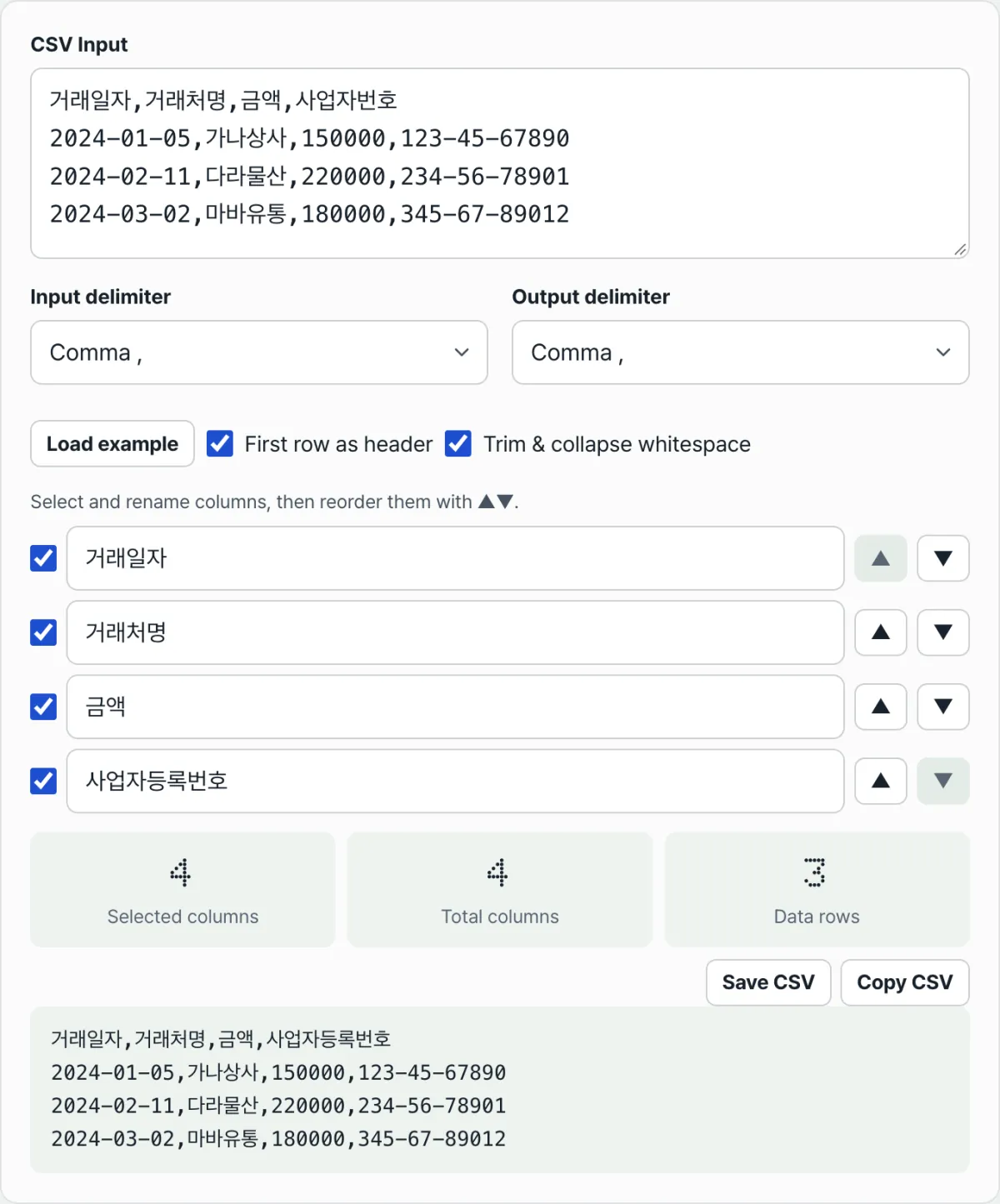
Check it with our tool. Keep only the columns you need with checkboxes, reorder them with the ▲▼ buttons, and type new headers directly into the name fields.
Free · No sign-up · Uploaded CSVs never leave your browser
Where people get stuck
| Symptom | Cause |
|---|---|
| Values shift by one column and land in the wrong place | The receiving program decides columns by "order," but the file's column order differs |
| The upload itself is rejected (format error) | The receiving program decides by "header name," but the spelling differs |
| One specific column is never recognized | Invisible whitespace remains before or after the header, so the string doesn't match exactly |
| Columns are right, but all values pile into one column | The delimiter is a semicolon or tab rather than a comma, but the file was split on commas only |
All four causes in the table come down to one of three signals being off: a column's position, its name, or the delimiter. Either way, you don't need to change the file's contents — rearranging the columns or fixing just the names and whitespace solves it.
In short
- A CSV conveys what a column means only through its order or its header name, and depending on the program receiving it, one of the two must match exactly.
- Upload failures and shifted values are usually not file corruption but a mechanical mismatch in one of those two.
- Check the header names and order the target program requires first, then match them, and most cases are solved.
- Invisible whitespace can also cause failures, so clean it up while you're matching names.
Free · No sign-up · Uploaded CSVs never leave your browser
Frequently asked questions
What if the CSV has no header (first line) at all?
If a file has no header, there are no strings to compare by name, so the receiving program judges values by column position alone. In that case, check the documentation for what the program says the nth column means, and arrange your columns to that order.
If the delimiter is a semicolon instead of a comma, is it not a CSV file?
Even with a .csv extension, the actual delimiter may not be a comma. Depending on regional software settings, it's common to export files separated by semicolons or tabs, and those still count as CSV. To be safe, open the file in a text editor and check the first line to identify the actual delimiter.
Doesn't Excel remove leading and trailing spaces in headers automatically when saving?
No. Excel stores spaces exactly as entered in a cell and doesn't clean them up on save. Since you can't tell by eye whether spaces are there, you need a separate cleanup step to confirm the headers match exactly.
This article was adapted from our Korean original. Read the Korean original