
CSV to Excel: Keep Leading Zeros and Long Numbers
When you double-click a CSV file to open it in Excel, a ZIP code like "03127" can turn into "3127" and lose its leading zero, or a 13-digit product barcode can turn into scientific notation like "8.80123E+12." The file isn't damaged. Excel guesses the format of each column when it opens a CSV, and that's what causes it. Once you know how it works, you can set the format before opening the CSV and prevent the problem.
Summary ① When you open a CSV by double-clicking, Excel guesses each column's format as "General" and changes leading zeros and large numbers. ② If you set the affected column's format to "Text" yourself in Excel's data import feature, the original values stay exactly as they are. ③ Once a file has been saved with broken formats, you can't recover the original numbers. It's safer to convert the CSV into the format you want from the start.
The problem
A CSV (comma-separated text file) contains no cell formatting information at all. The values are just plain text like "03127" or "8801234567890."
When you open a CSV file in Excel by double-clicking, there's no formatting information in the file, so Excel decides for each column on its own: "if it looks like a number, it's a number; otherwise, it's text." Two things commonly break during this process.
- Leading zeros disappear: ZIP codes like "03127," or employee and member IDs that start with "0," get read as the number 3127, and the leading zero is gone.
- Long numbers turn into scientific notation: Barcodes, tracking numbers, and order numbers with 12 or more digits display as scientific notation like "1.23457E+12." Numbers longer than 15 digits are worse: the last few digits actually become zeros, causing precision loss you can't undo.
Neither problem means the file is wrong. Both are the result of Excel guessing with the "General" format when it opens a CSV that has no formatting information.
The fix
The standard way to prevent this in Excel is to never open a CSV by double-clicking it.
- Open a new workbook in Excel and choose Data → From Text/CSV (in older versions, Data → From Text File).
- In the import wizard, click the column that's causing trouble and set its column format to Text.
- Import with that setting, and "03127" comes in exactly as written, while "8801234567890" keeps all its original digits with no number conversion.
This method works reliably, but with many columns you have to set the format one by one, and if you've already opened a file by double-clicking and saved it, there's no way to get the original numbers back. If you lock in the format you want at the CSV stage and convert it to xlsx ahead of time, you avoid both the repetitive work and the mistakes you can't undo. Check it with our tool.
Free · no sign-up · converts CSV into a real xlsx right in your browser
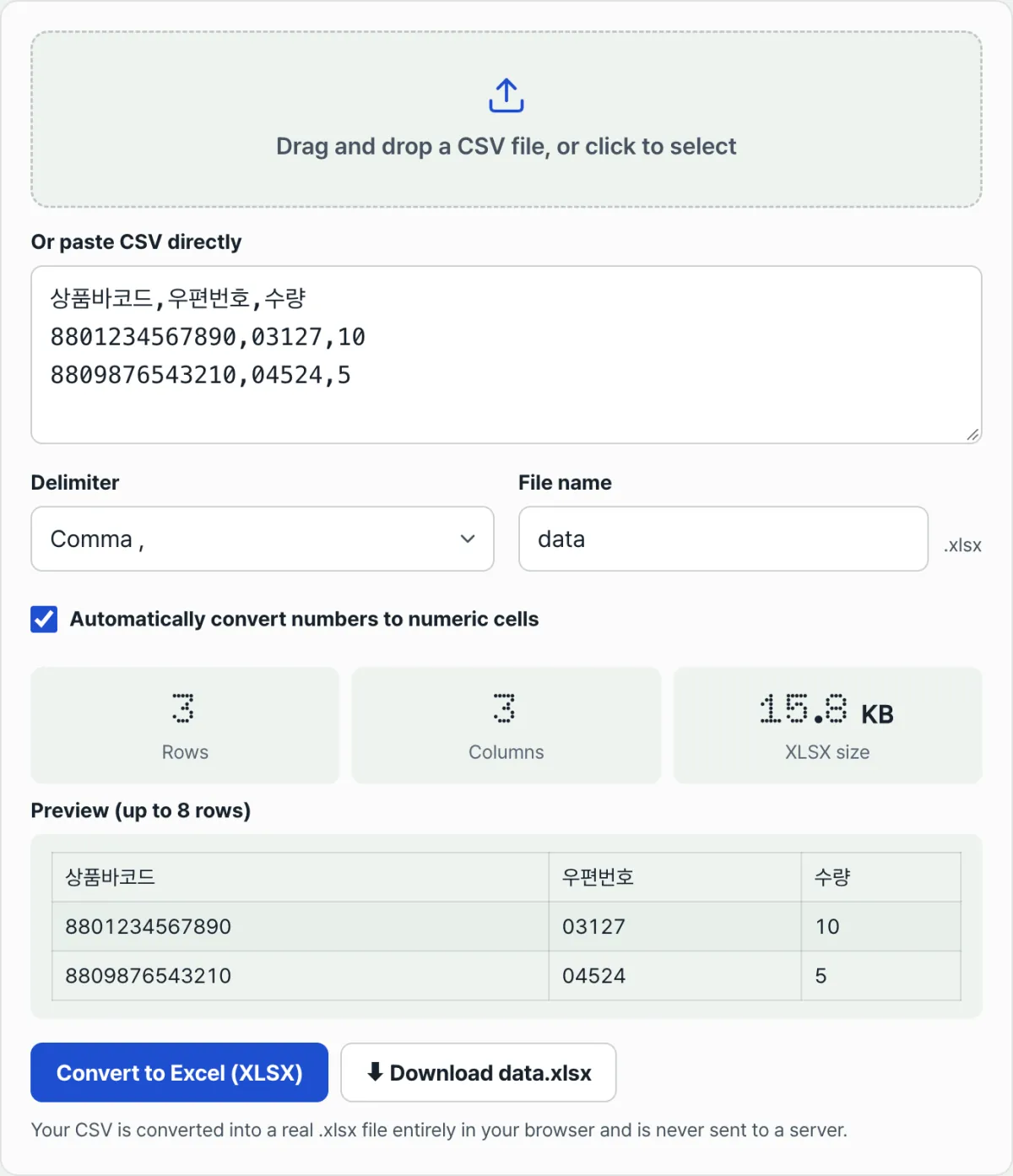
Drag a CSV file into this tool, or paste the text directly, and choose your delimiter (comma, tab, semicolon, or pipe). It parses immediately and builds a real xlsx file entirely inside your browser. Nothing is sent to a server, so your values never leave your device.
The key setting is the "Automatically convert numbers to number cells" checkbox. With it checked, values that start with 0, like "03127," are treated as likely ZIP codes and kept as text automatically, while values you need to calculate with (prices, quantities) become real number cells so you can use sums and formulas in Excel right away. On the other hand, if you have a long number column with no calculations involved, such as barcodes or tracking numbers over 12 digits, turning this checkbox off and keeping the whole file as text is the surest way to prevent scientific notation and precision loss.
Common sticking points
| Situation | What to check |
|---|---|
| Values that start with 0, like ZIP codes or employee IDs | Even with the checkbox on, values starting with 0 are kept as text automatically |
| Barcodes or tracking numbers over 12 digits | Turn off "Automatically convert numbers" to keep the whole file as text |
| Amount or quantity columns that need sums or averages | Turn on "Automatically convert numbers" so they're saved as real number cells and formulas work |
| The CSV delimiter isn't a comma (tab, semicolon, etc.) | The delimiter isn't detected automatically, so you need to pick it yourself |
| The preview table only shows up to 8 rows | Only the preview is limited to 8 rows; the converted and downloaded file includes every row |
In short
When you open a CSV in Excel and leading zeros disappear or long numbers turn into scientific notation, the file isn't damaged. Excel is guessing with the "General" format because the CSV has no formatting information. You can prevent this by setting the column format to Text yourself with Excel's data import feature, or by locking in the format you want at the CSV stage and converting to xlsx ahead of time.
Free · no sign-up · converts CSV into a real xlsx right in your browser
Frequently asked questions
Can I recover a file that was already saved with the leading zeros gone?
If you still have the original CSV file, you can bring it back by importing or converting that original with text formatting again. But if you overwrote the file after it had already been converted to numbers, the missing zeros aren't stored anywhere in the file, so there's no way to recover it from that file alone.
Can I convert the same CSV multiple times with the number conversion turned off and on?
Yes. The conversion re-reads the original CSV text inside your browser and processes it fresh each time, so you can toggle the checkbox and download as many xlsx files as you need without affecting the original.
What happens if I pick the wrong delimiter?
If you pick a value different from the actual delimiter, the whole line ends up in one cell or the columns look misaligned. Check in the preview table whether the columns are split the way you expect, then pick the delimiter again and it updates right away.
This article was adapted from our Korean original. Read the Korean original