
CSV duplicate removal: whole row vs specific columns, explained
Contents
When you need to remove duplicate rows from a CSV file full of customer records, there's one question a lot of people skip: "What exactly has to match for two rows to count as duplicates?" If a row only counts as a duplicate when the name, email, and city are all identical, that's a very different rule from counting it as a duplicate when the email alone matches. The number of rows you end up deleting changes completely.
If you hit "remove duplicates" without settling that question first, two things can go wrong. Data from two different people can get merged into one row and deleted, or the opposite: the same person's data can survive twice and carry on into the next step.
Summary ① Whether a row counts as a duplicate only when every value matches, or also when a single column (email, for example) matches, is two different rules, and they produce different row counts. ② If you narrow the rule to the whole row, the same person's records can slip through untouched because of typos or capitalization differences. ③ If you widen the rule to a single column, data from different people who happen to share that column's value can get merged into one row and deleted.
What the Word "Duplicate" Hides
"Please remove the duplicate rows" sounds simple, but it already assumes an answer to "what has to match for two records to be the same?" Different answers to that question give you completely different results from the same file.
| Name | City | |
|---|---|---|
| Hong Gildong | hong@example.com | Seoul |
| Hong Gildong | HONG@example.com | Seoul |
To a human eye, these two rows are obviously the same person's information. But if you compare the strings exactly as written, HONG and hong are different strings, so a rule of "only identical across the whole row counts as a duplicate" judges these two rows to be different records.
Too Narrow: You Miss Real Duplicates
Basing the rule on the whole row feels like the strictest possible filter, but in practice it causes the opposite problem. If even one column differs, the row isn't recognized as a duplicate, so the same person's record stays put as long as a single character changes.
That covers an extra space inside a field, a city written as "Seoul" in one row and "Seoul Special City" in another, or an email with mixed capitalization. These tiny differences are exactly what's hard to catch by eye when you're skimming thousands of rows.
Too Wide: You Delete Other People
| Name | City | |
|---|---|---|
| Kim Minsu | family@example.com | Seoul |
| Kim Minji | family@example.com | Daejeon |
Now the opposite situation. These two rows have different names and different cities — clearly two different people. But if a family shares a single email address, the email column alone looks completely identical.
Apply a rule of "same email column means duplicate" here, and one of those two people gets mistaken for a duplicate of the other and deleted. This kind of accident happens more quietly when the rule is too wide than when it's too narrow. All you see is one fewer row on screen — nothing tells you what disappeared.
How to Check by Hand First: Sort + COUNTIF
To check manually in Excel or another spreadsheet, start by sorting on the column you want to use as your rule, such as email. Values that match will sit right next to each other, which makes them easy to compare by eye.
After sorting, you can use a function like COUNTIF to count how many times each value appears in that column and filter down to the ones that appear two or more times, narrowing your candidates. The catch is that every time you change the rule — say, from email only to the whole row — you have to rebuild the sort and the formulas from scratch. Past a few thousand rows, the formulas get heavy and the sheet starts to lag.
This isn't a one-and-done decision, either. You often want to look at the results, change the rule, and check again, which is what makes this kind of task such a chore.
Paste your CSV or upload a file, then choose whole rows or specific columns as the match and clean up duplicate rows right away.
Why the Tool Lets You Choose Both Rules
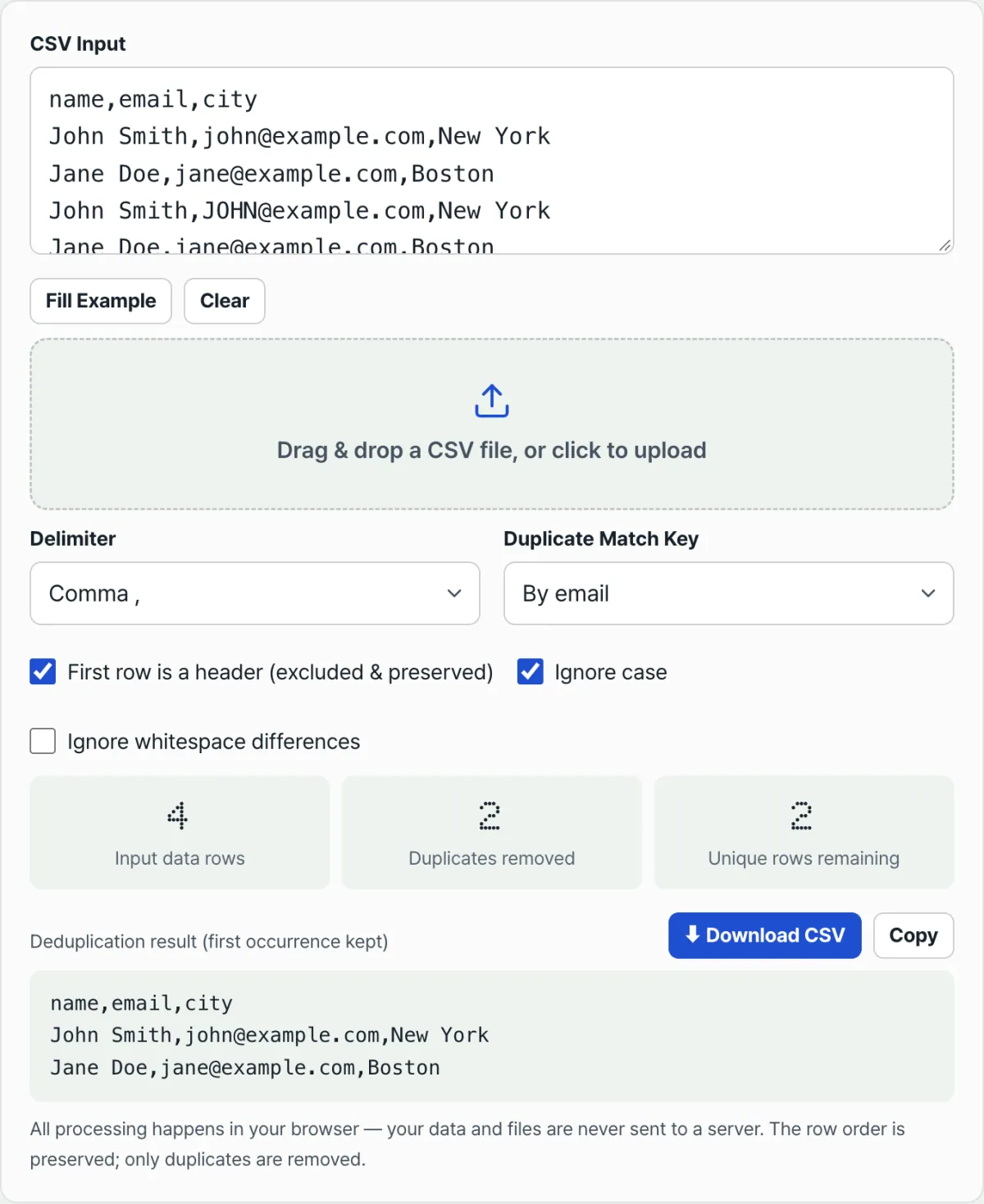
The CSV Duplicate Row Remover is built so you pick the duplicate rule yourself — either the whole row or a specific column. It doesn't quietly pick one for you. Paste in your data and it lists the column names from the first row (the header) so you can pick from them directly.
Set the rule to "whole row (all columns identical)" and you can miss rows that differ only by capitalization, like the first example above. For that, you can turn on "ignore case" and "ignore whitespace differences" separately, so you're still comparing the whole row but treating small formatting differences as the same value. If you'd rather key on a single column like email, pick it from the dropdown — but keep in mind that if multiple people might share a value in that column, as in the second example, the narrower rule can be the one that causes the accident.
Every time you change the rule or the options, the input row count, duplicates removed, and unique rows remaining recalculate immediately. So before you download anything, you can see for yourself how many rows each rule would delete.
Also Check: the First Row Wins
Whatever rule you choose, this tool keeps the row that appears first in the file among those sharing the value and removes the ones that come after. It doesn't reorder anything, so if the most recently added information was in a later row of the original file, that's the row that gets deleted. It's safer to put the file in the order you want before you run it.
You can download the cleaned result as a CSV file or copy it as-is. Beyond comma-separated files, it handles tab-, semicolon-, and pipe-delimited files the same way — just change the delimiter.
Recap
- Whether a row counts as a duplicate only when every value matches, or also when a single column matches, is two different rules with different results.
- Narrow the rule to the whole row and you can miss real duplicates that differ only by case or whitespace.
- Widen the rule to a single column and you can delete data belonging to different people who happen to share that value.
- You can check by hand with sorting and COUNTIF, but every time you change the rule and want to compare again, you rebuild it from scratch.
- Choose the rule yourself (whole row or specific column) plus whether to ignore case and whitespace, and you can compare how many rows each option deletes before you run anything.
Paste your CSV or upload a file, then choose whole rows or specific columns as the match and clean up duplicate rows right away.
Frequently Asked Questions
Can I use just one specific column as the rule?
Yes. But first think about whether different people might share values in that column. If a family uses one email address, or several people list the same department contact, and you make that overlapping column your only rule, you can end up deleting one person's data as a duplicate of another's.
What if duplicates aren't being caught because of capitalization or whitespace?
When you compare a rule column or a whole row, strings are compared exactly as written, so "Hong" and "hong" count as different, and so do a value with leading or trailing spaces and one without. If you want those variations grouped as the same value, turn on both the ignore case and ignore whitespace options and check again.
I only want a row to count as a duplicate when both the name and email columns match. Can I do that?
The tool supports two approaches: the whole row as the rule, or one specific column as the rule. Combining two or three columns isn't supported right now, so if you really need that combination, work around it by merging the name and email values into a single column in your original file first.
When duplicates are removed, which row stays and which one goes?
Among rows with the same value, the one that appears earlier in the file stays, and the ones after it are removed as duplicates. The tool doesn't reorder anything, so if your newest information is in a later row, that could be the row that gets deleted. It's best to sort the file into the order you want first.
This article was adapted from our Korean original. Read the Korean original