
CSV Column Reorder: Fix Rows With the Wrong Number of Columns
Contents
If you've ever seen one row in a CSV table with its values shifted by a column, or a last column that keeps coming up empty, the file isn't broken. It's happening because that row has fewer or more columns than the header does.
Most programs that split values by a delimiter — including tools that let you change CSV column order — fill any missing columns at the far right, and cut any extra columns off the far right. They don't tell you which column was actually empty.
Summary ① If a row has fewer columns than the header, the shortfall is always filled with empty columns at the far right. ② If a row has more columns than the header, the excess is always cut off at the far right and disappears. ③ Nothing tells you which column was originally empty, so before you reorder anything, you need to count the columns yourself and check.
Why a row with a different column count is a problem
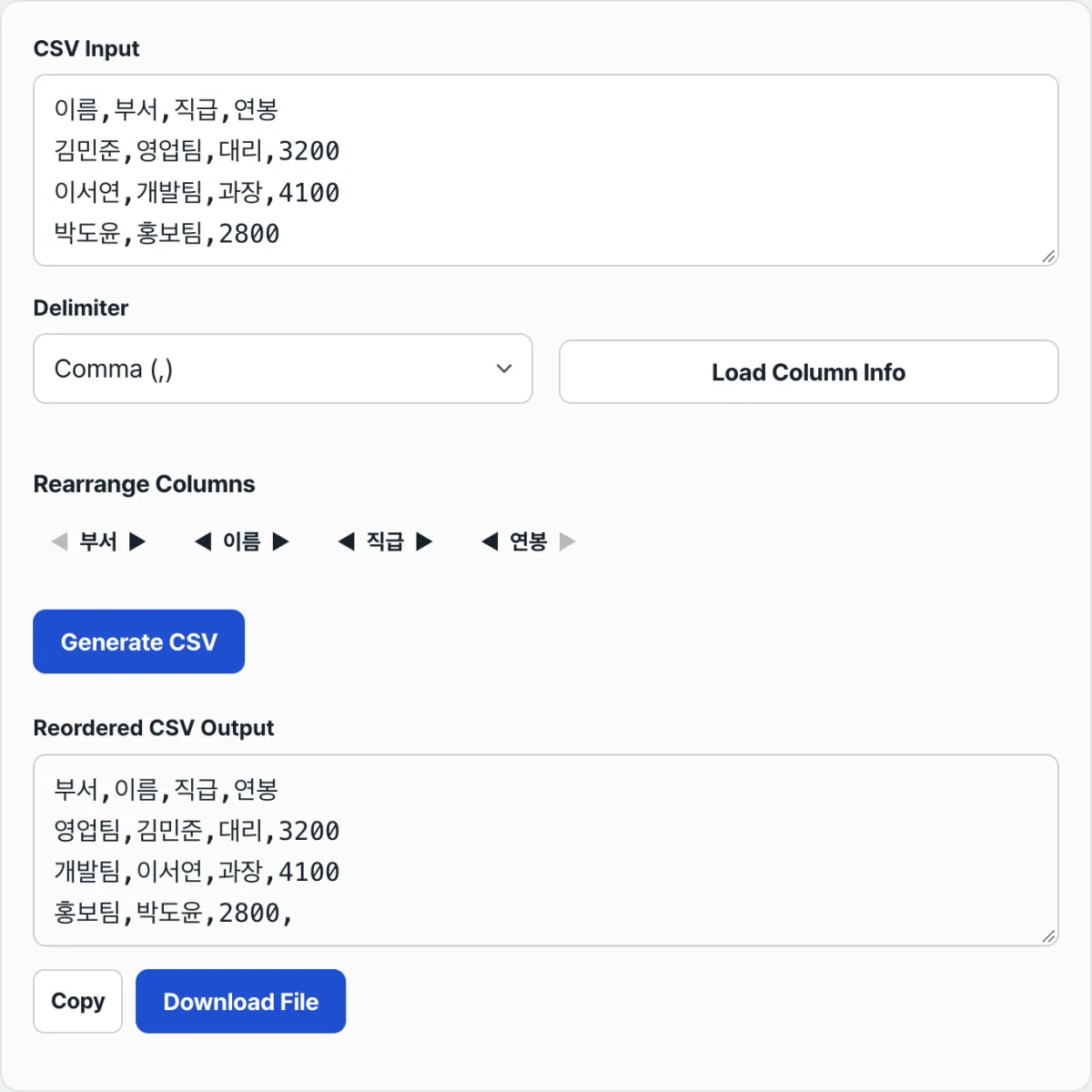
Say you're cleaning up an employee roster CSV (name, department, title, salary), and on the row for a new hire whose title hasn't been decided yet, you delete the "title" cell along with the commas on either side of it. Now that row has only three columns, one short of the header's four.
If you paste that CSV straight into a column reordering tool, the missing column gets filled in at the far right automatically. But the column that was actually empty in this row is the third one, "title" — and since the empty column always goes at the very end, the number that used to sit in the salary spot gets pulled forward one column into the "title" spot, and the "salary" column that should be empty ends up empty instead.
On screen every column looks filled, so the row seems fine, but in reality all the values in that row have been shifted by one column. Even if the reordering itself is done correctly, it just carries the shifted values to their new positions, so the shift never gets fixed.
Before you reorder, check the column count like this
You can check without any tool. Paste the CSV into a single cell in Excel or Google Sheets as plain text instead of splitting it into a table, then use this formula to count how many delimiters are in that cell.
=LEN(A1)-LEN(SUBSTITUTE(A1,",",""))+1That value is the number of columns separated by commas on that line. Put the same formula in the first line with the header and compare that number against the number for each data row side by side, and you'll immediately spot which rows have fewer or more columns than the header. If your delimiter is a semicolon or a tab, just replace the comma in the formula (",") with that character.
If you only have a few rows, counting the commas by eye works too. But once you're past a few dozen rows, counting without a formula is easy to get wrong and tedious to repeat every time.
Check it with our tool. You don't have to count columns one by one. Paste your CSV and click "Load Column Info" and you'll see right away how many columns were recognized in the header, shown as the number of column blocks. Then you can reorder them with the arrows and get the result CSV right away.
Free · No sign-up · The CSV you paste never leaves your browser
Where people commonly get stuck
| Situation | What actually happens |
|---|---|
| Row has fewer columns than the header | Empty strings are filled in at the far right to make up the shortfall (not at the position that was originally empty) |
| Row has more columns than the header | Columns beyond the header count are cut off at the far right and disappear |
| A completely blank line (a line with only whitespace) | It's filtered out before parsing, so it never shows up in the result |
| Whitespace around values | It's stripped out while the column info is loaded |
| Delimiter is a pipe (|) or another character | You can only choose among comma, semicolon, and tab |
The rows that stand out most in the table are the ones with too many columns. If a delimiter accidentally gets added inside a value, that line gains a column — and in that case the extra last column disappears entirely, so data that used to be there quietly vanishes.
The short version
- If a row has fewer columns than the header, empty columns are filled in at the far right; if it has more, they're cut off at the far right.
- You can't tell from position alone which column was originally empty, so a row with an empty middle column can look like every value after it shifted by one.
- Counting the columns in the header and in each row to confirm they match before reordering lets you catch this problem ahead of time.
- Completely blank lines are automatically left out of the result, and whitespace around each value gets cleaned up too.
Free · No sign-up · The CSV you paste never leaves your browser
Frequently asked questions
Is there a way to tell in advance that a row is short a column?
The most reliable way is to count the delimiters in each row and compare them to the header. In Excel or Google Sheets, use =LEN(A1)-LEN(SUBSTITUTE(A1,",",""))+1 to get the column count for each line, then look for rows where the number differs from the header line. In the tool, you can do a rough check by seeing whether the number of column blocks that appears when you click "Load Column Info" matches the header's column count.
When a row has too many columns, which part gets cut off?
Columns beyond the header count are always cut off starting from the far right. For example, if the header has 4 columns but a row has 6 values, only the first 4 remain and the 5th and 6th values disappear. You can't determine from order alone which column a value originally belonged to, so if any row has too many columns, it's safer to check the values in the original before reordering.
What if the delimiter isn't a comma, semicolon, or tab?
This tool only supports three delimiters: comma, semicolon, and tab. If your file is separated by pipes (|) or another character, use find and replace in a text editor to change that delimiter to a comma first, then paste it in. If your values already contain commas, though, this method can mix them up with the delimiter, so it's worth checking first that no such values exist.
Do blank lines with only whitespace stay in the result?
No. Completely blank lines (lines with only whitespace) are filtered out when the CSV is read, so they don't appear in the result. If you deliberately added empty rows as separators, keep in mind that they'll be gone after reordering.
This article was adapted from our Korean original. Read the Korean original