
Remove GPS Location Data from Photos: EXIF Metadata Guide
Contents
When you take a photo with your smartphone, there's information saved inside the file that never shows up on the screen. When it was taken, which device took it, and — if location services were on at the time — the exact GPS coordinates, all get stored in the photo data automatically.
The problem is that you can't tell any of this just by looking at the photo. If you upload the file as-is to social media or a community forum, the GPS coordinates can go along with it, even though all you wanted to share was the scenery.
Summary ① When you take a photo, your smartphone camera automatically records GPS coordinates, the device model name, and the time it was taken inside the file as metadata called EXIF. ② You can't see this information just by looking at the photo. You have to open the file's properties or details separately to check it. ③ Depending on where you upload it, this information may be stripped automatically or kept as-is. Every platform handles it differently, and the rules can change over time, so it's worth checking for yourself.
What Gets Recorded Inside a Photo File: What Is EXIF?
Photos taken by digital cameras and smartphones have a separate area in the file, beyond the image pixels you see on screen, that holds information from the time of capture. This standard is called EXIF (Exchangeable Image File Format).
It typically includes the date and time of capture, the camera manufacturer and device model name, and shooting settings such as aperture and exposure. And if your smartphone's location services were on when you took the shot, the GPS coordinates expressed as latitude and longitude are recorded in that same area.
Why You Can't Tell Just by Looking at the Photo
Apps and viewers that open a photo only draw the pixel image on screen by default. EXIF metadata lives in the same file as the image data but is stored in a separate area, so no location or device information appears anywhere in the view where you look at the photo.
To check this information, you don't look at the photo — you open the file's details (properties) panel or an EXIF viewer separately. The menu location and the items shown vary a bit by operating system or app, but the common thread is that "the screen where you view the photo" and "the screen where you view the metadata" are separate.
If You Send the File As-Is, the Metadata Comes Along
If you send or upload the original file exactly as you shot it, the EXIF information inside it goes along too as part of the file. On the other hand, if the photo goes through recompression or conversion to another format, this information may disappear along the way.
The problem is that you can't tell from the outside whether the place you're uploading to does this or not. Some platforms automatically strip metadata at upload time; others store the original file as-is. How each platform handles it varies and can keep changing with policy updates, so rather than assuming "this one always strips it," it's safer to check for yourself before you post.
You could open each file's properties panel, check whether there's a GPS entry, and re-save it to remove it — but if you have several photos, or you have to repeat this every time, the hassle adds up fast.
The tool re-encodes your photo right in the browser and strips EXIF metadata, including GPS location and device details. Free, no sign-up.
How the Tool Removes Metadata
This tool works by redrawing the uploaded photo on a canvas and exporting it as a new image file. Since the canvas only deals with pixel data, the EXIF area from the original file doesn't carry over to the new file.
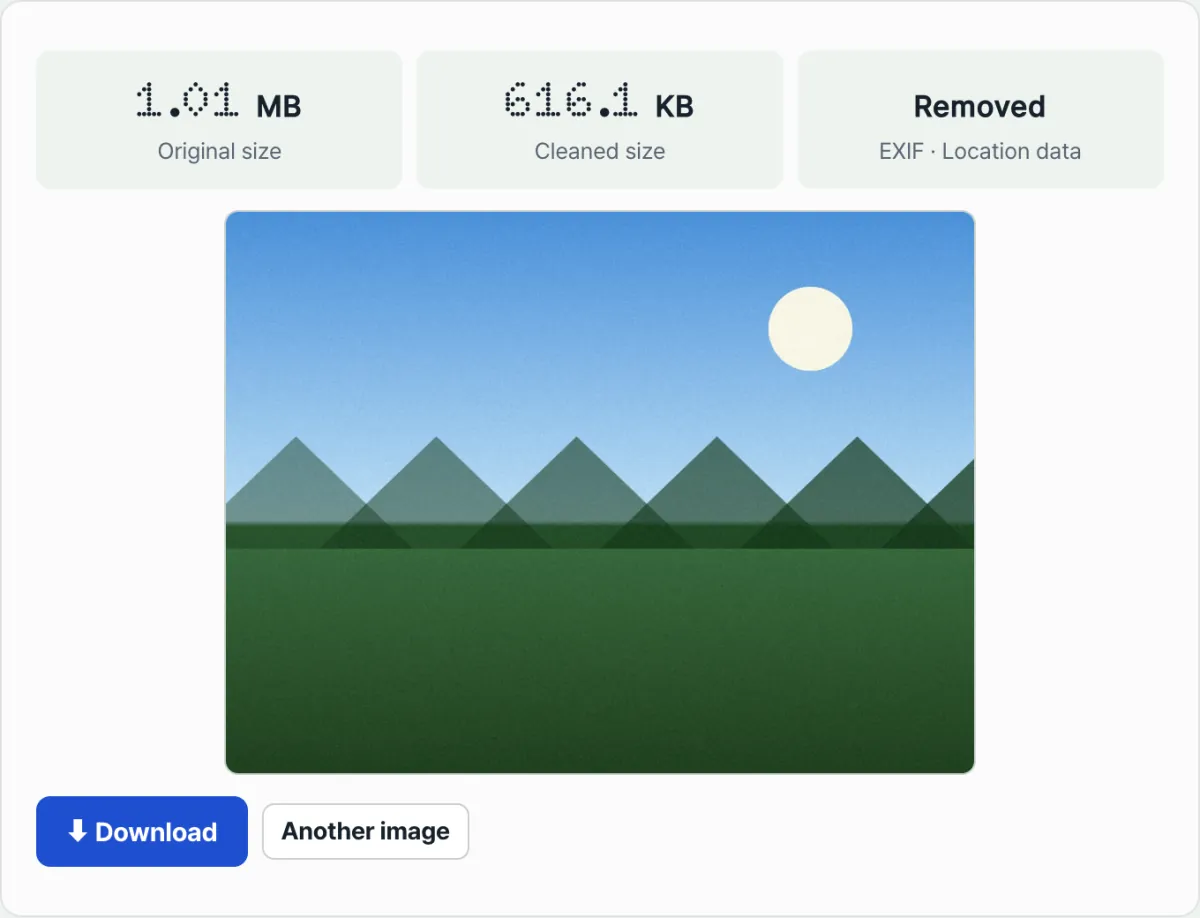
When you drag and drop a file or click to select one, the process starts right away — no need to press a separate "Process" button. When it's done, the screen shows the original size, the cleaned size, and what was removed. PNG images are saved back as PNG; everything else is saved as JPEG. All of this happens inside your browser — your file is never sent to a server.
Recap
- Your smartphone camera automatically records GPS coordinates, the device model name, and the time of capture inside the photo file as EXIF metadata.
- You can't check this information just by looking at the photo. You have to open the file's details (properties) separately.
- If you send the original file as-is, the metadata goes with it. Whether the place you upload to strips it varies by platform and can keep changing.
- If you shoot with location services off, GPS coordinates aren't recorded, but other items such as the device model name and time of capture can still remain.
- Redrawing the image on a canvas and saving it keeps only the pixels and excludes the metadata area, which is how it removes EXIF.
The tool re-encodes your photo right in the browser and strips EXIF metadata, including GPS location and device details. Free, no sign-up.
Frequently Asked Questions
How do I check whether a photo I already have contains GPS location data?
You can't tell just by looking at it — you need to open the file's properties or details ("Get Info") panel. The menu location and items shown vary a bit by operating system or photo app, so the surest way is to look for the "Info" or "Details" menu on your device.
Does location data get removed automatically when I post to social media or a community forum?
It depends on the platform. Some recompress the image during upload and strip the metadata along with it; others store the original file as-is. This handling can keep changing as platform policies change, so you can't say a given service "always strips it" — it's safer to check for yourself before you post.
If I shoot with location services off, does EXIF not get created at all?
If you shoot with location services off, GPS coordinates generally aren't recorded. But EXIF itself doesn't disappear — other items like the time of capture and device model name can still be recorded regardless of location services.
Does processing with this tool reduce photo quality?
If the image is PNG, it's saved as PNG, so there's no quality loss. Other formats get re-encoded as JPEG, which involves a bit of recompression, but the settings are tuned so you'd be hard-pressed to notice a difference on screen. You can compare the original size and cleaned size shown on screen after processing to see the change for yourself.
This article was adapted from our Korean original. Read the Korean original