
VAT Included Price: How to Get the Net Amount (Divide by 1.1)
Contents
When you need the net price inside a VAT-inclusive total, multiplying the total by the tax rate and subtracting gives you a number that's too low. The correct net price comes from dividing the total by 1.1, and that's not the same as taking 10% off the total. This article lays out how to split a VAT-inclusive total into net price and VAT, so you can check the numbers on an invoice or receipt yourself.
Summary ① To get the net price from a VAT-inclusive total, don't subtract 10% of the total — divide the total by 1.1. ② Going the other way, to add VAT to a net price (an amount with VAT excluded), multiply the net price by 1.1. The two are opposite operations. ③ The three numbers — net price, VAT amount, and total — always line up as "net price + VAT amount = total."
Why this calculation goes wrong so often
A transaction statement or receipt usually shows just one number: the total with VAT included. How much of that total is the net price and how much is VAT is something you have to work out separately.
The most common mistake is multiplying the total by the tax rate and subtracting that. For example, if the total is 110,000 won (VAT included, 10% rate), people take 10% of 110,000 won — 11,000 won — and subtract it to get a net price of 99,000 won.
But the right answer is 100,000 won. That 11,000 won of VAT isn't 10% of the 110,000 won total — it's 10% of the 100,000 won net price.
The two calculations part ways over one question: 10% of what? When you take 10% of the total, the base you're working from already has VAT piled on top, so the result is off.
How to calculate it yourself without a tool
Net price and VAT are tied together by a fixed ratio. At a 10% rate, if you set the net price at 1, VAT is 0.1, and the total (net price + VAT) is 1.1 times the net price.
To split a VAT-inclusive total into net price and VAT, use this formula:
- Net price = total ÷ (1 + rate/100)
- VAT amount = total − net price
At a 10% rate, plugging in a total of 110,000 won gives you 110,000 ÷ 1.1 = 100,000 won (net price), and the VAT amount is 110,000 − 100,000 = 10,000 won.
Going the other way — adding VAT to a net price to get the total — use this formula:
- VAT amount = net price × (rate/100)
- Total = net price + VAT amount
Plugging in a net price of 100,000 won gives you 100,000 × 0.1 = 10,000 won (VAT amount), and the total is 100,000 + 10,000 = 110,000 won.
÷1.1 and ×1.1 are the same relationship run in opposite directions. Take a net price of 100,000 won and multiply by 1.1, and you get 110,000 won. Divide that 110,000 won by 1.1 again and you're right back at 100,000 won.
By contrast, −10% and +10% are not inverse operations. Subtract 10% (11,000 won) from 110,000 won to get 99,000 won, then add 10% (9,900 won) back, and you end up with 108,900 won — not the original 110,000 won.
The same structure holds when the rate isn't 10%. If the rate is r%, then net price = total ÷ (1 + r/100) and VAT amount = net price × (r/100). Only the rate number changes; the division-and-multiplication relationship stays the same.
Check it with our tool.
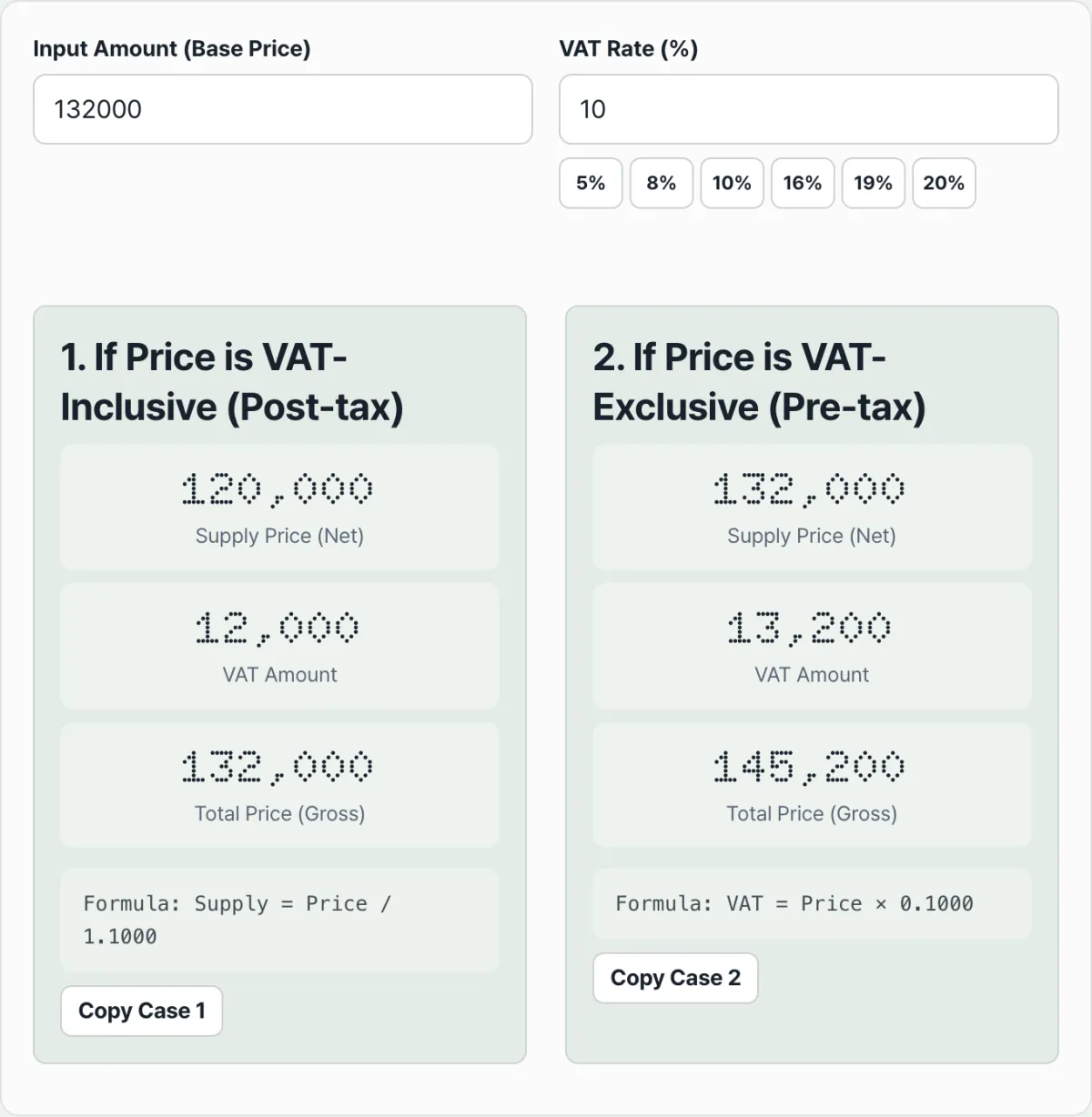
Calculates both directions at once — VAT included and VAT excluded — with 5/8/10/16/19/20% rate buttons and a copy button for each result
Points people often get confused about
Here's what the three numbers on the results screen mean.
| Item | Meaning |
|---|---|
| Net price | The value of the goods or services with VAT removed |
| VAT amount | The tax added to the net price at the tax rate |
| Total | Net price + VAT amount — the amount actually exchanged |
With our tool, you enter an amount once and both results appear at the same time. The top box treats the amount you entered as a total that already includes VAT and works backward to the net price. The bottom box treats the same amount as a net price with VAT excluded and adds VAT on top.
The two readings produce different numbers. If you treat 132,000 won as a VAT-inclusive total, the net price is 120,000 won. If you treat that same 132,000 won as a net price, the total is 145,200 won.
So before you read the results, check whether the amount you entered is marked "VAT included" on the invoice or receipt, or marked "net price" or "VAT excluded" — then read the matching result box.
Here's how the numbers compare between simply adding or subtracting a percentage and dividing or multiplying.
| Method | Result for 110,000 won (VAT included, 10% rate) |
|---|---|
| Multiply the total by the rate and subtract (wrong method) | 110,000 − 11,000 = 99,000 won |
| Divide the total by (1 + rate/100) (correct method) | 110,000 ÷ 1.1 = 100,000 won |
The error grows as the rate goes up. At a 20% rate, simply taking 20% (24,000 won) off a total of 120,000 won gives 96,000 won, but the correct net price is 120,000 ÷ 1.2 = 100,000 won — a 4,000 won difference.
Recap
- To get the net price from a VAT-inclusive total, don't multiply the total by the rate and subtract — divide the total by (1 + rate/100).
- To add VAT to a net price, multiply the net price by the rate and add it. The two calculations run in opposite directions, so putting the same value into the reverse one brings you back to where you started (÷1.1 ↔ ×1.1).
- Simply adding or subtracting a percentage gives you an error because the base is different — the total in one case, the net price in the other — and the error gets bigger as the rate goes up.
- The net price, VAT amount, and total on your results can always be checked against each other with "net price + VAT amount = total."
Calculates both directions at once — VAT included and VAT excluded — with 5/8/10/16/19/20% rate buttons and a copy button for each result
Frequently asked questions
Why can't I just take 10% off a VAT-inclusive amount?
Because that 10% is calculated on the net price, not on the total. When you take 10% off the total, the base you're using already has VAT added to it, so you end up with a net price that's lower than it should be. The correct calculation is to divide the total by 1.1.
Does the formula change if the rate isn't 10%?
The structure stays the same. If the rate is r%, then net price = total ÷ (1 + r/100) and VAT amount = net price × (r/100). Only the rate number changes; the division-and-multiplication relationship still applies.
Should adding VAT to a net price and removing VAT from an inclusive total always give the same number?
No. Even with the same number going in, the result depends on whether you treat that number as an "inclusive total" or as a "net price." When you're checking one transaction in both directions, you'll get matching values, but it's perfectly normal for a single arbitrary number to produce different results under the two interpretations.
Which numbers should I copy from the results screen?
Each of the two result boxes has its own copy button. If the amount you entered is a VAT-inclusive total, copy the net price and VAT amount from the top box. If it's a net price with VAT excluded, copy the VAT amount and total from the bottom box.
This article was adapted from our Korean original. Read the Korean original