
Bits, Bytes, and GB vs GiB: Data Unit Conversion Formulas
Contents
1. The Building Blocks of Digital Data: Bits and Bytes
Every signal in the digital world is expressed by combining the on (1) and off (0) states of electricity using physical switches.
- Bit (Binary Digit): The smallest unit of computer information — it can hold a 0 or a 1.
- Byte: The basic unit of information processing, made by grouping 8 bits. It's defined as 1 byte = 8 bits. How it works: Standard ASCII code can represent every uppercase and lowercase English letter, digit, and keyboard symbol with just 7 bits (2⁷ = 128 combinations). But computer hardware standardized on 8-bit groups — a power of two — to leave room for extended character sets and spare bits, and that defined "byte" is still the base unit used to report real file sizes today.
2. 1000 vs 1024: The Gap Between SI and IEC Prefixes
The names we commonly use — megabyte (MB), gigabyte (GB) — historically come from the decimal prefixes of the International System of Units (SI) (10³ = 1000).
But computer scientists kept using 2¹⁰ = 1024 in place of the 1000 prefix, which created a serious distortion between the two standards. To sort this out, the International Electrotechnical Commission (IEC) established a separate standard for binary prefixes.
Decimal Standard (SI Prefixes)
1 Kilobyte (KB) = 1,000 Byte (10³)1 Megabyte (MB) = 1,000,000 Byte (10⁶)1 Gigabyte (GB) = 1,000,000,000 Byte (10⁹)
Binary Standard (IEC Prefixes)
1 Kibibyte (KiB) = 1,024 Byte (2¹⁰)1 Mebibyte (MiB) = 1,048,576 Byte (2²⁰)1 Gibibyte (GiB) = 1,073,741,824 Byte (2³⁰)
That 2.4% to 7.4% mathematical gap is where a long-running headache comes from. Buy a 500GB SSD that the factory labeled using decimal math, plug it into a Windows computer, and the screen shows 465 GiB (GB) — the binary conversion — a much smaller number.
Guide to Using the Data Storage Converter
If you'd rather not sit there multiplying and dividing decimal values by powers of two by hand in a notepad, try a dedicated data storage converter.
Free · no sign-up · real-time conversion across 6 units from bit to TB + 1024/1000 toggle
The tool is laid out very clearly.
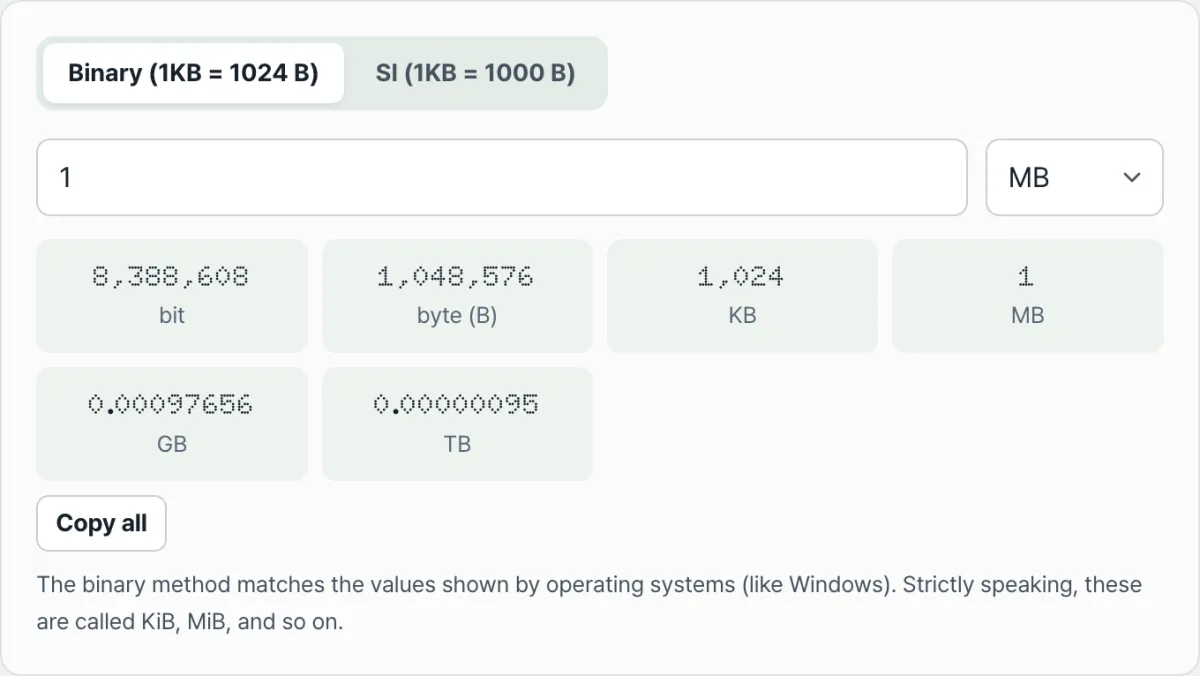
- Choose the method and enter a value: First pick your base with the toggle button — binary (1024) or SI (1000) — then type a number in the input field and select the base unit from the dropdown next to it: bit, B, KB, MB, GB, or TB (for example, set the unit to MB and enter 1).
- The moment you type, the result cards show the value converted into all six units — bit, B(byte), KB, MB, GB, and TB at once. The binary (1024)/SI (1000) toggle you picked recalculates all six values, so a single button lets you switch between the operating system's math and the retail math.
- That way you can compare in one second exactly how many megabytes or gigabytes a real file's size shows up as in each system environment.
Summary
Digital data units are a set of conventions the IT industry agreed on. They're useful general knowledge for ordinary consumers, not just developers and engineers, and they help you spend wisely. Before you back up files or add storage, open the Data Storage Converter and check the real capacity you'll get.
Free · no sign-up · real-time conversion across 6 units from bit to TB + 1024/1000 toggle
Frequently Asked Questions
Is 1GB on a mobile data plan 1000MB or 1024MB?
Public information alone doesn't make it possible to say for certain which base a carrier uses internally to meter plan usage.
- That said, the data usage counters that smartphone operating systems (Android, iOS, and so on) show on screen are usually calculated in binary (base 1024).
- Meanwhile, the plan sizes carriers advertise — "10GB," "100GB" — usually follow the decimal (base 1000) convention.
- So even at the same moment, the remaining data on your phone's screen and the number in your plan's paperwork can look slightly different. When you set a data usage warning, leaving some slack for that difference helps you gauge when you'll actually run out.
Can the file system format (NTFS, FAT32, exFAT, and so on) waste real capacity?
Yes — and it's a major real-world variable.
- A file system stores data in minimum storage boxes called "clusters" or "blocks."
- For example, if you save a single 1KB text file to a drive formatted with 64KB clusters, the file takes up a whole box, so the space it actually occupies on disk consumes the full 64KB — wasting 63KB (slack space).
- So a folder holding tens of thousands of small text files can have a "size on disk" far larger than the sum of the file sizes themselves, which is how your hard drive fills up sooner. Choosing a suitable cluster size when you format prevents the waste.
This article was written with reference to the binary prefix definitions in International Electrotechnical Commission (IEC) 80000-13 and the decimal prefix system of the International System of Units (SI).
This article was adapted from our Korean original. Read the Korean original