
Character Count With or Without Spaces: How to Match the Limit
Contents
- Why the same draft gets a different number in different places
- How to count characters yourself, without a tool
- Should a cover letter or report be counted with spaces or without?
- Where the numbers diverge
- The bottom line
- The Technical Side: Why Do Different Counters Give Different Answers?
- How Major Platforms Count Characters and Bytes (Comparison Matrix)
- 5 Character-Counting Mistakes You Make Without Noticing
- A 5-Step Workflow for Optimizing Character Counts in Resumes and Cover Letters
- 7 Advanced Tips for Practitioners and Copywriters
- Decision Tree for Picking the Right Character Count Standard
- Essential Terminology Cheat Sheet for Handling Text Like a Pro
- Frequently Asked Questions
Your cover letter says "1,000 characters max," but the number Word gives you and the number the application screen shows don't match. The short answer: whichever side set the limit is the count that matters, and the reasons the numbers diverge come down to a few fixed causes.
There are only three. Whether spaces are counted, whether line breaks count as spaces, and whether the limit counts bytes instead of characters. Know these three and you can figure out any counter's rules yourself.
Summary ① If the posting states the rule, that rule comes first. If there's an online form, that form's counter is the final call. ② Characters with spaces is always greater than or equal to characters without spaces, so fit "no more than" limits to the with-spaces count and "at least" requirements to the without-spaces count — that keeps you safe under either rule. ③ Paste one short two-line sentence and you'll know in 30 seconds whether that counter counts line breaks.
Why the same draft gets a different number in different places
The classic case: you write in Word, paste it into the application screen, and Word said you had room while the screen blocks you for being over.
Most of the time it's the line breaks. Some places count the Enter you pressed to start a new paragraph as one character; others don't count it at all. With ten paragraphs, that's a 10-character difference on its own.
Second is what counts as a space. What people call "spaces" isn't just the spacebar — it also includes tabs and the full-width space (a wide blank) that a Korean keyboard can produce. Counters that treat those as spaces remove them from the "without spaces" total; counters that don't leave them in as characters.
Third is counting bytes instead of characters. When a length limit is set in bytes — messaging services, older forums — how much text fits depends on how many bytes each Korean character takes.
How to count characters yourself, without a tool
There are two ways to check without opening a counter. One is already in the program you're using, and one is already in your browser.
The feature already built into document apps
In Microsoft Word, open Word Count on the Review tab and you'll see "Characters (with spaces)" and "Characters (no spaces)" together. Google Docs shows the same values under Word count in the Tools menu.
What matters here is which line you read. Both values appear together, so just read the one that matches the rule your recipient requires.
Four numbers at once from the browser console
Paste the following into the console of your browser's developer tools (usually F12) and you'll get four separate numbers. Lines 2 through 4 use the same formulas our tool uses to calculate characters (with spaces), characters (without spaces), and bytes.
const s = "paste your text here";
s.length;                                  // number of UTF-16 code units (emoji count as 2)
Array.from(s).length;                      // characters (with spaces)
Array.from(s.replace(/\s/g, "")).length;  // characters (without spaces)
new TextEncoder().encode(s).length;        // UTF-8 byte count
Note that replace(/\s/g, "") doesn't only strip spaces. It removes tabs, line breaks, and full-width spaces as well. So the "without spaces" value from this formula contains no line breaks.
A 30-second test that reveals any counter's rules
To find out whether a counter counts line breaks, you only need to enter these two lines.
가나
다라
If characters with spaces comes out as 5, it counts the line break as one character; if it's 4, it doesn't. For reference, our tool counts 5 (without spaces it's 4).
The problem is that opening the console to check this every time is a hassle, and pasting a multi-line draft inside quotation marks is fiddly.
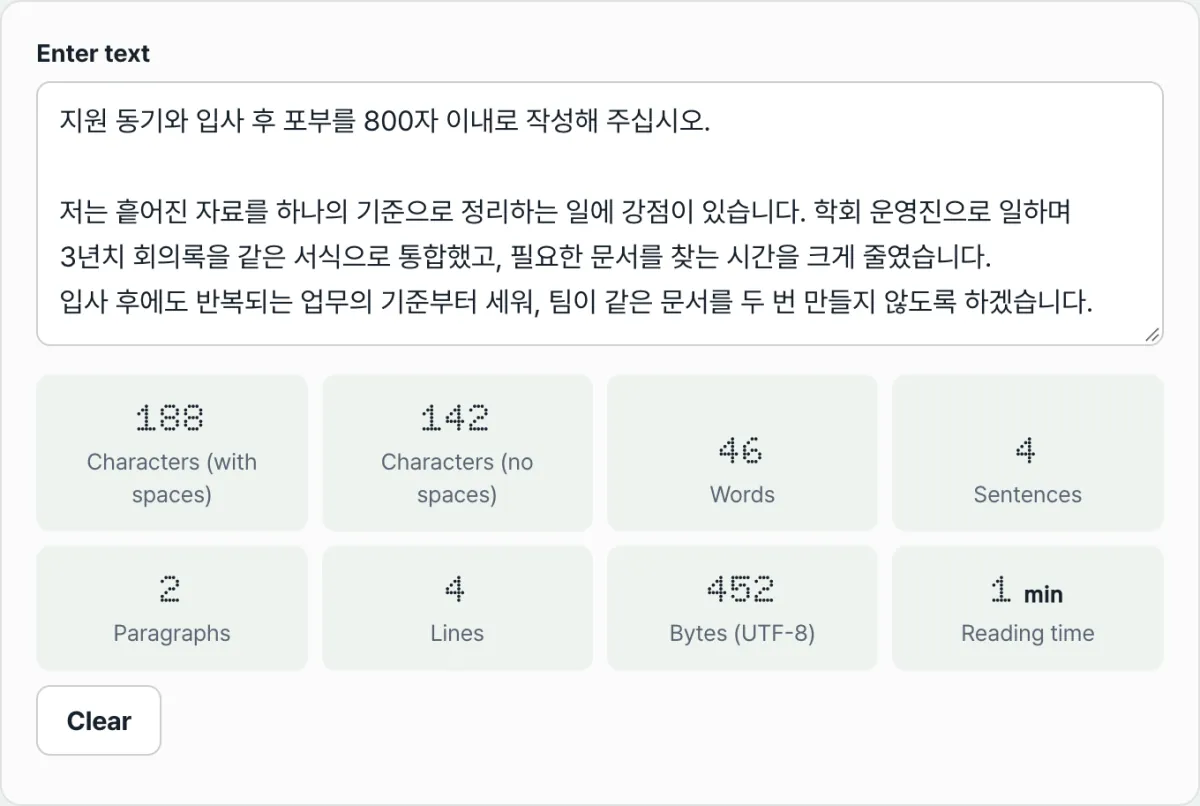
Check it with our tool. Paste your draft straight into the input box and the with-spaces and without-spaces counts appear together on one screen.
It calculates right in your browser — no install, no sign-up. Anything you paste is never sent to a server.
Should a cover letter or report be counted with spaces or without?
Just work through it in order.
1. Whatever the posting or assignment instructions say comes first. If it states "1,000 characters with spaces" or "at least 500 characters without spaces," that's the only standard you need to check.
2. If there's an online input form, that form's counter is effectively the final standard. The submit button is gated by that screen, so what Word said doesn't factor into the decision. After pasting, check the number on screen.
3. If you can't find the rule, go by the direction of the inequality. The with-spaces count is always greater than or equal to the without-spaces count. So keep the with-spaces count inside a "no more than" limit, and make the without-spaces count exceed an "at least" requirement — then you're safe no matter which standard is used to score you.
Where the numbers diverge
| Where it diverges | Depending on the counter |
|---|---|
| Line break (Enter) | Counted as 1 character, or not counted at all |
| Tabs and full-width spaces | Treated as spaces, they drop out of "without spaces"; otherwise they stay as characters |
| Emoji | Some count them as 1 character, some as 2 |
| Bytes | One Korean character is 3 bytes in UTF-8 and 2 bytes in EUC-KR |
The reason emoji vary is how text is stored internally. JavaScript's string.length counts UTF-16 code units, so an emoji like 😀 registers as 2, while counting by the characters a person sees gives 1. Our tool counts by character and shows 1.
One more thing: in Korean, the "word" count isn't dictionary words but the number of space-separated eojeol. Our tool splits on spaces too, so it isn't directly comparable to a word count in English.
The bottom line
- The reasons numbers diverge almost always come down to three things: line breaks, the scope of "spaces", and bytes.
- Characters with spaces is always greater than or equal to characters without spaces. Fit "no more than" to the with-spaces count and "at least" to the without-spaces count, and you're safe.
- If there's an online submission form, that screen's counter is the final call.
- Enter the two lines "가나 / 다라" and see whether you get 5 or 4 — that tells you right away whether the counter counts line breaks.
- Where a limit is set in bytes, as with messaging services, look at the byte count, not the character count.
It calculates right in your browser — no install, no sign-up. Anything you paste is never sent to a server.
The Technical Side: Why Do Different Counters Give Different Answers?
The root cause of mismatched counts is that every platform handles text differently. It comes down to how a computer reads characters and stores them in memory: the encoding and the string-processing engine.
1. Different Ways of Measuring String Length
Programming languages and browser engines measure string length in different units.
- JavaScript's default length property (UTF-16 code units): The most common one,
string.lengthin JavaScript, counts characters in UTF-16 code units. Plain English letters and most Korean characters — anything in the Basic Multilingual Plane (BMP) — count as 1. But emoji like 😀 and some special symbols live in the Supplementary Plane (SMP) and are treated as surrogate pairs, so a single character returns a length of 2. - Grapheme cluster counting: This counts the "one character" a human eye sees.
Array.from(str).lengthorIntl.Segmenterin modern browsers counts a complex combined emoji such as 👨👩👧👦, or a Hangul syllable built from initial, medial, and final consonants, as exactly 1 character the way a person perceives it. - Byte-level encoding differences: When you're counting storage size rather than characters, the encoding decides the result.
- ASCII: English letters, digits, and basic symbols are 1 byte everywhere.
- EUC-KR (CP949): Common in legacy Windows environments and old domestic SMS systems. It treats 1 Hangul character as 2 bytes.
- UTF-8: The current web standard, which treats 1 Hangul character as 3 bytes. Special characters like emoji take 4 bytes.
2. Line Breaks: The Hidden Variable
The biggest source of confusion in character counting is the line break. The character inserted when you press Enter depends on the operating system.
- LF (Line Feed,
\n): Used on Unix, Linux, and macOS. The line break counts as 1 character (1 byte). - CRLF (Carriage Return + Line Feed,
\r\n): Used on Windows and in the RFC 2822 email standard. You can't see it, but it's two characters combined (2 bytes), and a strict counter will count it as 2.
3. The Trap of Full-Width and Half-Width Spaces
- Half-width space (
\u0020): The normal space you get from the spacebar. It takes 1 byte. - Full-width space (
\u3000): A wide space produced by certain key combinations in Japanese or Korean input methods. It looks like several regular spaces typed in a row, but inside the system it's a single character that takes 3 bytes in UTF-8. Counters with weak regex handling for the "without spaces" count treat this full-width space as a character, which throws off the total.
How Major Platforms Count Characters and Bytes (Comparison Matrix)
Here's a clear matrix of the rules each major platform and corporate portal uses to measure character and byte counts. (※ These can change as systems are updated.)
| Platform or system | How spaces are handled | Line breaks (Enter) | Emoji and special characters | Hangul byte mapping |
|---|---|---|---|---|
| Microsoft Word | Can check by selecting text | Not counted (0 characters) | Counted as 1 character | Depends on the OS default encoding |
| Google Docs | Can check by selecting text | Counted as 1 character | Counted as 1 character | UTF-8 |
| Saramin / JobKorea application forms | Depends on the company's settings | Varies by company (usually 2 characters) | Watch for special-character errors | The system's internal rules |
| Hometax (National Tax Service) | Spaces included | CRLF (counted as 2 bytes) | Not allowed (throws an error) | EUC-KR based (2 bytes) |
| Public-sector NCS blind hiring forms | Spaces included (most) | Usually 2 characters (varies by platform) | Filtered by the system | A mix of EUC-KR and UTF-8 |
| Twitter (X) 280-character limit | Spaces count as 1 character | Counted as 1 character | Weighted as 2 characters | Hangul counts as 2 characters (weighted) |
| SMS text message (80–90 bytes) | Spaces count as 1 byte | Depends on the platform (LF or CRLF) | Usually can't be sent / switches to LMS | Hangul 2 bytes (EUC-KR) |
5 Character-Counting Mistakes You Make Without Noticing
A small slip can cost you the job or get you billed for more than you expected. Here are five costly mistakes to avoid.
- Confusing "with spaces" and "without spaces": This is the most common error. Submitting based on whichever big number happens to sit at the top of the calculator, without checking which rule the recipient actually stated, is a real risk.
- Overlooking line-break characters in essays with lots of paragraphs: Breaking an essay into short paragraphs for clarity is good. But if you forget that each CRLF adds 1–2 characters, the last sentence of your essay can get cut off entirely on a 1,000-character form.
- Using emoji freely in byte-limited forms (SMS, legacy message boards): An emoji takes 2 or more code units in UTF-16 and 4 or more bytes in UTF-8. Drop one emoji into an 80-byte form and you're suddenly forced to delete two Hangul characters to make room.
- Trusting Microsoft Word's character count blindly: Word doesn't count line breaks, so its result won't match a web form. Write your draft in Word if you like, but always verify the final count by pasting it directly into the company's online portal.
- Waiting until 5 minutes before the deadline to check your count: Traffic spikes right before a deadline. When your copy is rejected at 1,001 characters, trimming one character without breaking the flow is enormously stressful — and the server can go down on you.
A 5-Step Workflow for Optimizing Character Counts in Resumes and Cover Letters
This is a data-integrity workflow to keep a one-character difference from triggering a system error and knocking you out unfairly.
- Step 1 (Check the guidelines and set a baseline): Read the job posting or system instructions and confirm exactly whether the limit is "with spaces" or "without spaces," and whether it's measured in bytes.
- Step 2 (Draft to 90–95% of the limit): If the limit is 1,000 characters, aim for 900–950. If you try to hit 1,000 exactly from the start, you'll spend the whole editing process fighting over-length drafts.
- Step 3 (Simulate with a dedicated web counter): Don't rely on the counter in Word or a word processor. Paste your text into our Word & Character Counter on this site, which counts line breaks and spaces by web standards, and measure your real length.
- Step 4 (Cut the filler and stray spaces): If you're barely over, merge frequent line breaks, delete invisible trailing spaces at the ends of sentences, and trim unnecessary modifiers. Also check whether any full-width spaces slipped in.
- Step 5 (Test in the real portal 2 hours before the deadline): Paste your draft into the textarea on the actual application portal. Then, at least 2 hours before the deadline, give yourself room to confirm the portal's own counter at the bottom of the page doesn't show a red over-limit warning.
7 Advanced Tips for Practitioners and Copywriters
These are the writing and counting habits professionals use to control and fine-tune text length with ease.
- Play it safe with the 90% rule: The ideal target is to fill at least 90% of the maximum character count a company asks for, but not go over 95%. If the limit is 1,000 characters, finish somewhere between 900 and 950 so you're fully protected from any disadvantage caused by a system's counting variance.
- Trim line breaks to free up room: The habit of pressing Enter twice (inserting a blank line) to separate paragraphs burns 2–4 characters for nothing. When space is tight, replace consecutive line breaks with a single line break plus a space.
- Compress passive sentences into active ones: Swapping unnecessary passive and causative phrasing like "it is thought to have been done" for something as concise as "I did it" sharply improves readability and can cut 10% or more of your wasted characters.
- Use the regex
s+$to strip trailing spaces completely: Space keys hit after a period at the end of a sentence are invisible to the eye but quietly eat away at your character count. Use your editor's regex find feature to wipe out those trailing spaces in one sweep. - For government and public agency systems, check bytes first: Older legacy systems at public corporations, tax agencies, and similar organizations cut data off based on EUC-KR bytes. Hangul is treated as 2 bytes, so cross-checking with a web byte calculator before you submit is essential.
- Understand Twitter (X)'s unique weighting for Hangul: Twitter, a global social network, has a 280-character limit, but CJK characters such as Hangul and Hanja count at a weight of "2 characters" per character. So if you write only in Hangul, your real maximum length is 140 characters. Keep that in mind.
- Use a combined dashboard counter: Bookmark a multi-view tool that shows character count (with and without spaces) and bytes (UTF-8 and EUC-KR) in real time on one screen, keep it open beside your work window, and your productivity will jump.
Decision Tree for Picking the Right Character Count Standard
This is a guide map that lets you decide in three seconds which standard to apply before you paste your text in.
- Is the target a corporate or private-sector hiring portal?
- ➔ YES: The portal's own counter is the ultimate authority. While drafting, check against characters (with spaces), but target 95% of the limit.
- Is the target a public institution or civil service hiring system (NCS)?
- ➔ YES: Check whether the instructions say "without spaces." Older systems also screen on bytes, so monitor characters (without spaces) and EUC-KR byte count at the same time.
- Is the target an SMS text messaging system or an old message board?
- ➔ YES: Byte count is clearly the top priority. Hold back on emoji as much as possible to avoid failed sends or extra charges from going over the byte limit.
- Is the target a global social network (Twitter, etc.)?
- ➔ YES: Follow its dedicated length algorithm with CJK weighting. Think of it as a 140-character limit for Hangul and manage spaces tightly.
Essential Terminology Cheat Sheet for Handling Text Like a Pro
- With Spaces: The total of letters, Hangul, and numbers that make up the text plus spaces (spacebar), tabs, and sometimes even line break symbols, each counted as one character. This is the default standard for typical web portal forms.
- Without Spaces: A count of only the text characters that carry the actual meaning, excluding spaces, tabs, and line breaks. This is the stricter standard used when someone wants to see how much a candidate actually wrote.
- Byte: The actual unit of data capacity a character takes up when it's written to computer memory or storage. It isn't tied directly to character count and varies widely depending on the encoding.
- UTF-8 vs EUC-KR (CP949): UTF-8, the worldwide standard encoding, stores Hangul heavily (3 bytes) but has perfect multilingual compatibility. EUC-KR, Korea's own encoding, stores Hangul lightly (2 bytes) but carries a high risk of breaking other languages or emoji.
- Surrogate Pair: A way of expressing modern emoji or special symbols by joining two 16-bit (UTF-16) spaces. Older JavaScript engines recognize this as 2 characters, which creates a bug-like discrepancy.
- Line Break (CRLF vs LF): An invisible symbol saved when you press Enter. Windows inserts two symbols (CR and LF), while Mac and Linux insert one (LF).
Frequently Asked Questions
In-depth answers to the core questions users ask most often when they're confused by subtle differences in character counting.
Q1. My draft was 980 characters in Word, but when I pasted it into the company's hiring portal it became 1,020. Why the difference?
A1. It comes down to how the two systems handle line breaks (Enter). Microsoft Word doesn't add the Enter key that separates paragraphs to the character count; it treats it as 0 characters. Most corporate hiring web portals, by contrast, treat line breaks as characters (usually 2 characters in CRLF form) because of how the text input field (Textarea) works, so they count them in full. The more paragraphs your text has, the more the gap between the two numbers snowballs. When you finally submit, always go by the web portal's own counter.
Q2. How do modern emoji (😀) or complex emoticons affect character or byte limits?
A2. Emoji consume far more digital resources than ordinary text, which can be fatal in a limited form. In terms of length, one emoji eats up 2 to 4 characters under older systems or built-in JavaScript functions. In terms of bytes, one emoji takes up a full 4 bytes in a UTF-8 environment, which means you give up one Hangul character (3 bytes) or four English letters (4 bytes). In SMS messages or cover letters with tight byte limits, it's best to hold back on emoji.
Q3. My text is exactly 20 characters over the limit. What's the best tip for trimming it without damaging the content?
A3. There are three optimal ways to cut 20 characters without hurting the logic of your content. First, merge paragraphs that were split unnecessarily and save the invisible characters the line break symbols consume. Second, boldly cut habitual, wordy passive and speculative endings like "it seems that…" or "it is thought that…" down to direct statements. Third, use regex find to locate and delete all the extra spaces between words or at the ends of sentences, and you'll easily free up 20 characters.
This article was adapted from our Korean original. Read the Korean original