
Why image grid pieces are different sizes (and how to fix it)
Contents
When you split an image into a 3x3 or 2x2 grid, placing the pieces side by side can reveal that one row or one column is noticeably bigger than the rest. That isn't the tool misbehaving. It's an unavoidable result of the math whenever the original image's pixel width or height doesn't divide evenly by the number of cells.
This post explains why only certain pieces grow, which pieces they are, and what you need to do before uploading if you want every piece to come out exactly the same size — starting from how the calculation works.
Summary ① Most grid splitters cut each piece at the quotient of pixel width (or height) divided by the number of cells, then dump all the leftover pixels into the last column or last row. ② So the bigger pieces are always the rightmost column and the bottom row, and the extra size exactly equals the remainder of the original pixel count divided by the number of cells. ③ If you pre-crop the original to a pixel size that's a multiple of the cell count before uploading, the remainder becomes 0 and every piece comes out exactly the same size.
Why the Pieces Come Out Different Sizes
Say you have a photo that's 1000px wide and you split it into 3 cells. 1000 divided by 3 is 333.33..., which doesn't come out even. The tool cuts the first two pieces at exactly 333px each, dropping the decimal.
The last piece is the problem. The first two pieces already took 666px, so the remaining width of the original is 1000 − 666 = 334px. The last piece takes all of that remainder, so it comes out 1px bigger than the others. The same thing happens vertically (by row): the last row absorbs all the leftover pixels.
How to Check: In Your Head, No Calculator Needed
You don't have to open the tool. If you know the original image's pixel width and height, you can work out the difference in advance. Check the pixel dimensions (for example, 1080×1350) in your photos app or the file's properties, then just work out these two values.
- Width remainder = width in pixels % number of columns (cols)
- Height remainder = height in pixels % number of rows (rows)
If the remainder is 0, every piece comes out exactly the same size. If it isn't 0, the pieces in the rightmost column or the bottom row are bigger than the others by that amount.
For example, splitting a 1080×1350 photo into 3x3 gives 1080%3=0 and 1350%3=0, so all 9 pieces are identical. Splitting a 1000×1000 photo into 3x3 gives 1000%3=1, so only the pieces in the right column and bottom row are 1px bigger.
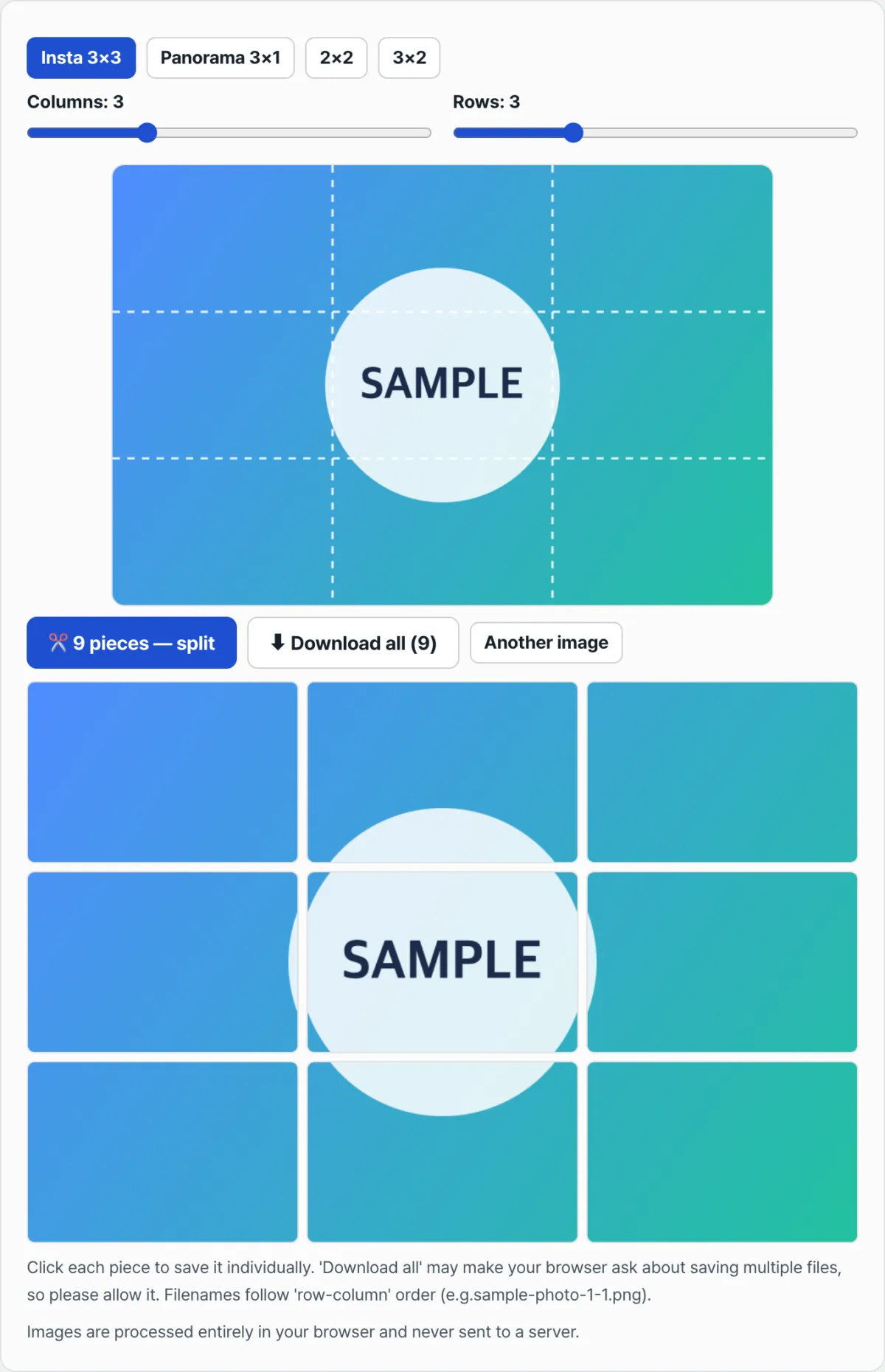
See it for yourself with our tool. Instead of working out the remainders by hand, if you want to look at the actual pixel values, it's faster to upload an image, change the cell counts, and watch the preview grid lines.
Free · No sign-up · Split an image into a grid right in your browser · No server uploads
Common Sticking Points
| Situation | Cause | What to check |
|---|---|---|
| Only the pieces in the rightmost column are too big | Width in pixels doesn't divide evenly by the number of columns | Check width in pixels % number of columns (cols) |
| Only the pieces in the bottom row are too big | Height in pixels doesn't divide evenly by the number of rows | Check height in pixels % number of rows (rows) |
| You got rectangles when you expected square pieces | The original's aspect ratio was split into cells as-is, with no pre-crop to square | First confirm the original itself is square (width = height) |
| Every saved piece is a png | Pieces are always saved as png, even when the original is jpg or webp | Convert them separately after saving if you need another format |
The Short Version
- Pieces coming out different sizes isn't a bug. It's the remainder from dividing the original pixel count by the cell count, absorbed by the last row or column.
- The bigger pieces are always the rightmost column and the bottom row, and the extra size equals the remainder of the width in pixels and the height in pixels each divided by its cell count.
- To make the remainder 0 (so every piece is exactly the same size), pre-crop the original to a pixel size that's a multiple of the cell count before uploading.
- This method splits at the original aspect ratio without forcing anything to square, and piece files are always saved as png regardless of the original format.
Free · No sign-up · Split an image into a grid right in your browser · No server uploads
FAQ
Can I make every piece exactly the same size?
Yes. Before you upload the original, crop it so the pixel width and height are each a multiple of the cell count. The remainder becomes 0 and every piece comes out exactly the same size. For example, if you plan to split into 3 cells, set the pixel width to a multiple of 3 (999px, 1002px, and so on).
How do I know which piece will be bigger?
It's always the rightmost column and the bottom row. The earlier columns and rows take only the quotient (the whole-number part of the division), and the leftover pixels all pile into the last column and row because of the order the calculation runs in.
The pieces come out as rectangles instead of squares.
This method doesn't crop the original to a specific ratio first. It keeps the original aspect ratio and only divides it by the number of cells. So if the original isn't square, the pieces won't be square either. If you really need square pieces, crop the original to a square before uploading.
I saved several pieces at once but only some of them downloaded.
Browsers sometimes ask for permission when a site tries to save multiple files at once, as a security measure. If you answer allow, the rest of the pieces keep saving. If that still doesn't work, you can click each piece image and save them one at a time.
This article was adapted from our Korean original. Read the Korean original