
Check Your Public IP Address: Location, ISP, and Browser Info
Contents
After you turn a VPN on or off on your home or café Wi-Fi, you sometimes want to see what public IP address your PC or phone currently looks like to the internet. You can type "what is my IP" into a search box or run ipconfig in Command Prompt, but getting the country, city, ISP, and browser details all at once takes more work. This post covers how public and private IPs differ, and how to check them yourself.
Summary ① A public IP is the representative address you expose to the internet, and a private IP is an internal address used only inside your router. ② You can call a free API directly from your browser's developer tools to see your public IP and location, but you have to type in code. ③ With the tool below, you can see your public IP, location, ISP, and browser info (User-Agent, resolution) on one screen, then copy or download it.
Why public and private IPs show up as different addresses
Under a home router, a PC, phone, smart TV, and other devices are all connected at the same time, but from an outside website's point of view, they all appear as a single IP address. That's because the private IP address assigned to each device, in the form 192.168.x.x or 10.x.x.x, never goes out to the internet on its own.
The router translates internal private IPs and port numbers with NAT (Network Address Translation), bundling them out to the world as one public IP address given by your ISP. In other words, the public IPv4 address you usually see (in A.B.C.D form, such as 203.0.113.1) is the result of NAT translating "private IP + port number."
How to check your public IP directly in the browser
The simplest way is to open the Console tab in your browser's developer tools and call a free IP lookup API yourself. The developer tools shortcut differs by operating system and browser. On Windows and Linux, Chrome, Edge, and Firefox use F12 (or Ctrl+Shift+I). On macOS, Chrome and Firefox use Cmd+Option+I. In Safari, first turn on "Show features for web developers" in Settings, then press Cmd+Option+I. Paste the code below into the console and run it to get your public IP, country, and ISP.
async function fetchMyIpDetails() {
  try {
    const response = await fetch('https://ipapi.co/json/');
    const data = await response.json();
    return {
      ip: data.ip,
      country: data.country_name,
      city: data.city,
      isp: data.org,
    };
  } catch (error) {
    console.error('Failed to look up IP info:', error);
    return null;
  }
}
fetchMyIpDetails().then(console.log);
This method requires you to open developer tools and type in code, and you have to check browser details like User-Agent and screen resolution separately. If an ad blocker or privacy extension is installed, the API request itself may be blocked and you'll get no values back.
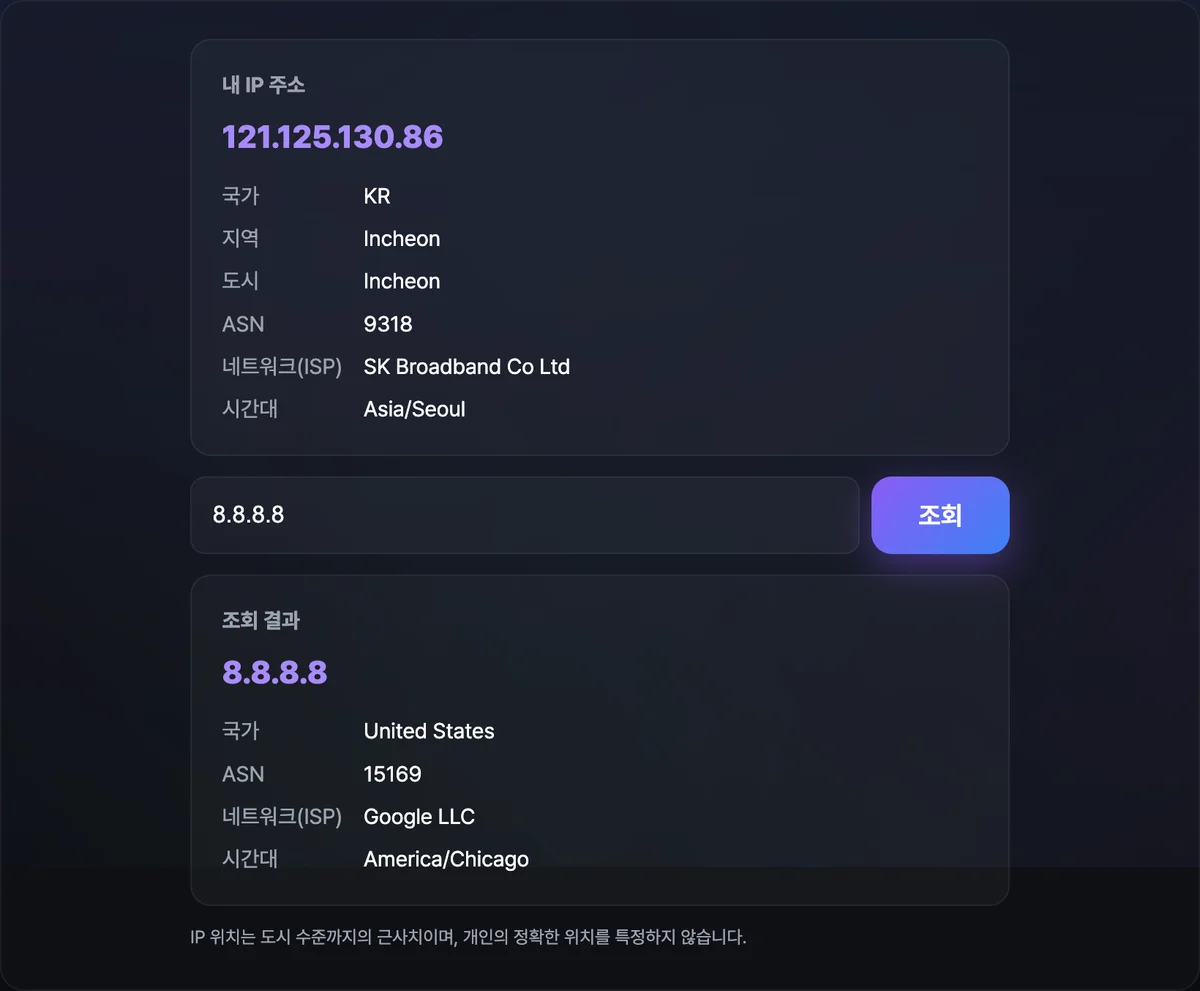
Check it with our free tool. When you open the page, your public IP, location, and ISP are looked up automatically, and browser info like User-Agent and screen resolution appears on the same screen.
See your device's public IP address, approximate location, ISP, and screen resolution in real time, all in one place.

Note If you look it up while a VPN or proxy is on, you'll see the IP of the country where the relay server is located instead of your actual country. Turn the VPN on or off and look it up again to see the changed IP right away.
A few facts about public IPs
| Category | Details |
|---|---|
| IPv4 address | A 32-bit value. Four octets from 0 to 255 separated by dots (.) (for example, 203.0.113.1) |
| IPv6 address | A 128-bit hexadecimal value. Eight blocks separated by colons (:) to express far more addresses |
| NAT | A technology that translates so multiple private IP devices inside share one public IP |
| Dynamic IP | An address that changes periodically depending on your ISP. Most home connections fall into this category |
| Static IP | An address that stays the same. Needed when you run a web server or NAS |
Most home wired internet uses dynamic IPs, so the address changes periodically depending on your ISP. If you want to run a web server or NAS at home, you need a static IP service or DDNS (Dynamic DNS) setup.
Wrapping up
Private IPs are used only inside your router, and a public IP is the representative address exposed to the outside through NAT. You can call an API directly from your browser's developer tools to check your public IP, but getting location, ISP, and browser info all at once means tweaking code several times. When you want to confirm that your IP actually changed after turning a VPN on or off, or leave a record of your connection environment for a support request, using the tool is faster.
See your device's public IP address, approximate location, ISP, and screen resolution in real time, all in one place.
Frequently asked questions
The location shown doesn't match my actual address. Why?
Location and ISP info are estimates based on your IP address, so they can differ from your actual location at the city or country level. The error is bigger on VPNs and mobile networks in particular.
My IP won't show up.
An ad blocker or privacy extension may be blocking the IP API request, or you may have hit the rate limit on the free API. Try again in a moment. If the first API fails, the tool automatically retries with another free API.
Is the information I look up sent to a server?
No files are uploaded. Browser info like User-Agent and screen resolution is read on your device and displayed directly, and only the lookup request needed to find your public IP is sent to a free IP API. No data is stored on a separate server.
This article was adapted from our Korean original. Read the Korean original