
WiFi QR Code Format: How the WIFI: String Connects You
Contents
Point your camera at the QR code taped to a café or office wall and you're on the WiFi without being asked for a password. It looks like magic, but the QR code only holds one short line of text in a fixed format.
That line looks like WIFI:T:WPA;S:NetworkName;P:Password;;. This post covers what each field means, and why a ; or : inside a name or password breaks the connection.
Summary ① The QR code contains one line —
WIFI:T:encryption;S:network name;P:password;;— in plain text. ② If a name or password contains\;,:", put a backslash before that character. ③ For a hidden network, addH:true;. Field order can change without changing the meaning.
Why scanning alone connects you
A QR code isn't a picture — it's a container for text. If it holds a web address, the browser opens. If it holds a contact format, the save-to-contacts screen appears.
WiFi works the same way. When a scanner hits a string starting with WIFI:, it shows a "Connect to this network?" banner and fills in the name and password for you.
One important fact follows from this. The password sits in the QR code in plain text. A printed WiFi QR code taped to a wall is about as secure as a piece of paper with the password written on it.
The string inside the QR code: field structure
This format isn't an official standard like an IETF RFC. It's a de facto standard: the QR library ZXing documented it, and each platform implemented it. The basic form looks like this.
WIFI:T:WPA;S:mynetwork;P:mypass;;Reading it is simple. It starts with WIFI:, then key:value; pairs follow, and the whole thing is closed by one more ;, so it ends in ;;.
| Key | Meaning | Example |
|---|---|---|
T | Encryption type. WEP · WPA · WPA2-EAP · nopass | WPA |
S | Network name (SSID). Required | mynetwork |
P | Password. Ignored when nopass | mypass |
H | true for a hidden network | true |
Only enterprise authentication (WPA2-EAP) uses the extra E (EAP method), I (identity), A (anonymous identity), and PH2 (phase 2 method) fields. They don't show up in home or shop QR codes.
Field order isn't fixed. One generator writes WIFI:S:...;T:WPA;, another writes WIFI:T:WPA;S:...;, and both mean the same thing. Our tool writes T first.
How to check it yourself without a tool
Read the raw text of a QR code that's already up
Pointing the default camera app at it may pop the connect banner right away, so you never see the raw text. In that case, scan with a QR reader app that shows the decoded text as-is, and the whole WIFI:T:WPA;S:... string appears.
That's the fastest way to find the cause when a connection fails. You can see right away whether the name is cut off in the middle or the H field is missing.
Android also has the reverse feature. Open a connected WiFi network and tap Share, and the QR code for that network is generated. Menu location and wording vary by manufacturer and Android version, though, so if it isn't there, just build the string by hand as described below.
Assemble the string by hand
When you're creating one from scratch, write a single line in the format above. If the name is Cafe-Guest, the password is Example1234, and the type is WPA, it comes out like this.
WIFI:T:WPA;S:Cafe-Guest;P:Example1234;;Turn that one line into a QR code and you're done. But if the name or password contains special characters, you have to handle the escapes below by hand — and if you get a single character wrong, the QR image still looks fine, so the mistake is hard to spot.
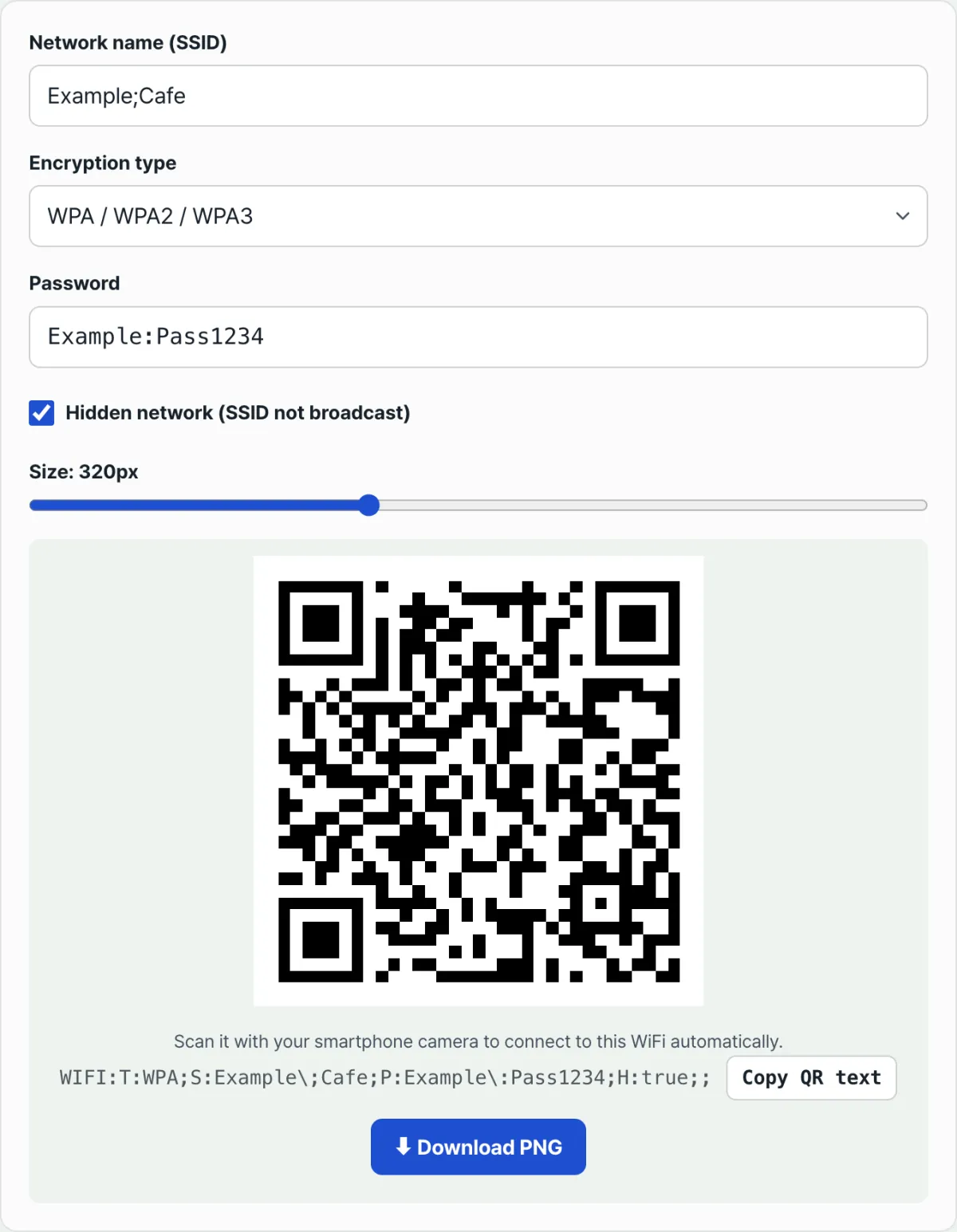
Check it with our tool. Enter the name, password, and encryption type, and the QR code appears along with the finished string shown right on the screen, so you can compare by eye how the escapes were applied.
The QR is created inside your browser — no install, no sign-up. The network name and password you enter are never sent to a server.
Special-character escapes: this is where most codes break
; is the separator between fields. So if the network name is Example;Cafe and you write it as-is, the scanner reads the name only up to Example and treats the Cafe after it as an unknown field.
There's one rule. Put a backslash before these five characters: \ ; , : "
| Original value | What goes into the QR code |
|---|---|
Example;Cafe | Example\;Cafe |
Pass:1234 | Pass\:1234 |
a\b | a\\b |
"quoted" | \"quoted\" |
When doing it by hand, watch the order. If you replace ; with \; first and then replace backslashes with \\, the escapes you just added get escaped again and the value is ruined. Handle backslashes first, or walk the string once and replace all five characters at the same time.
There's one exception written into the spec. If the name or password consists only of characters that could be read as hexadecimal (0–9, A–F) — a name like CAFE, for example — the guidance is to wrap the value in double quotes. Our tool doesn't add those quotes automatically; it only handles the five-character escapes. So with a name like that, it's worth scanning once with a real device to confirm it connects.
Hidden networks and networks without a password
A router with a hidden SSID doesn't broadcast its name, so a device can't know in advance that "a network with that name exists." That's why you add H:true; to the QR code to say it's a hidden network.
The value must be exactly true. The spec document notes a backward-compatibility quirk: in older versions (ZXing 4.7.8 and Barcode Scanner 3.4.0 or earlier), the H field was mistakenly used to specify the EAP phase 2 method, so a value that isn't true or false gets interpreted that way.
For an open network with no password, write T:nopass and leave out the P field. In our tool, choosing "No password (open)" hides the password field, and P is dropped from the generated string too.
Common places people get stuck
| Symptom | What to check |
|---|---|
| No connect banner appears after scanning | Is the WIFI: prefix there, and the closing ;;? |
| Name gets cut off and the connection fails | Did you escape ; and :? |
| Hidden router, but it's not in the list | Did you include H:true;? |
| Password is correct but authentication fails | Does the T value match the actual encryption type? |
| The QR works, but anyone can join | A printout is the same as writing the password down |
The T values defined in the spec are WEP · WPA · WPA2-EAP · nopass. There's no separate value for WPA3 only, so our tool groups WPA, WPA2, and WPA3 into one option and writes T:WPA. The surest way to confirm it works on the newest routers is to scan once with a real device.
The short version
- The QR code holds one line —
WIFI:T:...;S:...;P:...;;— in plain text, and the scanner reads it and connects for you. - The structure is a series of
key:value;pairs, with one extra;at the end so it finishes with;;. - Put a backslash before the five characters
\;,:", and do the backslash replacement first. - Hidden networks use
H:true;. Open networks useT:nopassand leave outP. - Field order doesn't matter, so generators that order fields differently still produce the same working QR code.
- The password is stored in plain text, so it's safer to keep a separate guest network for visitors.
The QR is created inside your browser — no install, no sign-up. The network name and password you enter are never sent to a server.
Frequently Asked Questions
Is the password in a QR code encrypted?
No. The password sits in plain text right after P:, so anyone who reads the code with a QR reader app can see it as is. Sending a QR image in a messenger app such as KakaoTalk or WhatsApp is basically the same as sending the password itself. If the code is meant for guests, it's safer to set up a separate guest network on your router and build the QR code from that password.
Does it work on both iPhone and Android?
The string format itself is cross-platform. If the built-in camera app recognizes it, a connect banner pops up. If it doesn't, nothing happens. Support depends on the device and OS version, so the surest way is to point a phone at it once and see. If it isn't recognized, read the raw text with a QR reader app and enter the name and password manually.
Do I need to make a new QR code if I change my password?
Yes. A QR code is a static image that holds the exact string it was created from, so if you change the router password, the value inside the QR code is still the old one. Scans will fail at authentication, so you need to generate a new code with the new values and replace your printed copies.
Are my SSID and password sent to a server?
No. QR generation happens entirely inside your browser, and the network name and password you enter are never sent to a server or stored. "Download PNG" simply saves the image data your browser has already built as a file.
This article was adapted from our Korean original. Read the Korean original